Relais Module Arduino Uno World

Relay Tutorial for Arduino, ESP8266 and ESP32

Relay Tutorial for Arduino, ESP8266 and ESP32

If you use a relay, you can control up to 250V with your Arduino, ESP8266 or ESP32 based microcontroller.

In this tutorial you learn:

  • What is a relay and how to use it?
  • How does a relay work?
  • How to control a relay with your microcontroller to turn a light bulb on and off.
Relais Module Arduino Uno World

Table of Contents

What is a relay and why do we use it?

Relay Construction

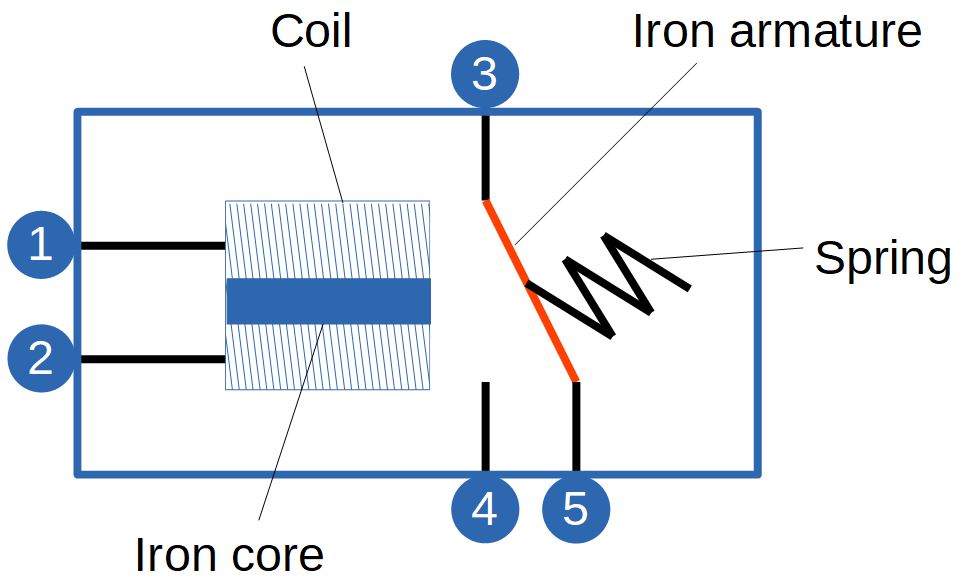
A relay is an electrical switch which toggles on and off by energizing a coil. The coil is made of wire wrapped around an iron core to provide a low reluctance for the magnetic flux. Both ends of the coil are accessible from outside the relay via pins (1,2). These two pins are connected with the low-power signal to toggle the relay on and off.

There are 3 more pins accessible from the outside. One pin (3) is connected to a movable iron armature which is hold in place by a spring. Because the iron armature is not connected tot the coil, the two electrical circuits are electrically insulated. The other side of the iron armature is connected to either one of the remaining two pins (4,5).

Different types of relays

  • Traditionally type with an electromagnet to open or close the contracts.
  • Modern solid-state relays without moving parts.

Configurations of an electromagnet relay
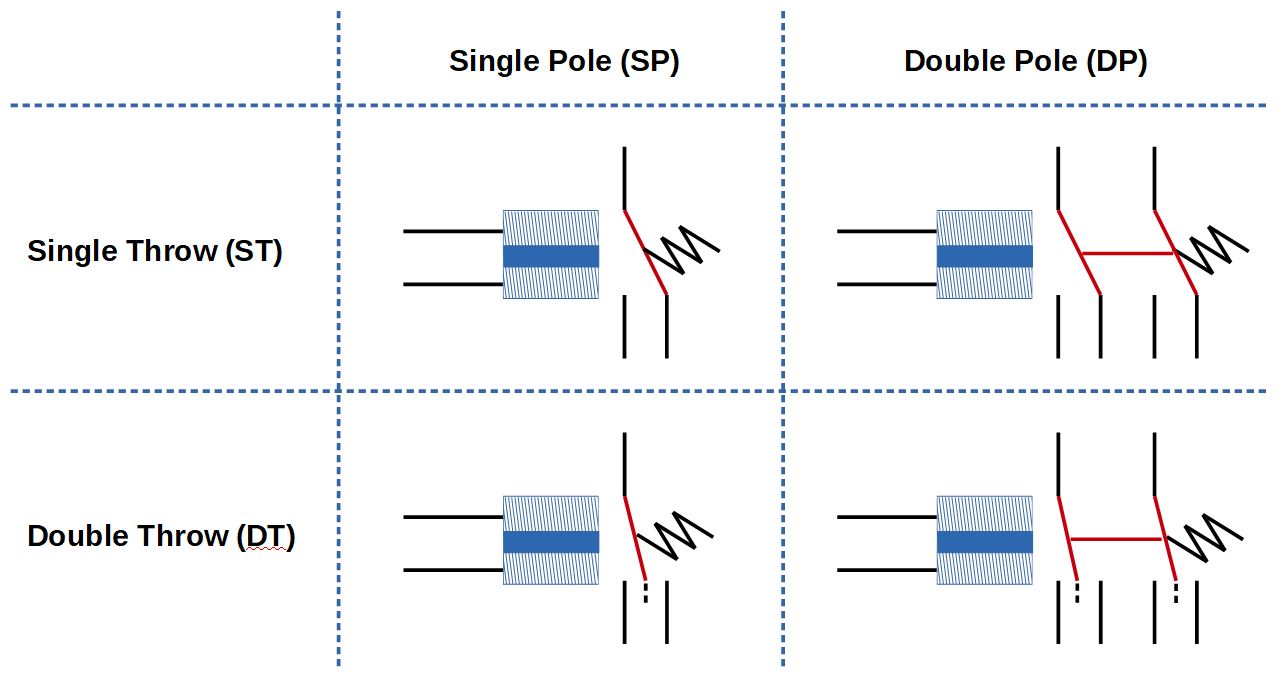
Like other switches, relays do have different configurations. Basically there are two attributes to differentiate between electromagnet relays: Pole and Throw

The following picture shows the combinations between Pole and Throw.

Relay Pole Throw

Pole describes how many individual circuits can be controlled by one relay.

  • Single Pole (SP): One relay controls one circuit.
  • Double Pole (DP): One relay controls two individual circuits. This is achieved by two interconnected switches, each switch connected to one of the two circuits. If the relay is toggled, both switches are affected at the same time.

Throw describes the number of circuit paths provided by the switch.

  • Single Throw (ST): Only one circuit path is provided.
  • Double Throw (DT): Two circuits can be switched individually but there is also the possibility to disconnect both circuits. Therefore the switch must have a center position.

In this tutorial we use an electromagnet single pole and single throw relay SRD-05VDC-SL-C. The following table shows the technical specifications. You find the full data sheet on this website.

Because there are different versions of the relay, the table shows only the specification of the SRD-05VDC-SL-C.

Relays are used mainly for two different reasons:

  1. When a circuit has to be controlled (turned on and off) by an independent low-power signal for example the digital I/O pin of a microcontroller. From the technical specifications table you see that a coil voltage of 5V can switch a maximum voltage of 250 V AC. Therefore you are able to switch a light bulb on and off with a microcontroller, which we see in the example later in this tutorial.
  2. When multiple circuits has to be controlled with one signal. The two pins (4,5) correspond to two different operation modes of the relay:
    • Pin 4: Normally Open (NO)
    • Pin 5: Normally Closed (NC)

Because either pin 4 or pin 5 is closing the circuit you can turn on or off two different circuits alternating with one relay and therefore one control signal. Or if your relay is able to double throw, you can switch two circuits individually.

How does a relay work?

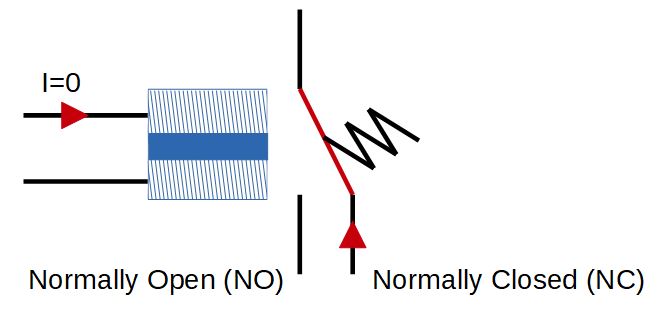
If the relay is in idle state, there is no current flow through the low-power circuit. Therefore the spring holds the movable iron armature in place.

  • The high-power circuit with the Normally Closed (NC) pin is closed.
  • The high-power circuit with the Normally Open (NO) pin is open.
Relay Open
Relay Close

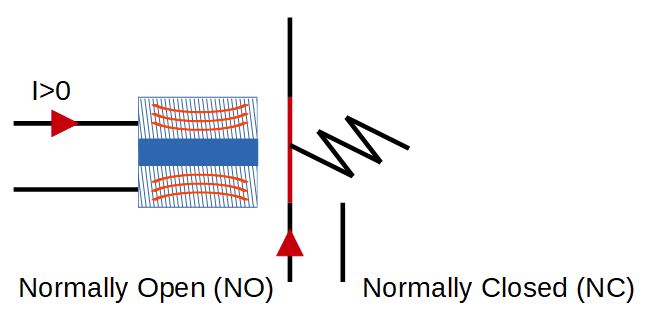
If an electric current passes through the coil it generates a magnetic field. This magnetic field moves the iron armature against the force of the spring.

  • The high-power circuit with the Normally Closed (NC) pin is open.
  • The high-power circuit with the Normally Open (NO) pin is closed.

If the lower-power circuit is powered off, the armature is returned to the idle state by the force of the spring.

Function of a Relay with additional components

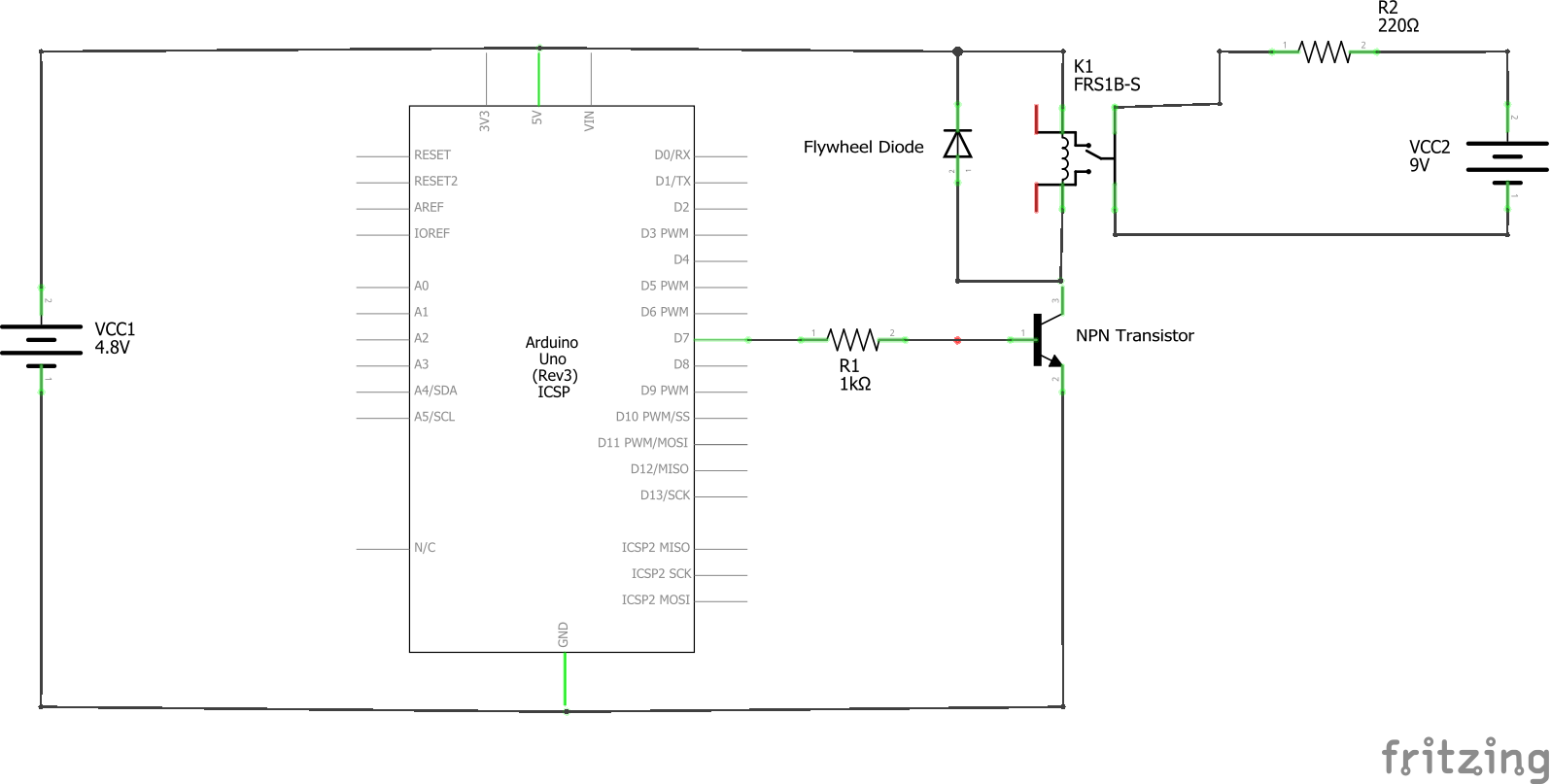
The following circuit shows how to control a relay with your Arduino or ESP8266 microcontroller.

It is not possible to connect a digital I/O pin directly to the coil of the relay because the coil needs a large current of around 150mA to drive the relay. The DC current per pin for the Arduino is between 20mA and 40mA depending on the model and for the ESP8266 12mA. Therefore we use the 5V supply voltage for the coil and use a NPN transistor to turn on and off the low-power electrical circuit. The NPN transistor is controlled by a digital I/O pin of the Arduino microcontroller.

The specific amount of DC current per pin is presented in each tutorial of the microcontroller: Arduino Nano, Arduino Uno, Arduino Mega, ESP8266, ESP32.

To prevent a short circuit over the base of the NPN transistor, the digital pin of the microcontroller is protected by a 470Ω or 1kΩ resistor.

It is also important to place a diode across the coil as freewheel diode because the energy from the collapsing magnetic field would generate a voltage spike. This voltage spike is dangerous to the electronic parts and the microcontroller.

Control a Relay Module with an Arduino, ESP8266 or ESP32

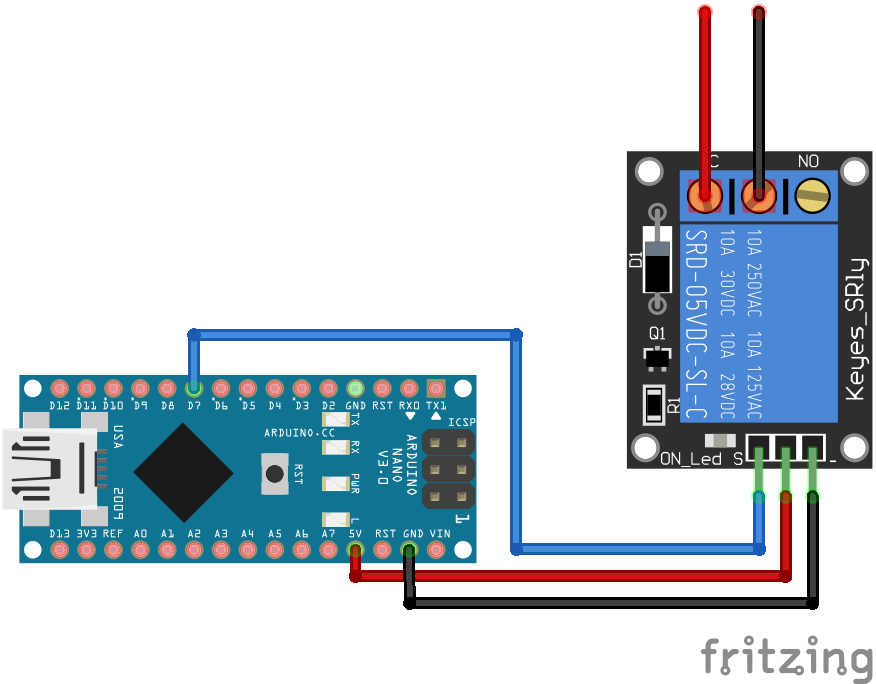
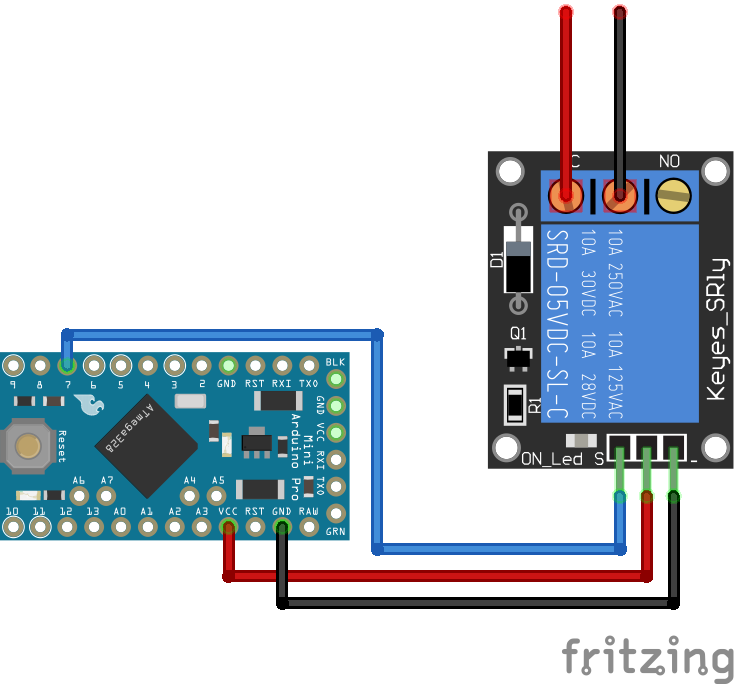
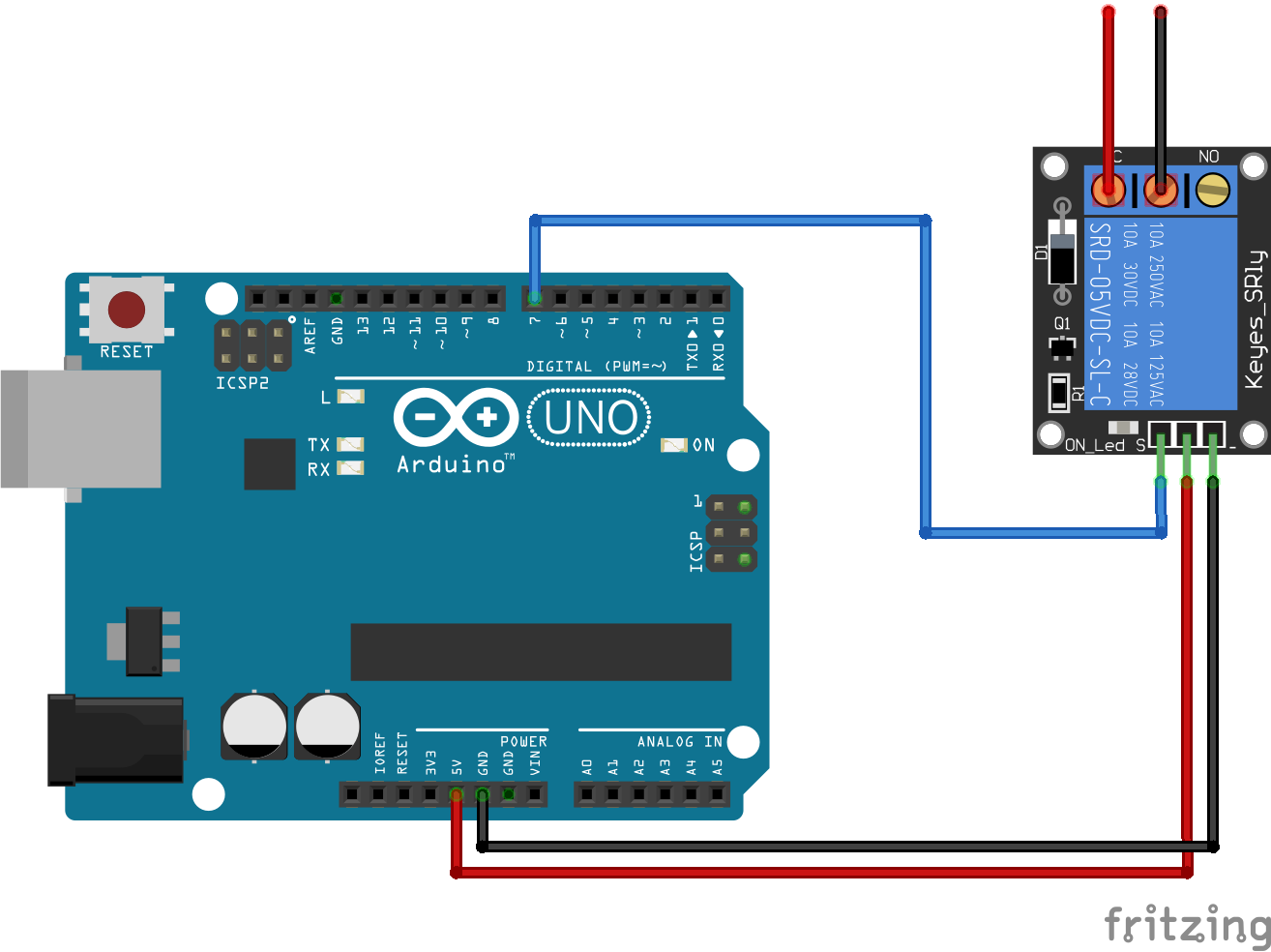
We are lucky that multiple companies offer ready to use relay modules which have the relay itself, the flywheel diode, the NPN transistor and resistances build on one PCB with accessible pins for your microcontroller and the high-power circuit.

There are multiple relay modules on the market going from only one relay on a board up to 8 relays in a row. If you buy a relay module with more than one relay, there should be a build in electrical optical coupler. The optocoupler (a light-emitting diode (LED) coupled with a photo transistor) is used to isolate control and controlled circuits.

Note that you can control as many relays as digital and also analog pins your microcontroller has. For the digital pins you have to set the pins HIGH and the analog pins to 255 to activate the relay.

The following picture shows the wiring between the most used Arduino, ESP8266 and ESP32 microcontroller and a relay module.

Relais Module Arduino Nano
Relais Module Arduino Nano

Relais Module Arduino Pro Mini
Relais Module Arduino Pro Mini

Relais Module Arduino Uno
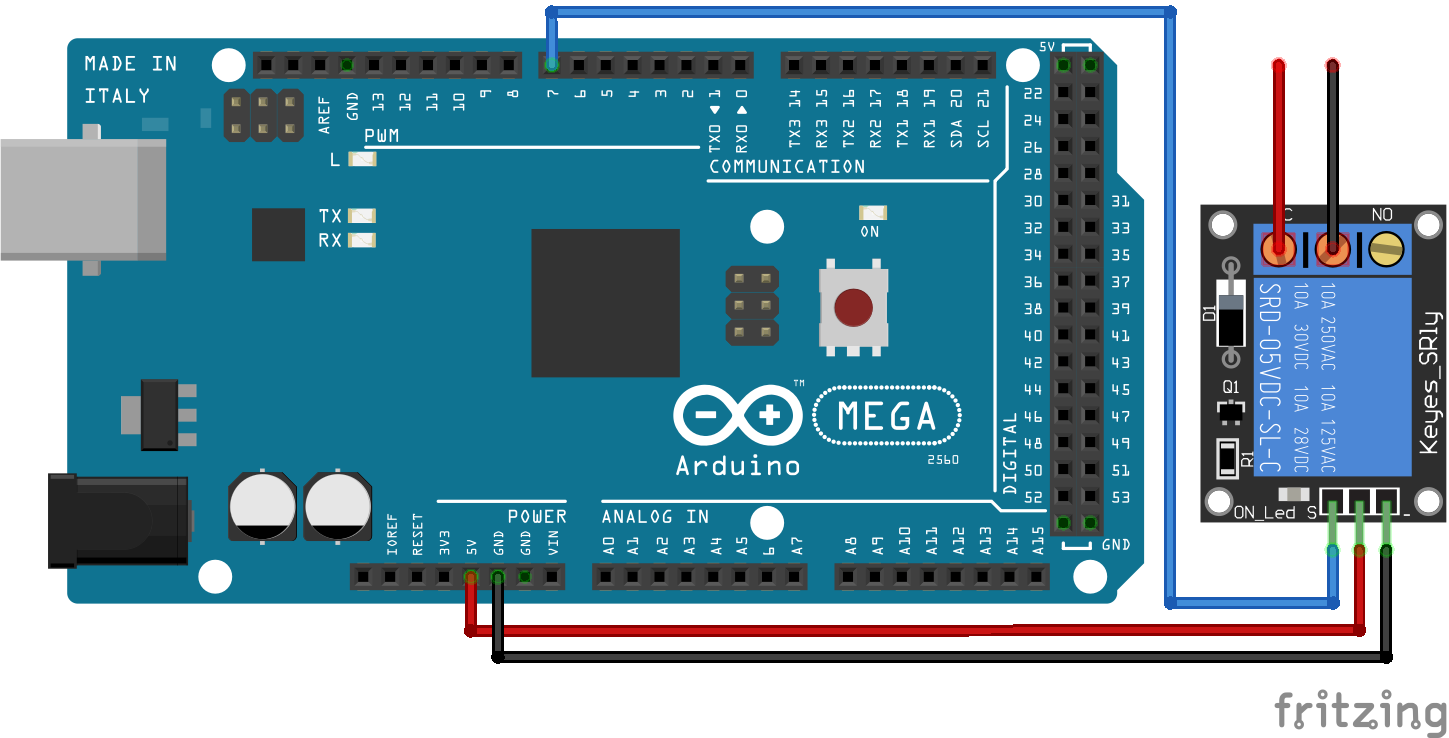
Relais Module Arduino Uno

Relais Module Arduino Mega
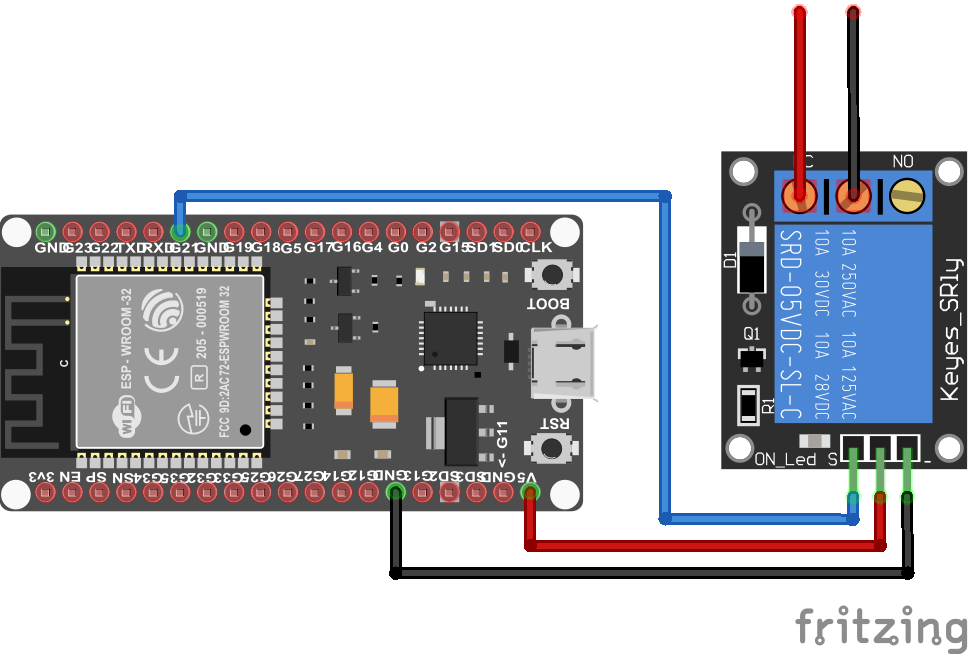
Relais Module Arduino Mega

Relais Module ESP32 NodeMCU
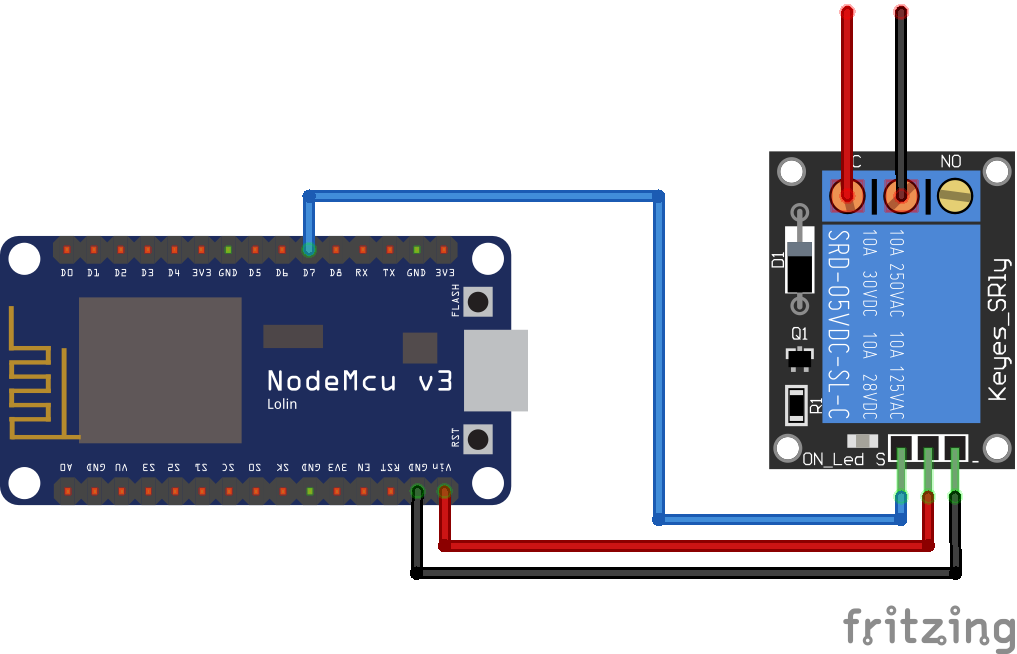
Relais Module ESP32 NodeMCU

Relais Module NodeMCU
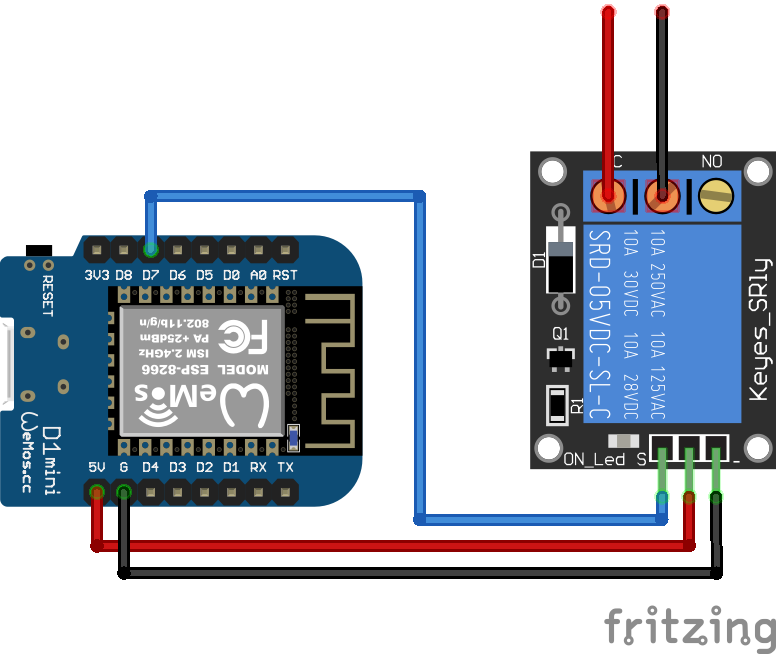
Relais Module NodeMCU

Relais Module ESP8266 WeMos D1 Mini

Relais Module ESP8266 WeMos D1 Mini
The following table gives you an overview of all components and parts that I used for this tutorial. I get commissions for purchases made through links in this table.

Relay example to turn on and off a light bulb

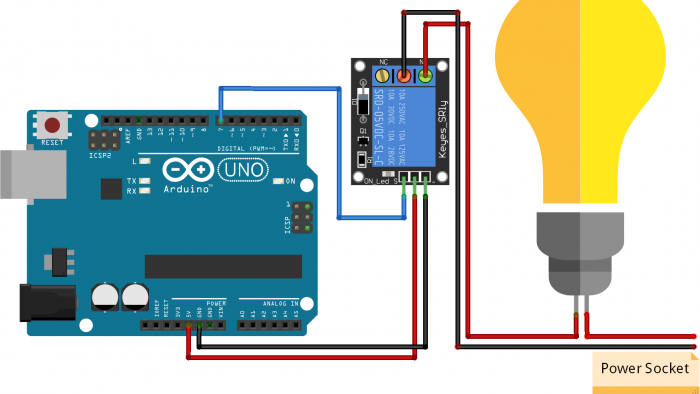
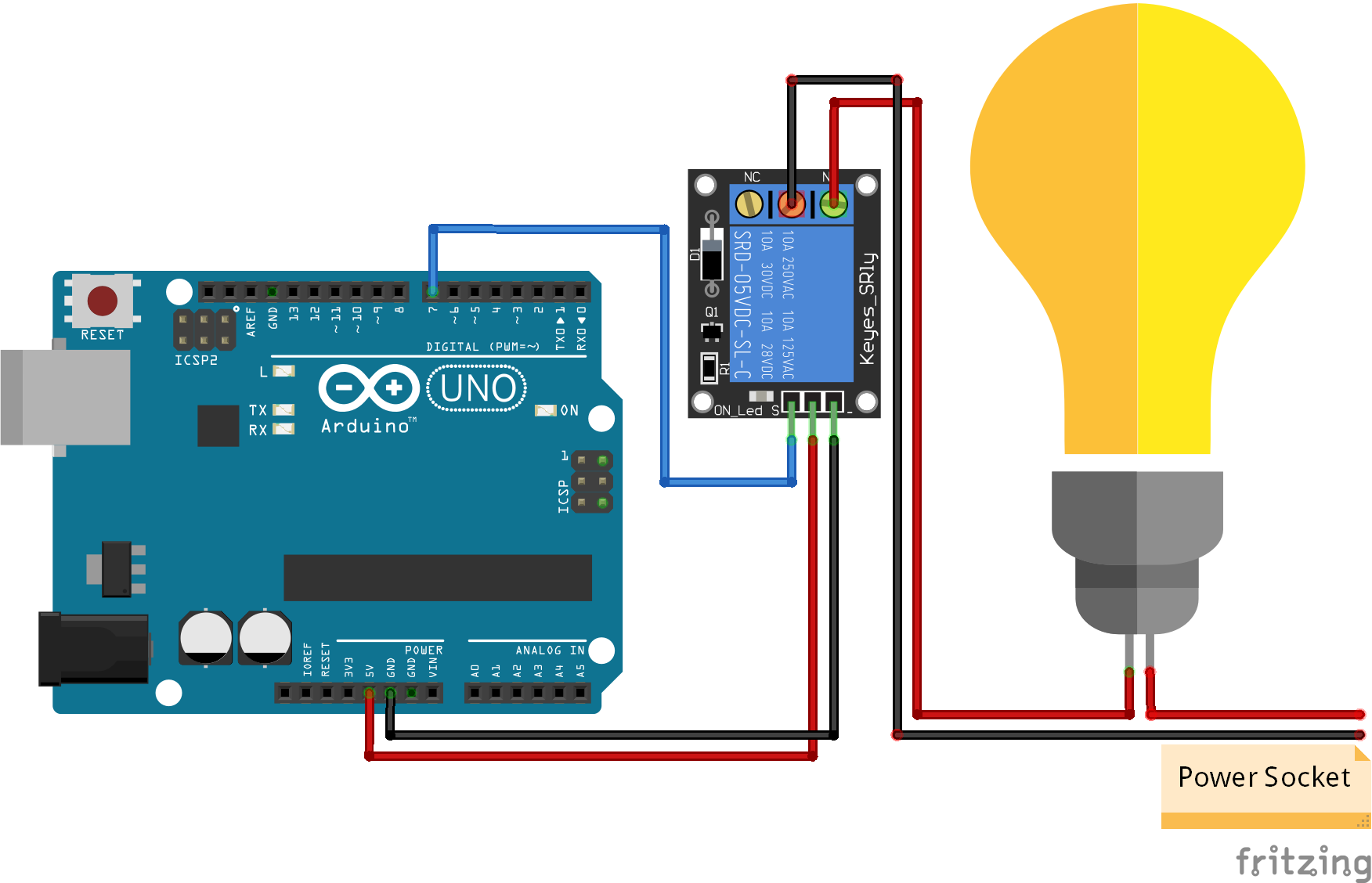
In the following example we want to use a relay module to turn on and off a light bulb in a 230V circuit. The following picture shows the circuit for this example.

Relais Module Arduino Uno World

We already know the low-level part of this circuit with the Arduino microcontroller and the relay module. For the high-power part we connect one socket of the light bulb with the power sockets positive wire. The second socket of the light bulb is connected to the Normally Open pin of the relay. The common pin of the relay is connected to the negative wire of the power socket to close the electrical circuit.

Because we connect the Normally Open pin of the relay, the light is off when the digital pin is LOW. If we want to turn on the light, we have to pull the digital pin HIGH.
If we would connect the Normally closed pin of the relay this logic would be the opposite: The light would be turned on if the digital pin is LOW and turned off if the pin is pulled HIGH.
The following table summarizes this logic because it is important if your high-power site is active if your start your sketch.

The program sketch is very easy. We only have to control the digital pin of the Arduino. In my sketch I use the pin 7 but you can choose every pin you like.

If you use another microcontroller like the ESP8266 or the ESP32 you have to change the relay variable to the following:

  • ESP8266: int relay = D7;
  • ESP32: int relay = 21;
int relay = 7;

void setup() {
  pinMode(relay, OUTPUT);
}

void loop() {
  digitalWrite(relay, HIGH);
  delay(10000);
  digitalWrite(relay, LOW);
  delay(10000);
}

The program starts by turning the light on and wait for 10 seconds. After this time the light is turned off and we wait 10 seconds again before the loop function starts again.

The following video shows how I control the light in a globe with the relay.

Conclusion

I hope you like this tutorial. Be careful when you operate with higher voltages. If you are not sure what you do please to not replicate the example. Maybe you have any questions regarding this tutorial. Please use the comment section below to ask your questions.

Keypad Thumbnail

Keypad Tutorial for Arduino, ESP8266 and ESP32

Keypad Tutorial for Arduino, ESP8266 and ESP32

In this tutorial you learn how to use the keypad with your Arduino, ESP8266 and also ESP32 microcontroller.

The Keypad is one of the most used input devices for Arduino applications.

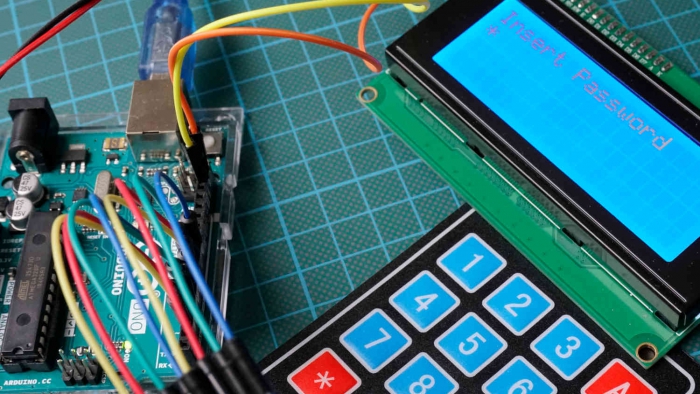
In this tutorial we build a lock which opens when we type in the correct password.

Keypad Thumbnail

There are two different version of the keypad with the only difference in the number of buttons:

  • The version with 3 columns and 4 rows which includes the numbers 0 to 9 with the asterisk (*) and hashtag (#) button
  • I have the bigger version with 4 instead of 3 columns. The bigger version includes all buttons of the smaller version but has also buttons for the letters: A, B, C, D

Table of Contents

Functionality of the Keypad Matrix

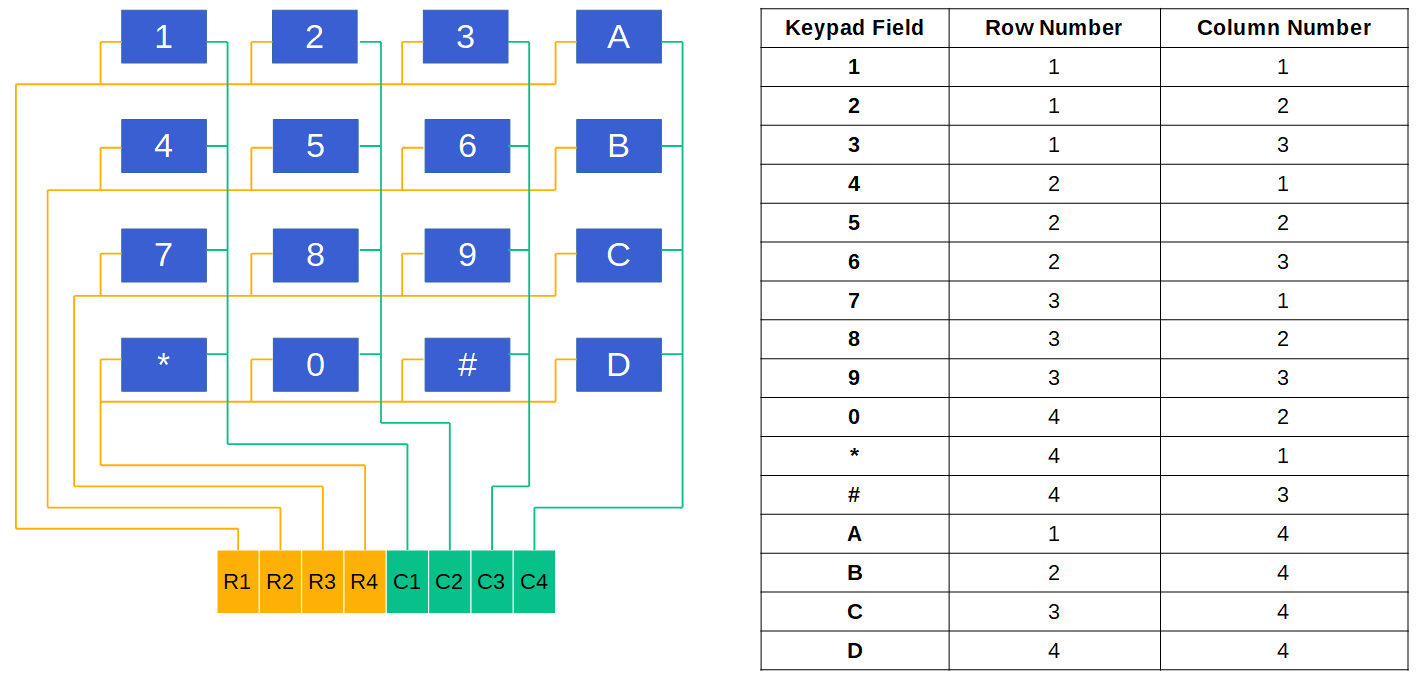
The keypad is internally build like a matrix with rows and columns. The you can identify a cell in an Excel sheet with the row and column number, the Arduino is able to identify the pressed button on the keypad. The following picture shows that the first 4 connectors identify the row number (R1, R2, R3, R4) and the last 3 to 4 connectors identify the column number (C1, C2, C3, C4), depending on the version of the keypad.

Keypad Pins

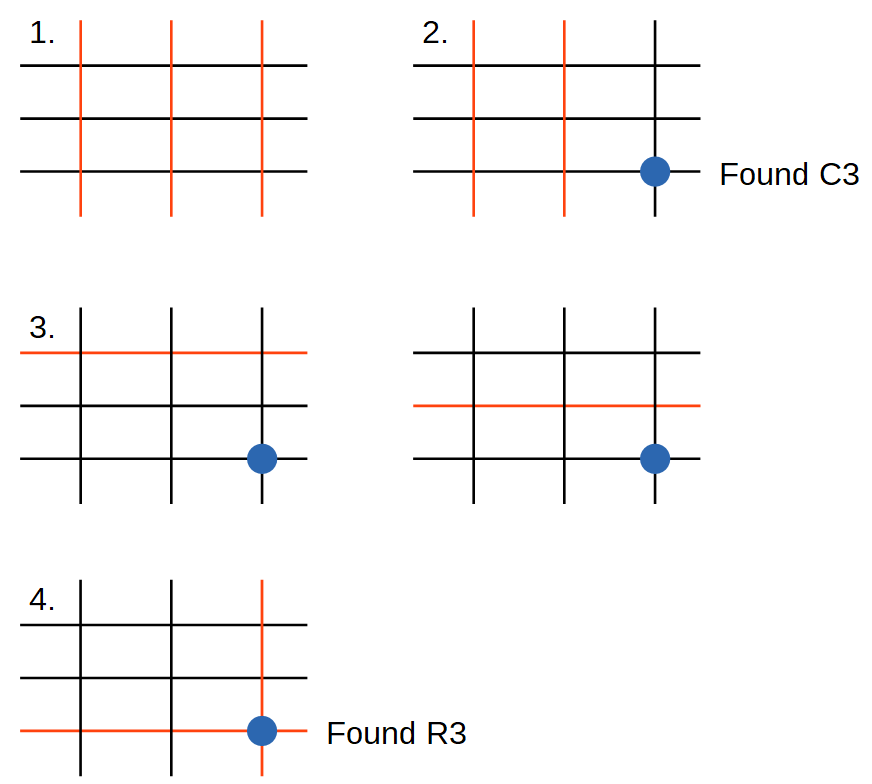
In the table on the right sight of the picture you see that if a button is pressed, the keypad field has a unique identifier, the row and column number. Therefore the microcontroller is able to identify the keypad field through a 4 step mechanism that is described with the following picture:

Keypad 4 step mechanism
  1. In the idle state, every row pin is set to LOW and every column pin is set HIGH
  2. If one button is pressed, the column of this button is connected to LOW and therefore the column pin is pulled from HIGH to LOW. → The column is found.
  3. Now every row is pulled HIGH individually, stating by R1. All columns are LOW.
  4. If the row, where the button is pressed is pulled HIGH, the column changes from LOW to HIGH. → The row is found.

Wiring between Microcontroller and Keypad

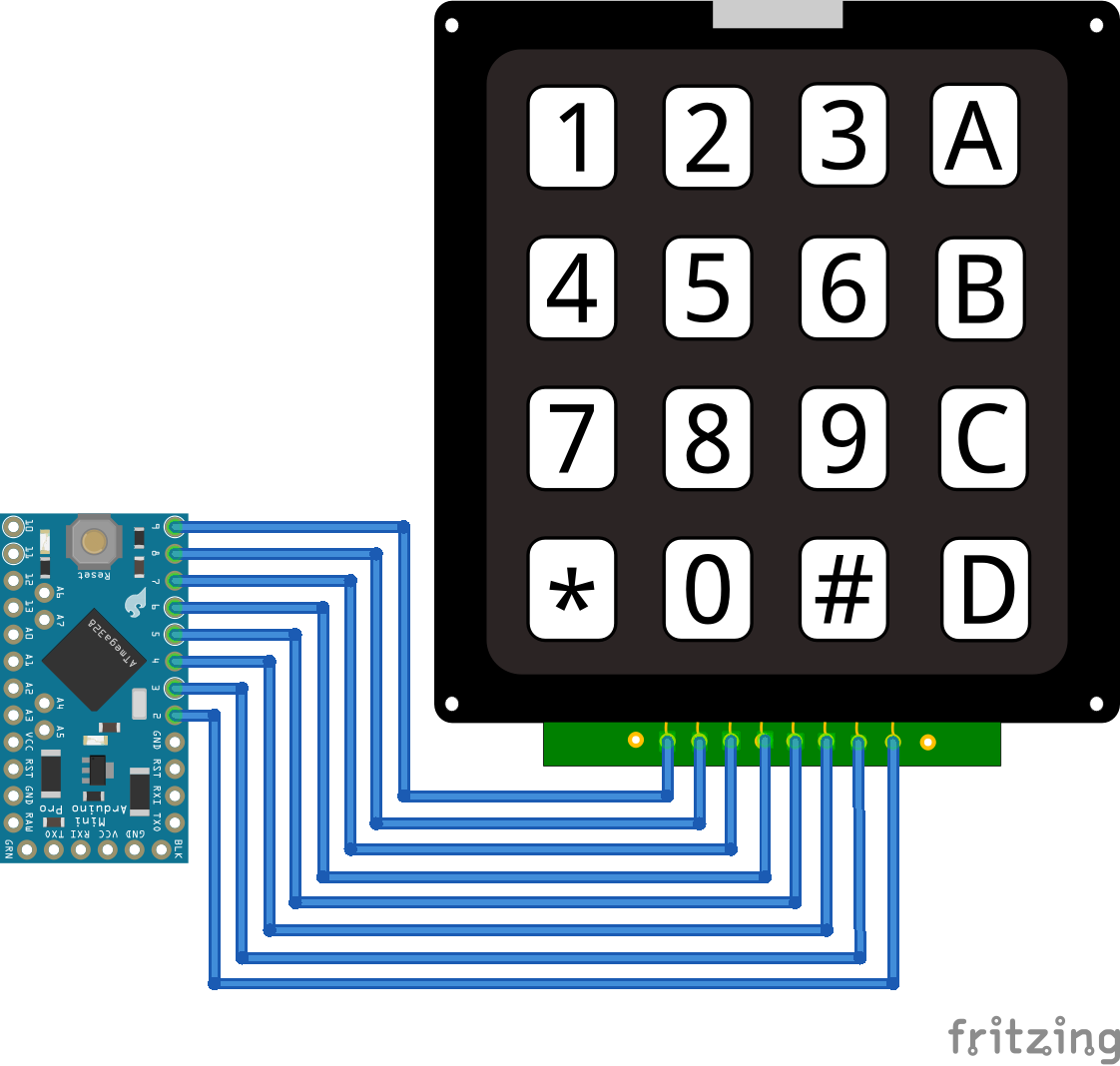
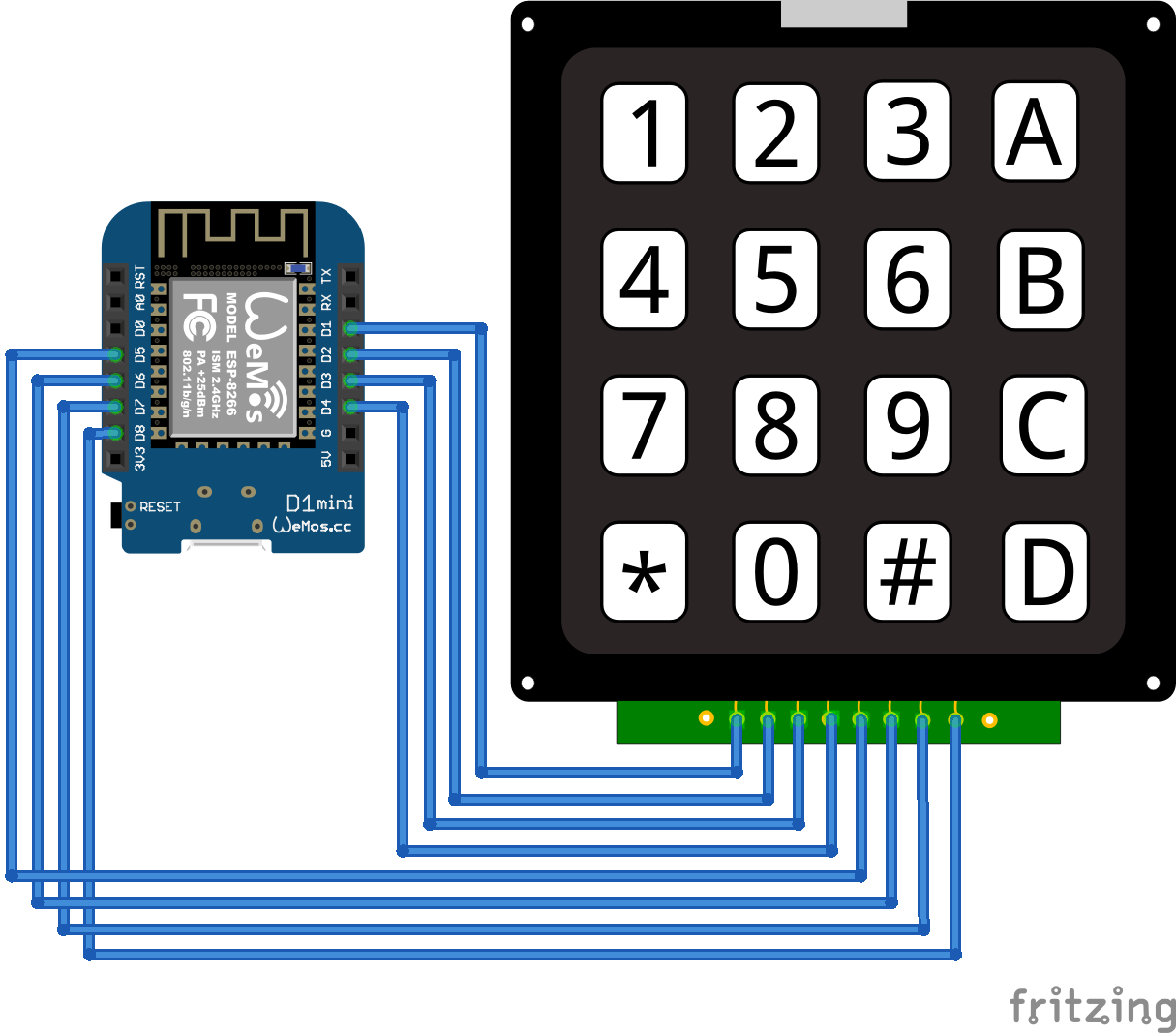
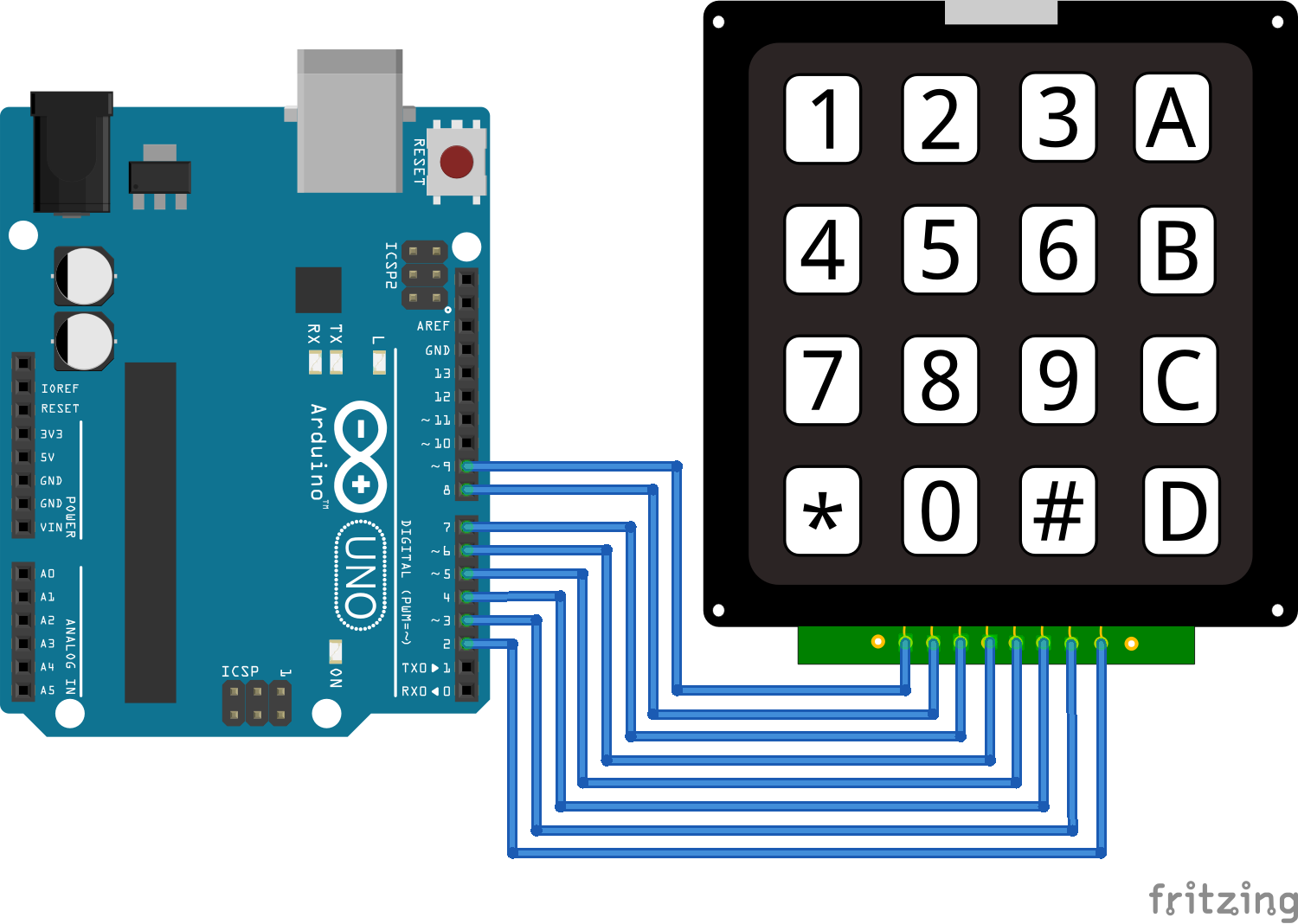
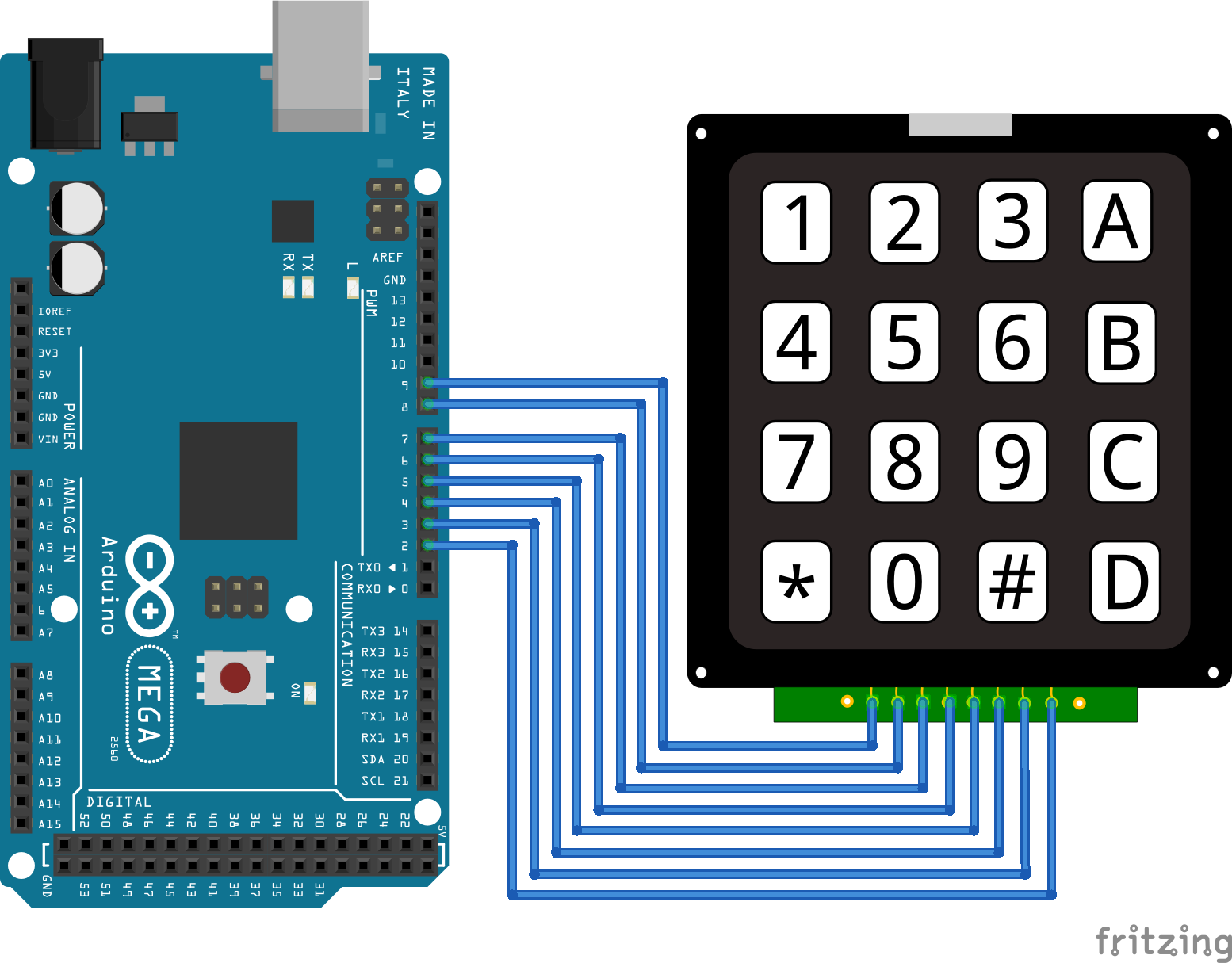
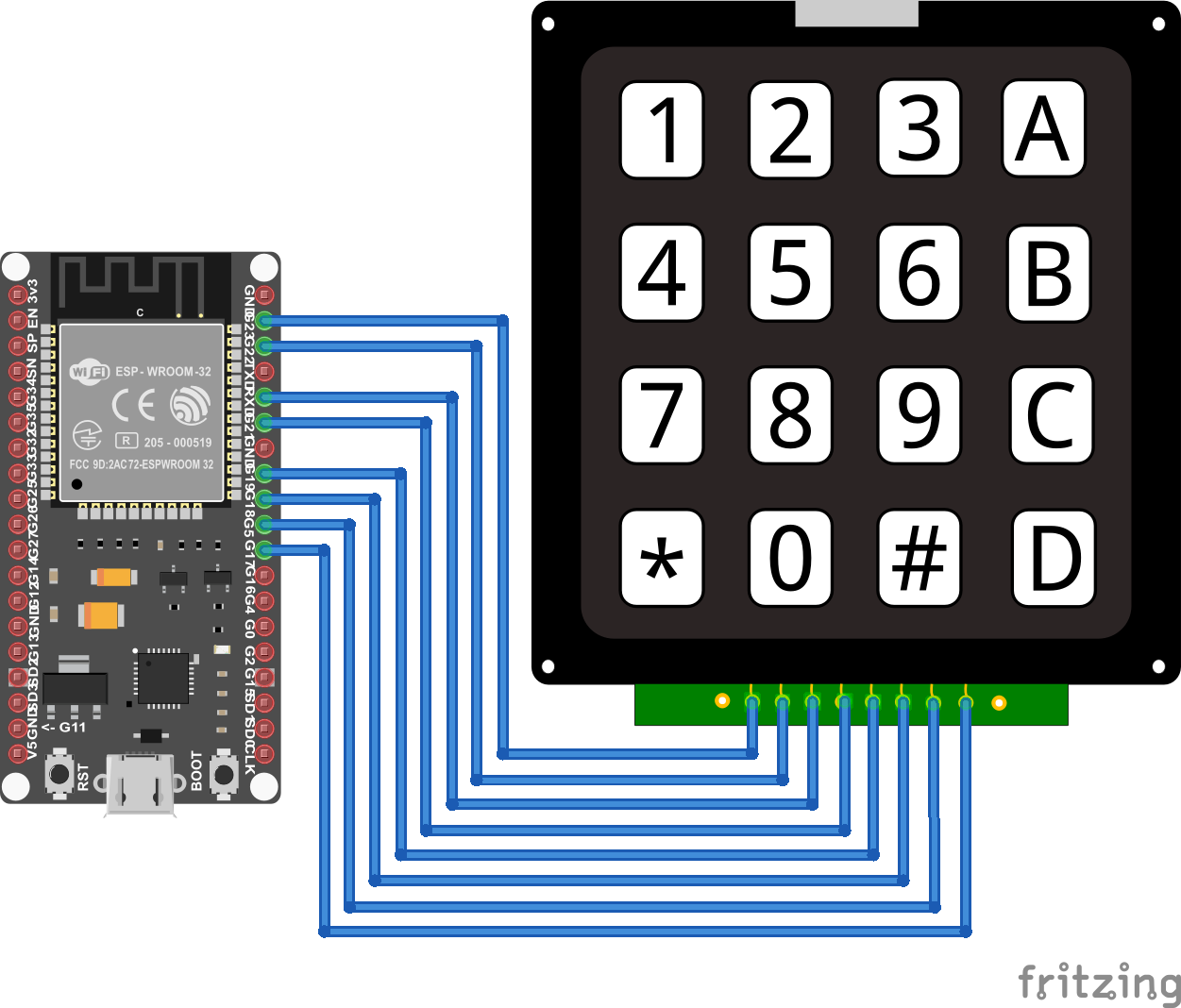
Now, after we know how the keypad works, Is show you how to connect the keypad to your microcontroller. The following picture shows the wiring between the most used Arduino, ESP8266 and ESP32 microcontroller and the keypad. If you are missing your favorite microcontroller, leave a comment at the bottom of this article and I will also add you microcontroller.

If you are interested how you can reduce the number of used digital I/O pins, the last chapter of this tutorial shows you how to use an I2C multiplexer to reduce the number of digital I/O pins to two.

Keypad Arduino Nano

Keypad Arduino Nano

Keypad Arduino Pro Mini
Keypad Arduino Pro Mini

Keypad Arduino Uno
Keypad Arduino Uno

Keypad Arduino Mega
Keypad Arduino Mega

Keypad ESP32 NodeMCU
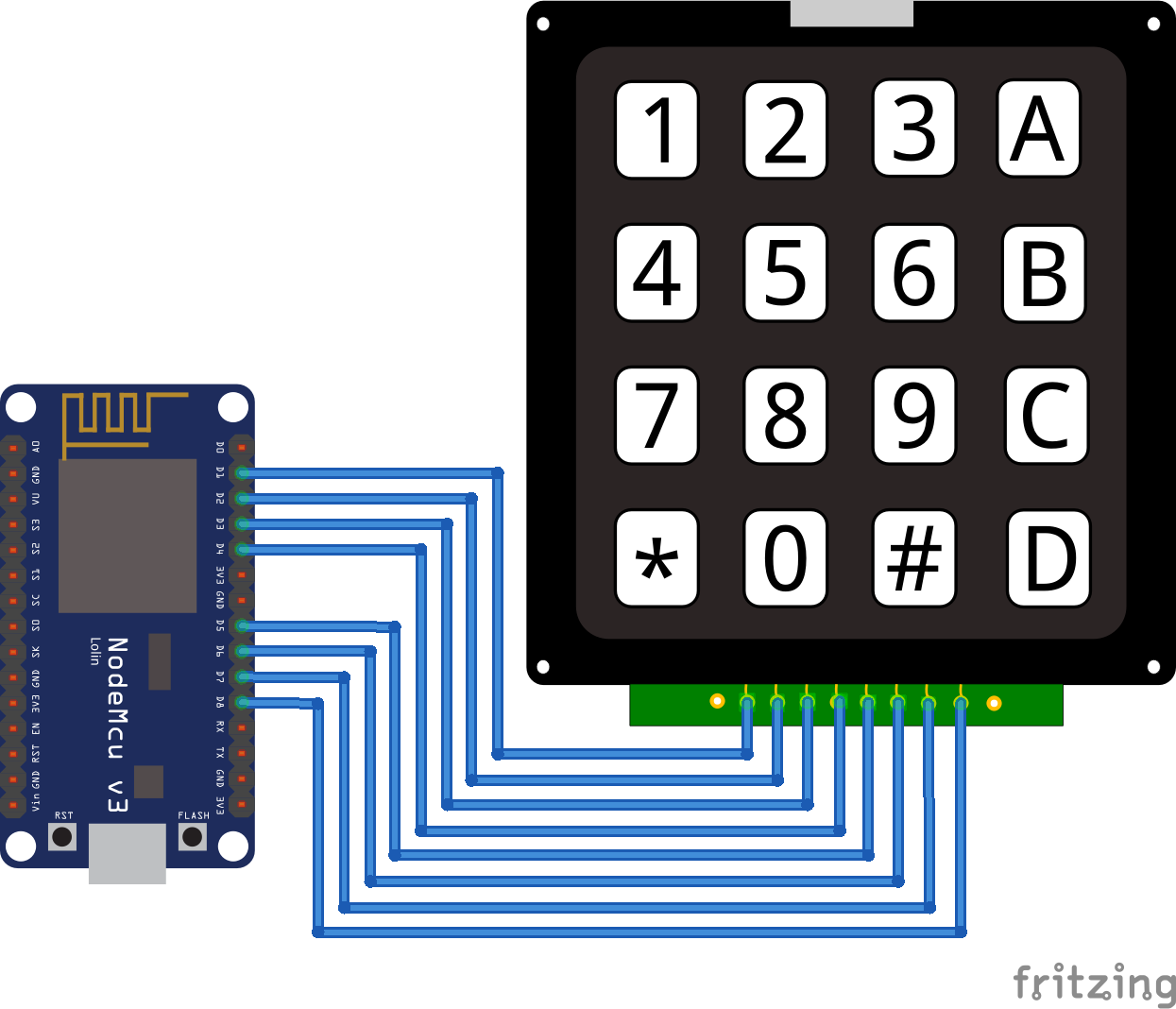
Keypad ESP32 NodeMCU

Keypad ESP8266

Keypad ESP8266

Keypad ESP8266 WeMos D1 Mini
Keypad ESP8266 WeMos D1 Mini

Basic Keypad Example

Now, after we know how the keypad is wired to your microcontroller, we make a basic example. In this example we want to display the number which is pressed in the serial monitor. If this example is to easy for you, at the end of this article there is also a more advanced example where we build a password lock.

The following table gives you an overview of all components and parts that I used for this tutorial. I get commissions for purchases made through links in this table.

For this example we use the Keypad library of Mark Stanley and Alexander Brevig which make the use of the keypad very easy. This library support the 3×4 and 4×4 keypad. If you do now know how to install a library, click here for a step by step tutorial.

After we wire everything up, let’s dive into the program code:

#include "Keypad.h"
const byte ROWS = 4; //four rows
const byte COLS = 4; //four columns

char keys[ROWS][COLS] = {
  {'1','2','3','A'},
  {'4','5','6','B'},
  {'7','8','9','C'},
  {'*','0','#','D'}
};

// For Arduino Microcontroller
byte rowPins[ROWS] = {9, 8, 7, 6}; 
byte colPins[COLS] = {5, 4, 3, 2}; 

// For ESP8266 Microcontroller
//byte rowPins[ROWS] = {D1, D2, D3, D4}; 
//byte colPins[COLS] = {D5, D6, D7, D8}; 

// For ESP32 Microcontroller
//byte rowPins[ROWS] = {23, 22, 3, 21}; 
//byte colPins[COLS] = {19, 18, 5, 17};

Keypad keypad = Keypad(makeKeymap(keys), rowPins, colPins, ROWS, COLS);

void setup() {
  Serial.begin(9600);
}

void loop() {
  char key = keypad.getKey();

  if (key){
    Serial.println(key);
  }
}

In the first line we include the previous or already installed library Keypad. Then we define the number of rows and columns your keypad has. In my case I have to 4×4 keypad.
To be able to identify the keypad right we create a matrix with the keypad. If your keypad has a different layout, then you can change the layout with this matrix. Make sure that the number of rows and columns is right.

The last part in the section where we define the variables for the wiring between the microcontroller and the keypad. You can use every digital I/O pin on your microcontroller. In my case I used the pins 2 to 9 for Arduino, pins D1 to D8 for all ESP8266 microcontroller and the first digital pins on one site of the ESP32 NodeMCU. The program code is commented for Arduino boards. If you want to use for example an ESP32 NodeMCU, you have to uncomment the lines of code for the ESP32 and comment the lines for the Arduino boards.

Next the library Keypad has to know what keypad is connected to the microcontroller. Therefore we create an object called keypad from the library and pass the previous defined variables to this object.

For the setup function we define the baud rate to 9600. Make sure that the baud rate of your serial monitor in the Arduino IDE is also set to 9600.

In the loop function we first read the character which we get from the keypad and store this character in the key variable. If the key variable is not empty, we print the character to the serial output.

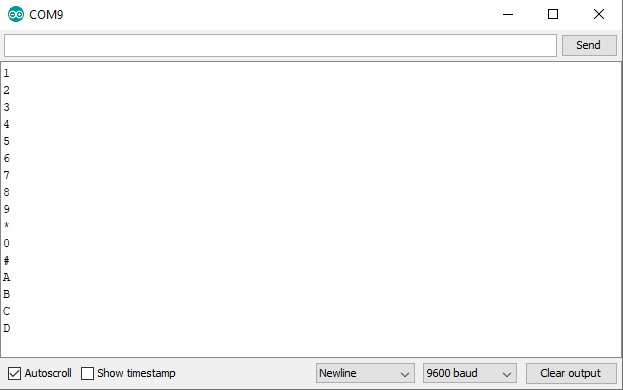
The following picture shows the numbers in the serial monitor.

Keypad Serial Output

Keypad Password Lock Example

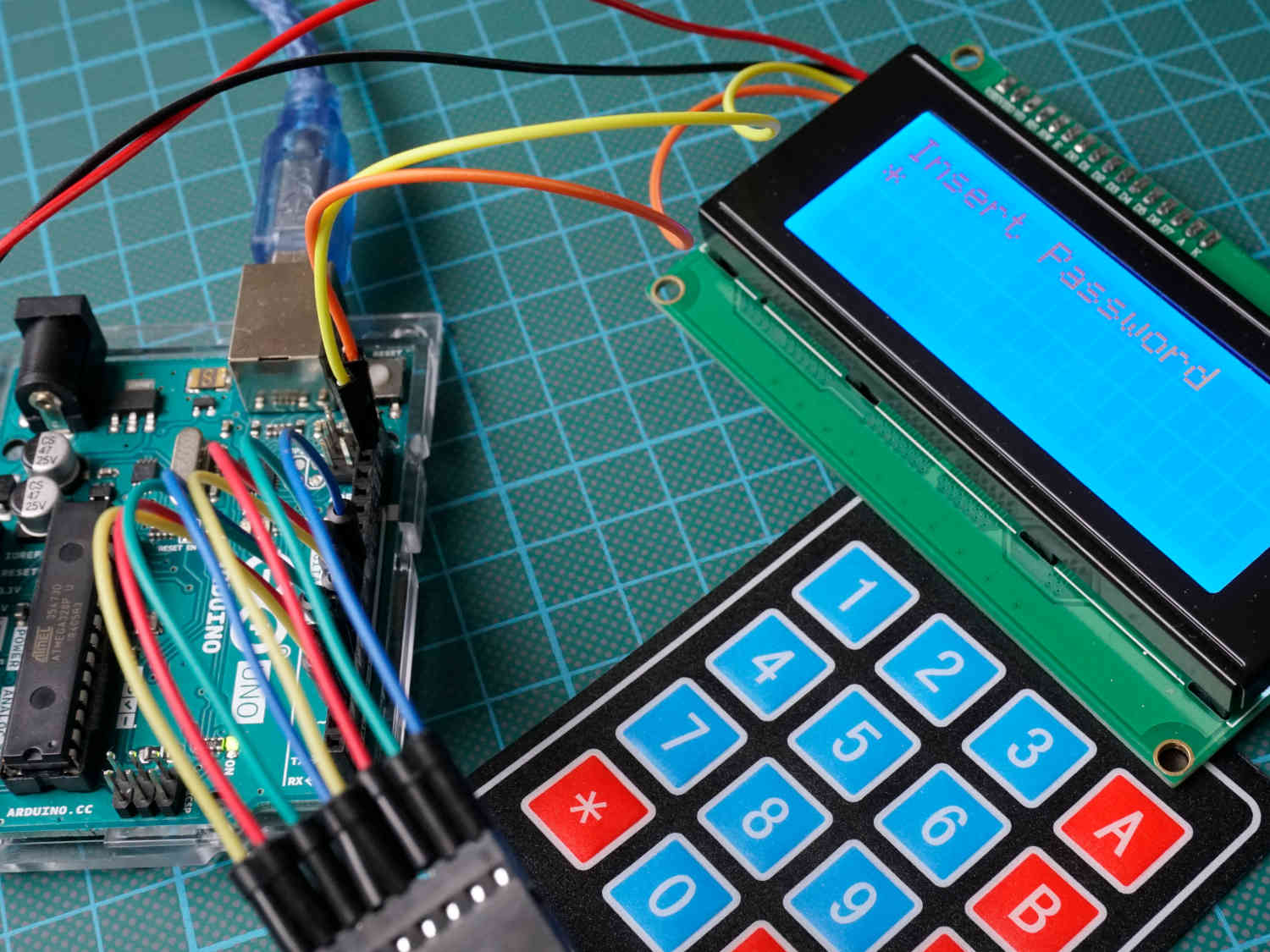
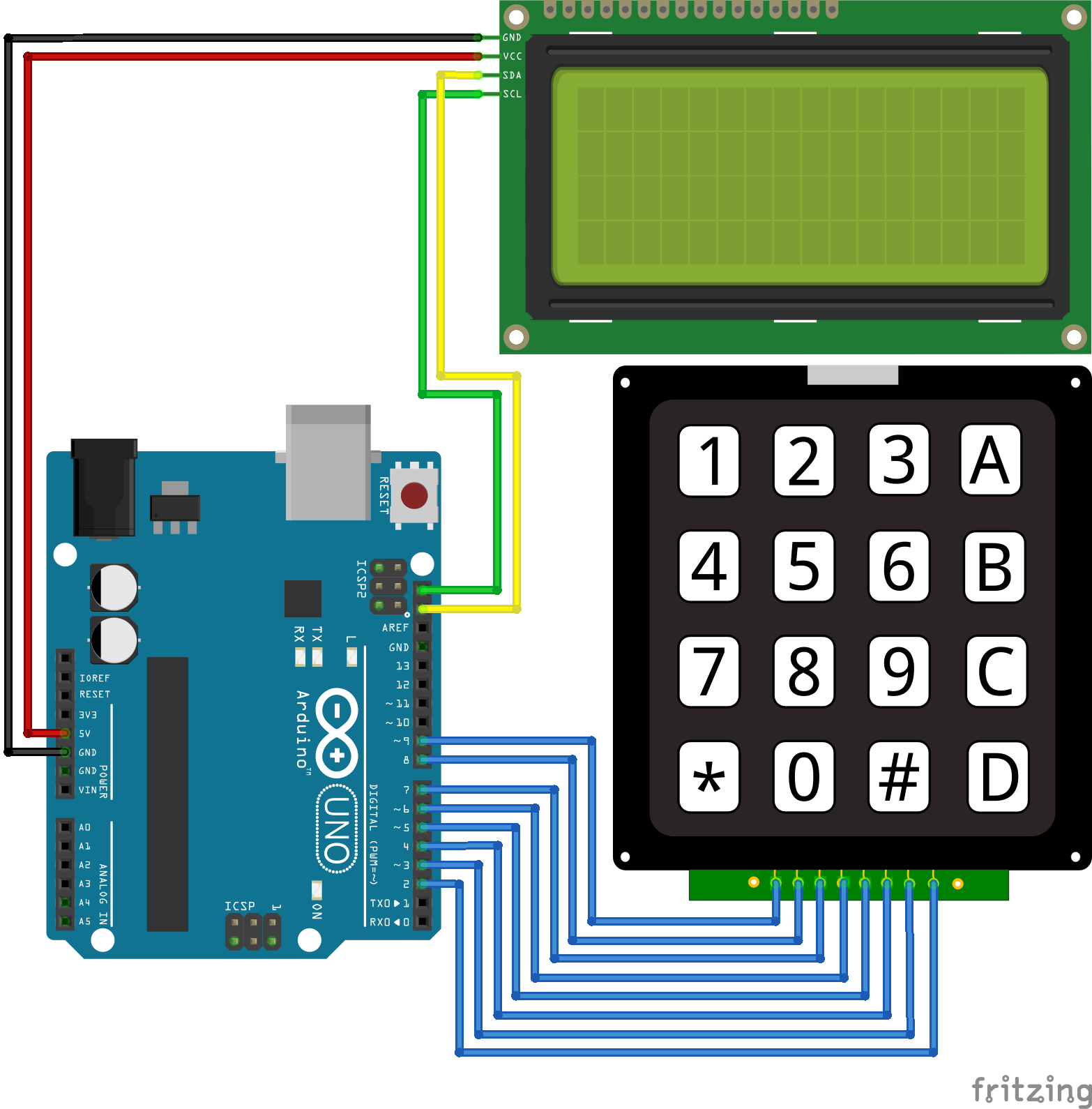
Now the more advanced example where we build a lock which opens when we type in the correct password. In this example I use the keypad and an LCD display along with an Arduino Uno. If you want to use an ESP8266 or ESP32 board, you can use the wiring from the previous chapter and only have to add the LCD display.

You see that we only connected the LCD display and that the magic happens inside the program code which I explain step by step in the following section. At the end of this section you can download the complete Arduino code as zip file.

#include "Keypad.h"
#include "Wire.h"
#include "LiquidCrystal_I2C.h"

const byte ROWS = 4; //four rows
const byte COLS = 4; //four columns

char keys[ROWS][COLS] = {
  {'1','2','3','A'},
  {'4','5','6','B'},
  {'7','8','9','C'},
  {'*','0','#','D'}
};

// For Arduino Microcontroller
byte rowPins[ROWS] = {9, 8, 7, 6}; 
byte colPins[COLS] = {5, 4, 3, 2}; 

// For ESP8266 Microcontroller
//byte rowPins[ROWS] = {D1, D2, D3, D4}; 
//byte colPins[COLS] = {D5, D6, D7, D8}; 

// For ESP32 Microcontroller
//byte rowPins[ROWS] = {23, 22, 3, 21}; 
//byte colPins[COLS] = {19, 18, 5, 17};

Keypad keypad = Keypad(makeKeymap(keys), rowPins, colPins, ROWS, COLS);
LiquidCrystal_I2C lcd(0x27, 20, 4); 

const int len_key = 5;
char master_key[len_key] = {'1','2','3','4','1'};
char attempt_key[len_key];
int z=0;

void setup() {
  Serial.begin(9600);
  lcd.init();
  lcd.backlight();
  lcd.setCursor(0,0);
  lcd.print("Insert Password");
}

void loop() {
  char key = keypad.getKey();
  lcd.setCursor(z-1,1);
  lcd.print("*");
  if (key){
    switch(key){
      case '*':
        z=0;
        break;
      case '#':
        delay(100); // added debounce
        checkKEY();
        break;
      default:
         attempt_key[z]=key;
         z++;
      }
  }
}

void checkKEY()
{
   int correct=0;
   int i;
   for (i=0; i<len_key; i++) {
    if (attempt_key[i]==master_key[i]) {
      correct++;
      }
    }
   if (correct==len_key && z==len_key){
    lcd.setCursor(0,1);
    lcd.print("Correct Key");
    delay(3000);
    z=0;
    lcd.clear();
    lcd.setCursor(0,0);
    lcd.print("Insert Password");
   }
   else
   {
    lcd.setCursor(0,1);
    lcd.print("Incorrect Key");
    delay(3000);
    z=0;
    lcd.clear();
    lcd.setCursor(0,0);
    lcd.print("Insert Password");
   }
   for (int zz=0; zz<len_key; zz++) {
    attempt_key[zz]=0;
   }
}

The first part of the code is nearly the same, only we include the library of the LCD display LiquidCrystal_I2C.h and create an object of this library called lcd. I use a 20×4 LCD display on I2C address 0x27 for this example. If you use a different one, you have to change the parameters of the lcd object.

You can also visit my LCD display tutorial, where you learn everything you have to know about different LCD displays and how to use them.

For this example we define some new variables:

  • len_key is a constant which define the length of the password.
  • master_key is the array where we store the correct password.
  • attempt_key is the array where we store the characters the user inputs via the keypad.
  • z is the variable to point at the right place inside the master_key and attempt_key arrays, starting by 0. For example: char master_key[z=2] = 3.

In the setup function we add new lines for the LCD display to turn the back light of the screen on and print “Insert Password” in the first line.

The loop function starts with reading the character of the keypad. This is done by the getKey function of the previous created key object.

Because I want to see as user of the password lock how many characters I already typed in, we print an asterisk character for each character that was typed in by the user. Therefore we set the cursor for the LCD screen to z-1 and not z in the second row of the screen and print the asterisk character.

After the user entered a key, we come to a switch case logic in the program script because we want to execute different tasks, depending on the key the user entered:

  • If the input is “*” → we want to reset the input and start from the beginning to give the user the possibility to delete the previous inserts. Maybe the user mistype a character.
  • If the input is “#” → we want to check if the total key is valid with a checkKey function, that I explain in the next section.
  • Otherwise we add the character to the attempt_key array and increase the “pointer” of the attempt_key array to write the next input in the next place of the array.

In this checkKEY function we check if the current key in the attempt_key array is the same we saved in the master_key array.

First we create a new variable correct to count how many characters are the same between the attempt_key and master_key array. Therefore we check element by element of the array and if it is a match we increase the correct variable. Also we check if the length of the input key has the same length as the len_key. Otherwise a key like: [1,2,3,4,1,8] would be correct because the first elements compared character by character are valid.

After all elements are compared and the correct variable has the same length as the master_key, it is clear that the entered key was correct.
We print on the screen that the key was correct and wait for 3 seconds before we clear the screen and restart the request for a password.

If the key was incorrect we print this on the screen and also wait for 3 seconds before we clear the screen and restart the request for a password.

In any case we clear the previous key inputs and set the pointer of the attempt_key array to the first element 0.

The following video shows the functionality of the keypad log.

  1. First I insert a wrong password.
  2. Then I type in the correct password.
  3. At the end I type in the wrong password but the first characters are the correct one. The password is too long.

Reduce the number of digital pins ​with an I2C multiplexer

Because the used keypad in this tutorial uses 8 digital I/O pins on the microcontroller, it is useful to reduce the number of used pins with an PCF8574 I2C multiplexer.

The PCF8574 is a 8-bit input/output (I/O) expander for I2C, that uses only two pins for the communication. If you wan to learn more about the multiplexer and the I2C communication, you can visit my I2C tutorial article.

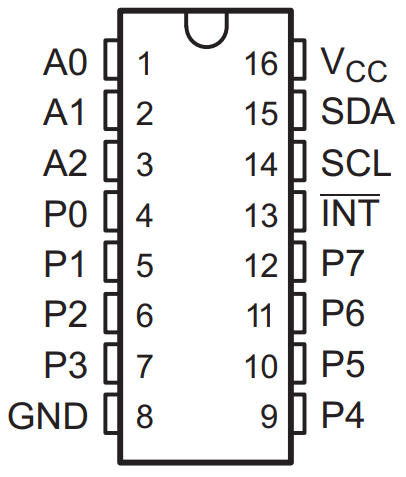
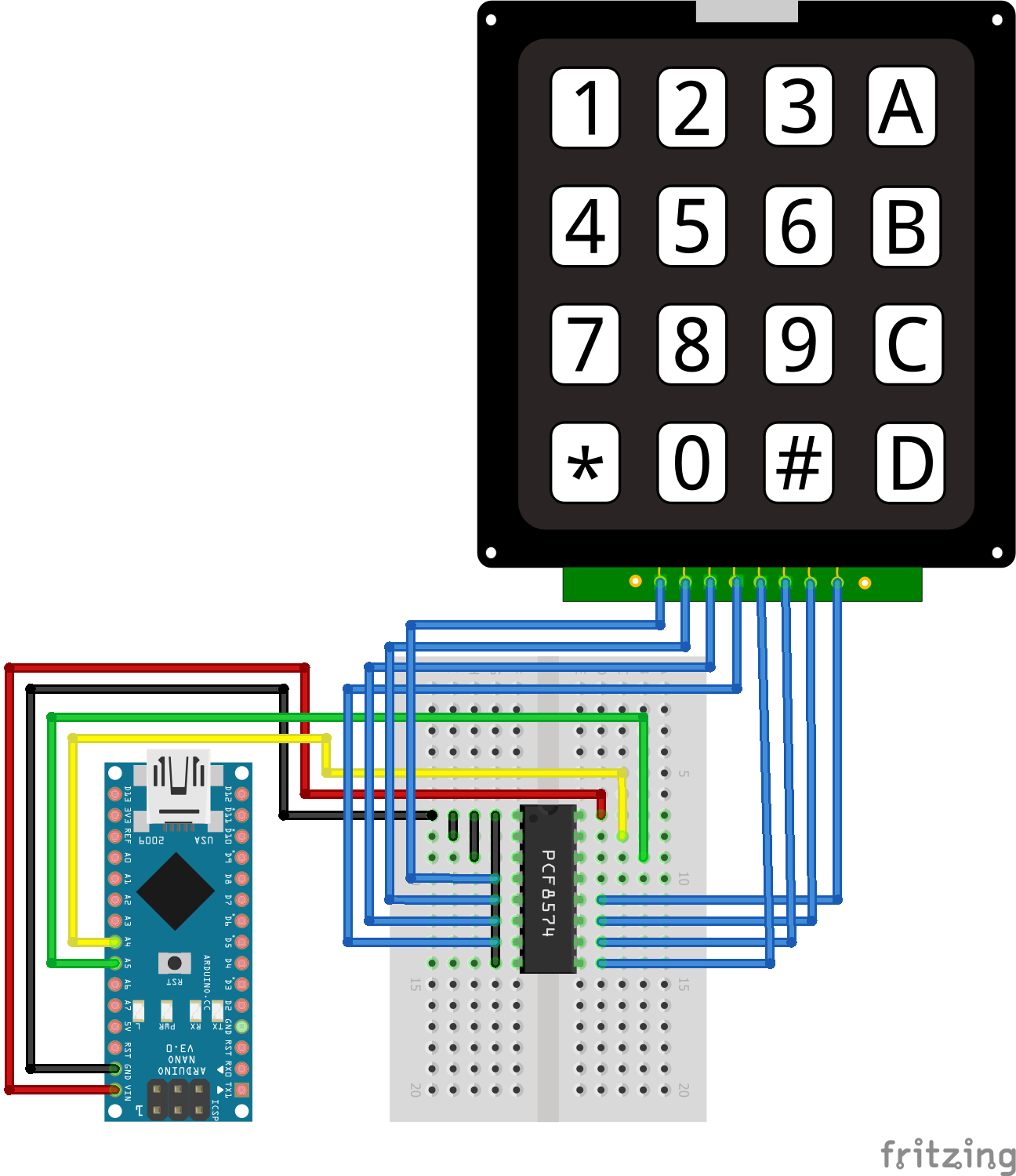
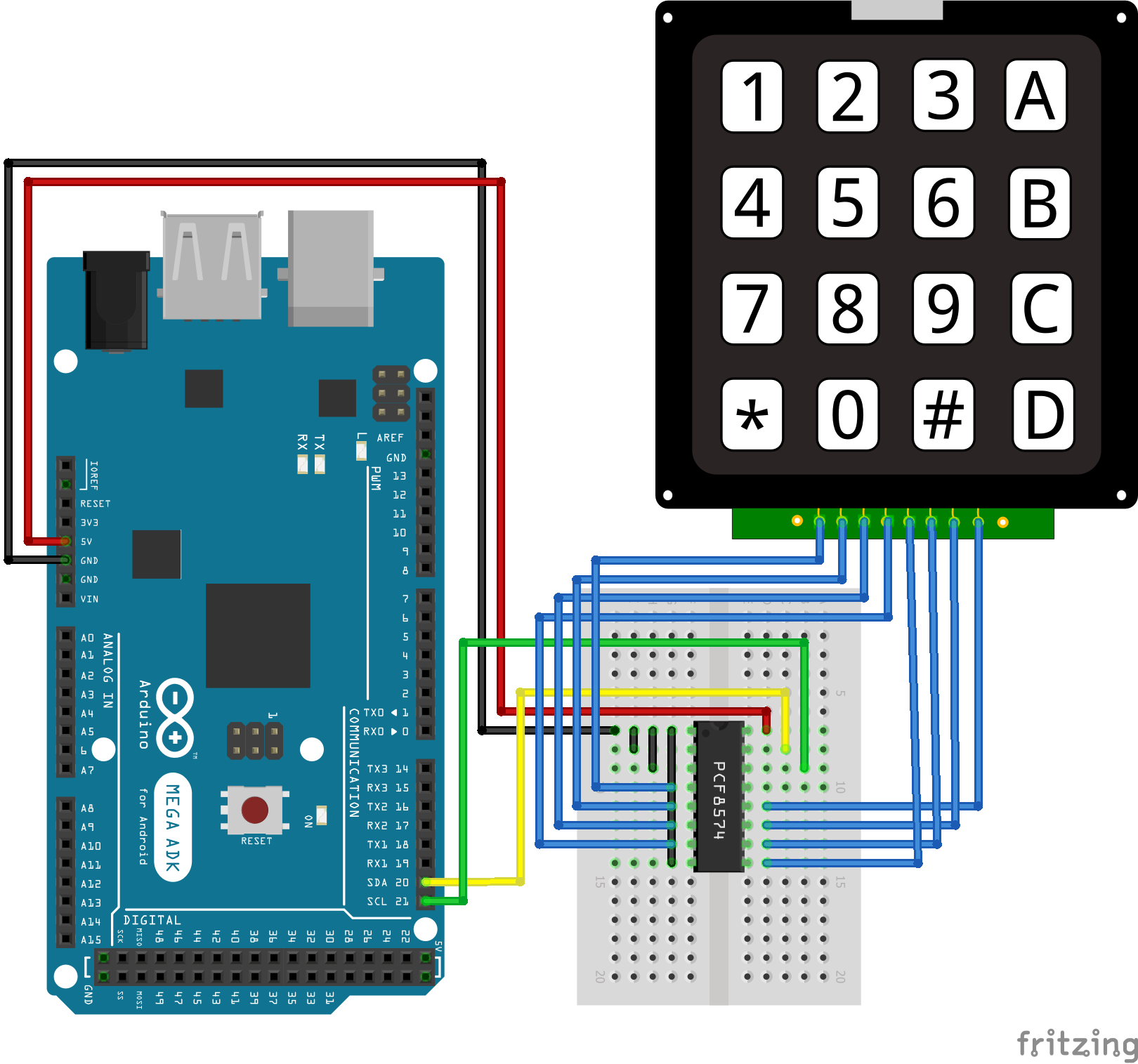
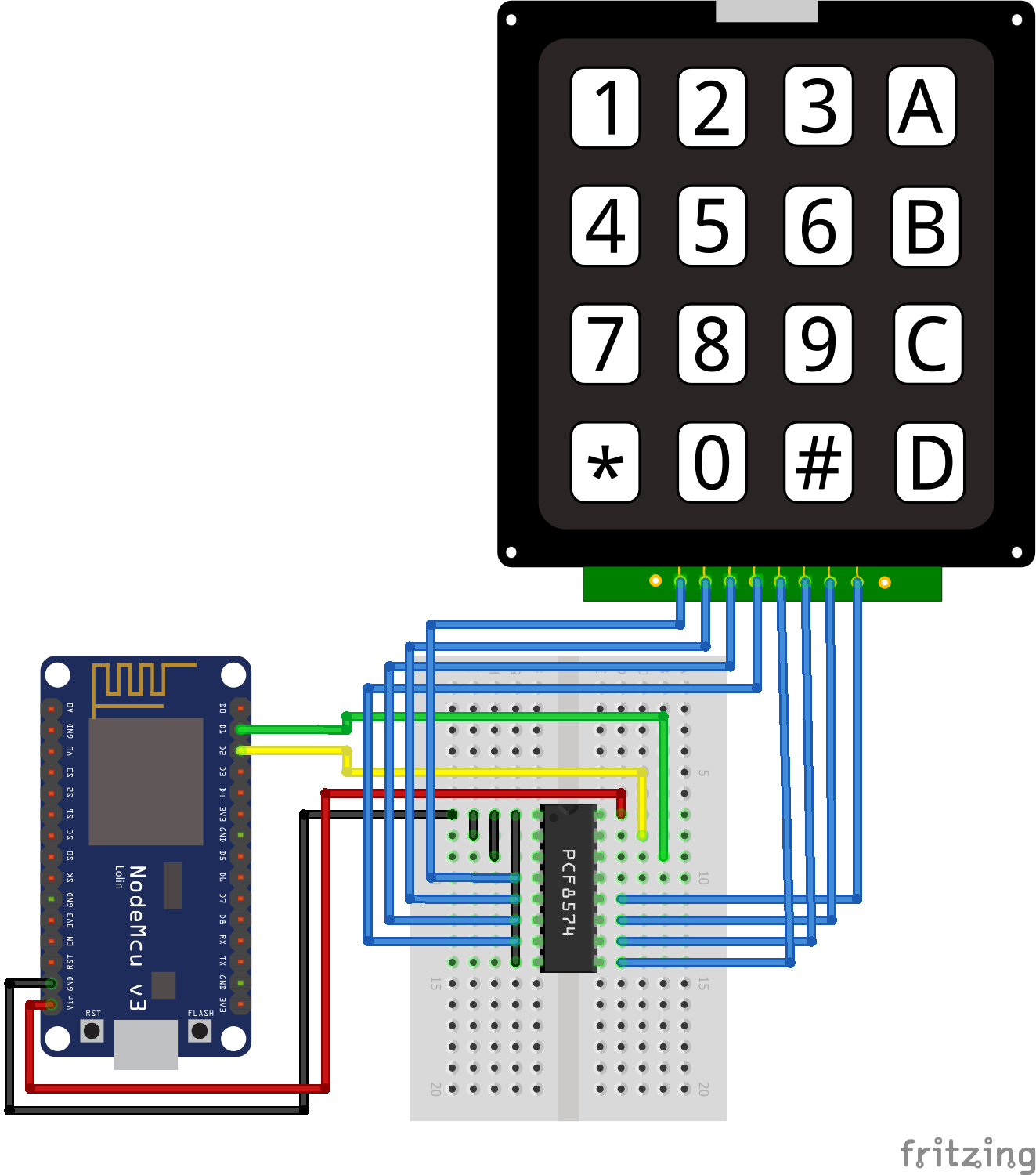
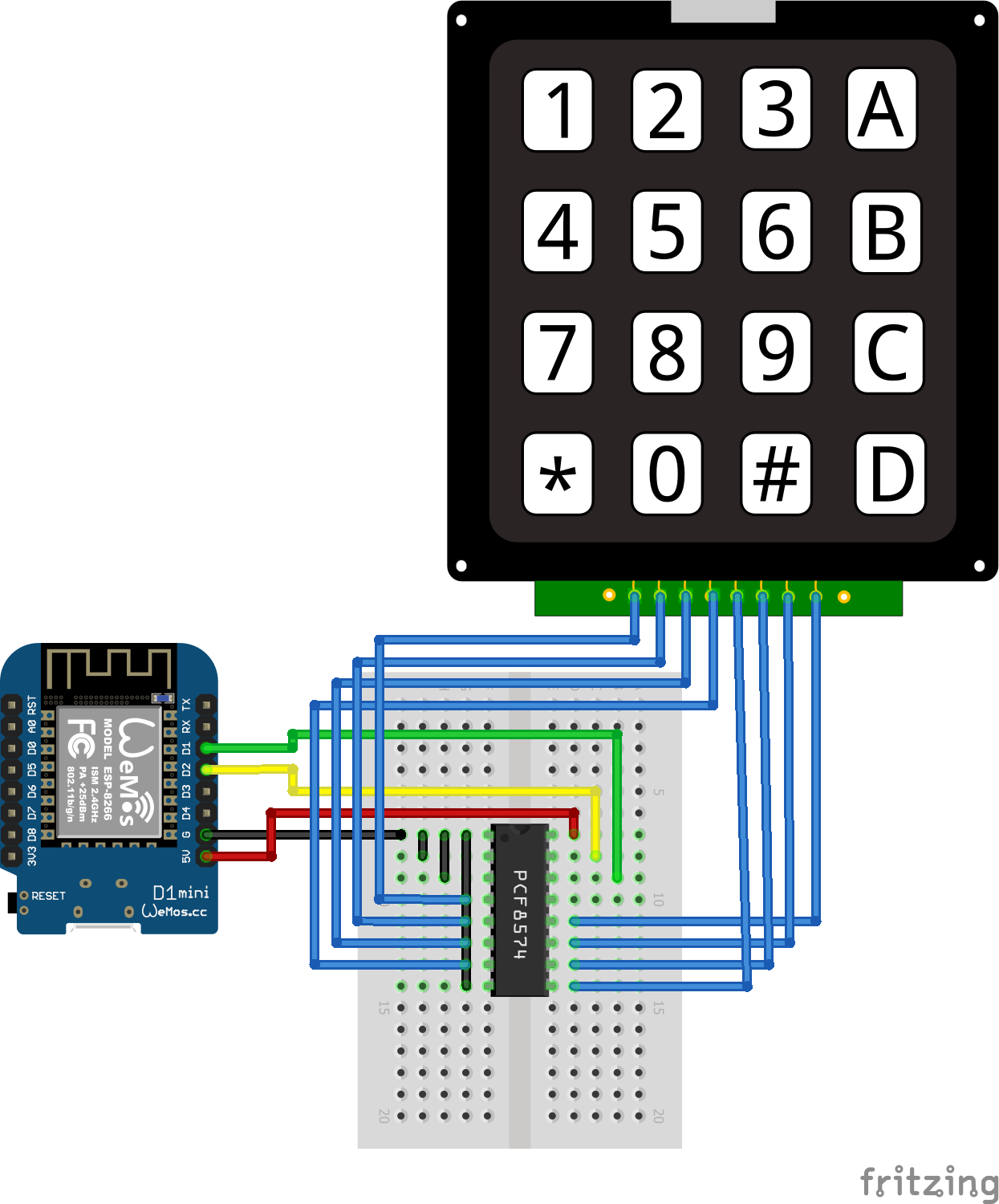
The picture on the right side shows the pins of the PCF8574 and the following picture shows the wiring between the Arduino, ESP8266 or ESP32 microcontroller, the I2C multiplexer and the keypad.

PCF8574
I2C Multiplexer Keypad Arduino Nano

I2C Multiplexer Keypad Arduino Nano

I2C Multiplexer Keypad Arduino Pro Mini
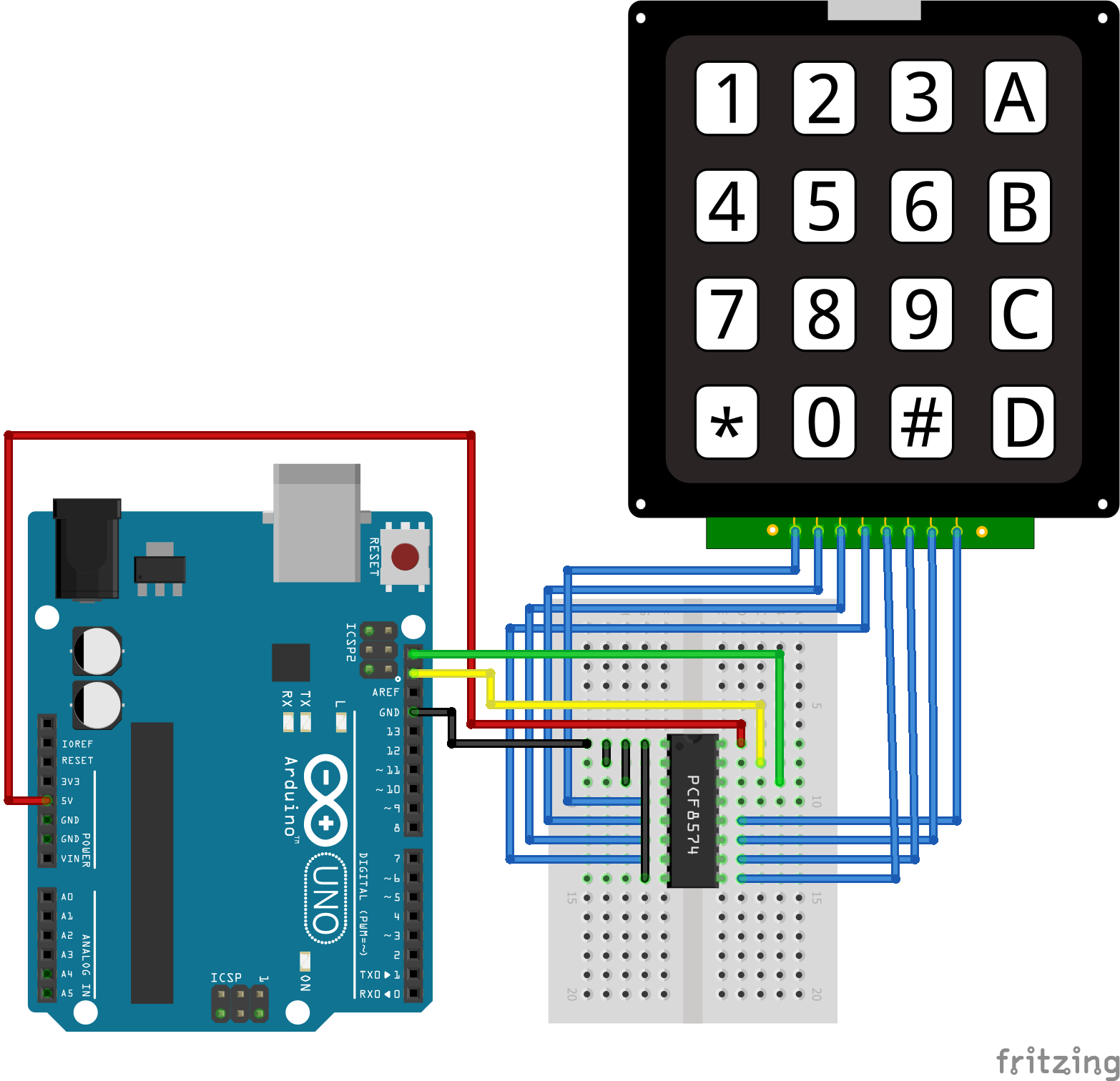
I2C Multiplexer Keypad Arduino Pro Mini

I2C Multiplexer Keypad Arduino Uno
I2C Multiplexer Keypad Arduino Uno

I2C Multiplexer Keypad Arduino Mega
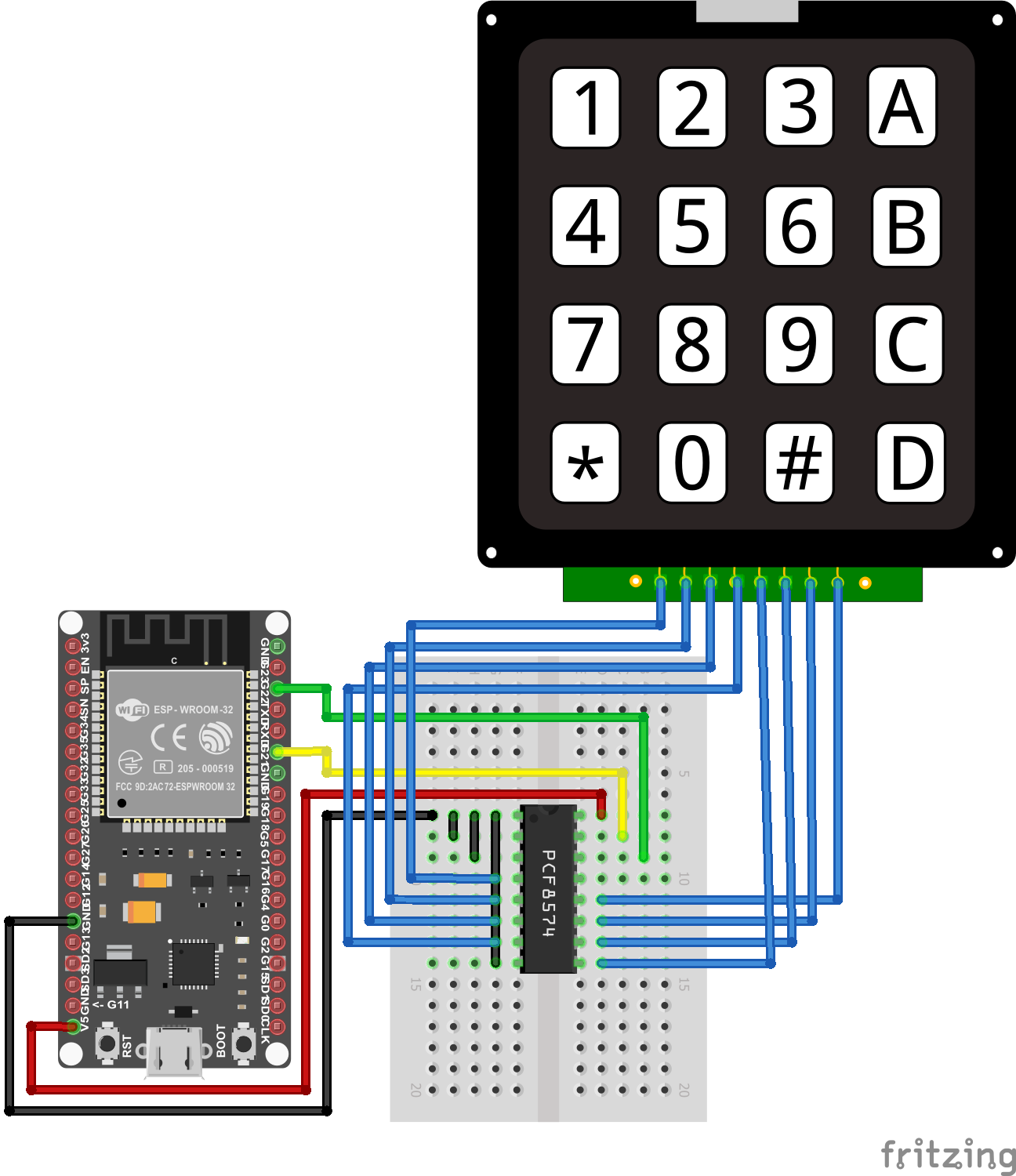
I2C Multiplexer Keypad Arduino Mega

I2C Multiplexer Keypad ESP32 NodeMCU
I2C Multiplexer Keypad ESP32 NodeMCU

I2C Multiplexer Keypad ESP8266 NodeMCU
I2C Multiplexer Keypad ESP8266 NodeMCU

I2C Multiplexer Keypad ESP8266 WeMos D1 Mini
I2C Multiplexer Keypad ESP8266 WeMos D1 Mini
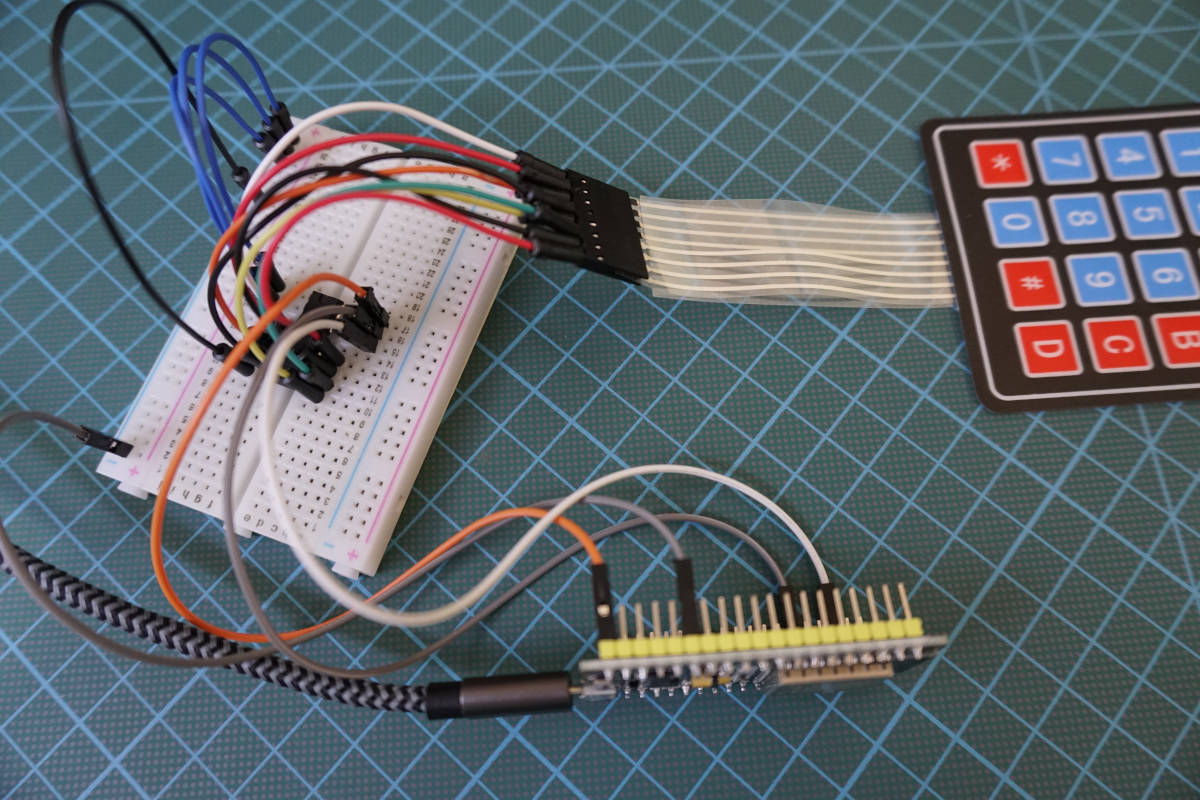
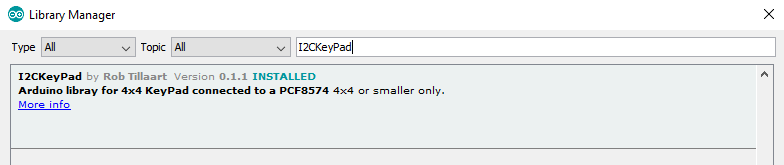
For the program script we need to install the I2CKeyPad library of Rob Tillaart that you find in the Library Manager of the Arduino IDE.

In the following section, we go over the program code to use the I2C expander in combination with the keypad. Because we do not use microcontroller specific pins, the program code is valid for Arduino, ESP8266 and ESP32.

#include "Wire.h"
#include "I2CKeyPad.h"

const uint8_t KEYPAD_ADDRESS = 0x20;
uint8_t lastKey;

I2CKeyPad keyPad;

void setup()
{
  Serial.begin(115200);
  Wire.begin();
  Wire.setClock(400000);
  if (keyPad.begin(KEYPAD_ADDRESS) == false)
  {
    Serial.println("\nERROR: cannot communicate to keypad.\nPlease reboot.\n");
    while(1);
  }
}

void loop()
{
  char keys[] = "123A456B789C*0#DNF";  // N = Nokey, F = Fail
  
  uint8_t idx = keyPad.getKey();
  if (idx != lastKey & keys[idx] != 'N') {
    Serial.println(keys[idx]);
    lastKey = idx;
    }
  delay(100);
}

In the first part of the program script we include the Wire library, to communicate via I2C and the I2CKeyPad library that helps us to map the keypad signals on the I2C communication protocol.

After we included the libraries we have to define the I2C HEX address of the PCF8574. In most cases the address should be 0x20 but you can use the I2C HEX address scanner from the I2C tutorial to quickly find the address.

Now we create an I2CKeyPad object called keyPad and also define a variable to store the last pressed position on the keypad, called lastKey. The datatype of uint8_t is an unsigned integer of length 8 bits.

In the setup function the baud rate is set to 115200 that have to match to the baud rate of the serial monitor if we later wan to see the pressed key. After the I2C communication is initialized the clock speed of the I2C is set to 400000 and we define an error catch if the HEX address is not the right one.

In the loop function we first create an array of the keys on the keypad. In my case I have a 4×4 keypad. The last two entries helps us to get values of the library if there is no key pressed or the readout of the keypad failed. With the getKey function we store the current pressed place on the keypad in the variable idx.

In the if condition we define that only the current key is pressed, when the key is a different from the previous one and only if there is a key pressed. Therefore we look up the pressed key in the keys array with the position of the keypad that is stored in variable idx. In the last step we save the current position of the keypad in the lastKey variable and set a small delay of 0.1 seconds.

The output of the I2C multiplexer is the same like you are not using the multiplexer. But you can save a lot of digital I/O pins on your microcontroller. The following picture shows the example with the I2C multiplexer.

Keypad Serial Output
I2C Multiplexer Keypad

Conclusion

I hope you liked this tutorial where you learned how to use the keypad as input device and build a lock which opens when we type in the correct password. If you want to reduce the number of used digital I/O pins, I recommend to read the article about the digital multiplexer.

What is your next project and will you use the keypad? Let me know in the comment section.
If you have any questions regarding this tutorial, use the comment section below to ask your questions. I answer them as soon as possible.

Soil Moisture Sensor

Soil Moisture Sensor for Arduino, ESP8266 and ESP32

Soil Moisture Sensor Tutorial for Arduino, ESP8266 and ESP32

In this tutorial we measure the soil moisture with a soil moisture sensor.

Because there are two different types of sensors, we describe the functionality of each one in the first chapter.

After you learn how to wire the sensor to your Arduino, ESP8266 or ESP32 microcontroller board, we create a basic Arduino script.

Soil Moisture Sensor

The last part of this tutorial I show you a practical example with Arduino, ESP8266 or ESP32 microcontrollers. In this example I measured the soil moisture of an orchid plant over 2 weeks.

Table of Contents

How the sensor measures the soil moisture?

As describes in the introduction, there are two different types of soil moisture sensors. Therefore the first step of this tutorial is to describe the functionality of each one and also to make sure that you buy the right sensor, if you not already have a soil moisture sensor.

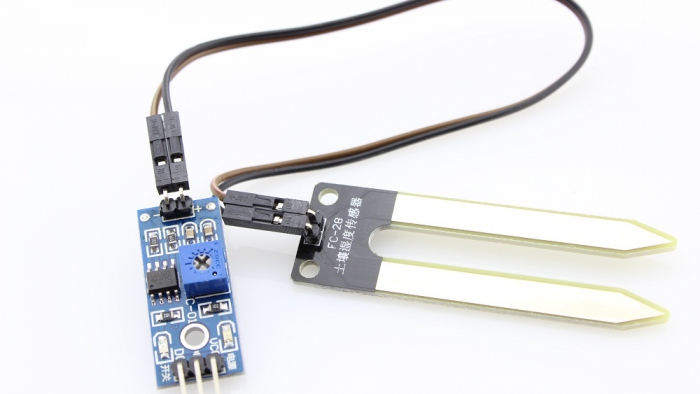
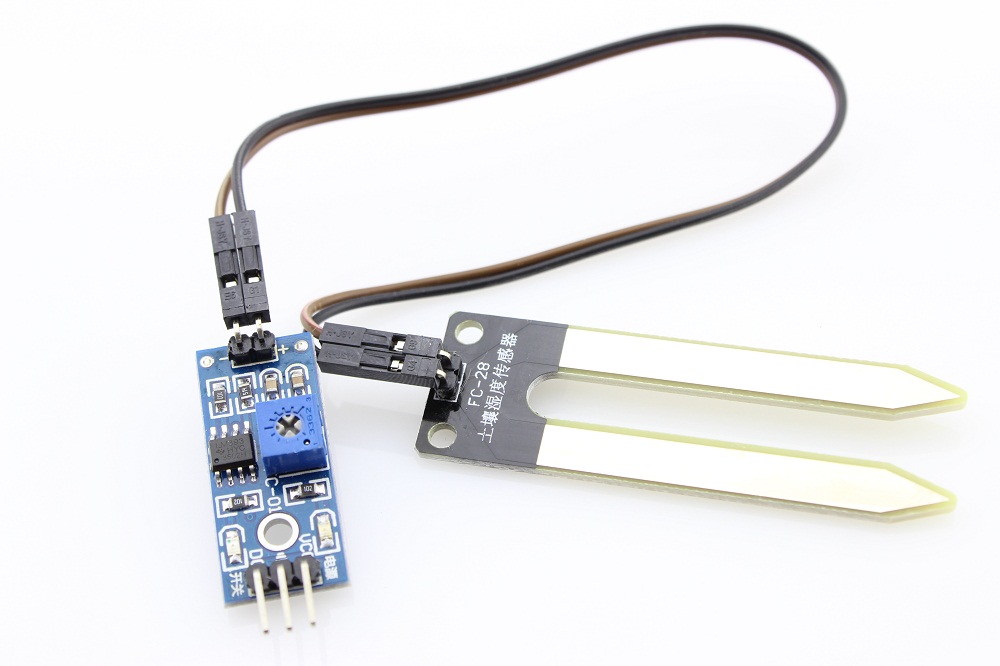
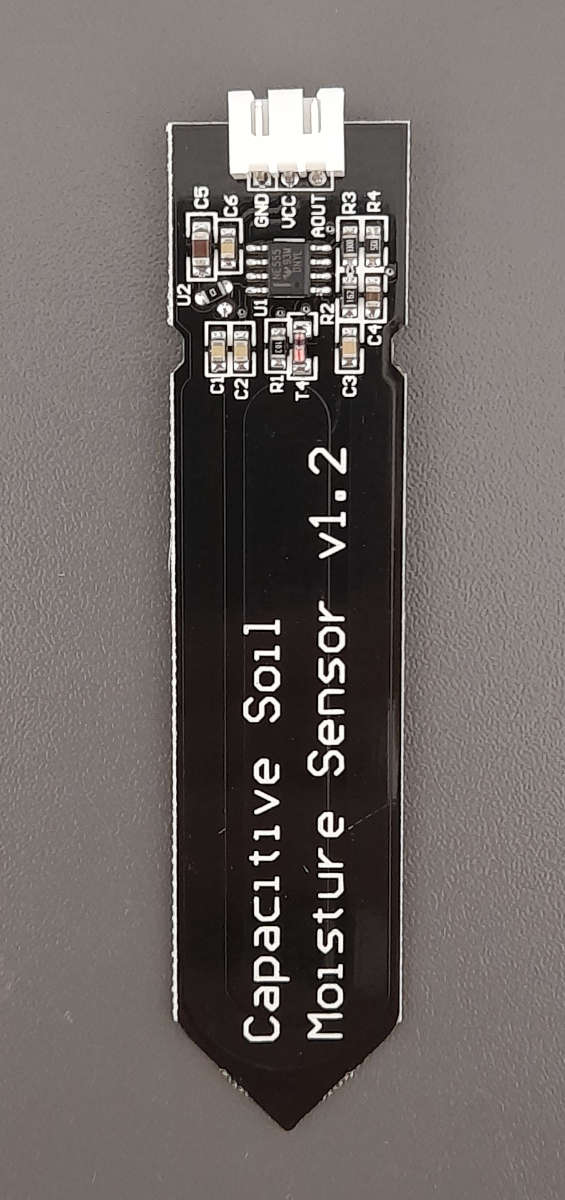
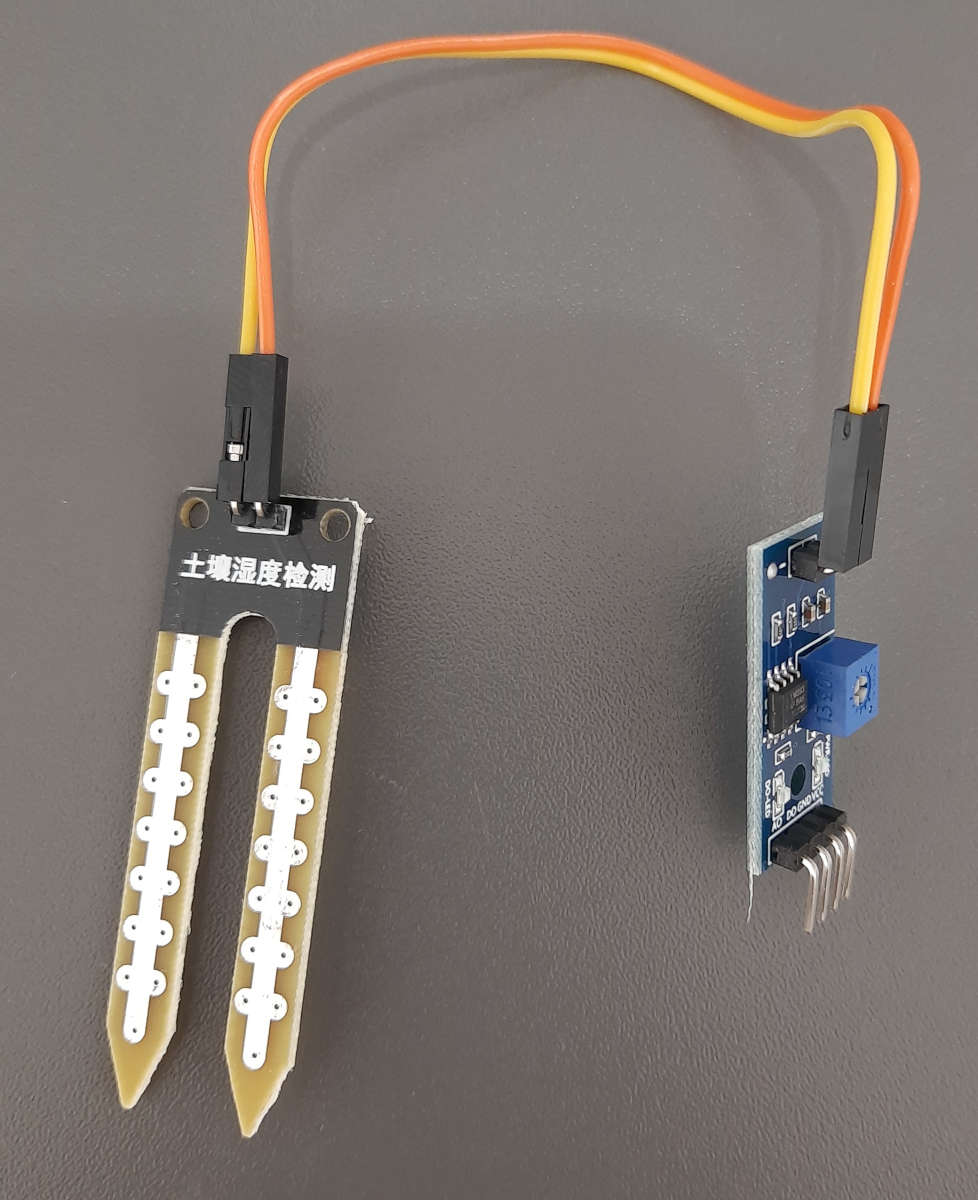
The following two pictures show a photo of each sensor.

Capacitive Soil Moisture Sensor

Capacitive Soil Moisture Sensor

Resistive Soil Moisture Sensor

Resistive Soil Moisture Sensor

Capacitive Soil Moisture Sensor

The capacitive soil moisture sensor does not measure moisture directly but measures the changes in capacitance caused by the changes in the dielectric contrast between water and soil. Dry soils have a relative permittivity between 2-6 and water has a value of roughly 80.

The major advantage of the capacitive sensor is that there is no direct exposure of the metal electrodes. Therefore there is no electrolysis that damages the sensor through corrosion.

The operation voltage of the capacitive soil moisture sensor is 5V from my experience. In some datasheets you find the declaration that the sensor also works for 3.3V microcontrollers but in the sub chapter Influence of the Power Supply on the Analog Sensor Value, you see that I got invalid sensor values.

If you want to buy a soil moisture sensor, make sure that you buy a capacitive one.

Resistive Soil Moisture Sensor

The resistive soil moisture sensor consists of 2 probes with are put in the soil. Depending on the current direction one probe will function as the cathode and the other one as anode. Generally which probe is the anode or cathode is irrelevant for the functionality of the sensor, because the sensor only measures the resistance and is therefore independent of the direction of the current flow.

The electrical circuit is closed over the soil which functions as resistance for the current flow. This resistance is measured and depends on the amount of water in the soil because water is a natural conductor for electricity. The lower the measured resistance, the higher is the amount of water in the soil.

The current flow through the anode of the resistive soil moisture sensor, which has contact to water, is a perfect environment for electrolysis and therefore electroplating. This electrolysis damages the sensor and makes the sensor inaccurate. How strong the electrolysis will be depends on how often and how much current is passed through the electrodes.

Wiring between Soil Moisture Sensor and Microcontroller

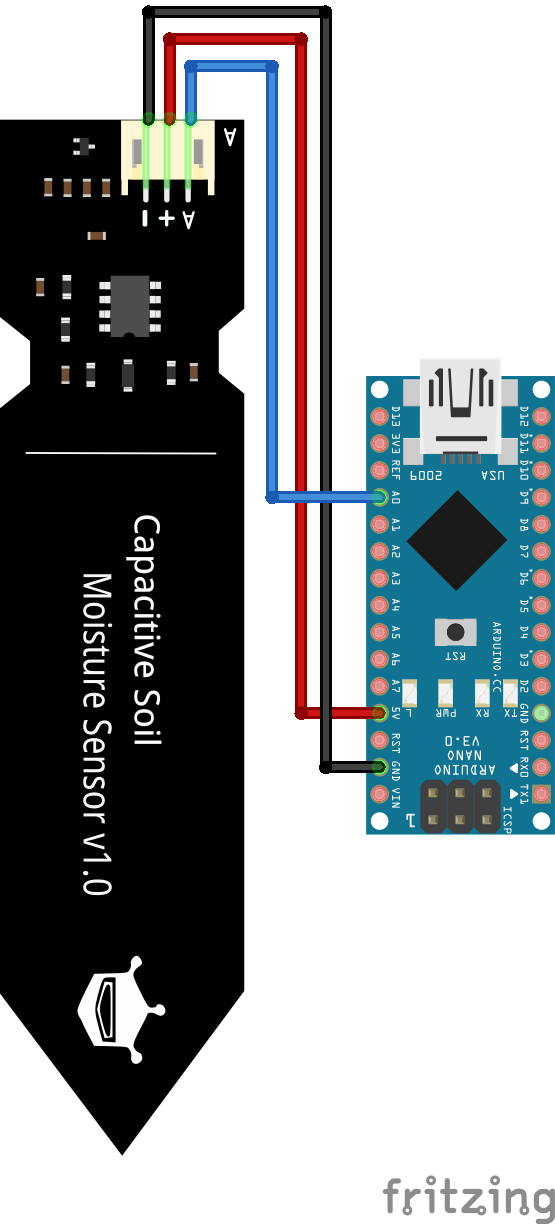
The following pictures show the wiring between the soil moisture sensor and an the most used microcontroller from Arduino, ESP32 and ESP8266. If you are missing your favorite microcontroller, let me know in the comment section and I will add the wiring also your this microcontroller board.

Soil Moisture Sensor Arduino Nano

Soil Moisture Sensor Arduino Nano

Soil Moisture Sensor Arduino Pro Mini
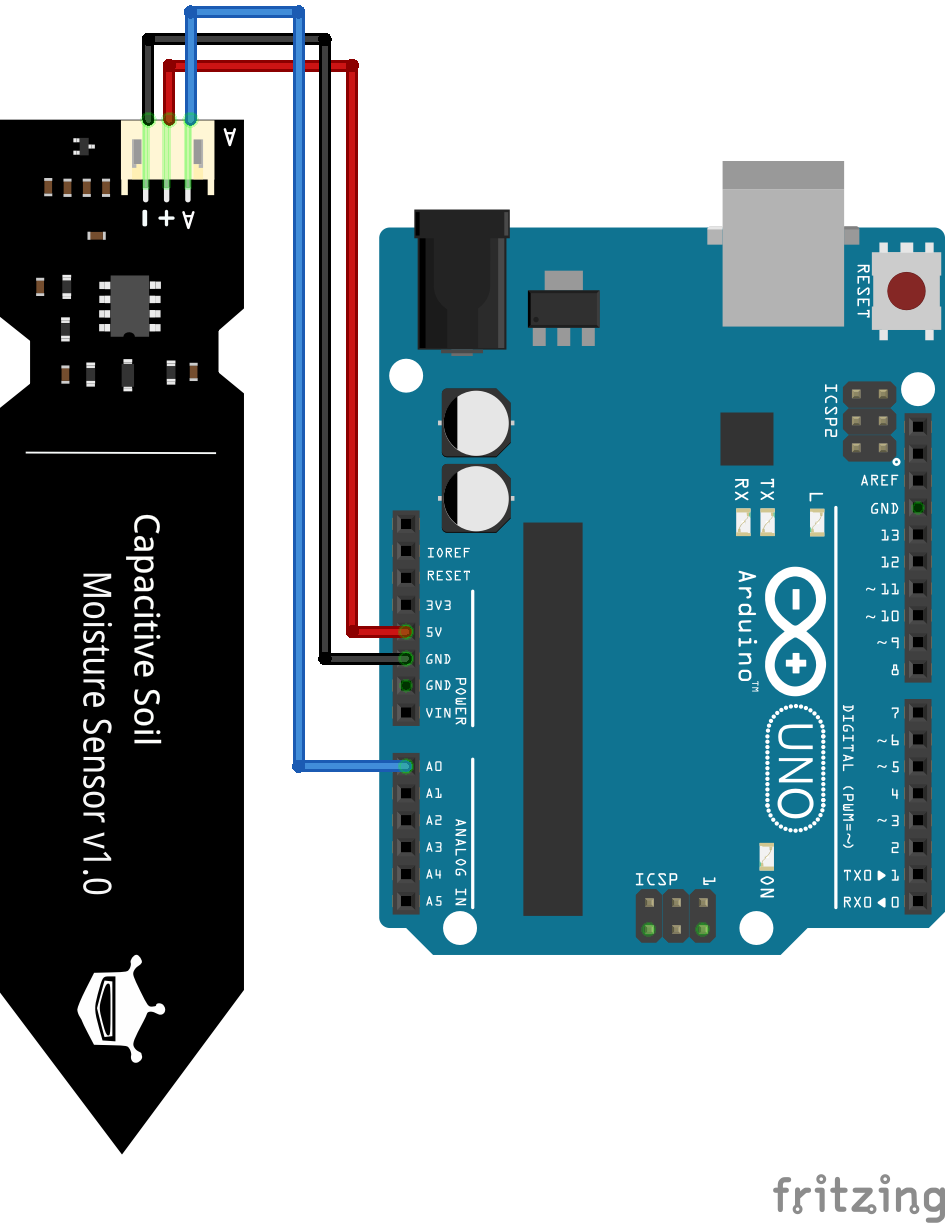
Soil Moisture Sensor Arduino Pro Mini

Soil Moisture Sensor Arduino Uno
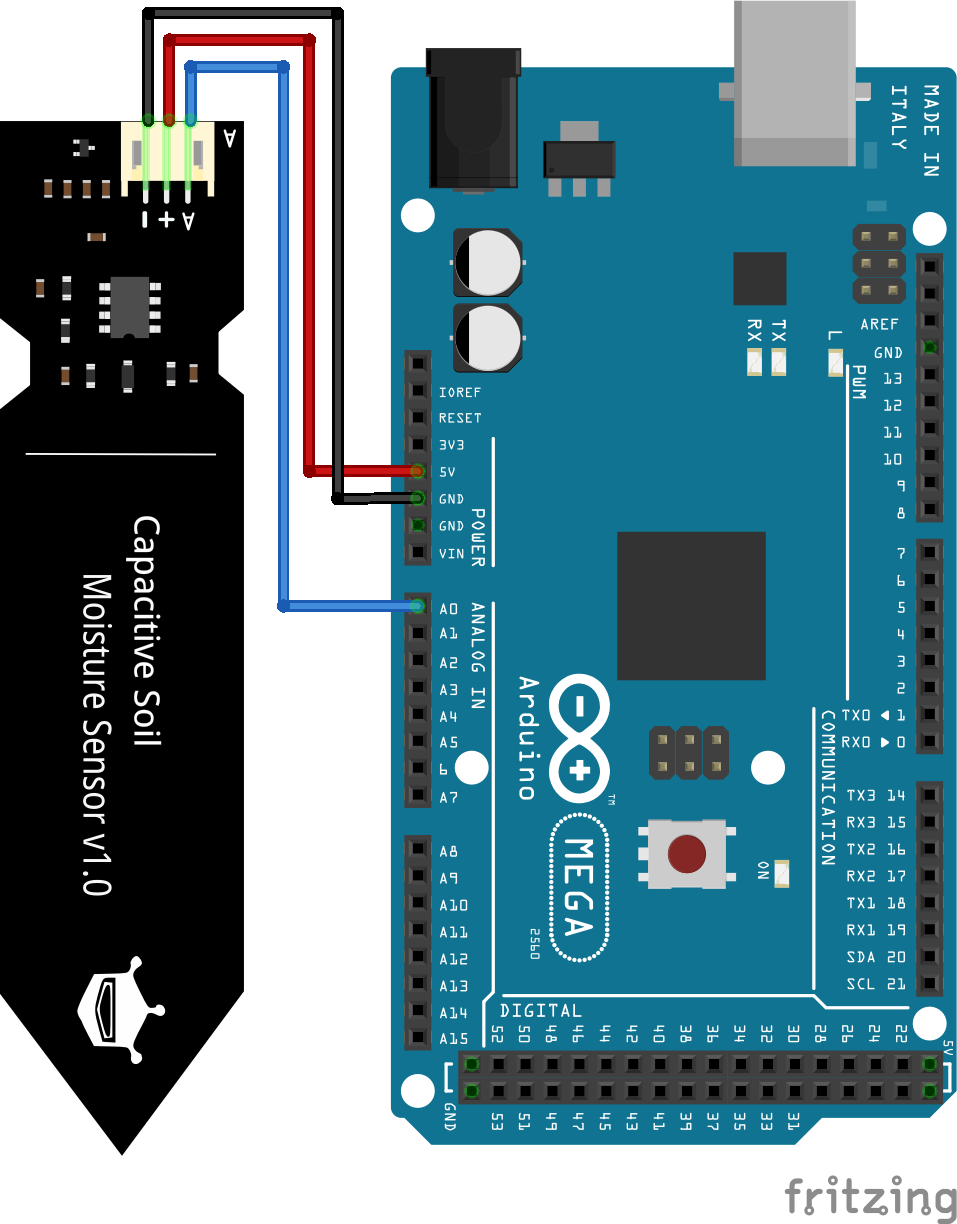
Soil Moisture Sensor Arduino Uno

Soil Moisture Sensor Arduino Mega
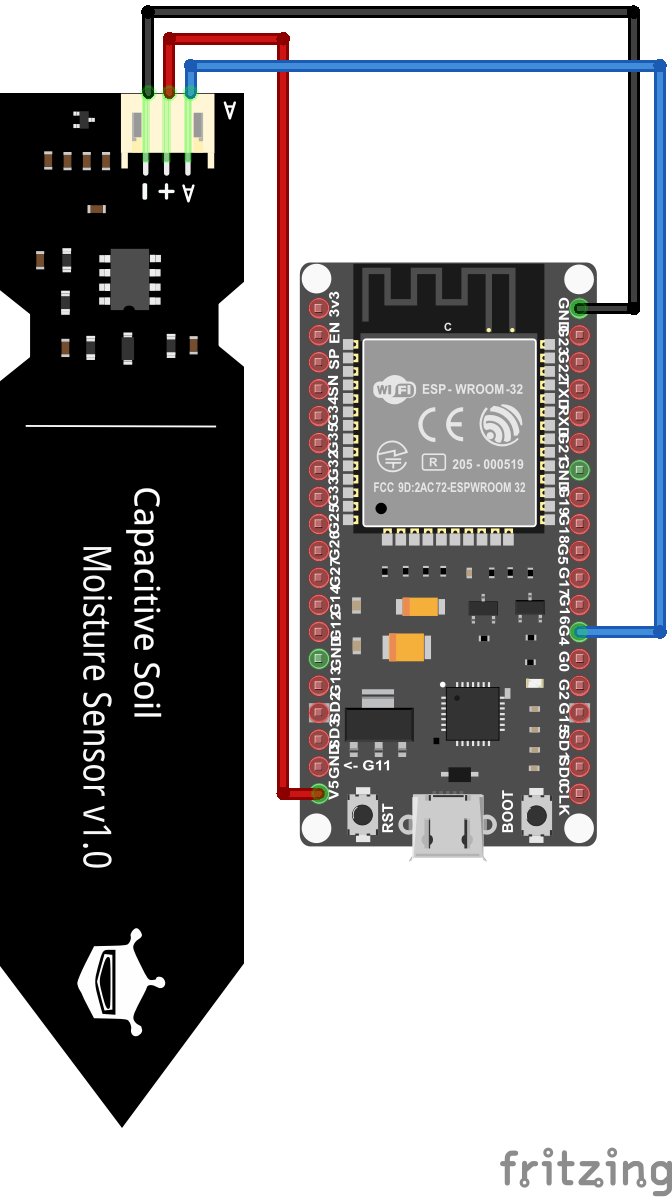
Soil Moisture Sensor Arduino Mega

Soil Moisture Sensor ESP32 NodeMCU
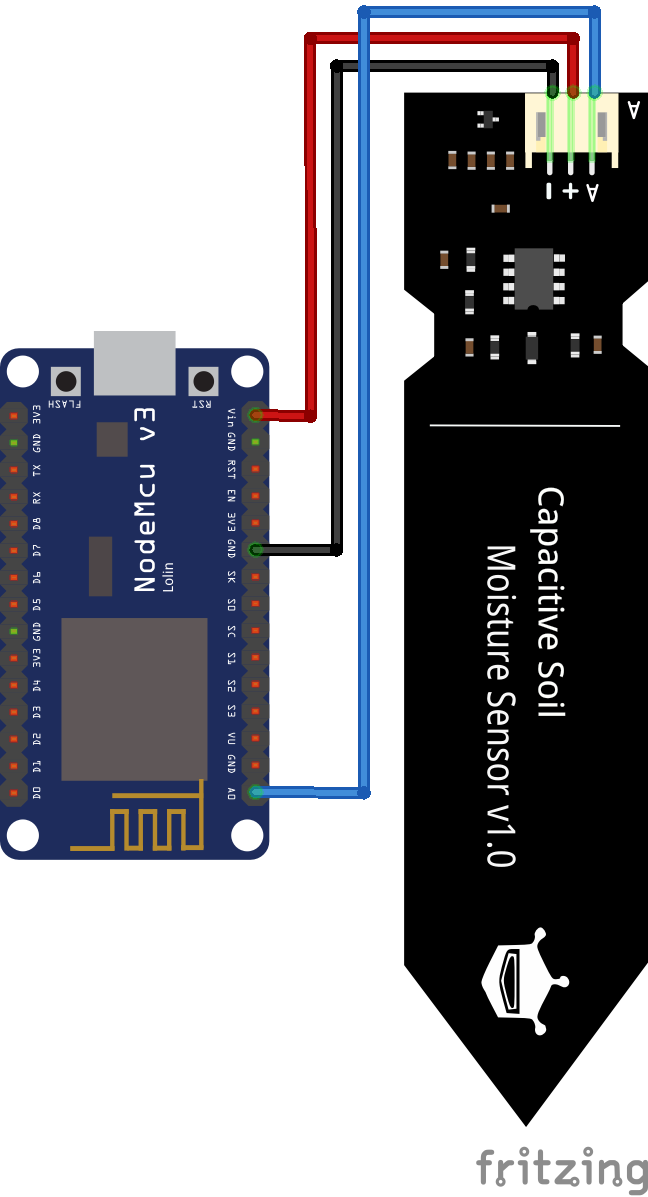
Soil Moisture Sensor ESP32 NodeMCU

Soil Moisture Sensor ESP8266 NodeMCU
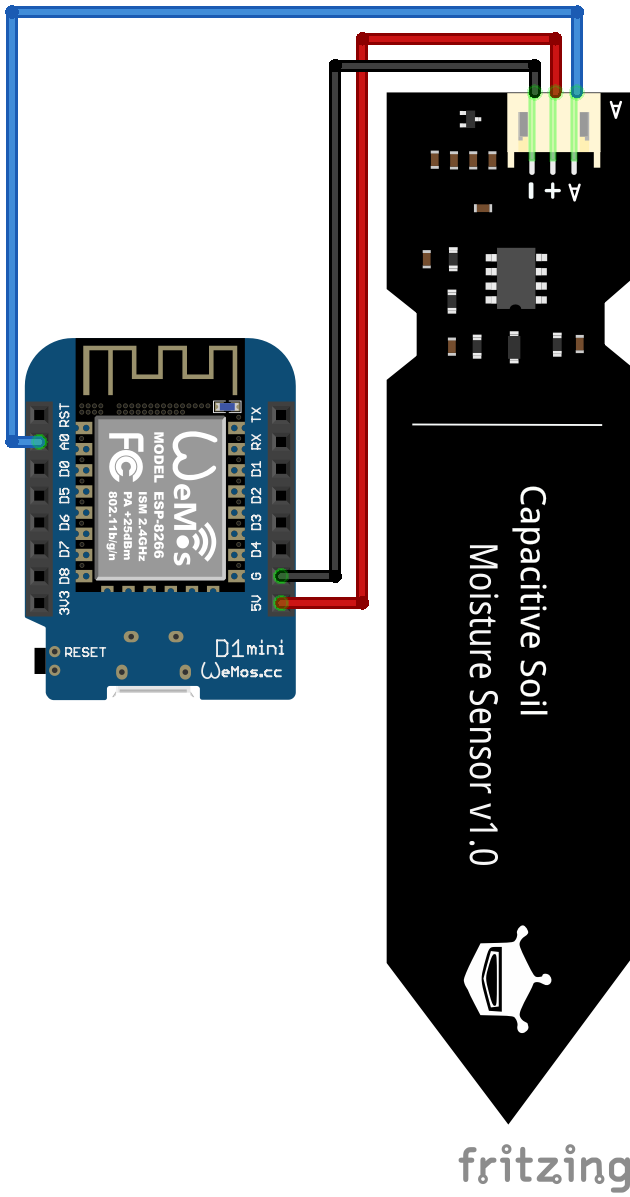
Soil Moisture Sensor ESP8266 NodeMCU

Soil Moisture Sensor ESP8266 WeMos D1 Mini
Soil Moisture Sensor ESP8266 WeMos D1 Mini
Influence of the Power Supply on the Analog Sensor Value

The capacitive and also the resistive soil moisture sensor works with supply voltages between 3.3V and 5V. Therefore you can use the Arduino (5V operating voltage) and also the ESP (3.3V operating voltage) based microcontroller to measure the soil moisture.

But you have to keep in mind that the analog sensor value is dependent on the operating voltage. The following table shows the analog sensor value for all different combination of operating voltage, moisture and type of soil moisture sensor.

Theoretically you can use any of these combinations, but you have to calibrate your sensor before you declare that your soil is wet or dry.

For the capacitive soil moisture sensor you see also from the table that the difference in the sensor value for an operating voltage of 3.3V is very low. Therefore your measuring range is very close and I recommend to use an operating voltage of 5V for the capacitive sensor.

Arduino Code to read the Analog Value of the Soil Moisture Sensor

The following Arduino script reads the analog sensor value of the soil moisture sensor. The script is prepared for Arduino, EPS8266 and ESP32 microcontroller boards. You only have to comment the parts that you do not need based on my comments in the script.

#define SensorPin A0  // used for Arduino and ESP8266
//#define SensorPin 4  // used for ESP32

void setup() { 
  Serial.begin(9600);
}

void loop() {
  float sensorValue = analogRead(SensorPin);
  Serial.println(sensorValue);
  delay(30000);
} 

In the first part of the script we define the analog pin that connects the microcontroller with the soil moisture sensor. For the Arduino and ESP8266 we use the A0 pin. Because every digital I/O pin of the ESP32, that is not used for a communication interface, can be an analog input we have to choose one pin as analog input. In my case I use the pin 4.

If you are not sure what pins of the ESP32 board can be used as analog inputs, I recommend to download the Microcontroller Datasheet Playbook where you find detailed pinouts of several microcontroller boards, including the ESP32.

In the setup function we define the baud rate to 9600 that has to match the baud rate of the serial monitor of the Arduino IDE.

The loop function starts with reading the analog sensor value of the analog pin that we defined that the beginning of the script. The sensor value is stored in a variable from the type float. Now we print the sensor value to the serial monitor and wait for 30 seconds to start to loop function all over again.

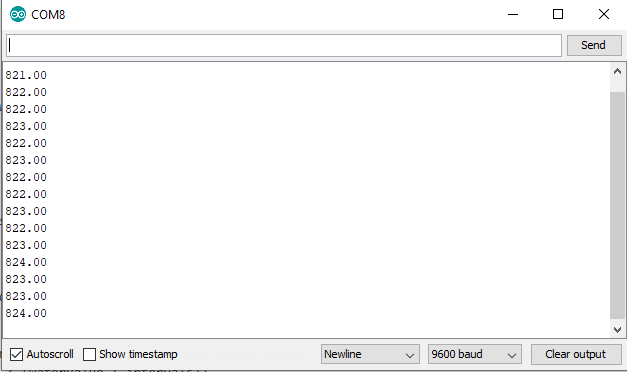
The following picture shows the sensor values in the serial output.

Serial Monitor Capacitive 5V Dry

Expand the Lifetime of the Resistive Soil Moisture Sensor

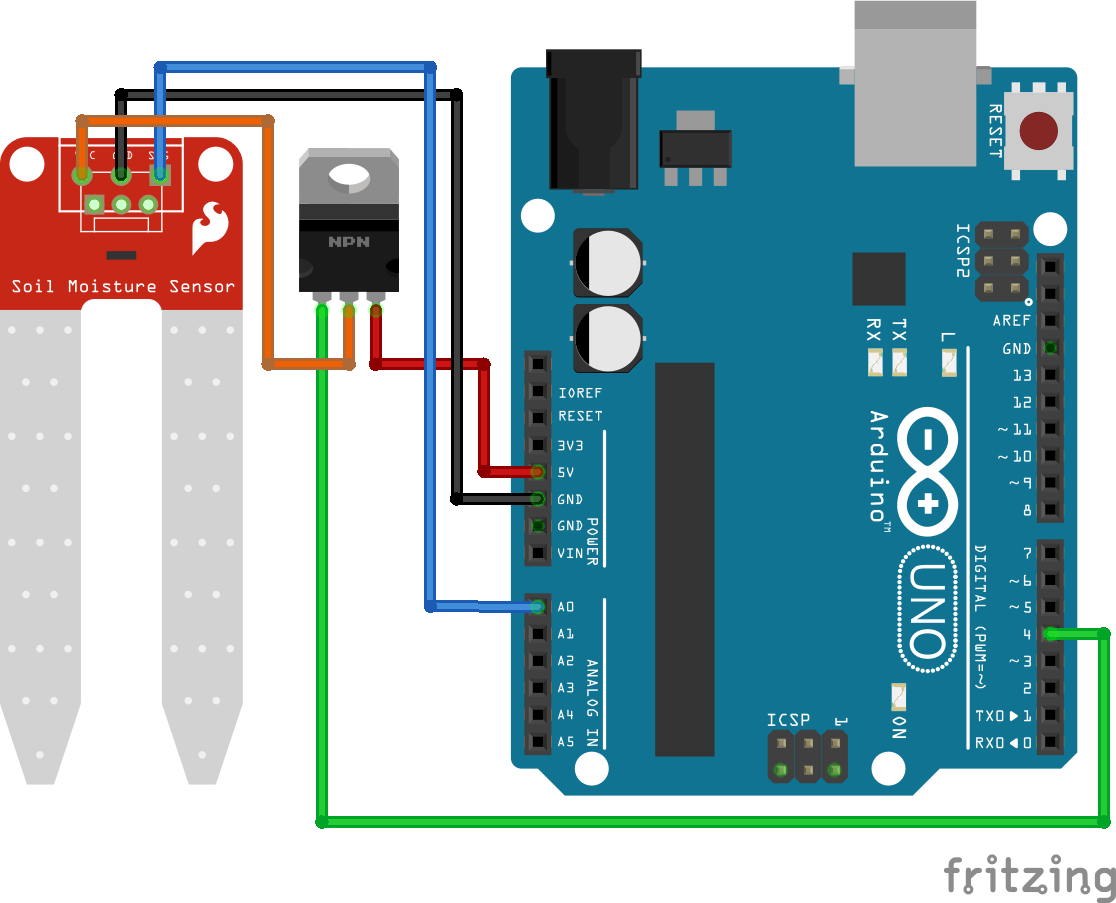
As described in the functionality chapter of this tutorial, electrolysis of the resistive soil moisture sensor is caused by the current flow through the anode. To avoid the current flow to the sensor, we use a N-Channel MOSFET circuit to disconnect the sensor from the power supply. Also we read the sensor value only once per hour.

Because we do not want to wait one hour to get a new sensor value, we use a delay of 30 seconds in the following example. Therefore you only have to change the delay for your project.

The following picture shows the N-Channel MOSFET circuit with the soil moisture sensor for the different microcontroller boards.

#define SensorPin A0 

void setup() { 
  Serial.begin(9600);
  pinMode(4, OUTPUT);
}

void loop() {
  digitalWrite(4, HIGH);
  delay(1000);

  float sensorValue = analogRead(SensorPin);
  Serial.println(sensorValue);
  delay(1000);
  digitalWrite(4, LOW);
  delay(28000);
} 

At the beginning of the Arduino script we define the analog pin of the microcontroller. For the Arduino and ESP8266 boards we use the A0 pin and for the ESP32 we define pin 4 as analog input.

In the setup function we set the baud rate to 9600, that have to match the baud rate of the Arduino IDE to see the sensor values that we want to print on the serial connection between microcontroller and PC.

Also we define the digital output pin that is connected to the gate of the MOSFET to switch the sensor on and off. For the Arduino boards we use digital pin 4, for ESP8266 pin D4 and for ESP32 pin 0 as digital output pin. You only have to comment the lines for the microcontroller that you do not need.

In the loop function we read the moisture sensor value every 30 seconds. Therefore we use die digital pin to enable the current flow on the gate of the MOSFET. This closes the circuit of the soil moisture sensor and we read the analog sensor value after a short delay of 1 second. After the sensor value is printed to the serial monitor, we wait for 1 second and disable the current flow through the sensor by pulling the Gate of the MOSFET LOW.

Because we want to read the sensor value every 30 seconds in this example and already have two 1 second delays in the Arduino script, we wait for 28 seconds at the end of the program code.

MQTT Example for Long Term Monitoring

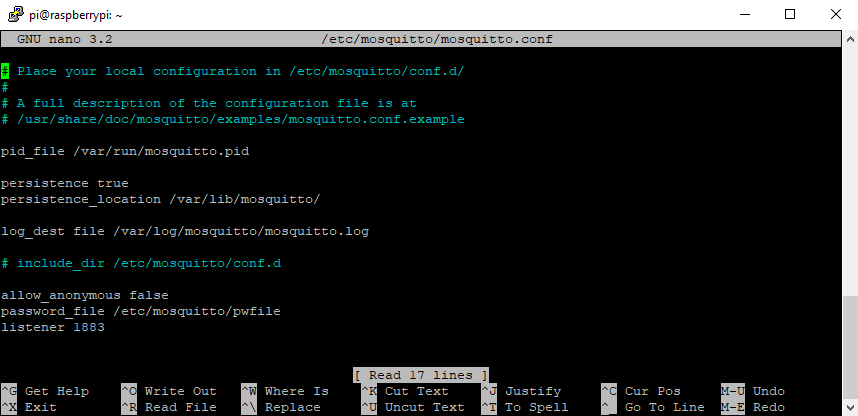
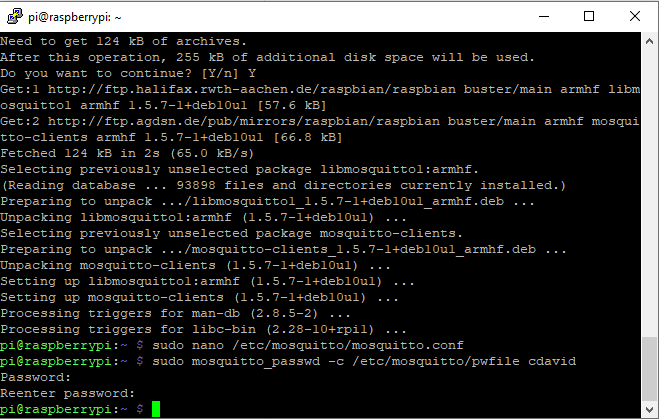
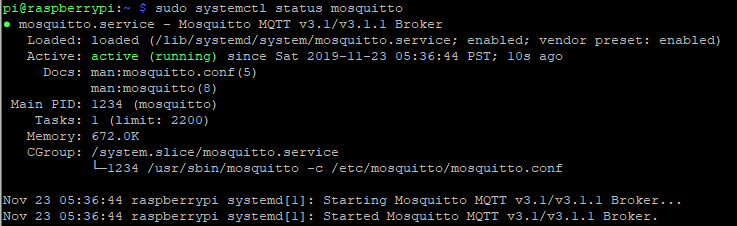
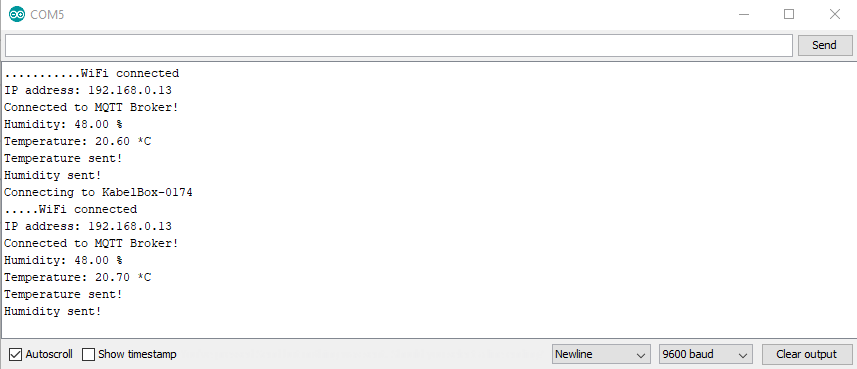
In the following example I want to observe the soil moisture for a plant for a long time and see the course of the moisture as a line-chart. Therefore I build a MQTT system including the following components:

  • NodeMCU to read the analog soil moisture sensor values and send them every hour via MQTT to a MQTT broker
  • Raspberry Pi as MQTT broker which saves the moisture values to an Influx database and visualize the soil moisture of the plan via Grafana.
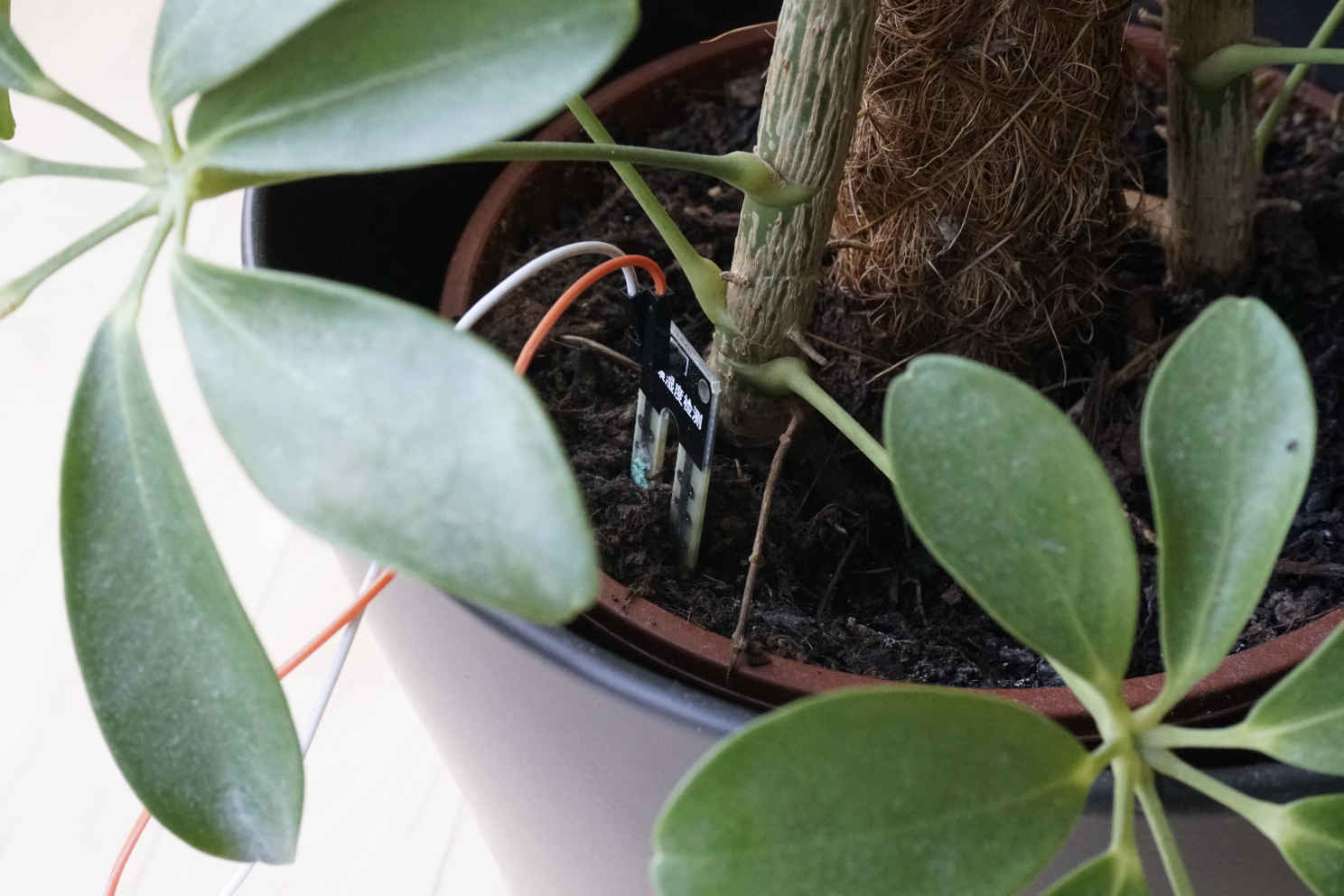
Moisture Sensor Foto

The following table gives you an overview of all components and parts that I used for this example. I get commissions for purchases made through links in this table.

This example relates strongly on two articles I wrote the last month. Therefor I will speed up this example because you find a step by step tutorial in the following two articles:

At the end of this article you can download all scripts, compressed as zip file, for this example with the blue download button.

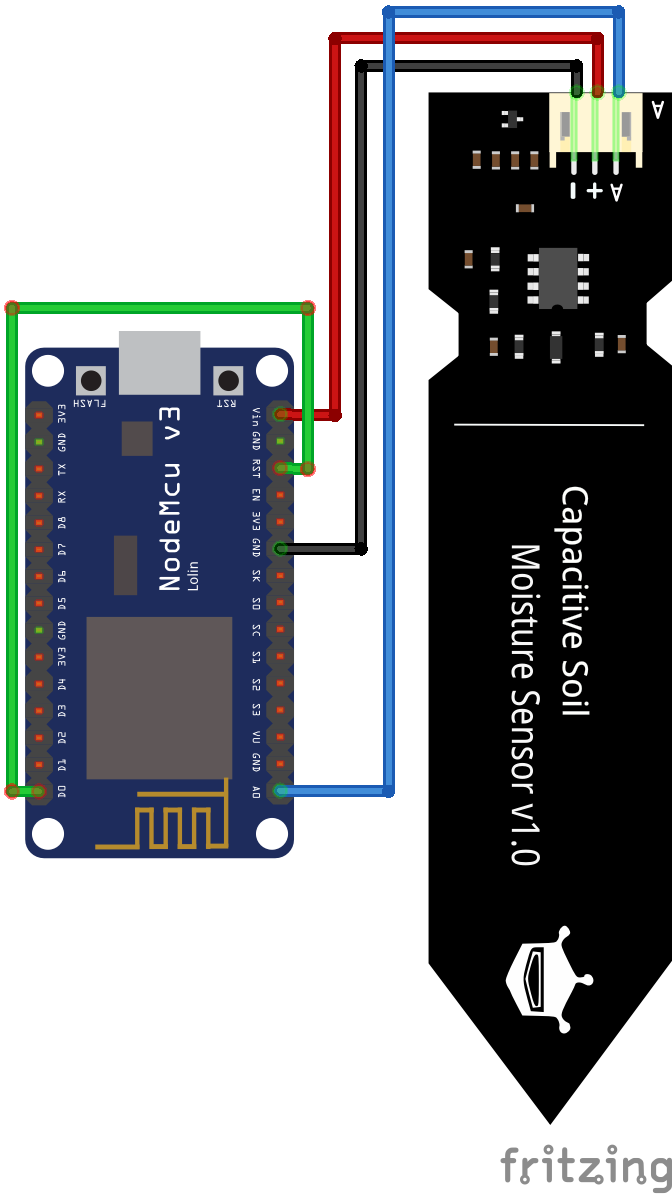
First we build the part of the NodeMCU to send the sensor values to the MQTT broker. The following picture shows the wiring for the NodeMCU.

NodeMCU Moisture Sensor

The program code is nearly exactly the same as I used to send the temperature and humidity to the MQTT broker. I only changed the MQTT topic, MQTT clientID and read the moisture values to send them via MQTT to the same existing broker. The main code is inside the setup function, because I use the deep-sleep function of the NodeMCU to reduce the electrolysis on the soil moisture sensor.

Make sure you add the delay before entering the deep-sleep. I had some problems, that the NodeMCU shutting down while the MQTT message was not completely send.

#include "ESP8266WiFi.h" // Enables the ESP8266 to connect to the local network (via WiFi)
#include "PubSubClient.h" // Allows us to connect to, and publish to the MQTT broker

#define SensorPin A0 

// WiFi
const char* ssid = "KabelBox-0174";
const char* wifi_password = "943476385562******";

// MQTT
// Make sure to update this for your own MQTT Broker!
const char* mqtt_server = "192.168.0.8";
const char* plant_topic = "plant";
const char* mqtt_username = "cdavid";
const char* mqtt_password = "cdavid";
// The client id identifies the ESP8266 device. Think of it a bit like a hostname (Or just a name, like Greg).
const char* clientID = "client_plant_test";


// Initialise the WiFi and MQTT Client objects
WiFiClient wifiClient;
PubSubClient client(mqtt_server, 1883, wifiClient); // 1883 is the listener port for the Broker


void connect_MQTT(){
  Serial.print("Connecting to ");
  Serial.println(ssid);

  // Connect to the WiFi
  WiFi.begin(ssid, wifi_password);

  // Wait until the connection has been confirmed before continuing
  while (WiFi.status() != WL_CONNECTED) {
    delay(500);
    Serial.print(".");
  }

  // Debugging - Output the IP Address of the ESP8266
  Serial.println("WiFi connected");
  Serial.print("IP address: ");
  Serial.println(WiFi.localIP());

  // Connect to MQTT Broker
  // client.connect returns a boolean value to let us know if the connection was successful.
  // If the connection is failing, make sure you are using the correct MQTT Username and Password (Setup Earlier in the Instructable)
  if (client.connect(clientID, mqtt_username, mqtt_password)) {
    Serial.println("Connected to MQTT Broker!");
  }
  else {
    Serial.println("Connection to MQTT Broker failed...");
  }
}


void setup() { 
  Serial.begin(9600);
  connect_MQTT();
  Serial.setTimeout(2000);

  float sensorValue = analogRead(SensorPin);
  Serial.println(sensorValue);

  // PUBLISH to the MQTT Broker
  if (client.publish(plant_topic, String(sensorValue).c_str())) {
    Serial.println("Moisture sent!");
    Serial.println(plant_topic);
  }
  // Again, client.publish will return a boolean value depending on whether it succeded or not.
  // If the message failed to send, we will try again, as the connection may have broken.
  else {
    Serial.println("Moisture failed to send. Reconnecting to MQTT Broker and trying again");
    client.connect(clientID, mqtt_username, mqtt_password);
    delay(10); // This delay ensures that client.publish doesn't clash with the client.connect call
    client.publish(plant_topic, String(sensorValue).c_str());
  }
  
  delay(1000);
  ESP.deepSleep(0.2*60e6);
}

void loop() {
} 

Now the NodeMCU sends the current soil moisture every hour to the MQTT broker. The next task is to write a bridge script which reads the MQTT payload and writes it to the Influx Database.

I created a new Influx database called “soil_moisture” and a new Influx user “mqtt_moisture” with the password “mqtt_moisture”. Also I granted all rights for this new database to the new user.

Again the script is nearly the same I used for the indoor weather stations. You find the corresponding article here. You can copy the following python script for your MQTT bridge script or download the python file with the following download button.

import re
from typing import NamedTuple

import paho.mqtt.client as mqtt
from influxdb import InfluxDBClient

INFLUXDB_ADDRESS = '192.168.0.8'
INFLUXDB_USER = 'mqtt_moisture'
INFLUXDB_PASSWORD = 'mqtt_moisture'
INFLUXDB_DATABASE = 'soil_moisture'

MQTT_ADDRESS = '192.168.0.8'
MQTT_USER = 'cdavid'
MQTT_PASSWORD = 'cdavid'
MQTT_TOPIC = 'plant'
MQTT_CLIENT_ID = 'MQTTInfluxDBBridge_moisture'
influxdb_client = InfluxDBClient(INFLUXDB_ADDRESS, 8086, INFLUXDB_USER, INFLUXDB_PASSWORD, None)


def on_connect(client, userdata, flags, rc):
    """ The callback for when the client receives a CONNACK response from the server."""
    print('Connected with result code ' + str(rc))
    client.subscribe(MQTT_TOPIC)


def on_message(client, userdata, msg):
    """The callback for when a PUBLISH message is received from the server."""
    print(msg.topic + ' ' + str(msg.payload))
    sensor_data = float(msg.payload)
    if sensor_data is not None:
        _send_sensor_data_to_influxdb(sensor_data)


def _send_sensor_data_to_influxdb(sensor_data):
    json_body = [
        {
            'measurement': 'soil_moisture',
            'tags': {
                'location': 'livingroom'
            },
            'fields': {
                'value': sensor_data
            }
        }
    ]
    influxdb_client.write_points(json_body)


def _init_influxdb_database():
    databases = influxdb_client.get_list_database()
    if len(list(filter(lambda x: x['name'] == INFLUXDB_DATABASE, databases))) == 0:
        influxdb_client.create_database(INFLUXDB_DATABASE)
    influxdb_client.switch_database(INFLUXDB_DATABASE)


def main():
    _init_influxdb_database()

    mqtt_client = mqtt.Client(MQTT_CLIENT_ID)
    mqtt_client.username_pw_set(MQTT_USER, MQTT_PASSWORD)
    mqtt_client.on_connect = on_connect
    mqtt_client.on_message = on_message

    mqtt_client.connect(MQTT_ADDRESS, 1883)
    mqtt_client.loop_forever()


if __name__ == '__main__':
    print('MQTT to InfluxDB bridge Moisture')
    main()

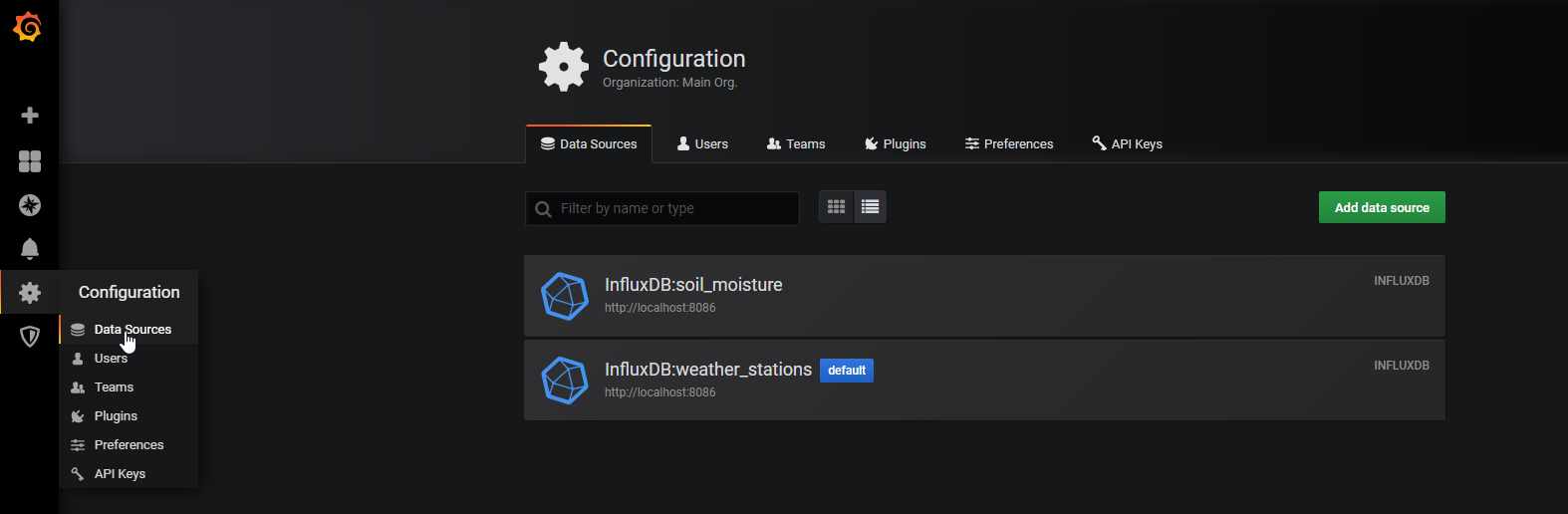
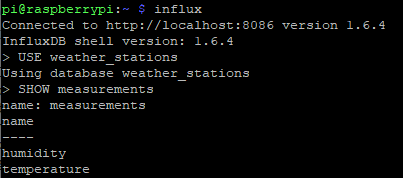
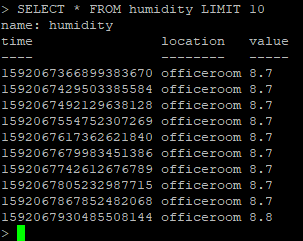
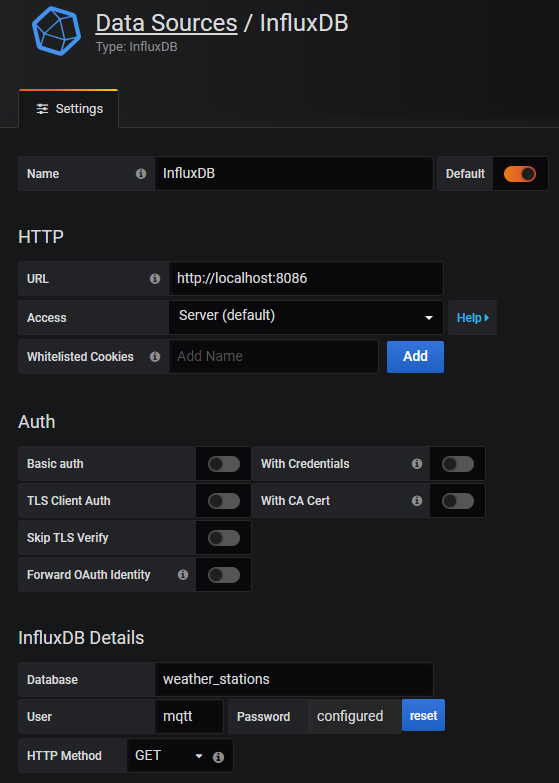
Now the sensor values are stored in the Influx database so that we can create a dashboard in Grafana. In Grafana you can create a new data source. Use the Influx database and the username and password you set before.

Grafana Configuration Data Sources

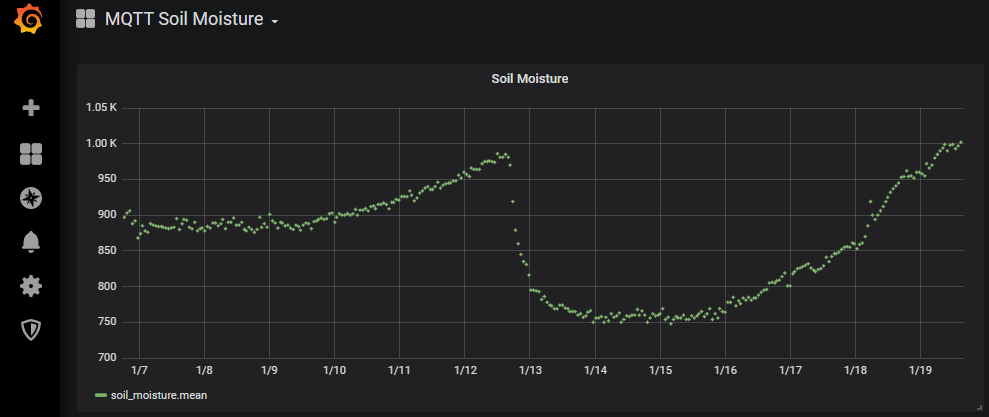
Now you can create a new dashboard and visualize the soil moisture of your plants at home. The following picture is the one I collected the data over several days. You see clearly how the sensor values are rising to 980 over the days. Between the 12.01. and 13.01 the plant got some water and the sensor values drop to around 750. In the following days the sensor values rise again and now I know exactly when my plant needs water.

Grafana Soil Moisture Dashboard

Conclusion

I hope with this tutorial you now have a good understanding of the soil moisture sensor. I tried to keep the theory of the sensor as short as possible because the functionality of the sensor is not very complex to understand. Therefor I tried to concentrate on a good practical example using MQTT, InfluxDB and Grafana to build a pretty monitoring system for your plants at home.

I hope you like this article. If you have any questions regarding the moisture sensor or the MQTT example please use the comment section below to ask your questions. I answer them as soon as possible.

UART Thumbnail

UART Tutorial for Arduino and ESP8266

UART Tutorial for Arduino and ESP8266

In this tutorial we dive deeper into the universal asynchronous receiver-transmitter short UART.

You learn the following parts:

  • Protocol Settings
  • Data Transmission and Framing
  • Advantages and Disadvantages

At the end of this tutorial you find a step by step example of the UART communication between an Arduino Uno and an ESP8266 NodeMCU

UART Thumbnail

Table of Contents

UART is the only asynchronous serial communication protocol and used in RFID card reader modules as standalone communication interface. But UART is typically more found inside microcontrollers.

Compared to I2C and SPI, UART is the oldest communication protocol, invented 1960 by Gordon Bell at Digital Equipment Corporation.
The following table compares the communication protocols I2C, SPI and UART based on different categories.

The mayor drawback of UART is that no multiple master and no multiple slave communication are supported. Therefore there are always 1 master and 1 slave device.

Because the data transfer is asynchronous, UART does not need a clock signal to synchronize data transfer and data can be send and received in different timings. If master and slave device send and receive data at the same time, called full-duplex communication, each device need 2 shift registers to store the transmitting and receiving characters. This is necessary because a device could receive a new data byte while still sending a data byte.
In comparison in SPI communication, master and slave only need 1 shift register for the receiving signals because due to the synchronous data transfer the shift register is emptied and filled at the same time and because the size of the shift register is the same for all devices the data transfer starts and finished at the same time.

In addition to the full-duplex communication, there are two more communication forms which only need 1 shift register:

  • simplex: one direction with no provision for the receiving device (fire and forget)
  • half duplex: devices take turn transmitting and receiving

UART Settings

In most applications the least significant bit is transmitted first. To prevent data loss hat high transmission rates, many UART devices have a small fist-in, first-out (FIFO) buffer memory between the shift register and the host system.

The clock frequency is typically 8 or 16 times the bit rate. The receiver tests the state of the incoming signal with the clock frequency. If the start bit least more than half the bit time, the receiver detects the valid start bit. Otherwise the start bit is ignored. The clock frequency also called baud rate is typically set to 9600 bits per second

Data Transmission and Framing

UART Data Transmission and Framing

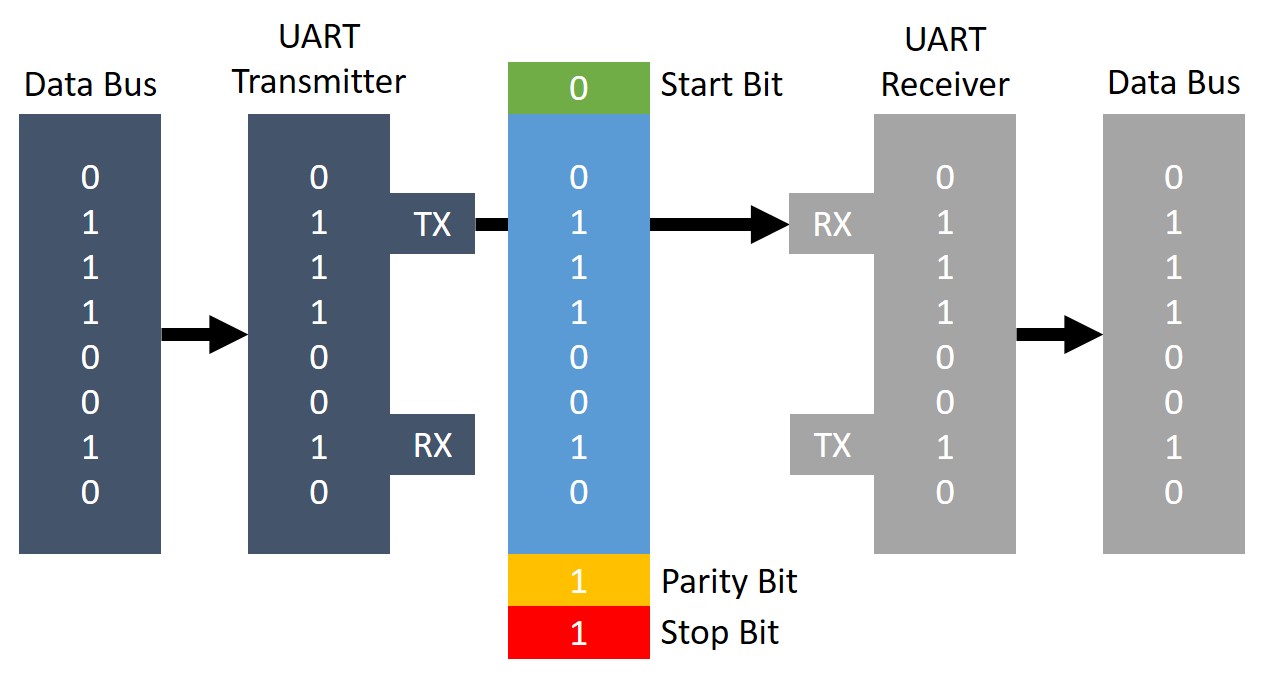
One advantage of UART is that only 2 wires are needed for the communication between master and slave device, because there is no need for a clock line and like SPI communication, there is also no slave select line. The 2 lines are:

  • TX (transmission)
  • RX (reception)

From the picture above you see that the lines are crossed so that TX and RX are connected between the devices.

First the device which transmit the data receives the data frame in parallel from data bus. The UART device adds the start bit, parity bit and stop bits to the data frame before the whole data package is send via UART to the receiving device. The receiving UART device extracts the data frame and forwards the data frame in parallel via data bus.

The following picture and description gives a deeper explanation into the framing processes during the UART communication.

UART Data Framing

If no UART communication is active, the idle state on the communication lines is logical HIGH because in the time of telegraphy a high lend line shows that the transmitter is not damages.

The start bit is the first bit that is transferred as logic LOW, signals that a new character is transferred.

After the start bit follows the actual data frame which data format and size is configurable between 5 to 9 bits.

After the data frame follows an optional parity bit which gives UART the possibility of error checking. The parity bit is 0 if the sum of 1 bits in the data frame is even and 1 if the sum of 1 bits in the data frame is odd. This error checking method prevents from changing bits during the transfer.

The last bits are reserved as stop bits and signal that the character is complete. Therefore the stop bits pull the line HIGH

If the communication is finished and should be ended, the master set the line to logic LOW longer than a character time. This indicates the slave that the UART communication is finished.

UART Advantages and Disadvantages

Advantages

Disadvantages

UART Communication between Arduino and ESP8266

The following table gives you an overview of all components and parts that I used for this tutorial. I get commissions for purchases made through links in this table.

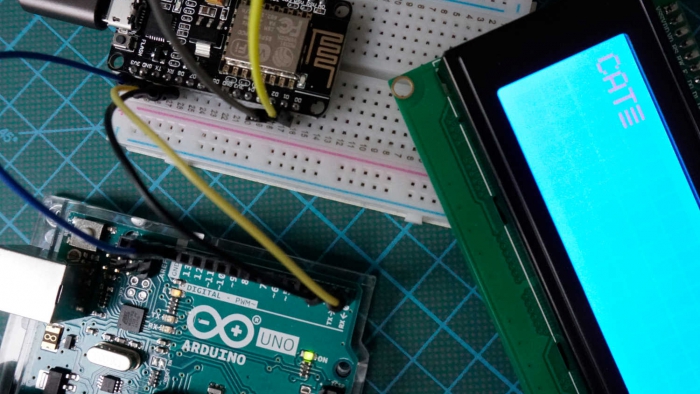
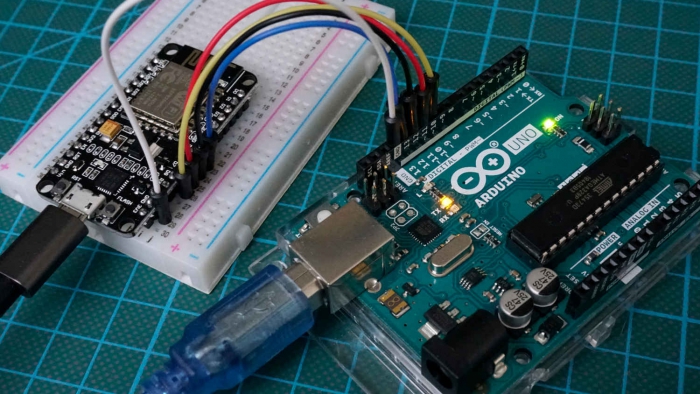
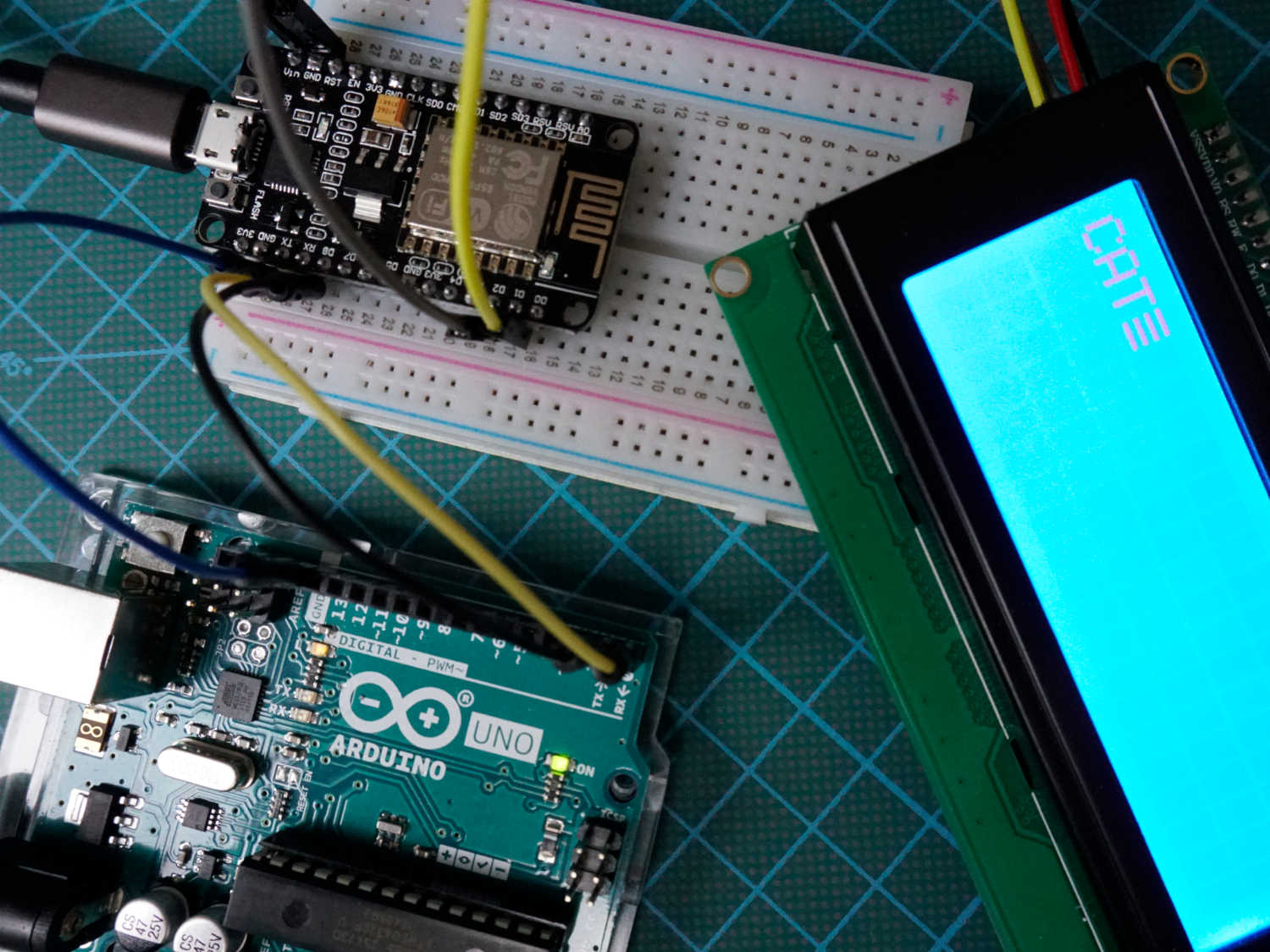
In the following example we want to send a string from an Arduino Uno to a ESP8266 NodeMCU via the UART communication line and display the string on an LCD screen.

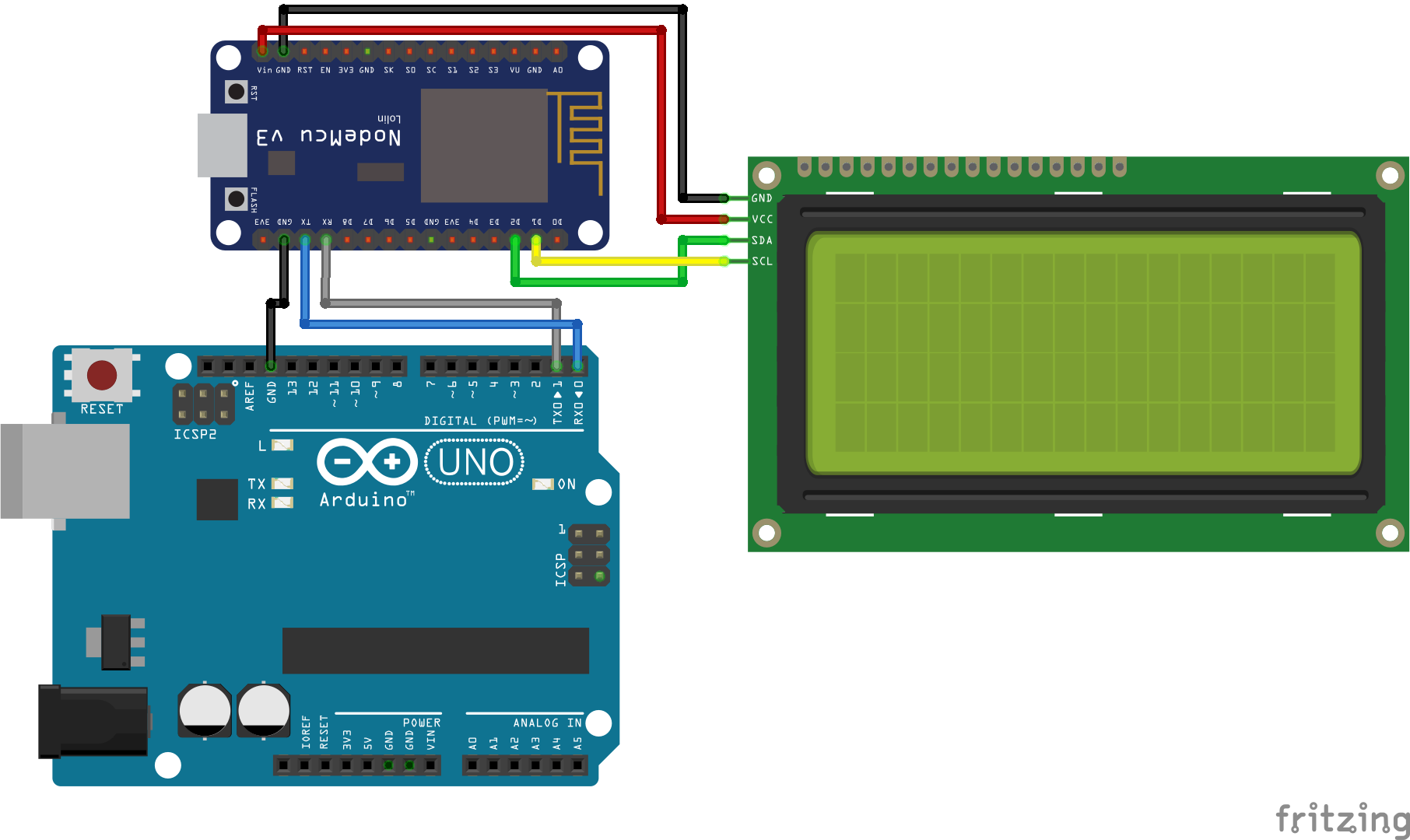
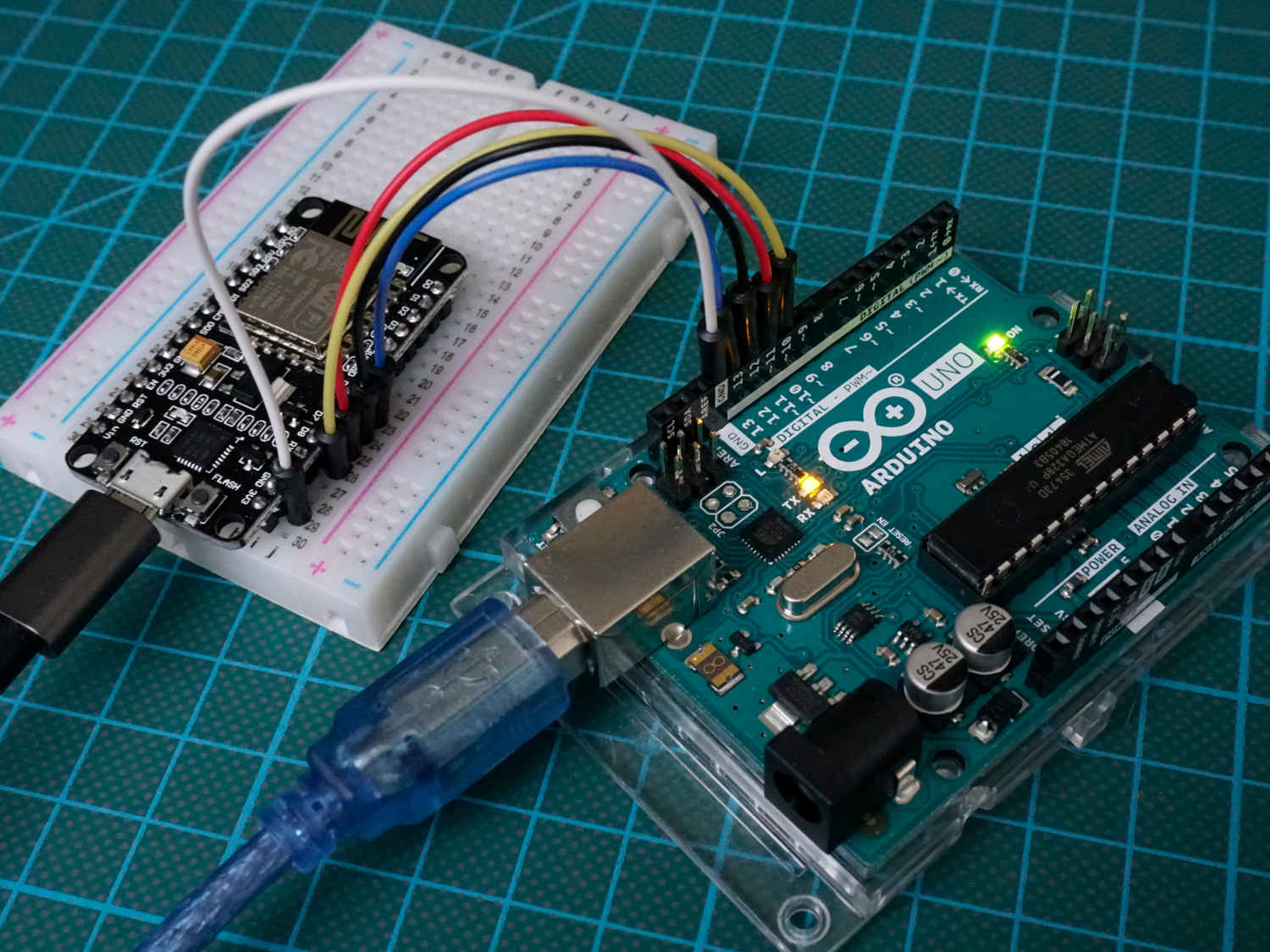
The following picture shows the connection between the Arduino and ESP8266 microcontroller and the LCD display. If you do not know what are the TX (transmission) and RX (reception) pins, you find a very handy overview in the pinout articles of the microcontrollers: Arduino Nano, Arduino Uno, Arduino Mega, ESP8266. Or better if you download the Microcontroller Datasheet eBook.

Click on the picture to make it larger to better see what pins are used.


In the following part we go step by step through the program code. At the end of this section you find a download button to download the whole script in one part for the Arduino Uno and NodeMCU.

The first part is the script of the Arduino Uno that sends a string via UART.

void setup() {
  Serial.begin(9600);
}

void loop() {
  Serial.print("CAT\r");
  delay(1000);
}

The script is very short and easy. There are no libraries included. In the setup function we have to set the baud rate to 9600. An optional second argument configures the data, parity, and stop bits. The default is 8 data bits, no parity and one stop bit which we use in this example.

In the loop function we send the string via the serial function every second. The “\r” part will indicate the receiver that the string is complete.

Now we take care of the receiver script for the NodeMCU.

#include "LiquidCrystal_I2C.h"
#include "Wire.h"
LiquidCrystal_I2C lcd(0x27, 20, 4); 
char buff [50];
volatile byte indx;

void setup() {
  Serial.begin(9600);
  lcd.init();
  lcd.backlight();
  lcd.clear();
}

void loop() {
  if (Serial.available() > 0) {
    byte c = Serial.read();
    if (indx < sizeof buff) {
      buff [indx++] = c; // save data in the next index in the array buff
      if (c == '\r') { //check for the end of the word
        lcd.print(buff);
        delay(1000);
        indx= 0; //reset button to zero
        lcd.clear();
      }
    }
  }
}

First we have to include the LiquidCrystal_I2C library to make the communication to the LCD display easier. The second library Wire has to be included to enable the I2C communication between the NodeMCU and the LCD display.
We initialize the 20×4 LCD display on HEX address 0x27. To identify the Hex address of your I2C device you find a Hex address scanner in this article.
The buff variables stores the incoming values via UART and the indx variable stores the index of the 8 bit.

In the setup function, the baud rate is also set to 9600 which must match to the baud rate of the Arduino Uno. Also the LCD screen is initialized, cleaned and the back light is turned on.

In the loop function we check if the serial connection is available and then read the incoming serial data byte by byte while writing every byte into the byte array buff. If we detect the end of the string, defined by “\r” we print the content of the array to the LCD. After 1 second we reset the index for the array and clean the display for the next incoming data.

Use the following button to download the whole script for the master and slave device we discussed in this chapter. The Arduino files is packed as zip file.

UART Thumbnail

Conclusion

In this tutorial we first compared the UART communication protocol against I2C and SPI. Also we discussed the UART settings and how the data is transmitted between 2 devices. At the end of this article we looked at an example to transfer a string from an Arduino Uno to a NodeMCU via UART.
If you have any questions regarding the UART communication, please use the comment section below to ask your questions. I will answer them as fast as possible.

SPI Thumbnail

SPI Tutorial for Arduino and ESP8266

SPI Tutorial for Arduino and ESP8266

In this tutorial we dive deeper into the Serial Peripheral Interface short SPI.

You learn the following parts:

  • Protocol Settings
  • Data Transmission
  • Advantages and Disadvantages

At the end of this tutorial you find two examples of the SPI communication between two Arduino microcontrollers and an Arduino and an ESP8266 based microcontroller.

SPI Thumbnail

Table of Contents

SPI was invented by Motorola in 1970. The following table compares the communication protocols I2C, SPI and UART based on different categories.

Like I2C, SPI is a synchronous serial data protocol and therefore need a clock to synchronize the communication between master and slave devices.

SPI is recommended when the communication speed needs to bet very fast. The maximal throughput is up to 10,000,000 bits/s and much faster than I2C and UART. The speed which can be used by the microcontroller is based on the chip rate (clock rate). Most Arduino microcontroller have a chip rate of 16 MHz but it is recommend to set the communication speed to ½ of the chip rate 8 MHz (8,000,000 bits/s). The ESP8266 has a higher chip rate compared to the Arduino microcontroller with 80 MHz and it is recommended to reduce the communication speed for the ESP8266 microcontroller too.
To set the SPI clock relative to the system clock you use the function setClockDivider(). For example if you want to have a SPI throughput of 8 Mbits/s and your chip rate is 16 MHz you use the following function with the parameter setClockDivider(SPI_CLOCK_DIV2). The following dividers are available: 2, 4, 8, 16, 32, 64 or 128.
But in practice it is up to you if you want to select the communication speed manually via the function, because the Arduino selects the communication speed automatically equal or less than the setting based on the device with the lowest communication speed.

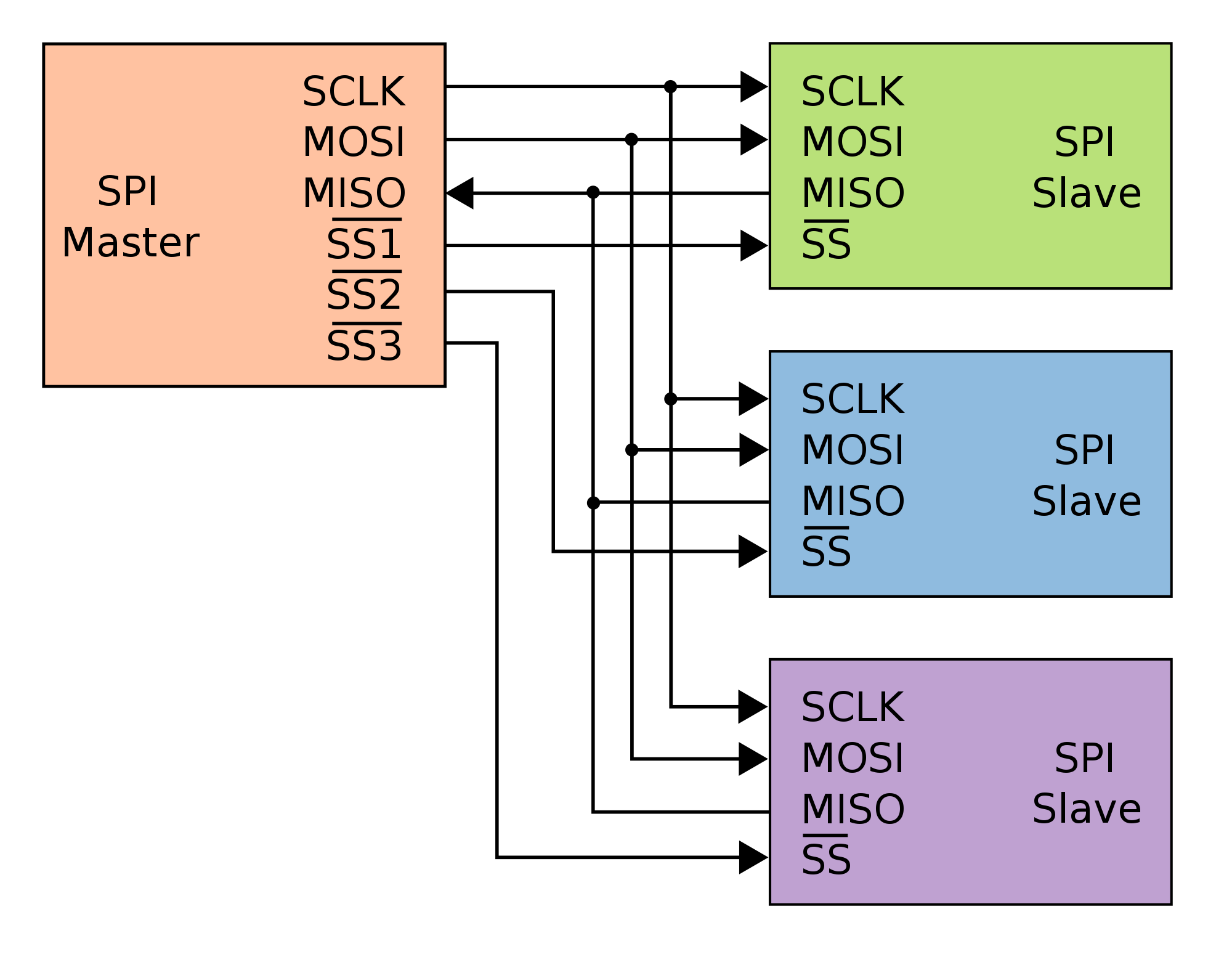
In a SPI system you always have only 1 master device. Therefore SPI is not able to build a multi-master system. If you want to communicate between for example an Arduino Uno and a NodeMCU, one device has to be the master and the other one the slave. But SPI is able to handle multiple slave devices, each one connected to the master device via the so called Slave Select (SS) line. Because the Slave Select line connects each slave with the master there is no unique address for each slave like for the I2C communication.

SPI three slaves

There are 3 lines which connect the master device to all slave devices

  • MISO (Master in Slave Out): The Slave line for sending data to the master
  • MOSI (Master Out Slave In): The Master line for sending data to the peripherals
  • SCK/SCLK (Serial Clock): The pulse from the master device to synchronize data transmission

And 1 line from the master to each device

  • SS (Slave Select) One specific line to each peripheral that the master can enable or disable the specific slave. This allows to share the MISO, MOSI and SCK line between multiple devices. The SS pin can be any digital pin on your microcontroller
    • SS Pin is LOW → Slave communication to master is enabled
    • SS Pin is HIGH → Slave communication to master is disabled

If you want to know what are the MISO, MOSI and SCK pins for different microcontrollers, you find this information in the related pinout articles: Arduino Mega, Arduino Uno, Arduino Nano, ESP8266 NodeMCU or better if you download the Microcontroller Datasheet eBook.

SPI Settings

If we want to start a communication, we first have to enable SPI with the following Arduino code SPI.beginTransaction(SPISettings(8000000, MSBFIRST, SPI_MODE0));
You see that when staring a SPI communication there are in total 3 settings which can be set if we want to control the settings manually. These SPI setting are not deleted when SPI communication is disabled with SPI.endTransaction(). Instead you can change the SPI settings by overwrite the settings via the function SPISettings(). There is always the option to let the microcontroller set the SPI settings automatically which we see in the examples in this tutorial.

Clock Rate

The first setting is the SPI clock rate which is set to 8 Mbits/s in this example.

Data Shifting

The second setting is the data shifting which defines which bit is transferred first. There are 2 options:

  • Most Significant Bit (MSB) → MSBFIRST: Bit 8 is the first bit which is transferred via SPI
  • Last Significant Bit (LSB) → LSBFIRST: Bit 1 is the first bit which is transferred via SPI

Most SPI chips use MSB first data order.

Modes of Transmission

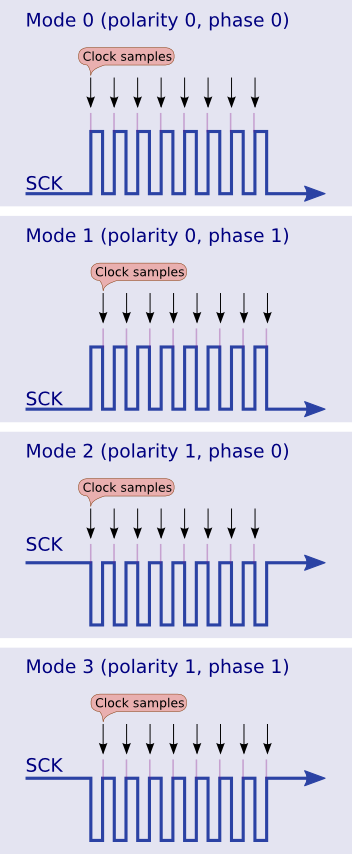
There are in total 4 different modes of transmission depending on the combination of 2 transmission settings:

  • Clock Phase (CPHA)
    • CPHA=1: Samples of the rising edge of clock pulse
    • CPHA=0: Samples of the falling edge of clock pulse
  • Clock Polarity (CPOL)
    • Clock idle when high (CPOL=1): Each cycle consists of a pulse of 0. The leading edge is a falling edge and the tailing edge is a rising edge.
    • Clock idle when low (CPOL=0): Each cycle consists of a pulse of 1. The leading edge is a rising edge and the tailing edge is a falling edge.

The following table shows the 4 different modes of transmission.

For most devices SPI_MODE0 is the default mode of transmission. The following pictures show the four different modes. You see the SCK line and when the clock samples.

Modes of Transmission

SPI Data Transmission

SPI Data Transmission

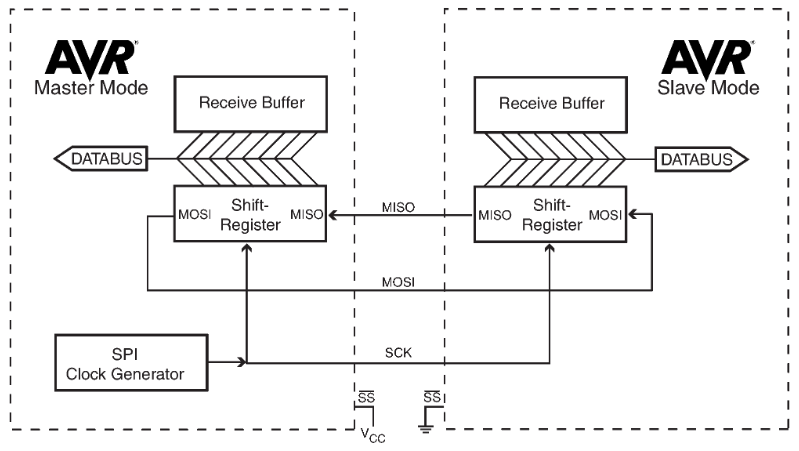
The data which is transferred via SPI communication is stored in 8-bit or 16-bit shift registers which have the same length for the master and slave device. Data is usually shifted out with the most significant bit first, defined by the SPI settings and stored as the new last significant bit of the shift register. The SPI module is unbuffered in the transmit direction and single buffered in the received direction. The following 6 steps describe the SPI data transmission:

  1. First the master device configures the SPI settings (clock rate, data shifting, mode of transmission).
  2. The master selects the slave device by pulling the SS line LOW (from logical 1 to logical 0).
  3. The following steps are done all at the same time during one clock cycle on a full-duplex data transmission:
    1. On the clock edge, the master sends the first bit to the slave via the MOSI line. The slave reads the incoming message.
    2. On the clock edge, the slave sends the first bit to the master via the MISO line. The master reads the incoming message.
  4. The data exchange is done, when the complete shift register is transmitted.
  5. The whole shift register is then copied into the receive buffer and the shift registers are reloaded. The data transmission processes starts again.
  6. If the transmission is complete, the master stops the clock signal and stops pulling the SS line LOW.

SPI Advantages and Disadvantages

Advantages

Disadvantages

Examples of SPI Communication

The following table gives you an overview of all components and parts that I used for this tutorial. I get commissions for purchases made through links in this table.

I also give you two examples for the SPI communication because it is good to know the theory and how something is working. But in the end you want to realize projects and need examples to see how the SPI communication is done. The first one is a communication between the Arduino Uno as master and an Arduino Mega as slave. In the second example we build up a SPI communication between an ESP8266 NodeMCU as master and an Arduino Uno as slave.

SPI communication: Arduino Uno to Arduino Mega

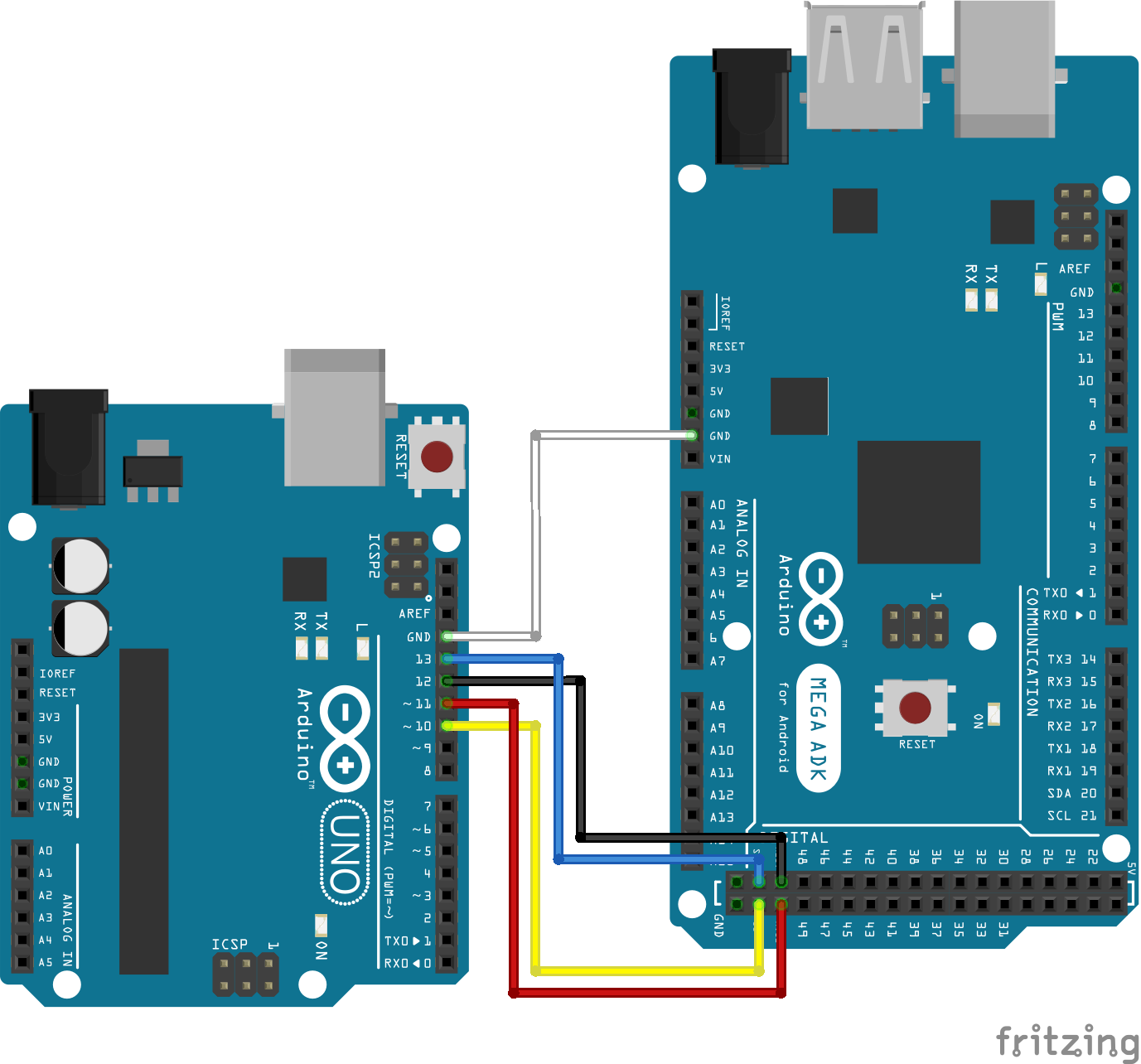
We want to communicate via SPI between an Arduino Uno as master and an Arduino Mega as slave. The following picture shows you the wiring. You also find the used pins in the pinout overview table in the special articles for the Arduino Uno and Arduino Mega.

Arduino Uno 2 Mega

In the following part we go step by step through the program script. At the end of this section you find a download button to download the whole script in one part for the master and slave.

Script for the master device: Arduino Uno

#include "SPI.h"

void setup() {
   digitalWrite(SS, HIGH); // disable Slave Select
   SPI.begin();
   SPI.setClockDivider(SPI_CLOCK_DIV4);//divide the clock by 4
}
 
void loop() {
   char c;
   digitalWrite(SS, LOW); // enable Slave Select
   for (const char * p = "Hello Mega\r" ; c = *p; p++) 
   {
      SPI.transfer(c);
   }
   digitalWrite(SS, HIGH); // disable Slave Select
   delay(2000);
}

First we have to include the SPI library for our example. In the setup function we first disable the slave select pin by pulling the SS line HIGH. Then we initialize the SPI communication with the SPI.begin function. The last part of the setup function is optional. We divide the clock by 4 to reduce the SPI throughput from 16 MHz to 16/4=4 MHz.

The loop function starts with defining a character variable c and enable the slave select line by pulling the line LOW. We want to send the string “Hello Mega\r” and use the \r as flag to signal the slave device that the character transfer is done. Therefore the string is split into its letters in the for loop and transferred via SPI. When the transmission is complete the slave select pin is disabled and we wait for 2 seconds until we send the message from the master to the slave again.

Now you can upload the script for the Arduino Uno as master to the microcontroller. As mentioned before you find the complete script as zip file as download below.

Script for the slave device: Arduino Mega

#include "SPI.h"
char buff [50];
volatile byte indx;
volatile boolean process;

void setup (void) {
   Serial.begin (9600);
   pinMode(MISO, OUTPUT); // have to send on master in so it set as output
   SPCR |= _BV(SPE); // turn on SPI in slave mode
   indx = 0; // buffer empty
   process = false;
   SPI.attachInterrupt(); // turn on interrupt
}

ISR (SPI_STC_vect) // SPI interrupt routine 
{ 
   byte c = SPDR; // read byte from SPI Data Register
   if (indx < sizeof buff) {
      buff [indx++] = c; // save data in the next index in the array buff
      if (c == '\r') //check for the end of the word
      process = true;
   }
}

void loop (void) {
   if (process) {
      process = false; //reset the process
      Serial.println (buff); //print the array on serial monitor
      indx= 0; //reset button to zero
   }
}

The slave script starts also with the inclusion of the SPI library. Also we have to define 3 variables. The buff variables stores the incoming values via SPI. The indx variable stores the index of the 8 bit and the process variable saves the current status of the transmission.

In the setup function, the baud rate is set to 9600 to view the SPI output in the serial monitor. The MISO pin is set as output to receive the data from the master. The SPI is set in slave mode and the two variables are set with their default values. Also interrupts are enables for the SPI communication.

After the setup function the SPI interrupt routine is defined. First the SPI data is read form the internal data register and stored in binary form. As long as the buffer is not completely filled with 50 characters, bit by bit is stored into the buffer from the SPI data register until the flag “\r” for the end of the character is found. If the message is completely transmitted, the variable process is set to TRUE.

The loop function waits until the process variable is TRUE and then first resets the variable and print the complete buffer on the serial monitor. The last part is to reset the index of the buffer to refill the buffer from the beginning.

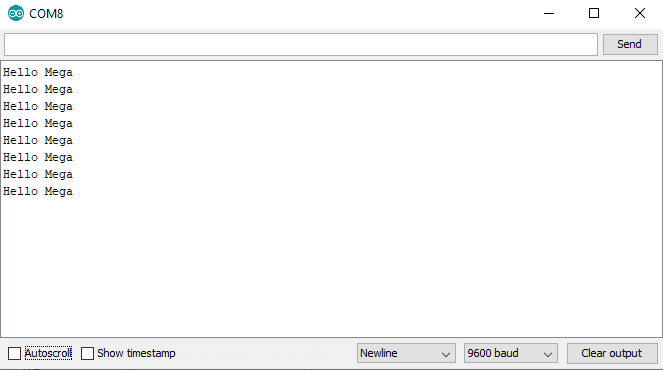
The following picture shows the serial output from the Arduino Mega as slave. The word “Hello Mega” is transferred via SPI.

Arduino Uno 2 Mega Serial Monitor

SPI communication: ESP8266 NodeMCU to Arduino Uno

This second example uses the ESP8266 as master because for the slave script we saw in the first example that the IRS (spi_stc_vect) function is used because the SPI.attachInterrupt(); statement turns on the interrupt. Unfortunately the ESP8266 SPI library does not have an attachInterrupt() method and therefore it is not easy to access the SPI data register for the NodeMCU. Therefore I do not use ESP8266 NodeMCU as slave device.

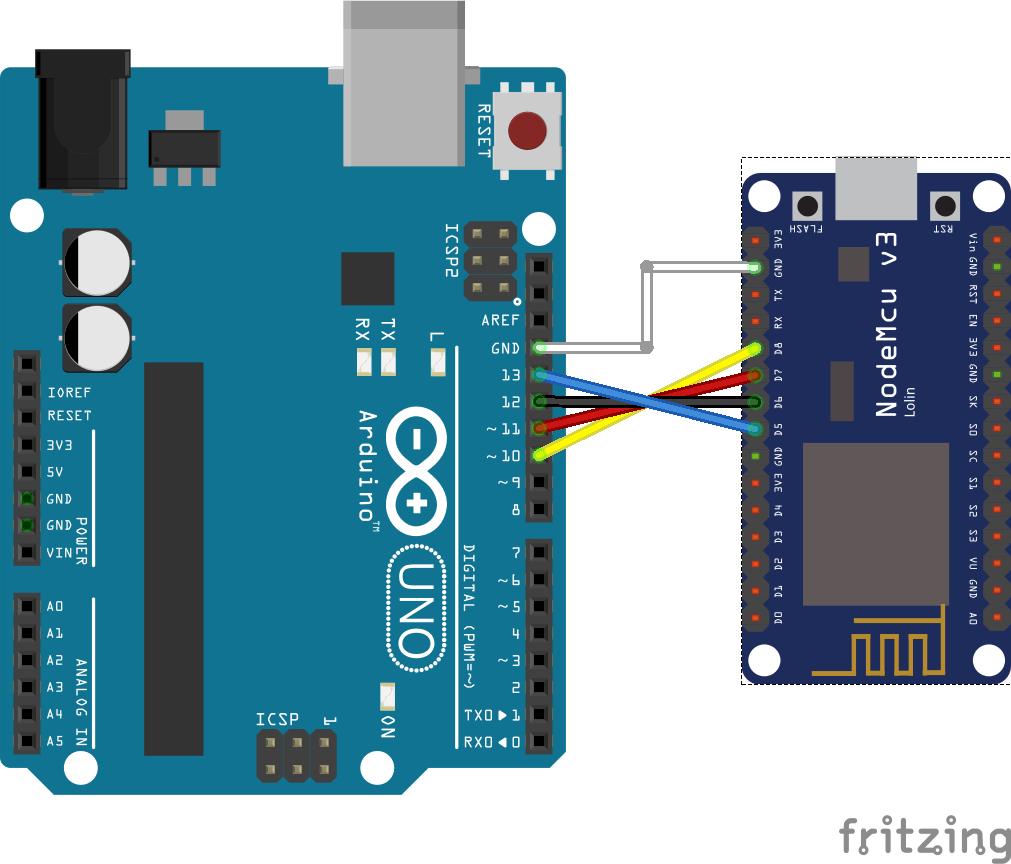
The following picture shows the connection between the ESP8266 NodeMCU and the Arduino Uno.

SPI NodeMCU 2 Arduino Uno

It is no problem to connect the Arduino and the NodeMCU directly even if the operating voltage for the Arduino is 5V and for the NodeMCU is 3.3V because the NodeMCU digital pins are 5V tolerant and protected from over-voltage.

The program code depends not on the specific micocontroller and therefore you can use the master and slave script from the previous example. But I want to show you a very short example for the master script from the ESP8266 microcontroller.

#include "SPI.h"
char buff[]="Hello Slave\n";

void setup() {
 SPI.begin();
}

void loop() {
 for(int i=0; i<sizeof buff; i++)
 {
  SPI.transfer(buff[i]);
 }
 delay(1000);  
}

At the beginning we include the SPI library and the character array which holds the characters we want to transfer to the slave device. In the setup function we only initialize the SPI communication. In the loop function we transfer the character array letter by letter via SPI and then wait for 1 second. This is the shortest master script you can create which uses only the default settings for the SPI communication.

For the slave script we use the same as for the Arduino Mega.

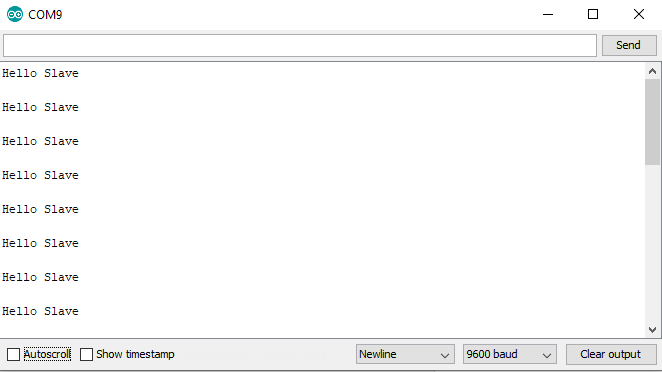
The following picture show the serial output for the SPI communication example between NodeMCU and Arduino Uno.

NodeMCU 2 Arduino Uno Serial Monitor

Use the following button to download the whole script for the master and slave device we discussed in this chapter. The Arduino files is packed as zip file.

View and Decode SPI Communication with an Oscilloscope

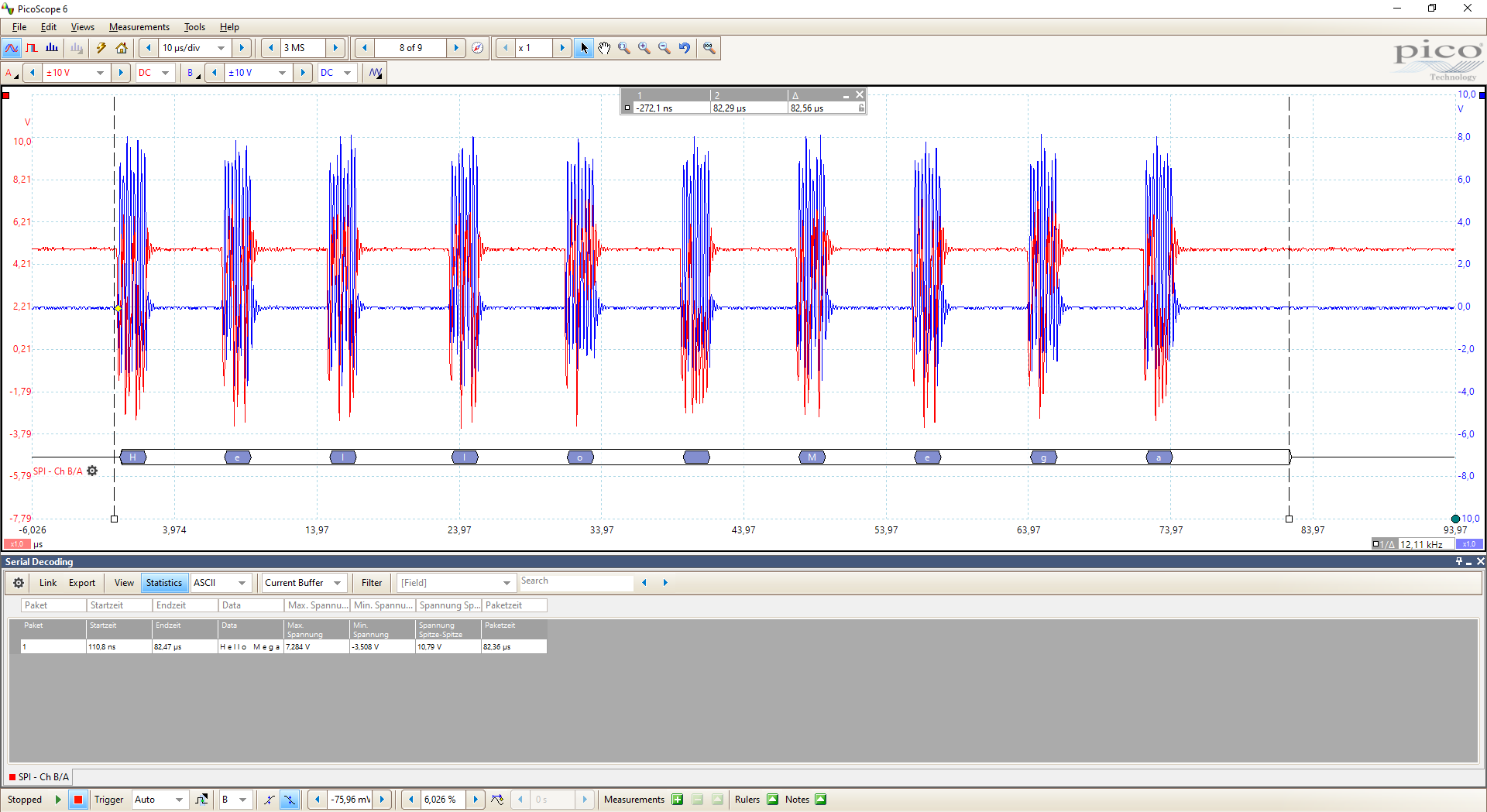
There is also the possibility that the SPI communication fails. If this happens it is very useful to know if the SPI communication on the MOSI line which is the output of the master is correct or not. Most oscilloscopes have the function to decode communication protocols like SPI. I have a 2 channel USB oscilloscope which is linked at the top of this article in the parts list.

I decoded the first example where we sent “Hello Mega” from the Arduino Uno to the Arduino Mega. I only connect the MISO and Clock signal each to one channel of my oscilloscope. In the following picture you see the decoded signal showing that the output from the Arduino Uno is correct, sending “Hello Mega”.

Click on the image to enlarge it.

Conclusion

In this tutorial we first compared the SPI communication protocol against I2C and UART. Also we discussed the SPI settings and how the data is transmitted between different devices. At the end of this article we looked at two examples and how SPI communication can be decoded and debugged with the help of an oscilloscope.
If you have any questions regarding the SPI communication, please use the comment section below to ask your questions. I will answer them as fast as possible.

Menu Thumbnail

Building a Menu with Buttons for your Microcontroller

Building a Menu with Buttons for your Microcontroller

In this tutorial we build a menu with in total 4 buttons and 1 LCD screen for your microcontroller to control a running program.

The article is divided into two parts:

  1. Wiring of the microcontroller, buttons and LCD display to create a menu.
  2. Create the program script to control predefined variables like a temperature.
Menu Thumbnail

Table of Contents

I came up with the idea for a menu when I planned a new project for a temperature controller for my smoker. I thought that it would be cool not only to display the current temperature of multiple temperature probes on the LCD screen but also to give me an overview what is the selected target temperature of the meat. This is important because different kinds of meat have different target temperatures.

You can transfer my example also in the smart home area. For example you can also have a menu to display the temperature and humidity for different rooms in your house, each screen on the display showing the stats for one room. And if the humidity exceeds a predefined threshold, which can be set with the menu, you get an alarm on your phone.

In this tutorial we use a menu with 4 buttons:

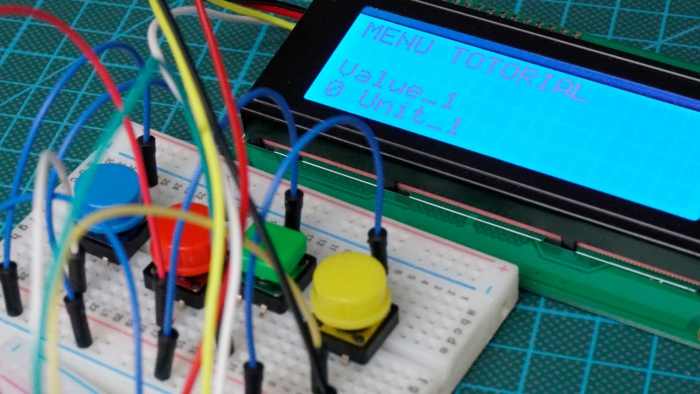
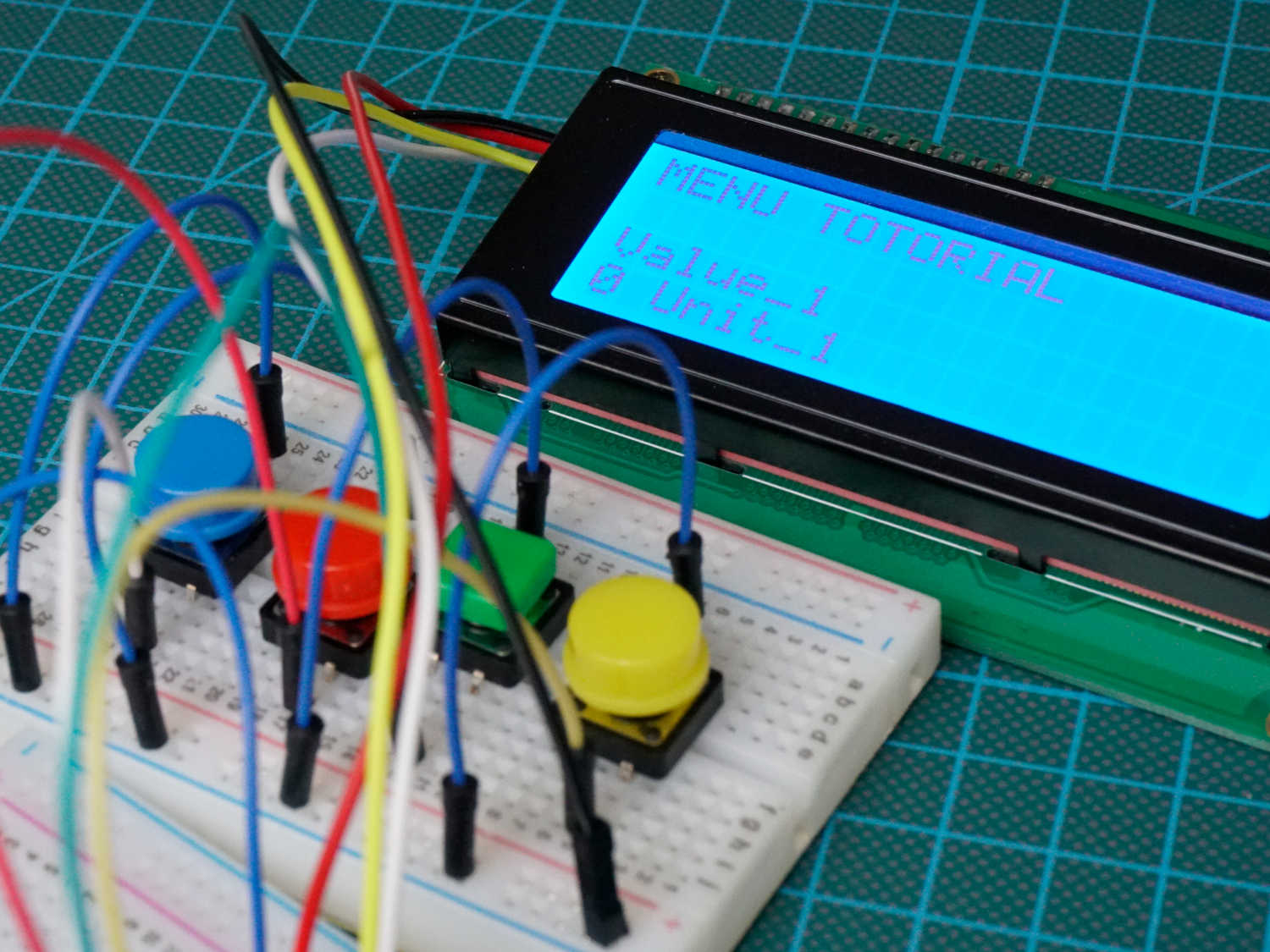
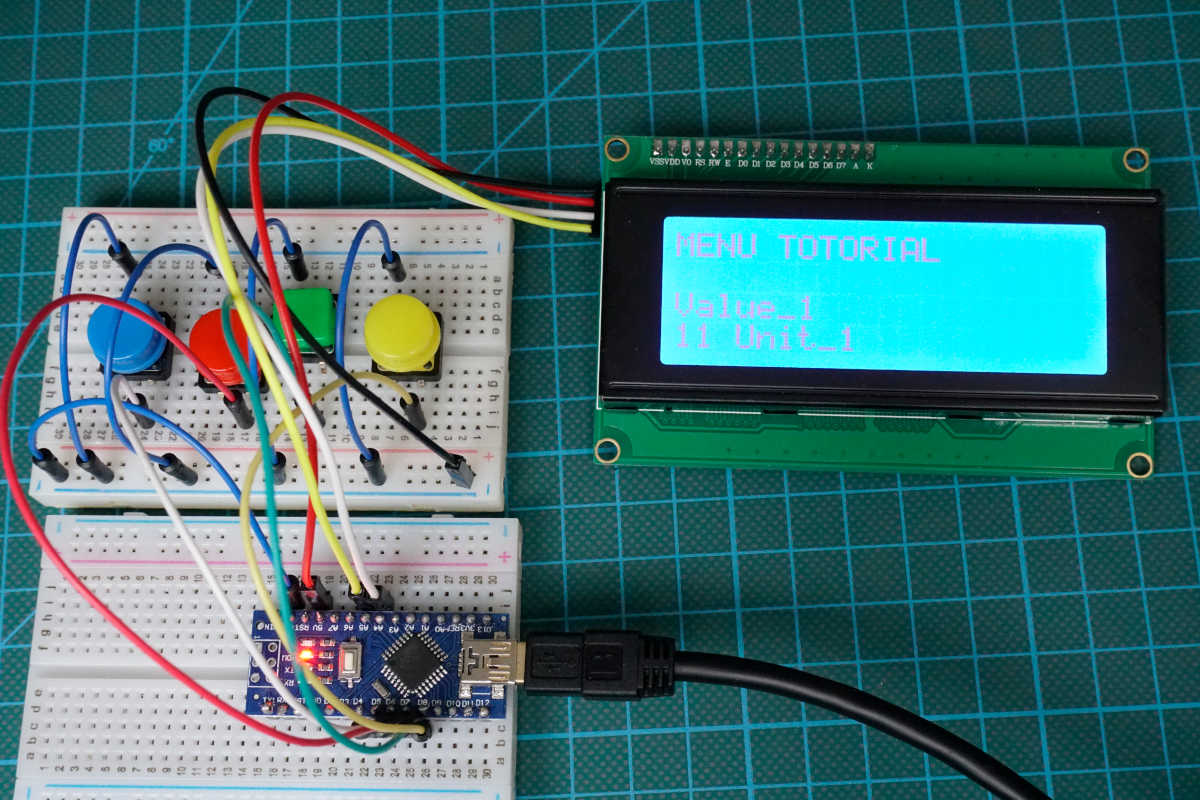
The following picture shows the buttons on a breadboard for this tutorial. In a real project I would solder the buttons on a circuit board in a plus shape.

Menu buttons

Button Menu Wiring

The following table gives you an overview of all components and parts that I used for this tutorial. I get commissions for purchases made through links in this table.

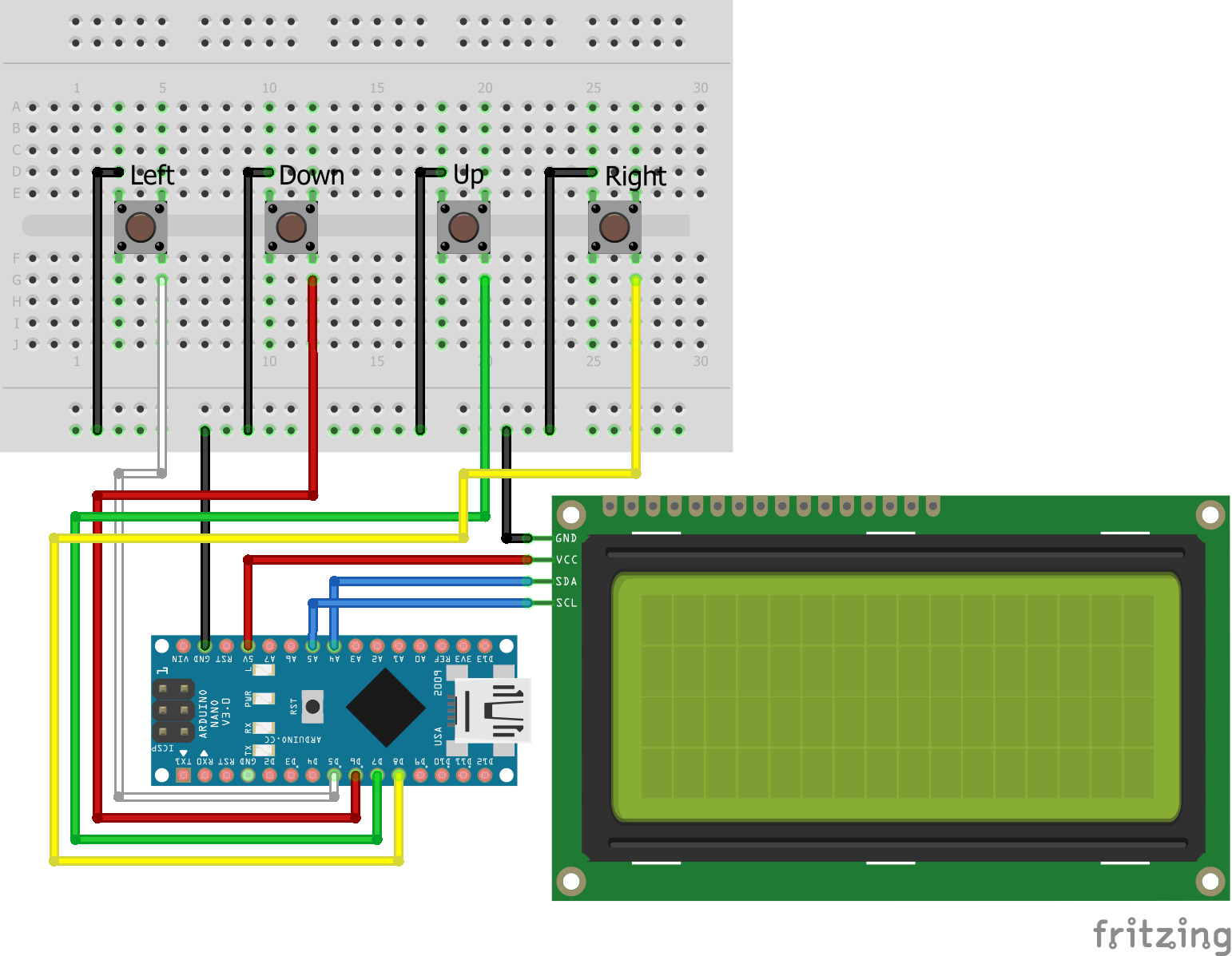
For this project I use an Arduino Nano. But you can use whatever microcontroller you want. The following fritzing sketch shows the connection between the Arduino Nano, the 4 buttons and the LCD screen.

I use a 20×4 LCD display with L2C communication. If you are also interested in LCD displays in general, I recommend you to look at my LCD display tutorial.

I do not use resistors for the connection to the buttons. Instead I use the internal pull up resistor of the Arduino Nano. The function of the internal pull up is the following: If the button is not pressed, the internal pull-up resistor is connected to 5V. Therefore the Arduino reports HIGH. However if we press the button, the Arduino pin is pulled to ground and reports LOW. We have to remember this later in the programming part of this tutorial. 

Button Menu Program Script

Now lets dive into the Arduino program. This script is a little bit more complicated because the difficult part is not the connection between display, buttons and microcontroller but in the script to create the logic of the menu. But do not panic, we go step by step through the script and I describe every little detail.

#include "LiquidCrystal_I2C.h"
LiquidCrystal_I2C lcd(0x27, 16, 4);

const int buttonPinLeft = 5;
const int buttonPinDown = 6;
const int buttonPinUp = 7;
const int buttonPinRight = 8;

int buttonStateLeft = 0; 
int buttonStateDown = 0;
int buttonStateUp = 0;
int buttonStateRight = 0;


const int numOfScreens = 4;
int currentScreen = 0;
String screens[numOfScreens][2] = {{"Value_1","Unit_1"}, {"Value_2", "Unit_2"}, {"Value_3","Unit_3"}, {"Value_4","Unit_4"}};
int parameters[numOfScreens] = {0, 10, 50, 100};


void setup() {
  Serial.begin(9600);
  lcd.init();   // initializing the LCD
  lcd.backlight(); // Enable or Turn On the backlight

  pinMode(buttonPinLeft, INPUT_PULLUP);
  pinMode(buttonPinDown, INPUT_PULLUP);
  pinMode(buttonPinUp, INPUT_PULLUP);
  pinMode(buttonPinRight, INPUT_PULLUP);

  lcd.clear();
  lcd.setCursor(4,1);
  lcd.print("THIS IS THE");
  lcd.setCursor(3,2);
  lcd.print("MENU TUTORIAL");
  delay(5000);
  lcd.clear();
}

void loop() {
  buttonStateLeft = digitalRead(buttonPinLeft);
  buttonStateDown = digitalRead(buttonPinDown);
  buttonStateUp = digitalRead(buttonPinUp);
  buttonStateRight = digitalRead(buttonPinRight);
  
  if(buttonStateLeft == LOW){
    lcd.clear();
    if (currentScreen == 0) {
      currentScreen = numOfScreens-1;
    } else {
      currentScreen--;
    }
}
  
  else if (buttonStateDown == LOW){
    lcd.clear();
    parameters[currentScreen]--;
}
    
  else if (buttonStateUp == LOW){
    lcd.clear();
    parameters[currentScreen]++;
}

  else if (buttonStateRight == LOW){
    lcd.clear();
    if (currentScreen == numOfScreens-1) {
      currentScreen = 0;
    } else {
      currentScreen++;
    }
}
  
  printScreen();
  delay(200);
}


void printScreen() {
  if (currentScreen == 3) {
    lcd.setCursor(0,0);
    lcd.print(screens[0][0]);
    lcd.print(": ");
    lcd.print(parameters[0]);
    lcd.print(" ");
    lcd.print(screens[0][1]);

    lcd.setCursor(0,1);
    lcd.print(screens[1][0]);
    lcd.print(": ");
    lcd.print(parameters[1]);
    lcd.print(" ");
    lcd.print(screens[1][1]);

    lcd.setCursor(0,2);
    lcd.print(screens[2][0]);
    lcd.print(": ");
    lcd.print(parameters[2]);
    lcd.print(" ");
    lcd.print(screens[2][1]);

    lcd.setCursor(0,3);
    lcd.print(screens[3][0]);
    lcd.print(": ");
    lcd.print(parameters[3]);
    lcd.print(" ");
    lcd.print(screens[3][1]);
  }
  else {
    lcd.setCursor(0,0);
    lcd.print("MENU TOTORIAL");
    lcd.setCursor(0,2);
    lcd.print(screens[currentScreen][0]);
    lcd.setCursor(0,3);
    lcd.print(parameters[currentScreen]);
    lcd.print(" ");
    lcd.print(screens[currentScreen][1]);
  }
}

First we import the necessary library for the I2C LCD display communication and create and LiquidCrystal_I2C object. The object has in total three variables:

  • I2C Hex address: 0x27
    In my case the I2C LCD display for the menu is connected on Hex address 0x27. This is the default address for this display. Either you can try the script with the same address of you can find out the I2C Hex address with a I2C Hex address scanner. You find the script and description for the I2C Hex address scanner in this article.
  • Digits in a row: 20 and number of rows: 4
    In my case I use a 20×4 LCD display. If you use a 16×2 display you have to modify the code because we are using more than 2 lines of the display.

If you are not sure how to install the LiquidCrystal_I2C library, you find a step by step tutorial in this article.

Now we define in total 4 different variables with the pin number to know on what signal the different buttons send their state to the Arduino. For example the down button is connected to pin 6.

The buttonState variables store the current state of the button. At the beginning of the script the buttons have the state 0. If a button is pressed it gets the state 1. With this state we know later in the script which button was pressed and can trigger the reaction.

After we care about the buttons, we come to the screens. The first variable defines the number of screens we want to show. In this case we want to create 4 screens. The second variable defines the screen which is shown at the start of the program. We define the screen 0. And here comes the first obstacle, because we now we create a two-dimensional array. In each of the 4 screens we want to save 2 variables. The 2 variables are a value and a unit and could be temperature and kelvin. The variable of the current screen is 0 because we access the first element of an array in Arduino with 0 and not 1.

The following table shows the two-dimensional array.

The last variable we declare is an array which stores the current value of the screen. Because we have in total 4 screens, we store 4 values which can be increased or decreased.

After all variables are defined we take care about the setup function which will only run once at the start of the microcontroller. First we define the baud rate to 9600 which means that we can see values in the serial monitor with a data rate of 9600 bits per second. The baud rate defined in the setup function and in the serial monitor has so be synchronous.
After setting the baud rate we initialize the LCD display and turn the backlight on.
Then we initialize the 4 buttons with their pins and we enable the internal pull-up resistor so that we do not need an additional resistor for our circuit.

For the setup function we want to write a short text to the displays. First we clear the complete display and set the cursor in the second line on digit number 4. Here we print the first part of the text. Then we place the cursor in the next line and because the second part of the test is longer we set the cursor to the 3 digit number and print the second part of the text. The text is shown 5 seconds and after that time the display is cleared.

Now we enter the whole loop function which is of course processed over and over. The first 4 lines of the loop function are to read the current state of the buttons. If a button is pressed, the variable buttonState is LOW and we react in the following with the reaction depending on what button was pressed and then run the printScreen function which will be explained in the following section of this menu tutorial.
First we discuss the buttonStateLeft and buttonStateRight statement. We enter the first if query if the button is pressed and clear the screen to display the new screen without the old information. For the left button we decrease the pointer to show the screen before but when the pointer is already on the first screen (currentScreen == 0) we want to display the last screen to get a never ending rotation which you know from your mobile phone. For the right button we want to display the next screen. That is why we increase the variable currentScreen. If we reach the last screen we show the first screen also to get the functionality of a never ending loop in screens.
Now we want to discuss what happen if we push the button up or down. We first clear the screen too and then either increase or decrease the value of the current screen. The corresponding array which we defined earlier stores the changes values. For each screen we can therefore change the value.

The printScreen function has a lot of rows but is pretty easy and straight forward. First we check if we are in the last screen number 3. If so we want to display every number and unit line per line. Therefore we set the cursor in the first line and print the number name, number and unit. We do this line by line by changing the cursor.
If we are not in the last screen we want to display the title “MENU TOTORIAL” in the first line and use the last two lines to display the number name, number and unit.

I know that such tutorials can be a little bit dry but in the following video you see the button menu in action. You see me flipping through all screens and changing the values. Every time a value is changes is is also be stored and not overwritten from the initial values.

In this tutorial I showed you how to create a basic menu with 4 buttons, an LCD display and an Arduino Nano. Of course this are the basics but starting from here you can build you own menu and even more complex solutions. If you have problems building your menu or general questions to this tutorial, feel free to use the comment section below to ask your questions. I answer them as soon as possible.

Multiple Serial Outputs Thumbnail

How to Display Multiple Serial Outputs

How to Display Multiple Serial Outputs

In this tutorial you learn how to display multiple serial outputs from different microcontroller. For example:

  • we have one Arduino Uno with 2 temperature sensors
  • and one Arduino Nano with 1 temperature sensor.

Now you want to see the serial output of both microcontroller at the same time.

Multiple Serial Outputs Thumbnail

The following table gives you an overview of all components and parts that I used for this tutorial. I get commissions for purchases made through links in this table.

Arduino Uno Amazon Banggood AliExpress
AND Arduino Nano Amazon Banggood AliExpress
AND DHT11 Sensor (blue) Amazon Banggood AliExpress
AND DHT11 Module (blue) Amazon Banggood AliExpress
AND DHT22 Sensor (white) Amazon Banggood AliExpress
AND DHT22 Module (white) Amazon Banggood AliExpress

The following picture shows the connection of both microcontroller.

Multiple Serial Outputs Arduino Uno
Multiple Serial Outputs Arduino Nano

In this tutorial we do not capture the temperature sensors in depth but there is a special tutorial for temperature sensors on my website. But you can use the following button to download the two Arduino scripts that I use in this example. The file you download is a zip file with both scripts.

To display multiple serial outputs of different microcontroller we use the software called Tera Term. Tera Term is a free software, open-source and can emulate different computer terminals. You can download Tera Term from the official webiste.

The following steps show you how to display multiple serial outputs. When you first open the Tera Term software you can choose what connection you want to establish. We want to display serial outputs and therefore choose the second option. From here you can choose different ports. In my case I have an Arduino Uno (COM9) and an Arduino Nano (COM7) connection via USB to my computer. For the initial connection I choose the COM7 to display the serial output of the Arduino Nano. Choose your port and click OK to start the application.

Tera Term 1

Now you should see the serial output in the application. In my case I display the temperature values of a DHT22 module.

Tera Term Com7

Now we also want to see the serial output of the COM9 port. Therefore we establish a new connection with “File” → “New Connection…” in the menu bar.

Tera Term 2
Tera Term 3

Now we choose our second connection the COM9 port and a second window opens showing the results of the Arduino Uno where I connected two different temperature sensors. And this is how you can display the serial output from two different microcontroller.

Tera Term 4

Conclusion

This short tutorial showed that it is possible to display multiple serial outputs from different microcontroller with the Tera Term software. Maybe in the future you run into a use chase where you need this feature and will not find it in the Arduino IDE. If you have any questions about this tutorial, feel free to use the comment section below.

Grafana_thumbnail

Visualize MQTT Data with InfluxDB and Grafana

Visualize MQTT Data with InfluxDB and Grafana

In this tutorial we follow up a first article to build a complete DIY Smart Home indoor weather station.

In this second article we want to save the published messages in an InfluxDB database and create a beautiful dashboard with Grafana.

This step by step tutorial is divided into 3 parts:

  1. Setup an InfluxDB database
  2. Create a MQTT Bridge
  3. Setup Grafana and create the dashboard
Grafana_thumbnail

Table of Contents

Let us quickly summarize what we did in the first article in this series.

In this first article we build up a basic MQTT communication with a ESP8266 NodeMCU as publisher, collecting temperature and humidity sensor information. From this publisher we sent the temperature and humidity with a topic and a payload via MQTT to the MQTT broker on a Raspberry Pi. The last step was to build a subscriber as basic python script to show the last entries of the topics.

Arduino 2 Raspberry Pi WiFi Communication
NodeMCU Raspberry Pi MQTT

Now we extend our application with a InfluxDB database to store all the sensor data and the visualization tool Grafana to show us nice charts on a dashboard. The following picture shows you the big picture of the communication between all parts of this application.

InfluxDB Grafana Overview

The subscriber will be a little bit different in this article because we want to create a MQTT InfluxDB bridge which stores the MQTT data into the database. First we start with the installation and configuration of the InfluxDB.

The following table gives you an overview of all components and parts that I used for this tutorial. I get commissions for purchases made through links in this table.

InfluxDB Setup

In our example we use InfluxDB to store the data because it is optimized for time series data. Of cause it would also be possible to work with other databases like MariaDB or mongoDB but InfluxDB work right out of the box with Grafana, we use to visualize the data.

If you are new to InfluxDB it makes sense to gain some knowledge about the database system itself. You can read the getting started guide of InfluxDB for example.

The first thing we have to do is to install InfluxDB on the Raspberry Pi. Because the Raspberry Pi is a Linux system the installation is pretty easy. Execute the following 2 commands in the Raspberry Pi terminal.

Install InfluxDB

sudo apt install influxdb

Install InfluxDB Clients

sudo apt install influxdb-client

After the successful installation you can start InfluxDB and control the current status with the following commands.

Start InfluxDB Service

sudo service influxdb start

Get the current status of InfluxDB

sudo service influxdb status

The current status should be active so that InfluxDB is running.

Influxdb Status

After the installation of InfluxDB we have to make one change in the configuration to enable the HTTP endpoint. This is necessary because we want to write data from the MQTT subscriber to an existing database. To change the configuration, use the following statement.

Open the InfluxDB configuration

sudo nano /etc/influxdb/influxdb.conf

In the configuration file scroll down with the arrow key on your keyboard to the [http] part of the configuration. Uncomment the first setting by deleting the # on “Determines whether HTTP endpoint is enabled.” and set the enabled = true. Click Ctrl + X, then Y to confirm to save and hit the enter button to save to the existing file.

Influxdb configuration

After every change in the configuration InfluxDB has to be restarted that the changes in the configuration are active. Restart InfluxDB with the following command.

Restart InfluxDB Service

sudo service influxdb restart

Now the configuration is finished and we create a database where all MQTT information are stored and a user that write the MQTT data to the database.
First start InfluxDB with the following command in the Raspberry Pi terminal

Start InfluxDB

influxdb or influx

Now we create a new database with whatever name you like. I choose “weather_stations” as name. Tpye in the following commands:

CREATE DATABASE weather_stations

The database is created and now we create a new user and give this user the rights to access the database we created before. I choose mqtt as username and password. Feel free to find a better of saver username and password.

CREATE USER mqtt WITH PASSWORD ‘mqtt’
GRANT ALL ON weather_stations TO mqtt

That was it for the InfluxDB: We installed InfluxDB, get the configuration right and created a database and user for the database.

You exit InfluxDB from the command line with exit.

The next step is to make sure the database is filled with MQTT messages.

Subscriber Setup (MQTT InfluxDB Bridge)

The job of the subscriber is to listen to all MQTT messages, pull out the ones we want to save in the database and save the messages in the right format into the InfluxDB. The bridge between the MQTT broker and the InfluxDB is a python3 script. Therefore we have to make sure that the needed packages are installed for python3. If you have installed Raspberry Pi OS on your Raspberry Pi you have also installed python3. If you have to install Raspberry Pi OS, you find a tutorial in this article. With the following commands you install the MQTT and InfluxDB packages for python3.

Install Python3 MQTT language bindings

sudo pip3 install paho-mqtt

Install Python3 InfluxDB package

sudo pip3 install influxdb

Now all python3 packages are installed and we create a new python file called MQTTInfluxDBBridge.

Create the python file for the MQTT subscriber

sudo nano MQTTInfluxDBBridge.py

The following part of this article describes the python bridge script step by step.

import re
from typing import NamedTuple

import paho.mqtt.client as mqtt
from influxdb import InfluxDBClient

INFLUXDB_ADDRESS = '192.168.0.8'
INFLUXDB_USER = 'mqtt'
INFLUXDB_PASSWORD = 'mqtt'
INFLUXDB_DATABASE = 'weather_stations'

MQTT_ADDRESS = '192.168.0.8'
MQTT_USER = 'cdavid'
MQTT_PASSWORD = 'cdavid'
MQTT_TOPIC = 'home/+/+'
MQTT_REGEX = 'home/([^/]+)/([^/]+)'
MQTT_CLIENT_ID = 'MQTTInfluxDBBridge'

influxdb_client = InfluxDBClient(INFLUXDB_ADDRESS, 8086, INFLUXDB_USER, INFLUXDB_PASSWORD, None)

class SensorData(NamedTuple):
    location: str
    measurement: str
    value: float

def on_connect(client, userdata, flags, rc):
    """ The callback for when the client receives a CONNACK response from the server."""
    print('Connected with result code ' + str(rc))
    client.subscribe(MQTT_TOPIC)

def _parse_mqtt_message(topic, payload):
    match = re.match(MQTT_REGEX, topic)
    if match:
        location = match.group(1)
        measurement = match.group(2)
        if measurement == 'status':
            return None
        return SensorData(location, measurement, float(payload))
    else:
        return None

def _send_sensor_data_to_influxdb(sensor_data):
    json_body = [
        {
            'measurement': sensor_data.measurement,
            'tags': {
                'location': sensor_data.location
            },
            'fields': {
                'value': sensor_data.value
            }
        }
    ]
    influxdb_client.write_points(json_body)

def on_message(client, userdata, msg):
    """The callback for when a PUBLISH message is received from the server."""
    print(msg.topic + ' ' + str(msg.payload))
    sensor_data = _parse_mqtt_message(msg.topic, msg.payload.decode('utf-8'))
    if sensor_data is not None:
        _send_sensor_data_to_influxdb(sensor_data)

def _init_influxdb_database():
    databases = influxdb_client.get_list_database()
    if len(list(filter(lambda x: x['name'] == INFLUXDB_DATABASE, databases))) == 0:
        influxdb_client.create_database(INFLUXDB_DATABASE)
    influxdb_client.switch_database(INFLUXDB_DATABASE)

def main():
    _init_influxdb_database()

    mqtt_client = mqtt.Client(MQTT_CLIENT_ID)
    mqtt_client.username_pw_set(MQTT_USER, MQTT_PASSWORD)
    mqtt_client.on_connect = on_connect
    mqtt_client.on_message = on_message

    mqtt_client.connect(MQTT_ADDRESS, 1883)
    mqtt_client.loop_forever()


if __name__ == '__main__':
    print('MQTT to InfluxDB bridge')
    main()

At the start of the script we load all packages we use:

  • re: Identify the MQTT topic with a corresponding matching pattern
  • NamedTuple: Create Name Tuples for the right dtype
  • MQTT: Access MQTT broker
  • InfluxDB: Access InfluxDB database

After all packages are loaded the InfluxDB variables are defined. The Address is the IP of the Raspberry Pi. The username name and password are the same we defined in the setup of the InfluxDB and the name of the database is where we want to store our data.

The MQTT variables are in parts the same as the first article in this series. It is important to follow the path structure using wildcards after the home folder. This is because I use the following structure:

  • home
    • livingroom
      • temperature
      • humidity
    • bathroom
      • temperature

Therefor I need in total a depth of 3 in my path structure. So for your publisher you have to define the topics like:

const char* humidity_topic = “home/livingroom/humidity”;
const char* temperature_topic = “home/livingroom/temperature”;

If you want to download the Arduino script, use the following download button to get the complete script.

Due to the variable MQTT_REGEX and the python package “re” it is possible to identify the wildcards.

I create a class called SensorData to get the correct dtypes of the variables for the location, measurement and value:

The on_connect function handle what happens when the MQTT client connects to the broker. If our clients connects to the broker we want to subscribe to all topics which starts with “home” and print the message that the connection was established. The variable rc holds and error code if the connection is not successful so the debugging is easier.

The function _parse_mqtt_message reads the location, measurement and the sensor data from the topic path structure and identifies the variables. The function returns the variables as NamedTuple.

The function _send_sensor_data_to_influxdb gets the variables as NamedTuple as input and create a json structure which will later fits to the query in Grafana. The measurement is saved directly. The location is stored in a tag structure and the value also nested in a field variable. In the last step the json structure is written to the InfluxDB database.

The on_message function is called every time the topic is published to. In this case the topic and the message payload is saved to the two variables and printed to the terminal. Also we use the function _parse_mqtt_message to get the location, measurement and value as NamedTuple. If the sensor data is not empty we use the function _send_sensor_data_to_influxdb to store the sensor data into the InfluxDB database.

The function _init_influxdb_database initializes the InfluxDB database. If the database does not exist, it will be created through the function.

This is the main part of the python script where all defined function are executed. First the database is initialized. Then we create a client object and set the username and password for the MQTT client. We tell the client which functions are to be run on connecting, and on receiving a message.
Once everything has been set up, we can connect to the broker with the broker IP, port and keep alive interval.
Once we have told the client to connect, let the client object run itself with the loop forever function.

Click Ctrl + X, then Y to confirm to save and hit the enter button to save to the existing file.

Test MQTT InfluxDB Bridge

Now we test if everything is running correctly. Run python3 MQTTInfluxDBBridge.py and watch the terminal if you receive data. You should see the temperature and humidity in the terminal like the following picture.

Before we continue the tutorial, we have to make sure that the values from the weather station are saved to the InfluxDB. Therefore we start InfluxDB with the known command: influx.

To enter the database we created before use the following command: USE weather_stations

The first thing we want to make sure is, that all variables are stored. In our example the variables are the temperature and the humidity. In InfluxDB we use the following command: SHOW measurements

Influxdb show measurements

We see that the measurements humidity and temperature are stored in the weather_stations database.

Now I also want to make sure that the sublocation and the value are stored. Therefore we use the following SQL statement to see the last 10 entries of the humidity measurement.

Influxdb last entries of measurement

Run MQTT InfluxDB Bridge at Startup

At this point of the tutorial we know that our script is running correctly we want to run it not only if we are logged in to our Raspberry Pi. Now I show you how you can define that the python script is running when the Raspberry Pi starts. Therefor we use a shell script which we execute as cron job when the Raspberry Pi is starting.

First we create the shell script with the following command.

Create shell script

nano launcher.sh

The following script will wait for 60 seconds because in my case I got the problem that during the startup the connection to the database was not possible. After I included the short pause, the script runs without any problems.
After the pause we navigate into the main folder where the python script is and execute the script with python3.

#!/bin/sh
# launcher.sh

sleep 60

cd /
cd home/pi
sudo python3 MQTTInfluxDBBridge.py
cd /
shellscript

Press Cntl-X, return to save. Now we have to make the script executable. Use the following statement.

Makes the shell script executable

chmod 755 launcher.sh

If there occur errors we want to save the error logs for debugging the application. We create a new dictionary and save the logs in a separate folder.

Create new folder to save error logs

mkdir logs

The last and final step is to add the shell script to crontab. Crontab is a background process that is able to execute scripts at defined times. Type in the following command to open crontab.

Open crontab

sudo nano crontab -e

Add the following line to execute your shell script:
@reboot sh /home/pi/launcher.sh >/home/pi/logs/cronlog 2>&1

Press Cntl-X, return to save. Now we can reboot the Raspberry Pi. There should be no errors but if so than you can open the log files with the following command.

Open error logs from contab

cd logs
cat cronlog

The last part of this tutorial is the Grafana setup to create beautiful charts and dashboards from you saved MQTT data.

Grafana Setup

To install grafana first we have to look after the latest version: https://github.com/grafana/grafana/releases

In my case version 6.5.1 is the newest version. To install grafana, use the following commands.

Install Grafana on the Raspberry Pi with version 6.5.1

wget https://dl.grafana.com/oss/release/grafana_6.5.1_armhf.deb

sudo dpkg -i grafana_6.2.2_armhf.deb

sudo apt-get update

sudo apt-get install grafana

After the installation you can start the grafana server.

Start Grafana

sudo service grafana-server start

You can access the Grafana GUI (graphical user interface) on port 3000. Typ in your browser the combination of the IP of your Raspberry Pi and the port. In my case it is

Access Grafana GUI with your browser

192.168.0.8:3000

Grafana signin

Use the following combination for your first login:

  • Default username: admin
  • Default password: admin

During your first login you have to change the password. Use a password you like and continue.

Now you choose your default data sources. Of cause we use InfluxDB. Now we have to setup the settings for the connection to the InfluxDB:


Grafana Database Settings
  • URL: http://localhost:8086
    Use the localhost because the InfluxDB is on the same Raspberry Pi installed. The InfluxDB can be accessed on port 8086.
    If you get an gateway error, try to use the IP of your Raspberry Pi instead of the localhost. In my example, the URL would be http://192.168.0.8:8086
  • Database: weather_stations
    Use the name of the database where the MQTT data is stored. In my case I named the database “weather_stations”.
  • User: mqtt
    Here we use the user we created during the setup of the InfluxDB.
  • Password: mqtt
    Here we use the user we created during the setup of the InfluxDB.

At the bottom of the site you can save and test the connection. You should get a message that the data source is working.

On the left menu panel you can choose the “Explore” button where you define SQL queries to get an overview about your data.

Grafana explore 1

As measurement we can select the temperature for example. Use the GROUP BY time to get a curve instead of dots. For example I choose to group by a time of 1 minute. Also I want to group by the tag (location) to get not one curve but one curve for every weather station I have in my apartment.

The following picture shows you the visualization of the temperature of my four temperature sensors.

Grafana explore 2

If you want to create visualizations for your dashboard click the add panel button on the top (see the following picture) and define your custom SQL query. It would be too much to explain every single detail of Grafana in this article but you should active the auto refreshing also on the top as last button. I choose to refresh the dashboard every minute.

Feel free to explore Grafana for yourself. But If you struggle at some point or if you have any questions, use the comment section below and I will answer your questions as soon as possible.

Are you are interested in a whole section of articles related to MQTT, Home Assistant, InfluxDB and Grafana? The following picture shows the structure of in total 5 articles in this series.

NodeMCU Raspberry Pi MQTT WiFi

Microcontroller to Raspberry Pi WiFi MQTT communication

Send data from ESP8266 or EPS32 to Raspberry Pi via MQTT

In this tutorial we create a WiFi MQTT communication between an ESP8266 or ESP32 microcontroller and a Raspberry Pi.

With this article you learn

  • the basics of MQTT communication
  • how to publish data to a MQTT broker
  • how to setup an MQTT broker
  • validate the published data as subscriber
NodeMCU Raspberry Pi MQTT WiFi

In my last article I wrote a tutorial how to send data from an Arduino to a Raspberry Pi via the serial USB communication. But the better solution to create a smart home is of course to send the data via WiFi communication.

If we want to send data via WiFi we need a transportation protocol. The most popular transportation protocol I know is MQTT which stands for Message Queuing Telemetry Transport and is suitable for microcontrollers like ESP8266, ESP32 or Raspberry Pi that are able to use WiFi.

Table of Contents

What is MQTT?

In this section I want to give a summary how MQTT works. If you are interested in more details about how MQTT works please visit my detailed tutorial about MQTT.

In the MQTT message chain are 3 parties involved:

  1. Publisher who generate and send data to the MQTT broker. In case of a smart home the publisher could be a weather station which sends temperature and humidity every 5 minutes to the broker.
  2. Broker which is like a server to collect the messages from all publishers, save the data and distribute the data messages to the right subscribers.
  3. Subscriber is a component which subscribes to a certain kind of messages coming from publishers. A subscriber in the smart home use case could be a monitor or panel which shows the different temperatures and/or humidity of the home and outside.
Arduino 2 Raspberry Pi WiFi Communication

If we want to send data via MQTT we have to define some variables and setting which are linked between the publisher, the broker and the subscriber. The following picture gives a perfect overview about how defines the setting and to which parties are the settings distributed.

For our example we use an ESP32 or ESP8266 as publisher. The MQTT Broker will be a Raspberry Pi and we choose Mosquitto as MQTT software for the broker. The subscriber is the same Raspberry Pi as the broker. That the broker and subscriber is on the same device makes no problem and is common practice.

The first setting is the IP of the MQTT broker. Of course the IP of the MQTT broker is the same IP address that the Raspberry Pi has in your network. This IP is a variable in the publisher and subscriber script because they have to connect to the broker.

The second setting is the MQTT topic which is defined by the publisher. Which data you put in a topic it totally up to you. For me if I had several indoor weather stations in different room in the house I would give each room a topic. But in the end every topic has to be unique. Therefor topics are build like a folder structure. For examples you can have the following topics:

  • home/bathroom/temperature
  • home/bathroom/humidity
  • home/livingroom/temperature

The advantage is that one subscriber can have the subscription to the bathroom with all data following down the folder structure and a second subscriber can be only interested in the temperature of the bathroom.

The MQTT username and password is defined in the configuration file of the MQTT broker (mosquitto.conf). This configuration has to be exactly the same in the publisher and subscriber script to get access to the MQTT broker.

Only the publisher gets a MQTT client ID. With this client is the publisher is identified. This prevents the broker for disallowed data from unknown publishers and you know which publisher is sending what data. You can think for the client ID like a name.

The last setting is also only for the publisher. It is the SSID and password for your home network. Without this information the microcontroller can not send data via the local network.

After we defined all settings and which device has to define what setting or variable we can dive into your example. In this example we want to send the temperature and humidity from a DHT11 sensor or a DHT22 sensor module to the Raspberry Pi. The sensor is connected to the ESP8266 or ESP32 microcontroller. The Raspberry Pi as subscriber should print the last sent temperature and humidity to the terminal.

Because we will need all these variables and settings in the following part of this tutorial the table below shows the specific variables and settings. You can copy them or define your one. This is up to you.

The following table gives you an overview of all components and parts that I used for this tutorial. I get commissions for purchases made through links in this table.

Publisher Setup Part 1 (ESP8266 / ESP32)

The first step is to set up the publisher so that we can be sure that the temperature and humidity is read correctly and published to the network via MQTT.

In the following picture you see the wiring between the ESP8266 or the ESP32 microcontroller and the DHT22 sensor module.

DHT22 Module ESP32 NodeMCU

DHT22 Module ESP32 NodeMCU

DHT22 Module ESP8266 NodeMCU
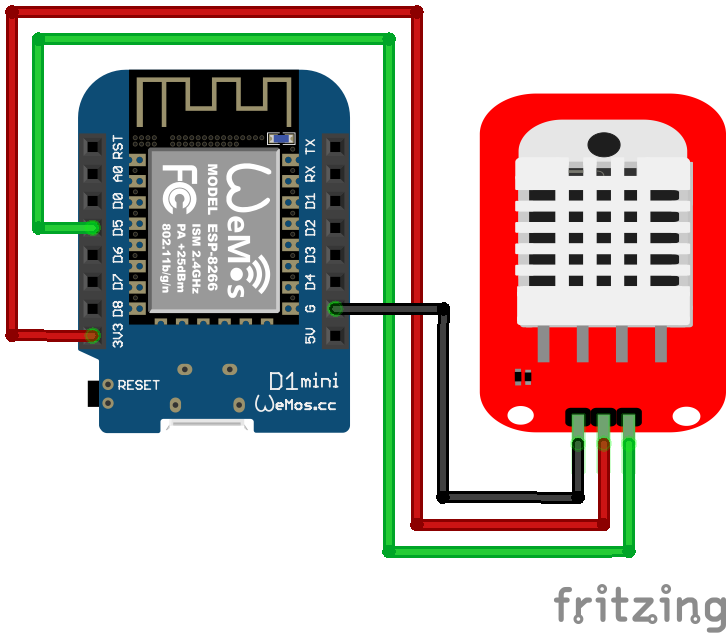
DHT22 Module ESP8266 NodeMCU

DHT22 Module ESP8266 WeMos D1 Mini
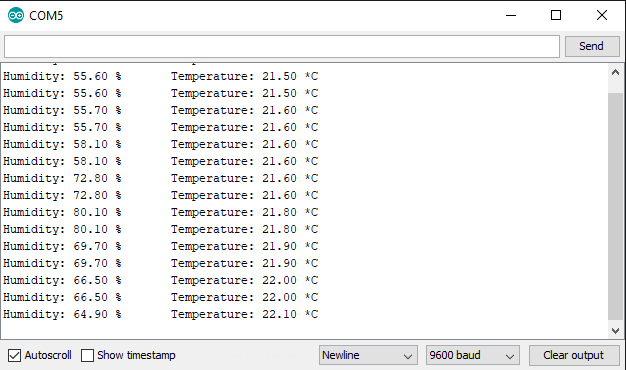
DHT22 Module ESP8266 WeMos D1 Mini
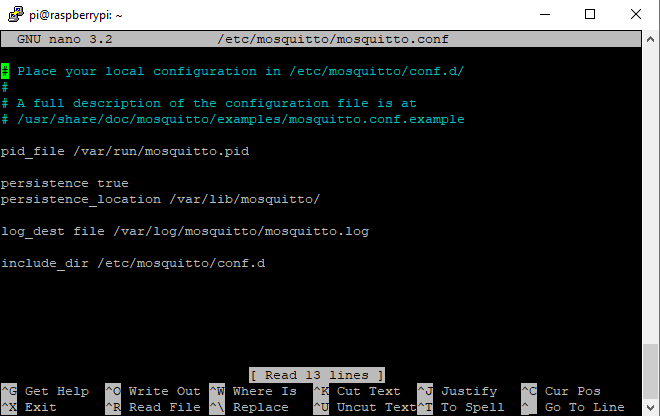
The program sketch is easy. First we have to import the DHT library and define the pin the DHT temperature and humidity sensor is connected to the microcontroller. For the ESP8266 I use the digital I/O pin D5 and for the ESP32 pin 4, which you can see from the fritzing pictures. Depending on your microcontroller, you have to comment one of the two lines.

After the definition of the used pin, we choose the DHT type. In my case I use the DHT22 sensor. If you use a DHT11 sensor, you have to change the corresponding line of code. The wiring is the same between the DHT11 and DHT22 sensor module.

In the setup function we set the baud rate to 9600 and initialize the sensor. The temperature and humidity are saved in one variable and the sensor values are printed to the serial monitor if they are valid. At the end of the script we pause for 10 seconds.

#include "DHT.h"

//#define DHTPIN D5  // for ESP8266
#define DHTPIN 4  // for ESP32

#define DHTTYPE DHT22  // DHT11 or DHT22

DHT dht(DHTPIN, DHTTYPE);

void setup() {
  Serial.begin(9600); 
  dht.begin();
}
 
void loop() {
  float humidity = dht.readHumidity();
  float temperature = dht.readTemperature();
 
  // check if returns are valid and print the sensor data
  if (isnan(temperature) || isnan(humidity)) {
    Serial.println("Failed to read from DHT");
  } else {
    Serial.print("Humidity: "); 
    Serial.print(humidity);
    Serial.print(" %\t");
    Serial.print("Temperature: "); 
    Serial.print(temperature);
    Serial.println(" *C");
  }

  delay(10000);
}

If you did everything right you should see the sensor values in the serial monitor.

DHT22 Serial Output

This was part one of the publisher setup. Now we have to setup the MQTT broker and come back to the publisher to send the temperature and humidity with MQTT to the broker.

MQTT Broker Setup (Raspberry Pi)

First you have to setup the Raspberry Pi. If you do not know how to setup your Raspberry Pi, here you find the tutorial.
The first thing is that we have to connect to the Raspberry Pi via SSH to install the necessary packages and libraries. You should see the terminal in front of you.
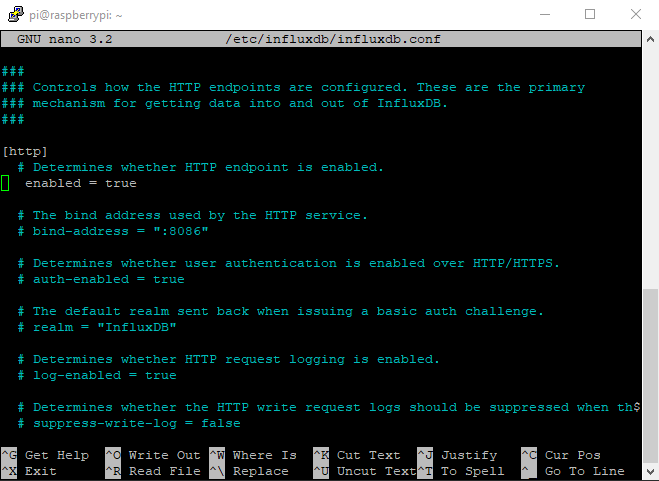
Pi_Terminal

The first thing is to install the MQTT broker Mosquitto on the Raspberry Pi with the command line clients for debugging in case of error. Use the commands in the following table for the installation.

Install the MQTT broker/server

sudo apt-get install mosquitto

Install command line clients in case for debugging

sudo apt-get install mosquitto-clients -y

In case the packages can not be found run sudo apt-get update to update what packages are in general available for your Raspberry Pi.

After the installation of the MQTT broker Mosquitto we have to change some configurations. There are two different configurations to control Mosquitto:

  1. /etc/mosquitto/mosquitto.conf: Default configuration
  2. /etc/mosquitto/conf.d: Extension to the default configuration.

In our example we only want to use the default configuration. Therefor open the configuration file with the text editor nano and the following command:

Open the Mosquitto MQTT broker configuration

sudo nano /etc/mosquitto/mosquitto.conf

You see the default configuration after the installation of Mosquitto.

Raspberry Pi Mosquitto Configuration 2

There are 4 things we want to change apart of the default configuration:

  1. The broker should only include the default settings. That is done be comment the line where the conf.d file is included.
  2. We do not want anonymous users to connected to the MQTT broker: allow_anonymous = false
  3. We want to save the passwords in a separate file: password_file /etc/mosquitto/pwfile
  4. The MQTT broker should be accessible on port 1883

After all changes your Mosquitto configuration file should look like the following.

Raspberry Pi Mosquitto Configuration 3

Click Ctrl + X, then Y to confirm to save and hit the enter button to save to the existing file.
Now we have to set the username and the password that publishers and subscribers get access to the MQTT broker. Use the following command to create a new user and password for this user.

Create new user with username and password

sudo mosquitto_passwd -c /etc/mosquitto/pwfile username

sudo mosquitto_passwd -c /etc/mosquitto/pwfile cdavid

Raspberry Pi Mosquitto User

In my case I use the following username and password:

  • Username: cdavid
  • Password: cdavid

Of course this password is bad regarding the security. Feel free to create a stronger password. This username and password is also used in the publisher and subscriber script.

If you want to delete an existing user, you can use the following command.

Remove existing user

sudo mosquitto_passwd -d /etc/mosquitto/pwfile username

At this point we created the MQTT broker as well as every setting we use in this tutorial. Now we want to check is Mosquitto is already running. You can test the current status of the MQTT broker with:

See current status of MQTT broker

sudo systemctl status mosquitto

Raspberry Pi Mosquitto Status

My broker is running. The following commands start, stop and restart and start the MQTT broker at boot of the Raspberry Pi. Use the following commands to control the broker:

Start MQTT broker

sudo systemctl start mosquitto

Stop MQTT broker

sudo systemctl stop mosquitto

Restart MQTT broker

sudo systemctl restart mosquitto

Start MQTT broker at boot

sudo systemctl enable mosquitto

Now after the MQTT broker is ready to receive the data via MQTT we have to make sure that the publisher is sending the data via MQTT to the broker.

Publisher Setup Part 2 (ESP8266 / ESP32)

The publisher part 1 finished that the temperature and humidity are stored in a variable and printed to the serial. In this part 2 we establish the WiFi connection to the home network and send the data as payload via the MQTT protocol to the broker.

Now we go part by part over the Arduino script for the ESP8266 or ESP32.

#include "DHT.h"
#include "PubSubClient.h" // Connect and publish to the MQTT broker

// Code for the ESP32
#include "WiFi.h" // Enables the ESP32 to connect to the local network (via WiFi)
#define DHTPIN 4  // Pin connected to the DHT sensor

// Code for the ESP8266
//#include "ESP8266WiFi.h"  // Enables the ESP8266 to connect to the local network (via WiFi)
//#define DHTPIN D5         // Pin connected to the DHT sensor

#define DHTTYPE DHT22  // DHT11 or DHT22
DHT dht(DHTPIN, DHTTYPE);

// WiFi
const char* ssid = "KabelBox-0174";                 // Your personal network SSID
const char* wifi_password = "9434763855628**"; // Your personal network password

// MQTT
const char* mqtt_server = "192.168.0.8";  // IP of the MQTT broker
const char* humidity_topic = "home/livingroom/humidity";
const char* temperature_topic = "home/livingroom/temperature";
const char* mqtt_username = "cdavid"; // MQTT username
const char* mqtt_password = "cdavid"; // MQTT password
const char* clientID = "client_livingroom"; // MQTT client ID

// Initialise the WiFi and MQTT Client objects
WiFiClient wifiClient;
// 1883 is the listener port for the Broker
PubSubClient client(mqtt_server, 1883, wifiClient); 


// Custom function to connet to the MQTT broker via WiFi
void connect_MQTT(){
  Serial.print("Connecting to ");
  Serial.println(ssid);

  // Connect to the WiFi
  WiFi.begin(ssid, wifi_password);

  // Wait until the connection has been confirmed before continuing
  while (WiFi.status() != WL_CONNECTED) {
    delay(500);
    Serial.print(".");
  }

  // Debugging - Output the IP Address of the ESP8266
  Serial.println("WiFi connected");
  Serial.print("IP address: ");
  Serial.println(WiFi.localIP());

  // Connect to MQTT Broker
  // client.connect returns a boolean value to let us know if the connection was successful.
  // If the connection is failing, make sure you are using the correct MQTT Username and Password (Setup Earlier in the Instructable)
  if (client.connect(clientID, mqtt_username, mqtt_password)) {
    Serial.println("Connected to MQTT Broker!");
  }
  else {
    Serial.println("Connection to MQTT Broker failed...");
  }
}


void setup() {
  Serial.begin(9600);
  dht.begin();
}

void loop() {
  connect_MQTT();
  Serial.setTimeout(2000);
  
  float h = dht.readHumidity();
  float t = dht.readTemperature();
  
  Serial.print("Humidity: ");
  Serial.print(h);
  Serial.println(" %");
  Serial.print("Temperature: ");
  Serial.print(t);
  Serial.println(" *C");

  // MQTT can only transmit strings
  String hs="Hum: "+String((float)h)+" % ";
  String ts="Temp: "+String((float)t)+" C ";

  // PUBLISH to the MQTT Broker (topic = Temperature, defined at the beginning)
  if (client.publish(temperature_topic, String(t).c_str())) {
    Serial.println("Temperature sent!");
  }
  // Again, client.publish will return a boolean value depending on whether it succeded or not.
  // If the message failed to send, we will try again, as the connection may have broken.
  else {
    Serial.println("Temperature failed to send. Reconnecting to MQTT Broker and trying again");
    client.connect(clientID, mqtt_username, mqtt_password);
    delay(10); // This delay ensures that client.publish doesn't clash with the client.connect call
    client.publish(temperature_topic, String(t).c_str());
  }

  // PUBLISH to the MQTT Broker (topic = Humidity, defined at the beginning)
  if (client.publish(humidity_topic, String(h).c_str())) {
    Serial.println("Humidity sent!");
  }
  // Again, client.publish will return a boolean value depending on whether it succeded or not.
  // If the message failed to send, we will try again, as the connection may have broken.
  else {
    Serial.println("Humidity failed to send. Reconnecting to MQTT Broker and trying again");
    client.connect(clientID, mqtt_username, mqtt_password);
    delay(10); // This delay ensures that client.publish doesn't clash with the client.connect call
    client.publish(humidity_topic, String(h).c_str());
  }
  client.disconnect();  // disconnect from the MQTT broker
  delay(1000*60);       // print new values every 1 Minute
}

At the beginning of the script we have to include two more libraries. The PubSubClient enables the ESP8266 or ESP32 microcontroller to be a MQTT publisher. To connect the microcontroller to the local WiFi we have to add another library that is different for the ESP8266 and ESP32. For the ESP32 we use the WiFi library and for the ESP8266 the ESP8266WiFi library.

If you do not know how to install Arduino libraries, here you find a step by step tutorial. The rest of the code is the same compared to the setup in the first chapter.

In the next part we define a lot of variables. Of course you have to fill in your personal data here. The following table gives you an overview of the variables. If you have to modify the variable to your local setting, the row is colored in orange.

If you followed the settings and variables I used you can copy them. If for example you want to use another username, make sure you also change the username in the Mosquitto configuration file.

After all variables are defined we initialize the WiFi as well as the MQTT client objects. Make sure you use the identical listener port (1883) compared to the Mosquitto configuration file.

The next part is a custom function, called connect_MQTT(), to connect to the MQTT broker via the wireless connection. First the SSID and password is printed. Then the script waits until the wireless connection is established and prints the IP of the microcontroller. After the WiFi is setup we connect to the MQTT broker with the client ID, the MQTT username and MQTT password. We print in the serial if the connection is successful or failed.

The setup function is the same as in the first chapter.

The loop function starts with executing the MQTT connection function we discussed before. You could also setup the WiFi connection in the setup function and do not reconnected every iteration in the loop function. Because I only want to send the temperature and humidity every hour in a real live example, I disconnect the WiFi connection after the MQTT data is send and reconnect after one hour.

After the MQTT connection is established, we read the temperature and the humidity from the DHT sensor and print the values to the serial output. New is that the temperature and humidity are also stored as strings because MQTT can only transfer strings and no other data types.

The last step is to send the temperature and humidity as strings to the MQTT broker via the established connection. Therefore we use the function client.publish of the PubSubClient library. If the message is not sent successful we try to establish the connection to the broker again and try to send the payload a second time. This is done with the temperature and the humidity.

After the temperature and the humidity is sent to the MQTT broker, we disconnect the publisher from the broker and add a delay at the end of the script of 1 minute.

Let us quickly summarize the steps in part 2 of the publisher setup:

  1. We establish a WiFi and MQTT connection.
  2. The temperature and humidity are stored as strings.
  3. The strings are send via MQTT to the broker.

If everything runs correctly you should see the following output in your serial monitor.

NodeMCU send MQTT

Check if MQTT data is received by Mosquitto

Before we continue, we want to make sure that the MQTT messages from the ESP8266 or ESP32 is received by the Mosquitto MQTT broker. Therefore we start the Mosquitto console on the Raspberry Pi to see the connecting publishers. Enter the following command in the console of the Raspberry Pi to start the Mosquitto console:

Start Mosquitto console

sudo mosquitto

You should see that the publisher connects to the broker with the defined publisher ID and also that there is a clean disconnect. (The client ID differs in my case, because is updated the article with a new publisher)

Mosquitto see connected publisher

Subscriber Setup (Raspberry Pi)

At this point the setup of the publisher and the broker are finished. The last step is to setup the subscriber. In our case the subscriber is the same Raspberry Pi. There is no need, that a subscriber is another device like the broker. We want to use the script language Python to program a script that is listen to the MQTT topics of the publisher. Therefore we have to install a python library for MQTT. Use the following command in the Raspberry Pi terminal:

Install Python MQTT language bindings

sudo pip install paho-mqtt

Python MQTT

So we want to create a python script. To create the file we use the text editor nano again:

Create a python file for subscribing to MQTT data

sudo nano get_MQTT_data.py

Like in part 2 of the publisher setup we go step by step through the following python script.

import paho.mqtt.client as mqtt

MQTT_ADDRESS = '192.168.0.8'
MQTT_USER = 'cdavid'
MQTT_PASSWORD = 'cdavid'
MQTT_TOPIC = 'home/+/+'


def on_connect(client, userdata, flags, rc):
    """ The callback for when the client receives a CONNACK response from the server."""
    print('Connected with result code ' + str(rc))
    client.subscribe(MQTT_TOPIC)


def on_message(client, userdata, msg):
    """The callback for when a PUBLISH message is received from the server."""
    print(msg.topic + ' ' + str(msg.payload))


def main():
    mqtt_client = mqtt.Client()
    mqtt_client.username_pw_set(MQTT_USER, MQTT_PASSWORD)
    mqtt_client.on_connect = on_connect
    mqtt_client.on_message = on_message

    mqtt_client.connect(MQTT_ADDRESS, 1883)
    mqtt_client.loop_forever()


if __name__ == '__main__':
    print('MQTT to InfluxDB bridge')
    main()

The first thing in the script is to import the MQTT library we installed before. After the library is imported we define all necessary variables. Make sure that the MQTT broker IP (IP of your Raspberry Pi) is correctly as well as the MQTT username and password if you changed them during this tutorial. The MQTT topic is defined with wildcards to create the script as general as possible for reusability.

The on_connect function handle what happens when the MQTT client connects to the broker. If our clients connects to the broker we want to subscribe to the temperature and humidity topics and print the message that the connection was established. The variable rc holds and error code if the connection is not successful so the debugging is easier:

  • 0: Connection successful
  • 1: Connection refused – incorrect protocol version
  • 2: Connection refused – invalid client identifier
  • 3: Connection refused – server unavailable
  • 4: Connection refused – bad username or password
  • 5: Connection refused – not authorized
  • 6-255: Currently unused.

The on_message function is called every time the topic is published to. In this case the topic and the message are printed to the terminal. We expect that on this point we will get the current temperature and humidity printed to the terminal.

The main function holds the main part of the python script where all defined function are executed. First we create a client object and set the username and password for the MQTT client. Then we tell the client which function is called when we want to connect to the MQTT broker and receive messages.

Once everything has been set up, we can connect to the broker with the broker IP and the broker port. Once we have told the client to connect, the client object runs in the loop function forever.

Click Ctrl + X, then Y to confirm to save and hit the enter button to save to the existing file.

Now we test if everything is running correctly. Therefore run the python code with the following statement in the Raspberry Pi console and watch the terminal if you receive data.

Run the MQTT subscriber

python get_MQTT_data.py

You should see the temperature and humidity in the terminal like the following picture.

It can take up to 1 minute before the ESP microcontroller is sending new data. And of course make sure that the ESP8266 or ESP32 is running.

NodeMCU Raspberry Pi MQTT

Conclusion

During this tutorial we build a full MQTT pipeline to send sensor data from a ESP8266 or ESP32 to a MQTT broker on a Raspberry Pi. Moreover we created a subscriber who reads the temperature and humidity data published to the broker. It is also possible to change the payload to the status of a light if it is on or off. Also the status of a switch can be send via MQTT. In my apartment I have in total 3 indoor weather stations and 1 outdoor weather station measuring the temperature, humidity and light. All 4 devices send the data to 1 MQTT broker and I can easily add more sensors and devices to the system.

If you struggle at some point in this tutorial or if you have questions regarding the project or MQTT in general, fell free to use the comment section below to ask questions. I will answer them as quickly as possible.

Are you are interested in a whole section of articles related to MQTT, Home Assistant, InfluxDB and Grafana? The following picture shows the structure of in total 5 articles in this series.

Arduino to Raspberry Pi serial communication thumbnail

Arduino to Raspberry Pi Serial Communication

Arduino to Raspberry Pi Serial Communication

In this tutorial you learn how to send data from an Arduino to a Raspberry Pi.

For the communication we use an USB cable. It could be the USB cable that you use to connect the Arduino to your PC or Laptop.

But in this tutorial you connect the Raspberry Pi instead of the PC or Laptop.

Arduino to Raspberry Pi serial communication thumbnail

Table of Contents

The wired connection is great to get a first impression how two different systems like the Arduino as micro-controller and the Raspberry Pi as single board computer (SBC) are able to work together. If you are also interested in the differences between the Arduino and Raspberry Pi, than take a look at this article where you find a great overview.

Nevertheless the wired connection is not at work in my daily IoT live, because I use the Arduino or ESP8266 based micro-controllers as satellites in my home where in the center is the Raspberry Pi in a server rack. Because I do not have USB cables in my walls of course I use a WiFi connection. If you also prefer a wireless connection than you find here the tutorial.

Connection between Arduino and Raspberry Pi

As mentioned before we use an USB cable for the Arduino to Raspberry Pi communication. Now let us talk about the power supply for the Raspberry Pi and the Arduino. The power supply for the Pi is not restricted by the serial communication. We can power the Raspberry Pi as usual about the micro USB port on the side of the unit. But in case of the Arduino the USB cable connection is blocked by the connection to the Raspberry Pi. So what should we do?

In general we have to differ between two use cases.

  1. The Raspberry Pi is connected via USB to a PC or Laptop.
    In this case you have to find another power supply for the Arduino because the PC or Laptop is not able to supply both the Raspberry Pi (~ 700mA/5volt) and the Arduino (~ 40-50mA/5volt). Also this was my first idea and I tried this possibility, but the power supply of the Raspberry Pi broke down and the Pi shut down. Good to know that there are two other possibilities to save the power supply as you can read in the different article about the micro-controller: Arduino Mega, Arduino Uno, Arduino Nano
    In case of you used Arduino Uno we use the DC barrel power jack.
  2. If the Raspberry Pi is connected via USB directly to the socket
    than you can use the power supply via the USB connection to the Raspberry Pi to power both the Pi and the Arduino.

The following table gives you an overview of all components and parts that I used for this tutorial. I get commissions for purchases made through links in this table.

In the following two pictures you see the connection if you want to connected the Raspberry Pi to the Laptop or PC or if you connect the Raspberry Pi to a socket.

Arduino to Raspberry Pi serial communication setup if Raspberry Pi is connected via USB to PC or Laptop

Arduino to Raspberry Pi PC

Arduino to Raspberry Pi serial communication setup if Raspberry Pi is connected via USB to socket

Arduino to Raspberry Pi Socket

Now we want to make a short example for the Arduino to Raspberry Pi serial communication. We want to send the temperature and humidity of a DHT11 sensor from the Arduino Uno to the Raspberry Pi via the USB connection. The Raspberry Pi should print the temperature and humidity to the terminal.

Arduino Setup

We want to start with the Arduino setup. First we have to connect the DHT11 sensor to digital Pin 7 of the Arduino Uno as well as power and ground.
The script is pretty easy. If you want to know more about temperature sensors, I wrote a whole article which gives you detail information about the different sensors.

#include "DHT.h"
#define DHT11PIN 7          // define the digital I/O pin
#define DHT11TYPE DHT11     // DHT 11 
DHT dht11(DHT11PIN, DHT11TYPE);

void setup() {
  Serial.begin(9600);
  dht11.begin();
}

void loop() {
  float h11 = dht11.readHumidity();
  float t11 = dht11.readTemperature();
  Serial.print("Temperature = ");
  Serial.print(t11 + 273.15);
  Serial.println(" Kelvin");
  
  Serial.print("Humidity = ");
  Serial.print(h11);
  Serial.println(" %");
  delay(1000);
}

It is important that the message we want to send to the Raspberry Pi is printed to the serial because if is printed to the serial, than it is also send via USB. The serial monitor of the Arduino IDE shows the output. Everything is looking good.

Arduino Tem Hum

In the next part we setup the Raspberry Pi to receive the temperature and humanity from the Arduino.

Raspberry Pi Setup

My Raspberry Pi is in a standard setup with the OS Raspbian Buster. If you want know how to setup the Pi very quickly and without any monitor, mouse or keyboard, than check out my step by step tutorial for the Raspberry Pi headless setup.

Now everything is prepared and we can get into the programming part of the Raspberry Pi. Because we want to create the code with python and also want to display the code with the help of a python script we have to install two libraries. Execute the two following commands in the terminal:

  1. sudo apt-get install python-serial
  2. sudo pip install pyserial
pyserial

In my case python-serial and pyserial was already installed. Because I do not know how your Raspberry is setup please do not skip this step and make sure that your script will run.

Because there are different USB ports on the Raspberry Pi we have to find out what serial address the Arduino is connected. From now on please connect the Arduino via USB to the Raspberry Pi.

The serial address is stored in the following folder /dev. USB Serial port adapter are named as ttyUSB0, ttyUSB1 and so on or ttyACM0, ttyACM1 and so on. Therefore we have to look out for such a serial connection.
Enter the folder by typing ls /dev/tty* in the terminal.

find serial port

In my case I found the serial connection with the name /dev/ttyACM0. Copy or write down your name for the serial connection, because we use the name in the following program code.

Now we want to create the program code. Because the code is very short we create the python file directly on the Raspberry Pi. Create the file with nano arduino_communication.py.

Now the nano text editor opens an empty python file called arduino_communication. The script is the following:

import serial
ser = serial.Serial('/dev/ttyACM0',9600)
while True:
	read_serial=ser.readline()
	print(read_serial)
python script

First we import the serial library. In the second line we save connection from the serial port in the variable ser. Here you have to insert your serial address along with the baud rate. In my case the serial address is
/dev/ttyACM0 and the baud rate is 9600 from the Arduino sketch.
Then we enter an endless loop and read out the data from the serial port and print the data to the terminal.

Click Ctrl + X, then Y to confirm to save and hit the enter button to save to the existing file.
Start the python script from the terminal with python arduino_communication.py. Now you should see the temperature and humidity from the DHT11 transferred via the Arduino and serial USB communication.

Arduino to Raspberry Pi solution

You can terminate the script by clicking Ctrl + C.

Conclusion

In this tutorial we learned how to use an Arduino to Raspberry Pi serial USB communication to send data from the Arduino to the Raspberry Pi. Also there is the possibility to send data via WiFi and the transportation protocol MQTT. If you are interested in the wireless connection to send data, you find here the article.

If you have any problems for the serial connection or questions regarding this tutorial, feel free to use the comment section below to ask your questions.