FireBeetle ESP32 DeepSleep

Reduce the ESP32 Power Consumption in 3 Simple Steps

Reduce the ESP32 Power Consumption in 3 Simple Steps

If you want to create a project that runs on battery, you have to make sure that the power consumption of your ESP32 board is as low as possible to increase the lifespan of the battery.

In this tutorial I show you how to reduce the power consumption for a whole ESP32 based board up to -99.98%.

The steps to reduce the power consumption are shown in the following table of content.
FireBeetle ESP32 DeepSleep

Table of Contents

If you are only interested in the results of the whole guide, the following table shows the final measurements for 6 different ESP32 based boards.

I get commissions for purchases made through links in the following table.

Wiring for all measurements

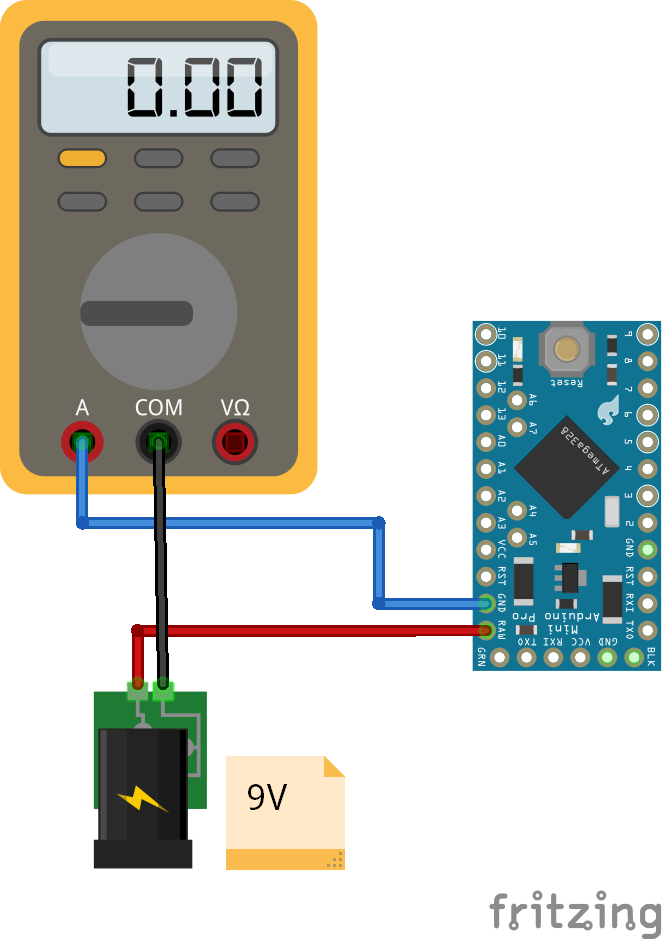
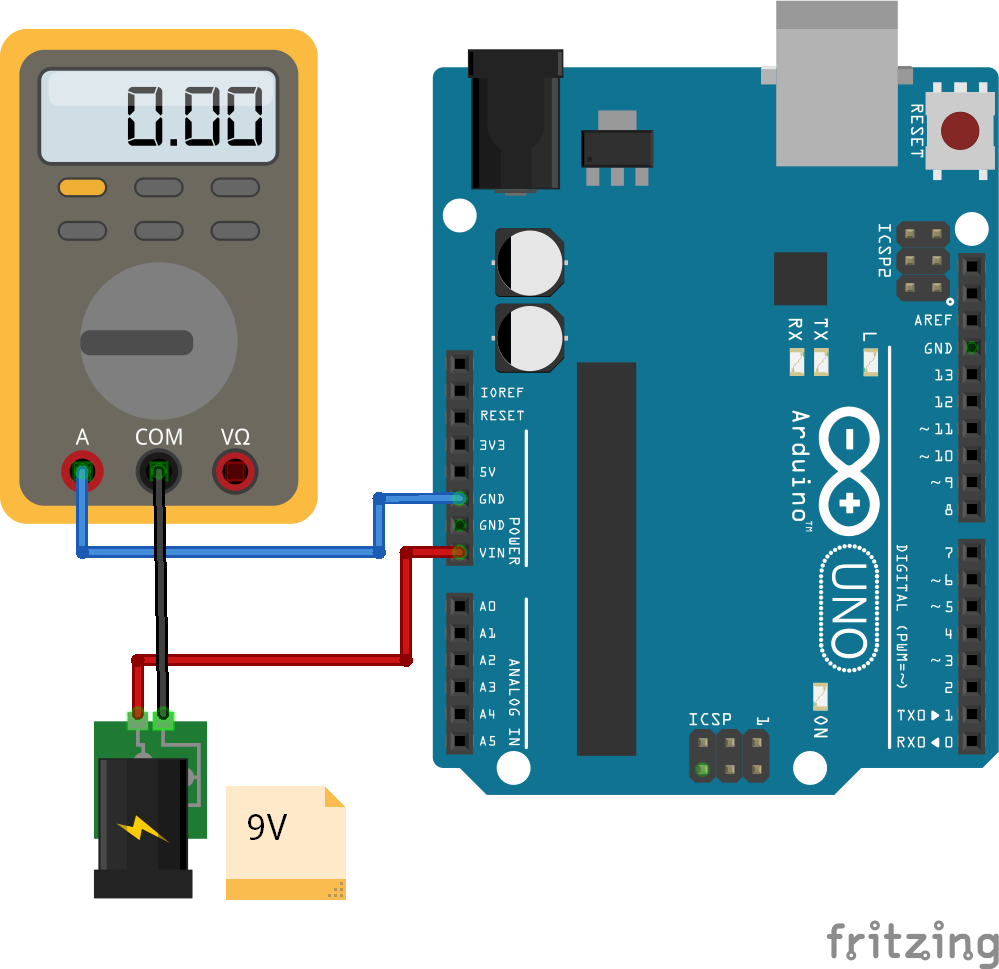
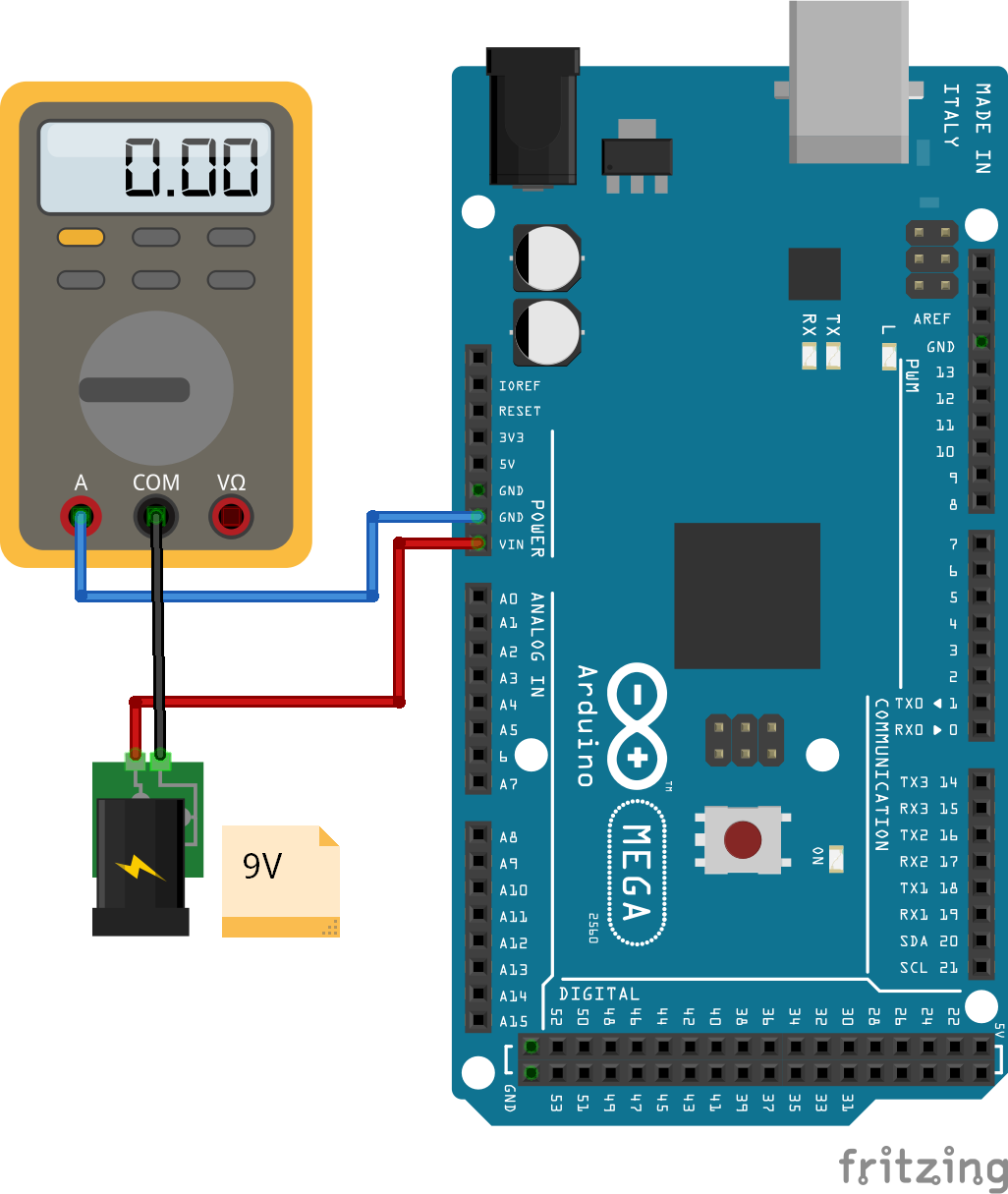
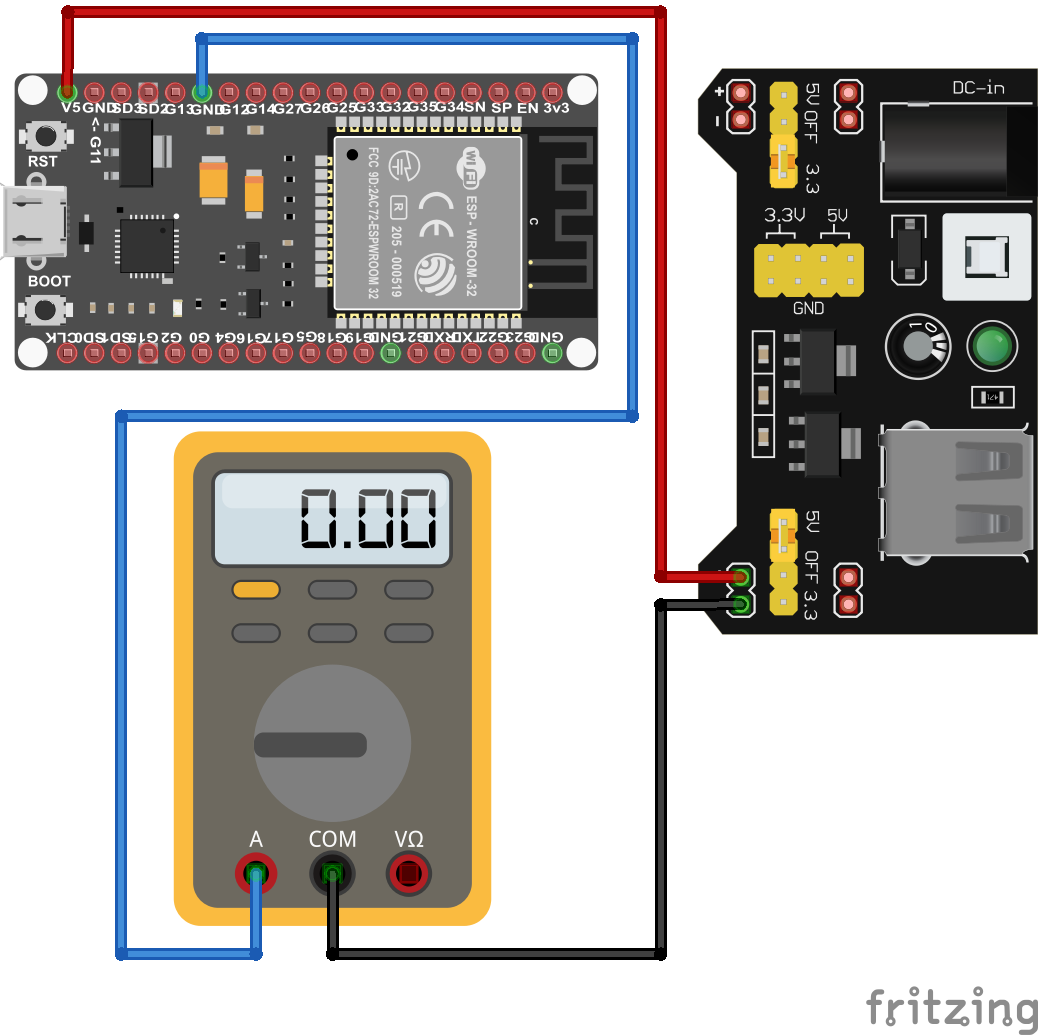
First of all it is important to know to measure the current consumption of each microcontroller. The following picture shows the wiring between all components.
ESP32 Reduce Power Consumption Wiring

In my experiment I use my laboratory power supply that powers the ESP32 board with a constant voltage of 5V. The ESP32 boards have an input pin, that allows you to power the board with different voltage ranges that all support 5V. This input pin is connected to the voltage outlet of the power bench.

Next the ground (GND) pin of the ESP32 board is connected to the input of my multimeter that measures the current flow of the circuit. You can use your multimeter of choice, but I use my PeakTech 3430 that has an USB port to connect the multimeter the PC to record the measurements. To close the circuit, the output of the multimeter is wired with the ground pole of the laboratory power supply.

For the ESP32 – DevKitC and the Sparkfun ESP32 Thing, I had to push the reset button on the microcontroller board to get the boards running for the sleep modes. You only have to power the boards from the power bench and reset the board once.
For the ESP32 – DevKitC only measurements in the amp-mode not the milliamp-mode were possible.

Step 1) Use an ESP32 board with an optimized power consumption

There are many different ESP32 boards on the market and some of them are already optimized for low power consumption. Therefore the first step is to make sure that you buy an ESP32 board that has a lower power consumption than the average board.

The following table shows the six different ESP32 boards that I used for this tutorial with the build in microcontroller and the pins that are used for the current measurement.

The ESP32 boards have a different power consumption that we want to measure as reference. For the reference power measurements I uploaded an empty program on the microcontroller as well as the ESP32 example script that uses the board as WiFi scanner.

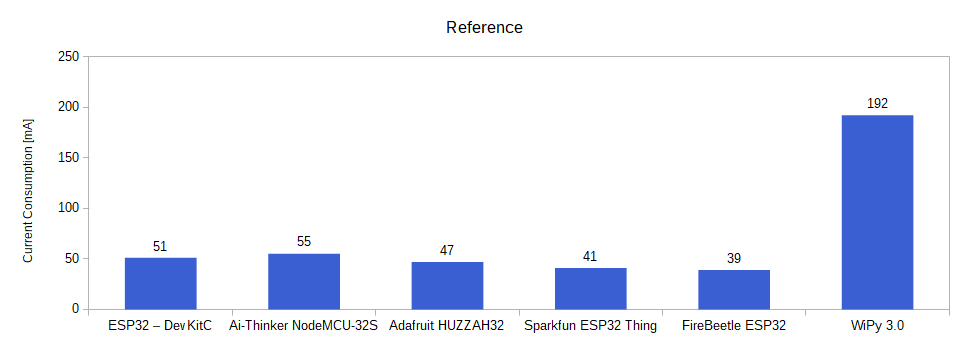
The following picture shows the power consumption of the empty script.
ESP32 Reference BarChart

The current consumption of the WiPy 3.0 is 192mA that is much higher than the current consumption of the other ESP32 boards that are between 39mA and 55mA. The reason for this is, the WiPy 3.0 creates a local WiFi when it starts that consumes a lot of power.

It is important to know that the WiPy 3.0 is not a standard ESP32 microcontroller, because the board does not support the Arduino IDE and has to be programmed with MicroPython. If you are not familiar with MicroPython, you will need a lot of time to get the WiPy 3.0 running for you project.

The FireBeetle ESP32 has the lowest power consumption with 39mA for the empty script.

Next we want to see how high is the current consumption when the microcontroller runs the WiFi scanner example script. Because the example script is from the Arduino IDE, and the WiPy 3.0 does not support to Arduino IDE, the following measurement was not done for the WiPy 3.0.

The following picture shows the mean current consumption for the WiFi scanner example script.
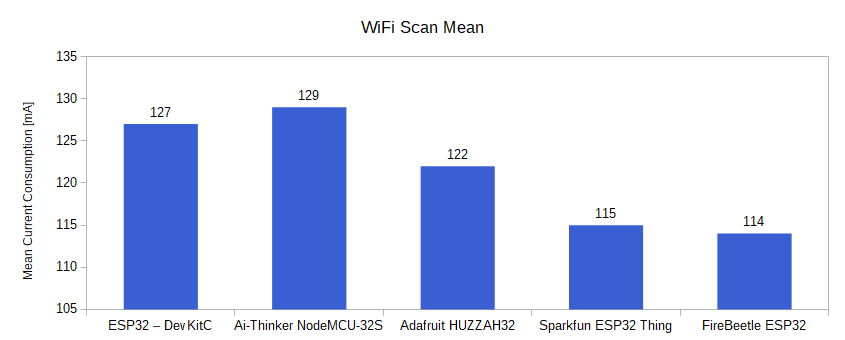
ESP32 WiFi Scan Mean BarChart

Like in the previous measurement, the Ai-Thinker NodeMCU-32S has the highest consumption with 129mA and the FireBeetle ESP32 has the lowest power consumption with 114mA.

But how is it possible that the power consumption differs between the ESP32 boards that are all based on the same microcontroller?

There are two main differences in the ESP32 boards. The first one is, the used voltage regulator and its efficiency. The second difference is if the boards using the ESP32 microcontroller or the ESP32-S2 microcontroller. Lets dive deeper into the different voltage regulators and the difference between the ESP32 and the ESP32-S2 microcontroller.

Voltage Regulator

The objective of the voltage regulator on the ESP32 board is to provide a stable 3.3V operation voltage for the ESP32 chip. Therefore the input voltage of the board is transformed and the energy resulting from the difference between the input voltage and the 3.3V operation voltage is transformed into heat.

Also if the voltage regulator does not perform any work, the regulator consumes a quiescent current, also called standby current. The lower the quiescent current of the voltage regulator, the more efficient the ESP32 board is and the less power the board consumes.

The dropout voltage is the difference between the output voltage and the input voltage at which the voltage regulator stops working. In the case of the ESP32 boards, the input voltage has to be higher than 3.3V + dropout voltage of the voltage regulator. The lower the voltage dropout, the longer your ESP32 board operates while powered by a battery, because during the discharging of the battery, the battery voltage drops.

The following table shows the different ESP32 boards with the used voltage regulator, the maximum voltage dropout and the quiescent current.

The ESP32 – DevKitC and the Ai-Thinker NodeMCU-32S both use the AMS1117 voltage regulator that has the highest voltage dropout of 1.1V at 800mA and also the highest quiescent current of 5mA.

The Adafruit HUZZAH32 and the Sparkfun ESP32 Thing have the AP2112-3.3 build in, that has a lower maximum voltage dropout of 0.4V at 600mA and also a lower quiescent current of 80µA and therefore should have an advantage for a lower power consumption.

The best voltage regulator for low power consumption has the FireBeetle ESP32, that uses the RT9080-33GJ5 voltage regulator with only 0.31V dropout voltage at 600mA and an ultra low quiescent current of only 4µA.

For the WiPy 3.0 I found no information which voltage regulator is used on this ESP32 board. Therefor I have no information about the maximum voltage dropout and quiescent current.

ESP32 vs ESP32-S2

Also the build in ESP32 microcontroller has an influence of the power consumption in general. There is the first generation of the ESP32 microcontroller and the second generation, called ESP-S2. The following table shows the important differences regarding to the power consumption.

You find detailed information about the microcontroller in the ESP32 datasheet and the ESP32-S2 datasheet.

The first generation of ESP32 microcontroller was released in 2016 by Espressif that use the Xtensa single/dual-core 32-bit LX6 microcontroller. If the single core is active, the clock frequency is 160 MHz and if the ESP32 runs in dual-code mode, the clock frequency is 240 MHz.

The second generation, called ESP32-S2 was released in 2019 and has a fast single core microcontroller build in, the Xtensa single-core 32-bit LX7 and also a much more powerful co-processor.

Because the ESP32-S2 co-processor is based on the RISC-V architecture, the power consumption is much lower. The ULP co-processor is active when the CPU is disabled in sleep-modes and consumes a lot less power then the CPU.

Moreover the ESP32-S2 is able to turn off the WiFi transceiver when not in use to save more power but the WiFi is still enabled. This function is very useful when your project does not allow to enter the deep-sleep mode because the ESP32-S2 can hold the WiFi connection to the router.

The following table shows the current consumption of the ESP32 and ESP32-S2 in the different power modes.

It is important to understand that this current consumption is measured under perfect conditions and only for the blank microcontroller and not the whole board with the ESP32 build in. Therefor the comparison gives us a good indication if an ESP32 board with an ESP32 or an ESP32-S2 has an advantage regarding a low power consumption.

Because we also see a strong dependency between the power consumption and the power modes, we take a deep dive into the different power modes of the ESP32 microcontroller.

Step 2) Use the ESP32 Power Modes

The ESP32 and the EPS-S2 have the same power modes that use advanced power management technologies. In the following section of this guide we describe each power mode, see what parts of the microcontroller are active or inactive and also how to enter each power mode with Arduino code or for the WiPy 3.0 with the code in MicroPython.

There are different wake up sources for the ESP32 to come back from the power saving mode. Because we want to focus on the power consumption, we do not dive deep into the different wake up sources. Therefore, in the following section, I only use the timer to define a specific time when the ESP32 wakes up again. You find detailed information of the sleep modes as well as all wake up sources in the Espressif docs.

Because the ESP32 is a 32-bit microcontroller, the maximum time for every sleep mode is the maximum value for a 32-bit unsigned integer that is 0xFFFF FFFF or 4294967295 microseconds that equals around 71 minutes.

Modem-Sleep

Inactive

WiFi
Bluetooth
Radio
Peripherals

Active

ESP32 Code
ULP Co-Processor
RTC

In the modem-sleep power mode, the CPU is powered and the ESP32 is switching between active mode and modem-sleep depending on the usage of the WiFi communication. The switching is done automatically and also the CPU frequency is changed automatically, depending on the CPU load and the use of the peripherals.

Because the ESP32 is entering the modem-sleep power mode automatically, there is no Arduino function to enter this power mode.

Light-Sleep

Inactive

WiFi
Bluetooth
Radio
Peripherals

Paused

ESP32 Code

Active

ULP Co-Processor
RTC

The light-sleep mode only differs from the modem-sleep mode in the fact, that the ESP32 is not active but paused. That means that most of the RAM and the CPU are following a sleep pattern. In that pattern internal flip-flops do not switch states because this switching consumes power.

During the light-sleep mode, the WiFi baseband is disabled but the WiFi connection itself remains active.

We can enter the light-sleep mode with the following function: esp_light_sleep_start(void)
The following Arduino code shows how to enter the light-sleep mode

#define uS_TO_S_FACTOR 1000000ULL  /* Conversion factor for micro seconds to seconds */
#define TIME_TO_SLEEP  5        /* Time ESP32 will go to sleep (in seconds) */

void print_wakeup_reason(){
  esp_sleep_wakeup_cause_t wakeup_reason;
  wakeup_reason = esp_sleep_get_wakeup_cause();

  switch(wakeup_reason)
  {
    case ESP_SLEEP_WAKEUP_EXT0 : Serial.println("Wakeup caused by external signal using RTC_IO"); break;
    case ESP_SLEEP_WAKEUP_EXT1 : Serial.println("Wakeup caused by external signal using RTC_CNTL"); break;
    case ESP_SLEEP_WAKEUP_TIMER : Serial.println("Wakeup caused by timer"); break;
    case ESP_SLEEP_WAKEUP_TOUCHPAD : Serial.println("Wakeup caused by touchpad"); break;
    case ESP_SLEEP_WAKEUP_ULP : Serial.println("Wakeup caused by ULP program"); break;
    default : Serial.printf("Wakeup was not caused by deep sleep: %d\n",wakeup_reason); break;
  }
}

void setup(){
  Serial.begin(9600);
  while (!Serial) {
    ; // wait for serial port to connect. Needed for native USB
  }
}

void loop(){
  print_wakeup_reason(); //Print the wakeup reason for ESP32

  delay(5000);

  esp_sleep_enable_timer_wakeup(TIME_TO_SLEEP * uS_TO_S_FACTOR); // ESP32 wakes up every 5 seconds
  
  Serial.println("Going to light-sleep now");
  Serial.flush(); 
  esp_light_sleep_start();
}

In the first part of the Arduino script we define two variables to store

  • a factor to convert the time from micro seconds to seconds
  • the time in seconds the ESP32 should go into the light-sleep mode

The second step is to define a function, called print_wakeup_reason, that tells us the wake up reason for the ESP32. This function is optional and is not needed to get the ESP32 into any power mode. In the function we get the wake-up source which caused wake up from sleep and store the source in the variable wakeup_reason. In the following switch case section, we test all possible wake up sources and print the source for the EPS32 to wake up in the serial monitor.

In the setup function, we define a baud rate of 9600 that has to be the same as in the serial monitor in your Arduino IDE. Because it takes a short time to establish the serial connection between the ESP32 board and your PC via the USB connection, we use the while loop to make sure that your program only continues when the serial connection is ready.

When the serial connection is established, we start the loop function and print the wake-up reason to the serial monitor by calling the print_wakeup_reason function that we defined.

Now we want to go into the light-sleep power mode. Therefor we first have to define how we want to wake up. In my case I choose the timer for the wake-up and set the timer to 5 seconds.

Now we send the message that we are going to sleep and with the flush function, we wait until the data on the serial communication is sent and go to sleep by calling the esp_light_sleep_start function.

The serial monitor shows the following picture.
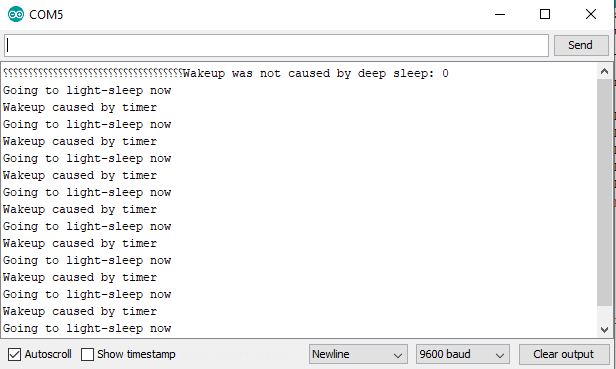
ESP32 Light Sleep Serial Monitor

The WiPy 3.0 has a light-sleep mode, but in my case the power consumption was not reduced. Therefore the following bar-chart and the table show the power consumption in the light-sleep mode for the other ESP32 boards as well as the comparison to the reference measurement with an empty Arduino script.

ESP32 Light Sleep Power Consumption

Light-Sleep Multimeter Measurements

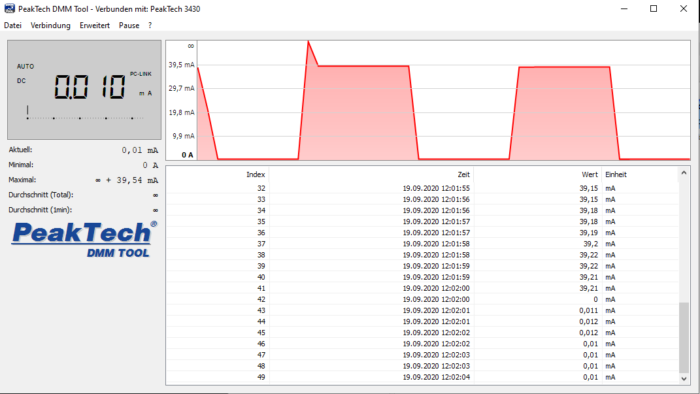
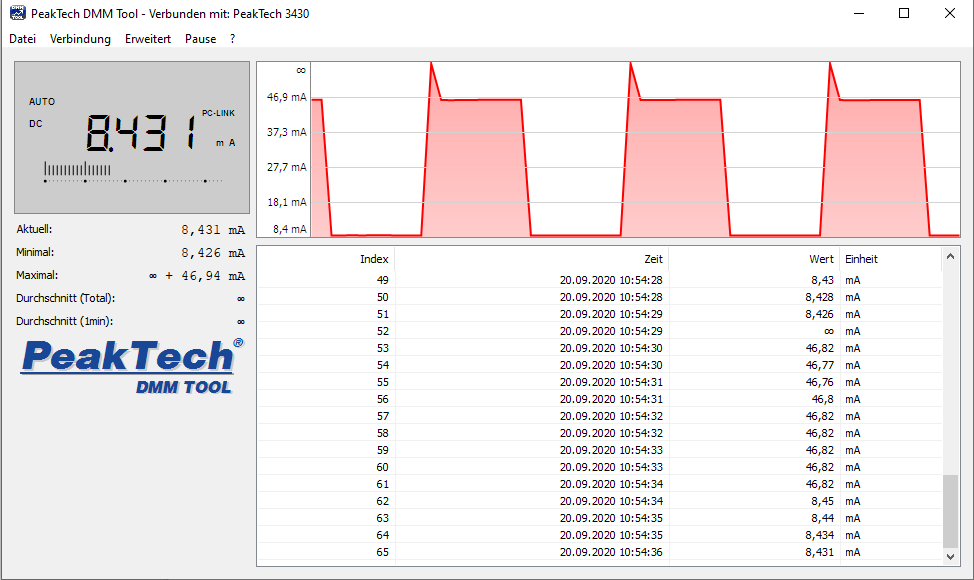
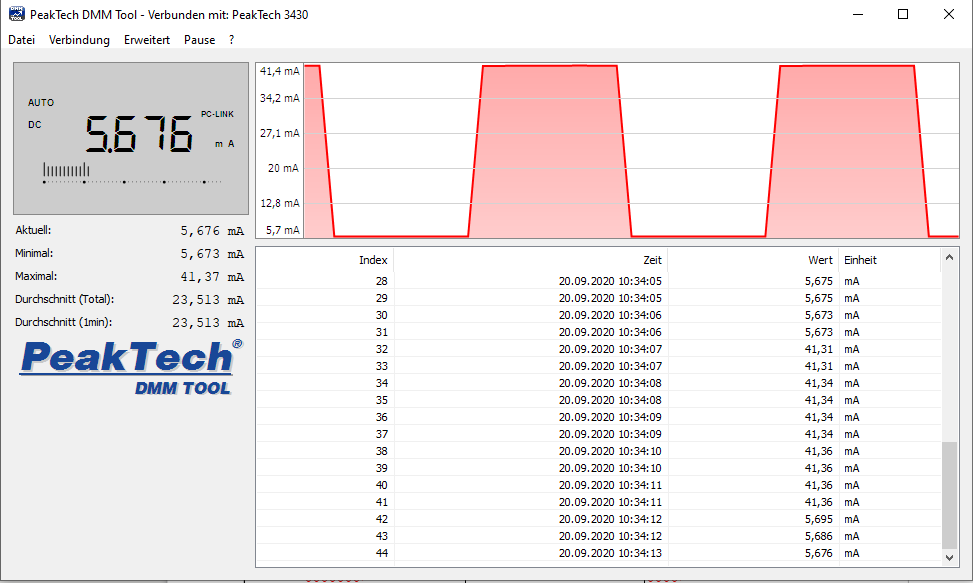
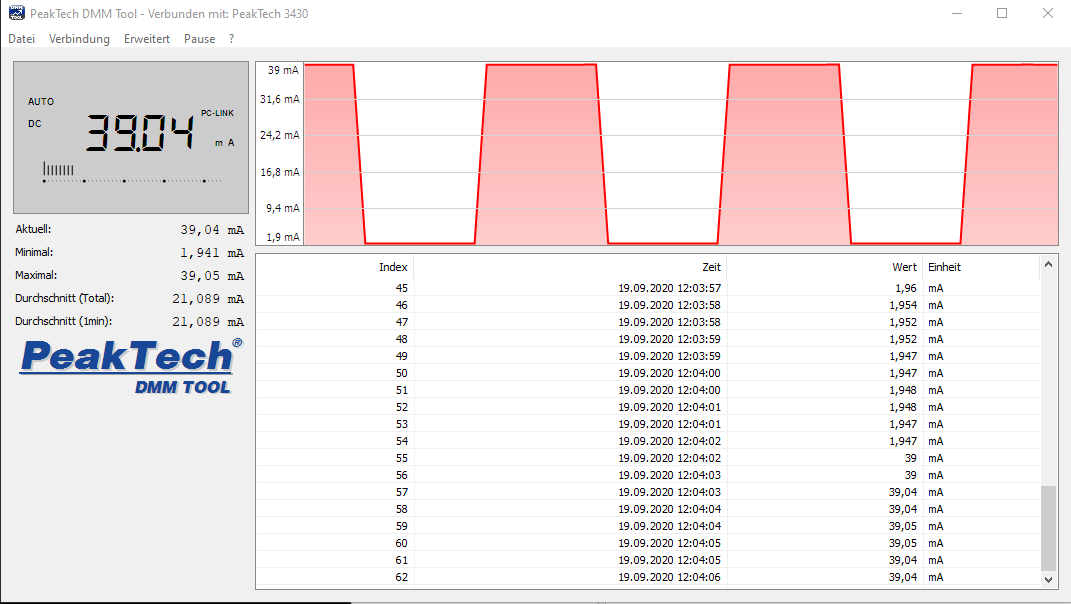
If you are interested in the measurements of the multimeter, the following pictures are direct screenshots of the current flow over time for each microcontroller board.
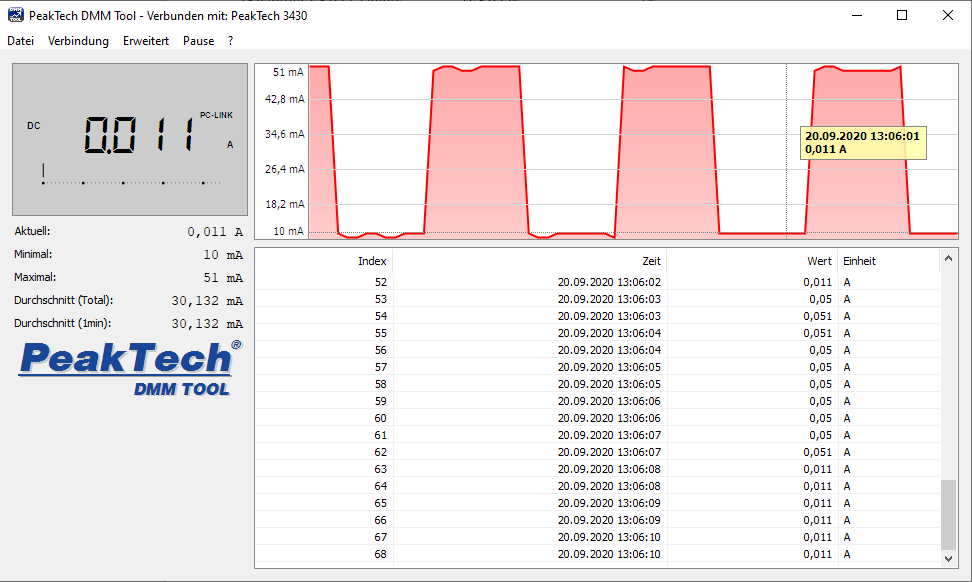
ESP32 – DevKitC LightSleep
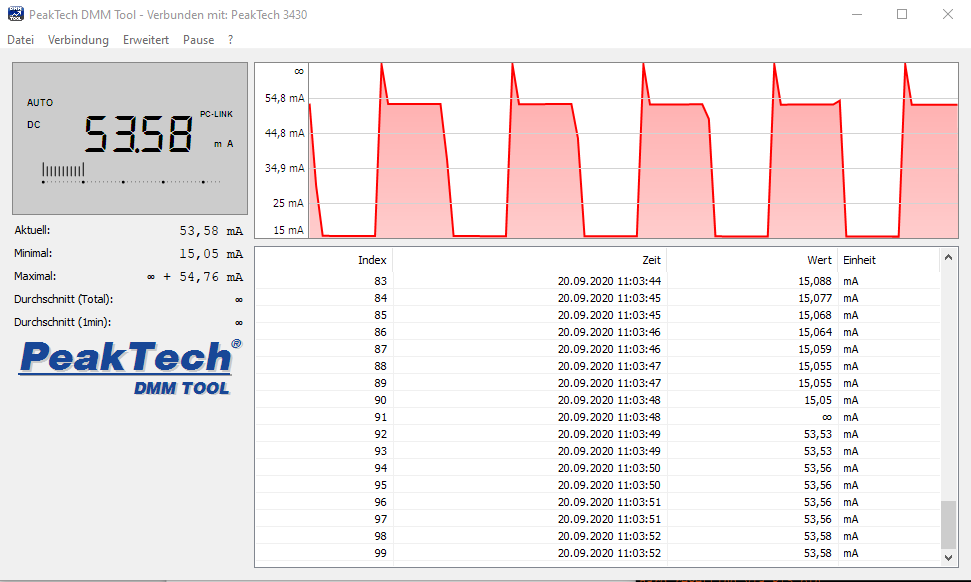
ESP32 – DevKitC LightSleep

Ai-Thinker NodeMCU-32S LightSleep
Ai-Thinker NodeMCU-32S LightSleep

Adafruit HUZZAH32 LightSleep
Adafruit HUZZAH32 LightSleep

Sparkfun ESP32 Thing LightSleep
Sparkfun ESP32 Thing LightSleep

FireBeetle ESP32 LightSleep

FireBeetle ESP32 LightSleep

The ESP32 board that consumes the most current in the light sleep mode is the Ai-Thinker NodeMCU-32S with 15.05mA, but compared to the reference measurement with the empty Arduino script the current reduction is -72,64%.

The highest overall percentage reduction and also the lowest power consumption absolute in the light-sleep mode has the FireBeetle ESP32 with 1.94mA (-95.03%).

All other ESP32 microcontroller based boards are able to lower their current consumption between 80% and 87%. Therefore if you can use the light-sleep mode in your project with a battery power supply, the lifespan of the battery is increased a lot.

Deep-Sleep

Inactive

ESP32 Core
WiFi
Bluetooth
Radio
Peripherals

Active

ULP Co-Processor
RTC

While in the light-sleep mode, the ESP32 Core is paused and following a sleep pattern, the ESP32 Core is completely inactive during the deep-sleep power mode. Only the ULP Co-processor and the RTC remains active.

During the deep-sleep mode, the WiFi connection is not active, but the WiFi configuration data is stored in the memory of the real time clock. Therefore the reestablishing of the WiFi connection after the ESP32 wakes up from deep-sleep mode is very quickly.

The following Arduino code shows you how to enter the deep-sleep mode. For the WiPy 3.0 you find the MicroPython code in the Pycom tutorials.

#define uS_TO_S_FACTOR 1000000  /* Conversion factor for micro seconds to seconds */
#define TIME_TO_SLEEP  5        /* Time ESP32 will go to sleep (in seconds) */

void print_wakeup_reason(){
  esp_sleep_wakeup_cause_t wakeup_reason;
  wakeup_reason = esp_sleep_get_wakeup_cause();

  switch(wakeup_reason)
  {
    case ESP_SLEEP_WAKEUP_EXT0 : Serial.println("Wakeup caused by external signal using RTC_IO"); break;
    case ESP_SLEEP_WAKEUP_EXT1 : Serial.println("Wakeup caused by external signal using RTC_CNTL"); break;
    case ESP_SLEEP_WAKEUP_TIMER : Serial.println("Wakeup caused by timer"); break;
    case ESP_SLEEP_WAKEUP_TOUCHPAD : Serial.println("Wakeup caused by touchpad"); break;
    case ESP_SLEEP_WAKEUP_ULP : Serial.println("Wakeup caused by ULP program"); break;
    default : Serial.printf("Wakeup was not caused by deep sleep: %d\n",wakeup_reason); break;
  }
}

void setup(){
  Serial.begin(9600);
  while (!Serial) {
    ; // wait for serial port to connect. Needed for native USB
  }

  print_wakeup_reason(); //Print the wakeup reason for ESP32

  delay(5000);
  
  esp_sleep_enable_timer_wakeup(TIME_TO_SLEEP * uS_TO_S_FACTOR); // ESP32 wakes up every 5 seconds

  esp_sleep_pd_config(ESP_PD_DOMAIN_RTC_PERIPH, ESP_PD_OPTION_ON); // all RTC Peripherals are powered
  
  Serial.println("Going to deep-sleep now");
  Serial.flush(); 
  esp_deep_sleep_start();
}

void loop(){
}

Most of the Arduino code is the same compared to the light-sleep code. We define the same variables and the function to print the wake-up reason.

Because the ESP32 starts the setup function every time the microcontroller wakes up from deep-sleep mode, we define all of our code in the setup function and do not use the loop function.

After setting the baud rate and wait for the serial communication, the function for the wake up reason is called. Like the light-sleep mode, we define that the EPS32 should wake-up when the timer has expired.

For the deep-sleep mode, we can define if all RTC peripherals are active or powered down. In the sleep configuration file we define that the RTC modules like RTC IO, sensors and the ULP co-processor remains active.

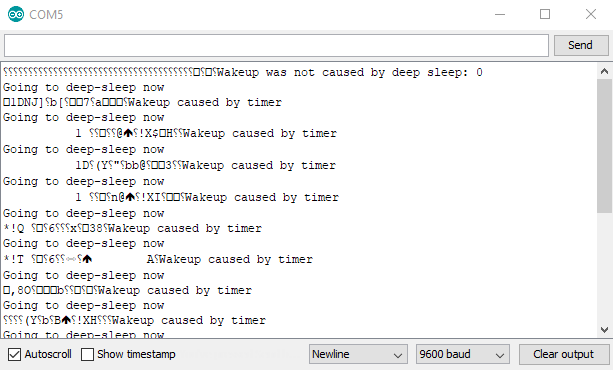
The deep-sleep power mode starts with the function esp_deep_sleep_start. The following picture shows the serial monitor for the deep-sleep Arduino script.
ESP32 Deep Sleep Serial Monitor

Like for the light-sleep mode, we want to know how much current each ESP32 board consumes during the deep-sleep phase and also if we could further reduce the power consumption. The following bar-charts shows the current consumption for all ESP32 boards during the deep-sleep phase.
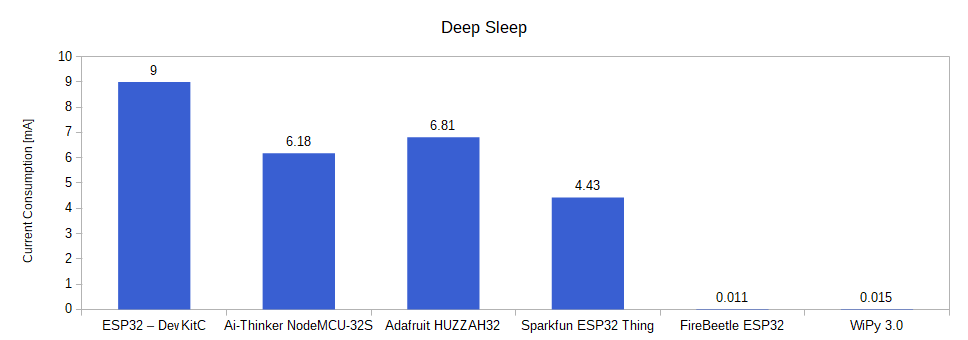
ESP32 Deep Sleep Power Consumption

The following table shows the comparison of the deep-sleep current consumption compared to the reference measurement.

Deep-Sleep Multimeter Measurements

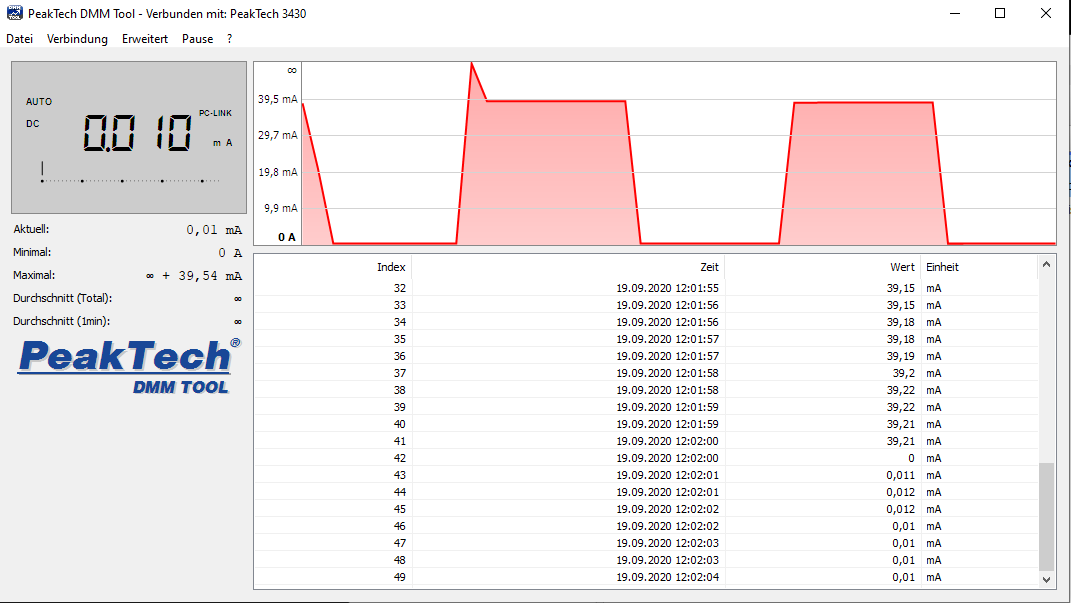
The following pictures of the multimeter shows the verification for each microcontroller board.
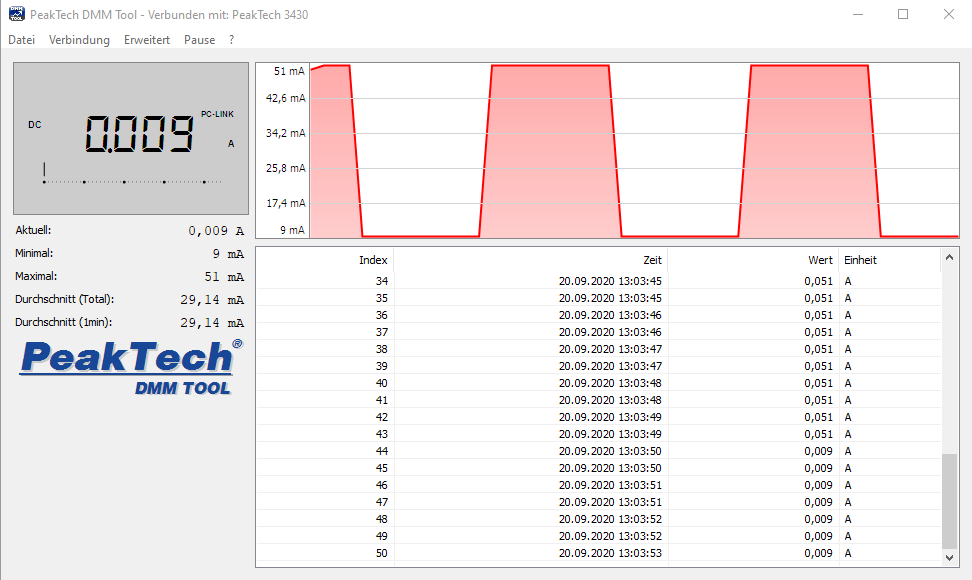
ESP32 – DevKitC DeepSleep
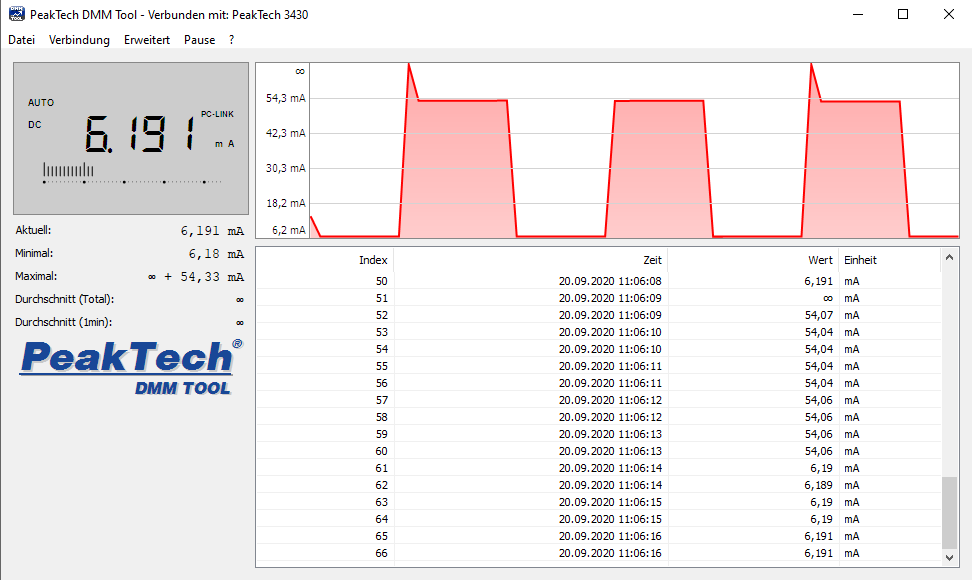
ESP32 – DevKitC DeepSleep

Ai-Thinker NodeMCU-32S DeepSleep
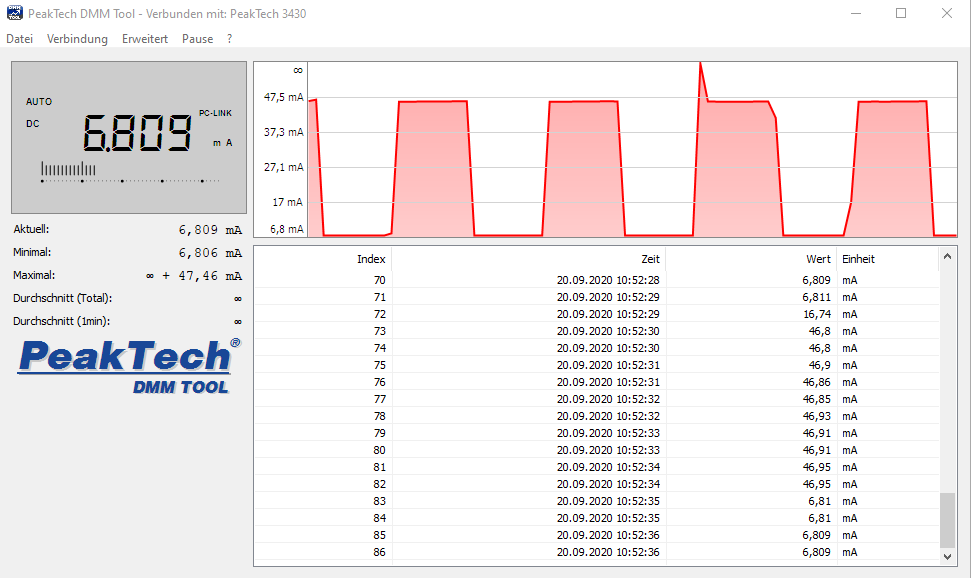
Ai-Thinker NodeMCU-32S DeepSleep

Adafruit HUZZAH32 DeepSleep
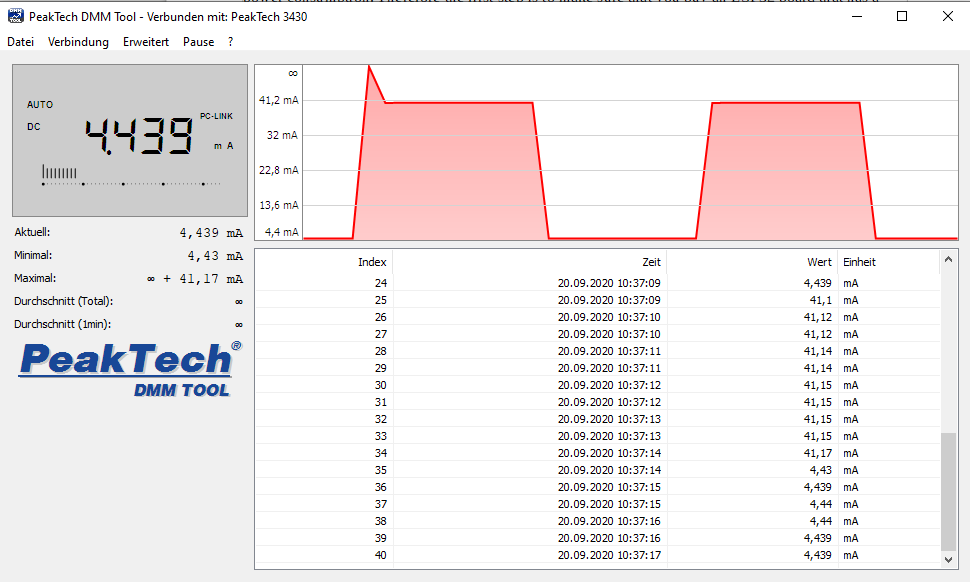
Adafruit HUZZAH32 DeepSleep

Sparkfun ESP32 Thing DeepSleep

Sparkfun ESP32 Thing DeepSleep

FireBeetle ESP32 DeepSleep
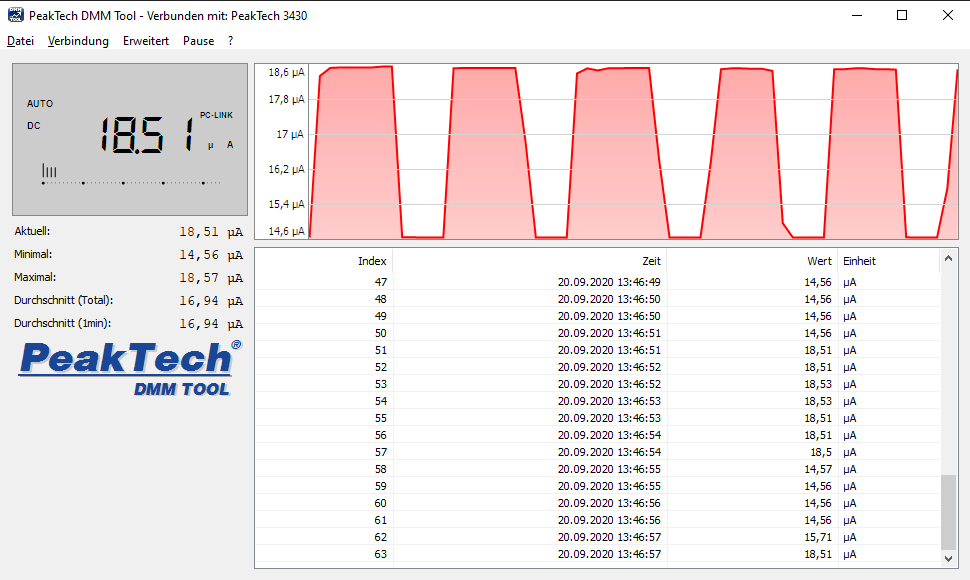
FireBeetle ESP32 DeepSleep

WiPy 3.0 DeepSleep

Now we can see which ESP32 boards take the minimal power consumption serious. The FireBeetle ESP32 and the WiPy 3.0 consumes less than 0.015mA in the deep-sleep mode. All other boards have a more than 400 times higher current consumption.

One reason for the lower current consumption are the build in voltage regulators that have a lower quiescent current.

Hibernation

Inactive

ESP32 Core
ULP Co-Processor
WiFi
Bluetooth
Radio
Peripherals

Active

RTC

The Hibernation power mode is the power mode with the lowest current consumption. A blank ESP32 microcontroller consumes only 5µA. The internal 8-MHz oscillator and ULP co-processor are disabled and the RTC recovery memory is powered down. Only one RTC timer on the slow clock and certain RTC GPIOs are active. The RTC timer or the RTC GPIOs can wake up the chip from the Hibernation mode

To enter the Hibernation power mode we use the same Arduino script like the deep-sleep mode, but we select that all RTC peripherals are deactivated. Therefore we only change the sleep configuration file to:

esp_sleep_pd_config(ESP_PD_DOMAIN_RTC_PERIPH, ESP_PD_OPTION_OFF);

The WiPy 3.0 does not have the option to enter the hibernation power mode and is therefore not considered in this power mode.

The following bar-chart and table shows the power consumption of the ESP32 boards during the hibernation mode.
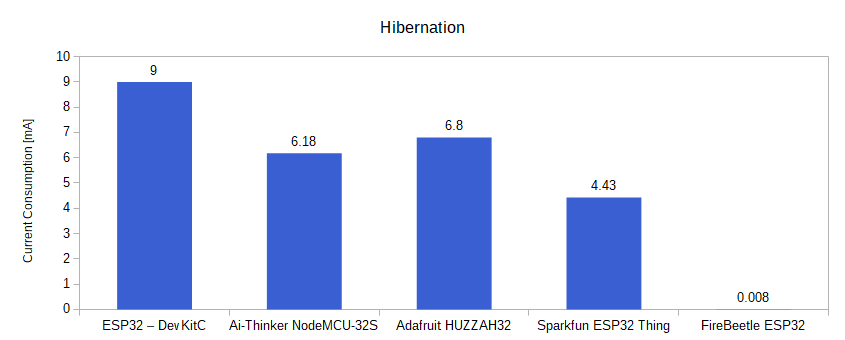
ESP32 Hibernation Power Consumption

From the data, you see that there are only minor changes compared to the deep-sleep mode. However for the Adafruit HUZZAH32 and the FireBeetle ESP32, the current consumption can be further reduced via the hibernation mode. For the ESP32 – DevKitC, Ai-Thinker NodeMCU-32S and Sparkfun ESP32 Thing, the measurement shows no difference.

Step 3) Increase the Sleep Time

We have gained two important insights from the last chapter, which help us to further reduce the power consumption of our entire ESP32 project.

  1. Establishing a WiFi connection and sending data via WiFi have a very high power consumption
  2. In Dee-Sleep or hibernation mode, the power consumption of the ESP32 is significantly lower.

Therefore the power consumption can be reduced if the individual phases (awake, send data via WiFi, sleep) are planned precisely.

The individual phases can be clearly described using the example of a weather station:
The ESP32 is connected to a DHT22 temperature and humidity sensor. If we transmit the temperature and humidity every 10 seconds, the power consumption will be unnecessarily high, because mostly the same measured values are transmitted.

The power consumption can be reduced by transmitting readings only every 10 minutes instead of every 10 seconds. With this we have extended the sheep time. To reduce the number of WiFi connections, each time you wake up from sleep mode, the current sensor values can be compared with the last values sent, to send new data via WiFi only if the temperature or humidity has changed.

To store variables across sleep mode, they must be loaded into the RTC memory, which is only 8kB on ESP32. You only have to add RTC_DATA_ATT in front of the variable.

RTC_DATA_ATT int temperature;
RTC_DATA_ATT int humidity;

Summary: Reduce the ESP32 Power Consumption

The following table shows the overview of all measurements that I made for the 6 different ESP32 boards. The empty Arduino script is the reference measurement for all boards. It should be noted that WiPy 3.0 sets up a local WiFi by default and that this is why the power consumption in the reference measurement is much higher compared to the other ESP32 boards.

If we compare the ESP32 – DevKitC and the Ai-Thinker NodeMCU-32S that only have the mayor difference in the version of the ESP32 chip, we see that the ESP32-S2 helps to reduce the power consumption in the deep-sleep mode and hibernation mode from 9mA to 6.18mA.

The Adafruit HUZZAH32 has a build in voltage regulator with a higher efficiency but not the ESP32-S2. Therefore the current consumption is lower than the ESP32 – DevKitC but higher compared to the Ai-Thinker NodeMCU-32S.

Interesting is, that the Sparkfun ESP32 Thing uses the same voltage regulator and the same ESP32 microcontroller than the Adafruit HUZZAH32 but has a significant lower power consumption:

  • Reference: -12.77%
  • Light sleep: -32.74%
  • Deep-sleep: -34.95%
  • Hibernation: -34.85%

Therefore we know, that the voltage regulator and the ESP32 microcontroller are not the only factors influencing the power consumption of the ESP32 board.

If you are looking for a ESP32 board that consumes really little current, I recommend to use the FireBeetle ESP32 if you are familiar with the Arduino IDE and their libraries. But if you want to try something new and you are familiar with MicroPython, you can also use the WiPy 3.0 for a low power project.

If you want to use a battery for the power supply of the microcontroller board, the FireBeetle ESP32 has a standard 2-pin JST connector. If you want to connect a Lithium Ion Battery with JST connector to the WiPy 3.0, you have to use the an extension board like the Expansion Board 3.0.

If you have any questions regarding the ESP32 power consumption in general or the different low-power modes, use the comment section below to ask your question. I will answer them as soon as possible.

I have also a tutorial to reduce the ESP8266 or Arduino power consumption.
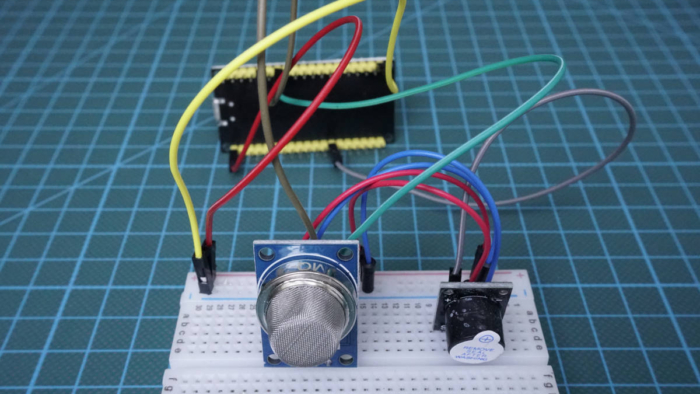
MQ2 Gas Sensor

MQ2 Gas Sensor Tutorial for Arduino, ESP8266 and ESP32

MQ2 Gas Sensor Tutorial for Arduino, ESP8266 and ESP32

In this tutorial I show you how to use the MQ2 gas sensor with your Arduino, ESP8266 or ESP32 microcontroller.

After we dive into the functionality of gas sensors in general, we build a gas alarm that detects smoke and wakes you up with a loud noise.

Table of Contents

General functionality of Gas Sensors

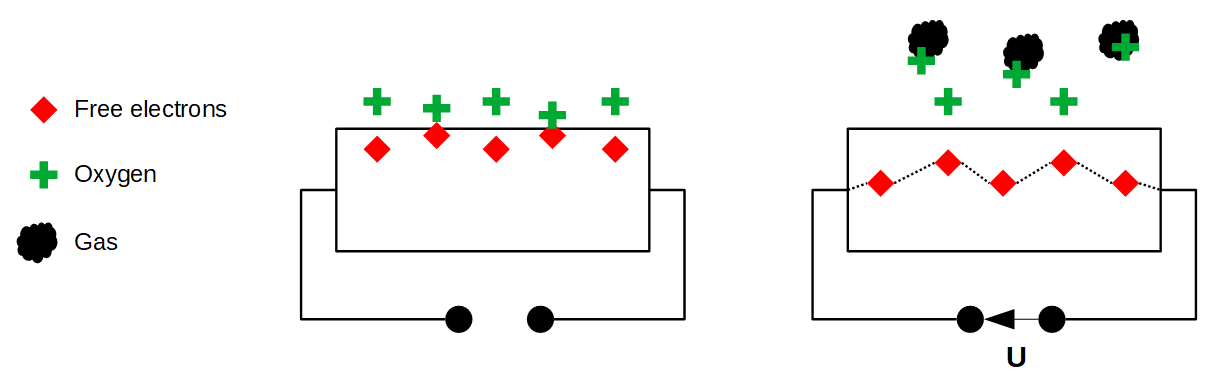
First of all we start with the general functionality of gas sensors. Inside the gas sensor is a chemiresistor that changes the resistance based on its sensing material. The following picture helps us to understand this functionality.

General functionality of Gas Sensors

In most cases the sensing material is a tin dioxide (SnO2) material that has free electrons inside. These free electrons are attracted by the oxygen towards the surface of the sensing material (left side of the picture). On the surface, the oxygen is absorbed, due to the heated surface and therefore there are no free electrons in the tin dioxide. The result is: without free electrons there is no electrical current flow.

In an environment of toxic or combustible gases, the gas breaks the connection between the absorbed oxygen and the electrons. (right side of the picture) The released electrons are now free and back in their initial position, where they enable the current flow. How high the current flow is, depends on the amount of free electrons available in the SnO2 that is proportional with the concentration of toxic or combustible gases.

Due to Ohms law a higher current flow results in a higher potential difference, which is measured as output voltage on the analog output of the sensor, using a simple voltage divider network. Therefore the concentrations of gas can be measured.

The type of sensor is defined by the sensing material inside the sensor. Although some of the gas sensors are sensitive to multiple gases, the sensor can not identify which of the gases are in higher concentration.

Overview of Gas Sensors

The following table gives you an overview about the different gas sensors that are available and what gasses they are able to detect. I concentrated on the most used gas sensors, because there are more available then shown in the table.

The MQ2 Gas Sensor Module

In this tutorial I use the MQ2 gas sensor to detect the butane that is emitted by a lighter. The MQ2 gas sensor has an operating voltage of 5V that is also used as heater for the surface of the SnO2. Because it takes some time until the surface is hot, the MQ2 gas sensor has a preheat duration of around 20 seconds.

However the sensor is only suitable to measure a trend of gas concentration and not the exact gas concentration because the relation between ration in voltage change and concentration is nonlinear. If you want to measure the exact concentration, you have to buy a much more precise and costly sensor.

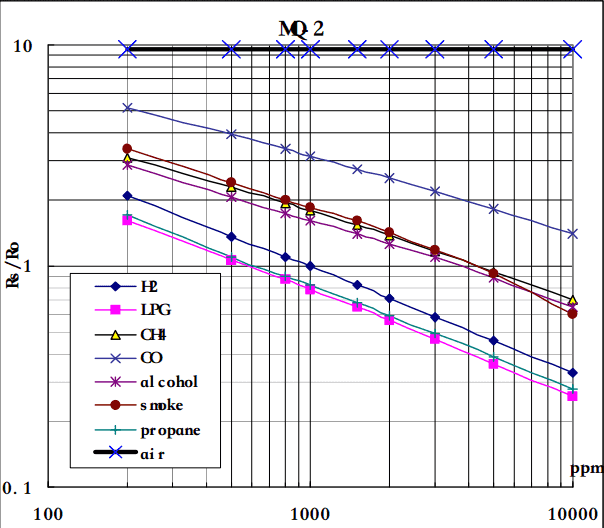
The following picture shows the minimum and maximum concentration of different gases that can be measured with the sensor.

MQ2 Gas Sensor concentration of different gases

According to the graph, you see that the minimum gas concentration that can be measured is around 100ppm and the maximum around 10000ppm. The unit ppm stands for parts per million and therefore the concentration of gas between 0.01% and 1% can be measured.

Most MQ2 gas sensors are build on a breakout board that has a build in comparator for setting a threshold of gas concentration and provide a digital output to the microcontroller. The comparator compares the analog value with the threshold, that is set by a potentiometer, and changes the digital value from LOW (0) to HIGH (1) if this threshold is exceeded.

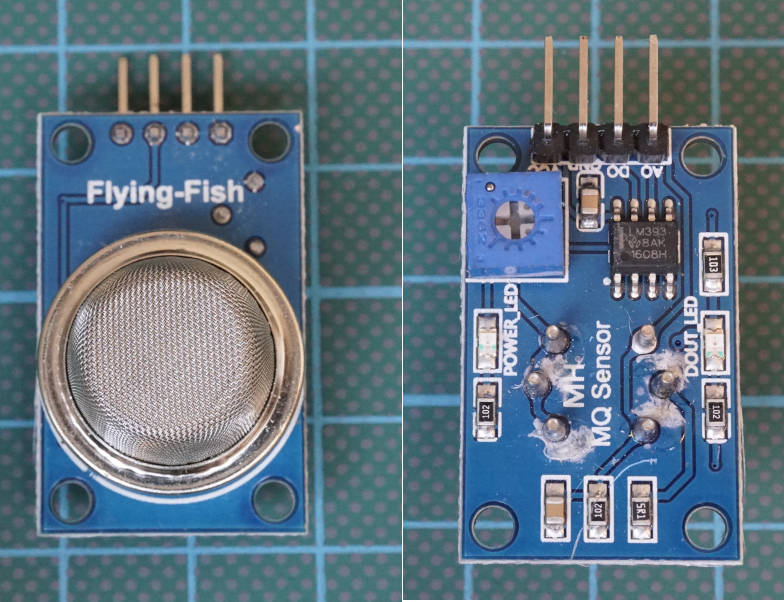
The following picture shows the front and the rear side of the MQ2 gas sensor breakout board.

MQ2 Gas Sensor Module

In the right picture you see the 4 pins that we connect to the microcontroller (from the left to the right):

  • VCC
  • Ground
  • Digital Pin
  • Analog Pin

Under the pins of the board you see the potentiometer on the left side and the comparator as IC on the board.

Moreover there is a power LED that signals the operation readiness of the MQ2 gas sensor and a second LED labeled DOUT LED that turn on when the digital value changes from LOW to HIGH.

The following table gives you an overview of all components and parts that I used for this tutorial. I get commissions for purchases made through links in this table.

Building a Gas Alarm

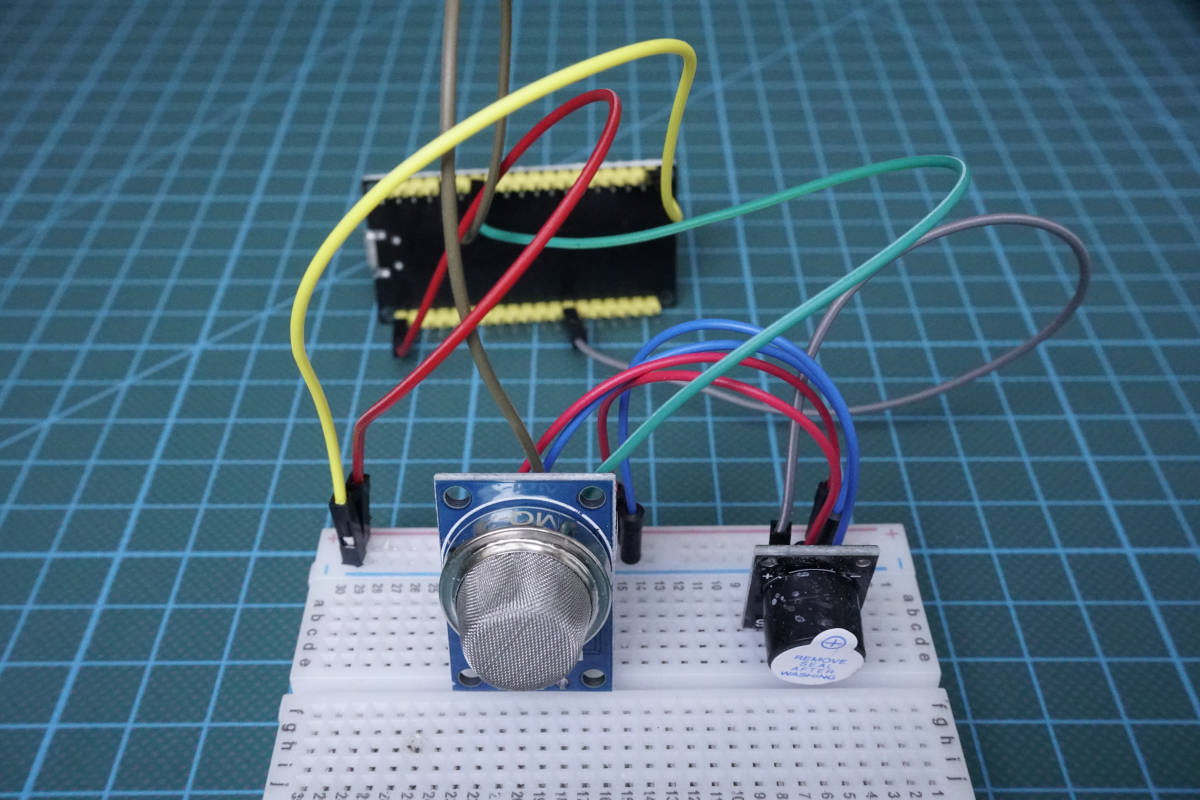
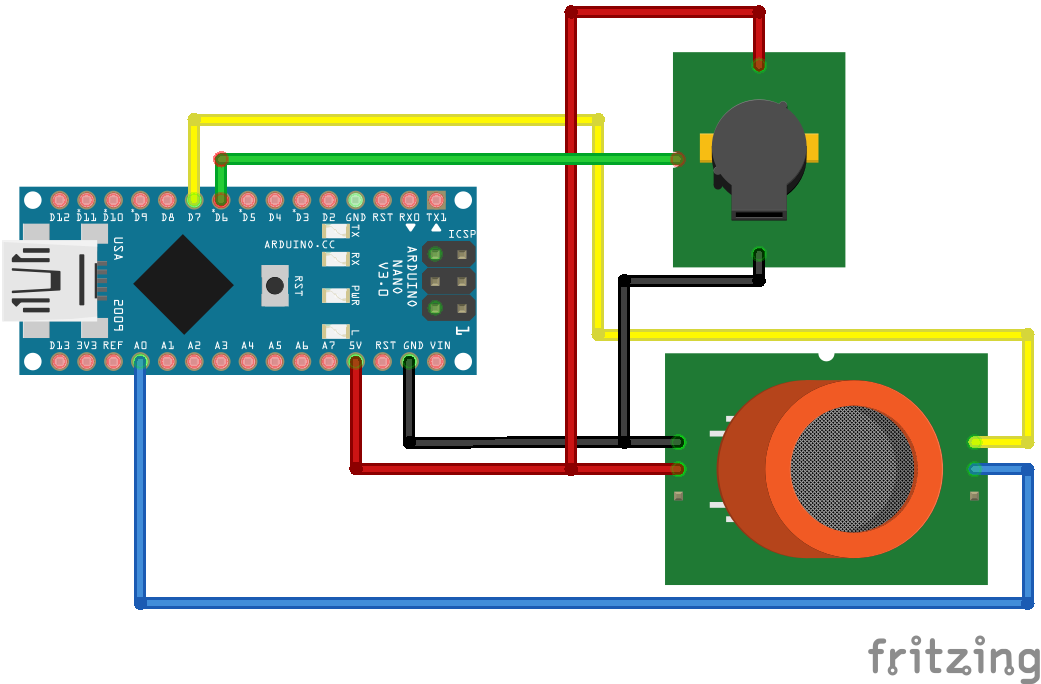
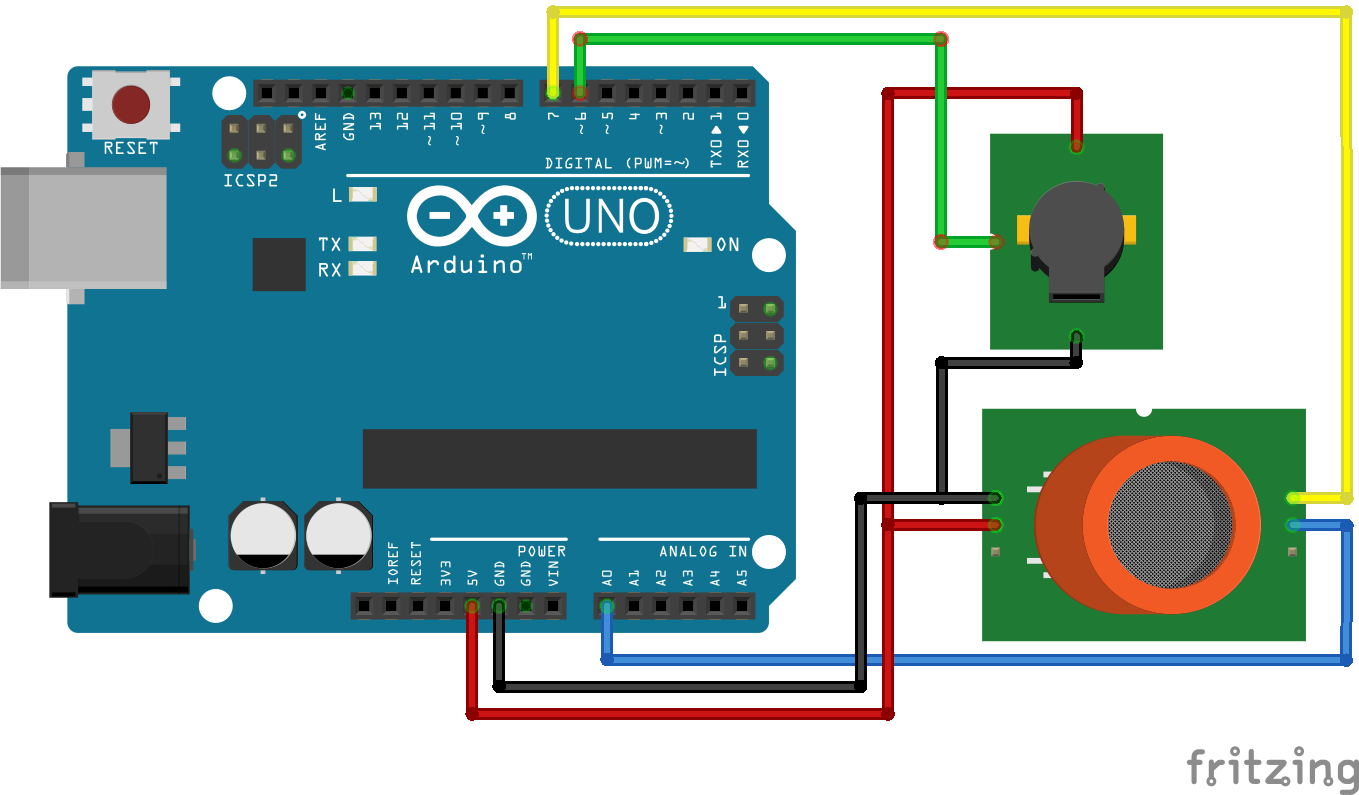
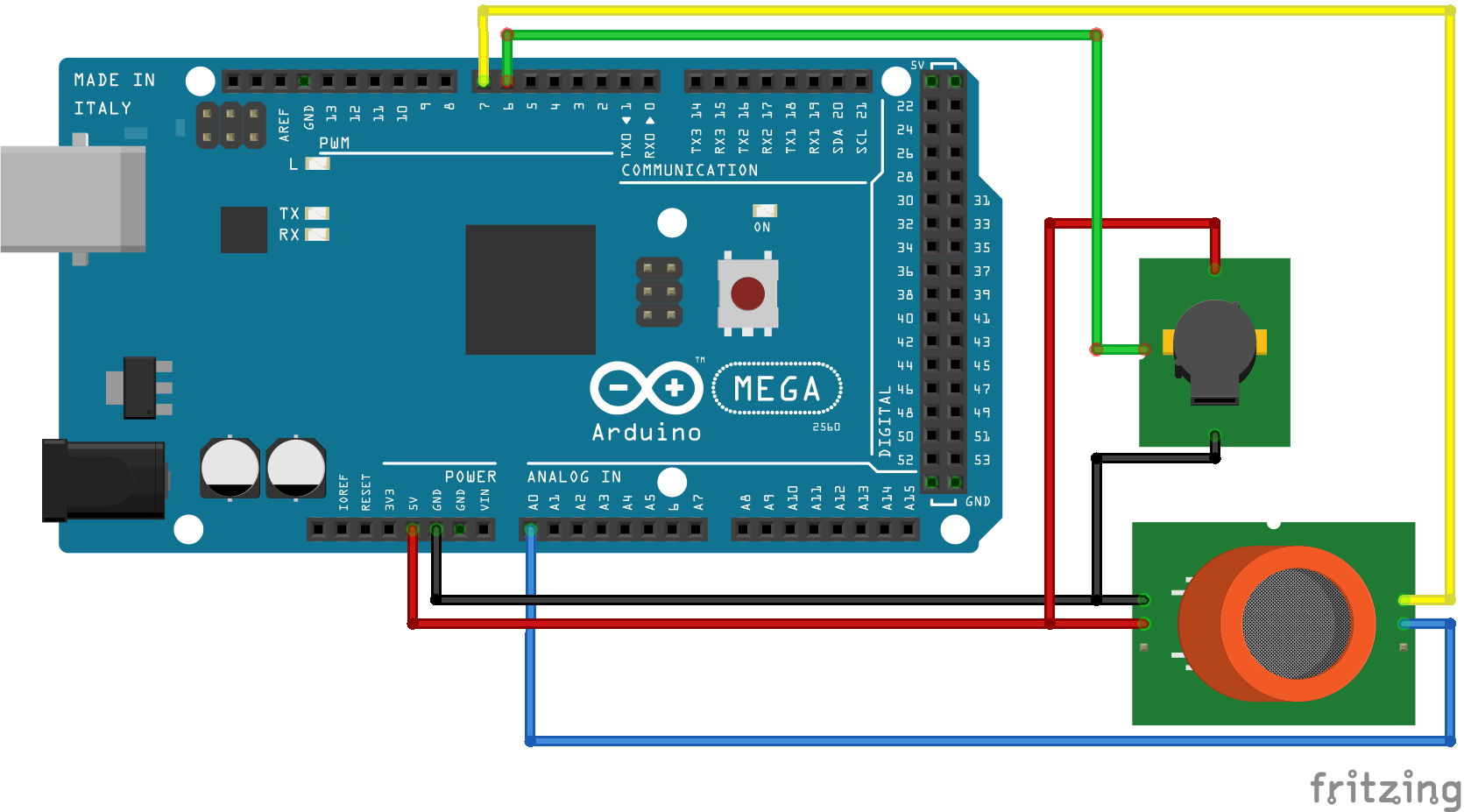
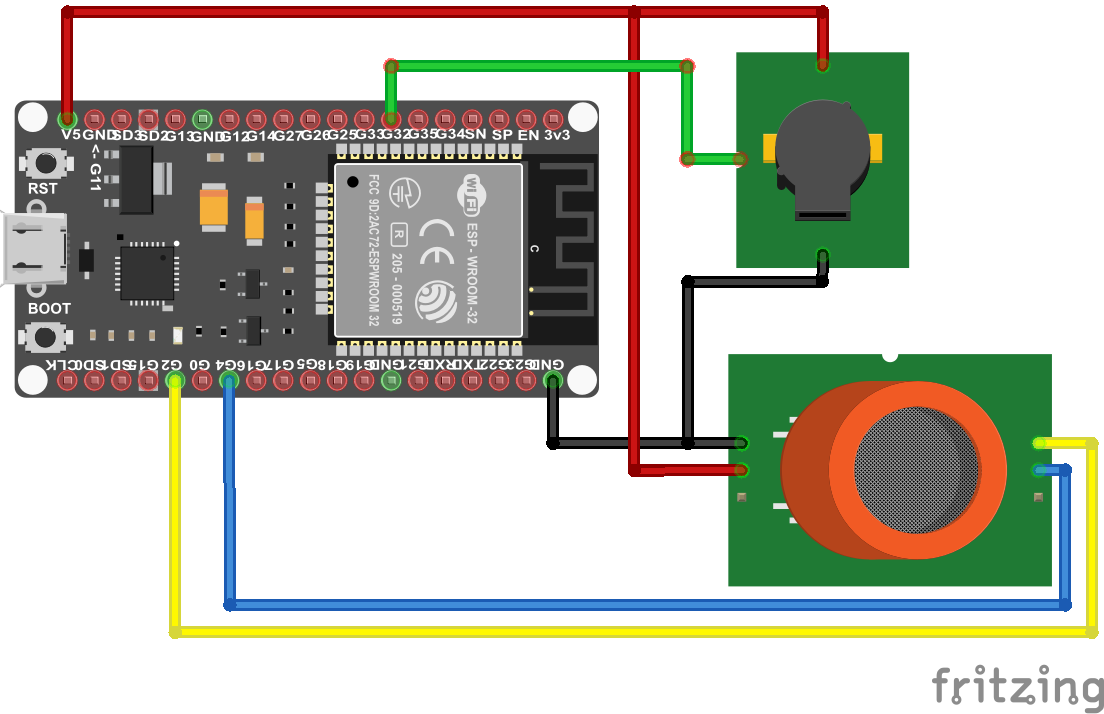
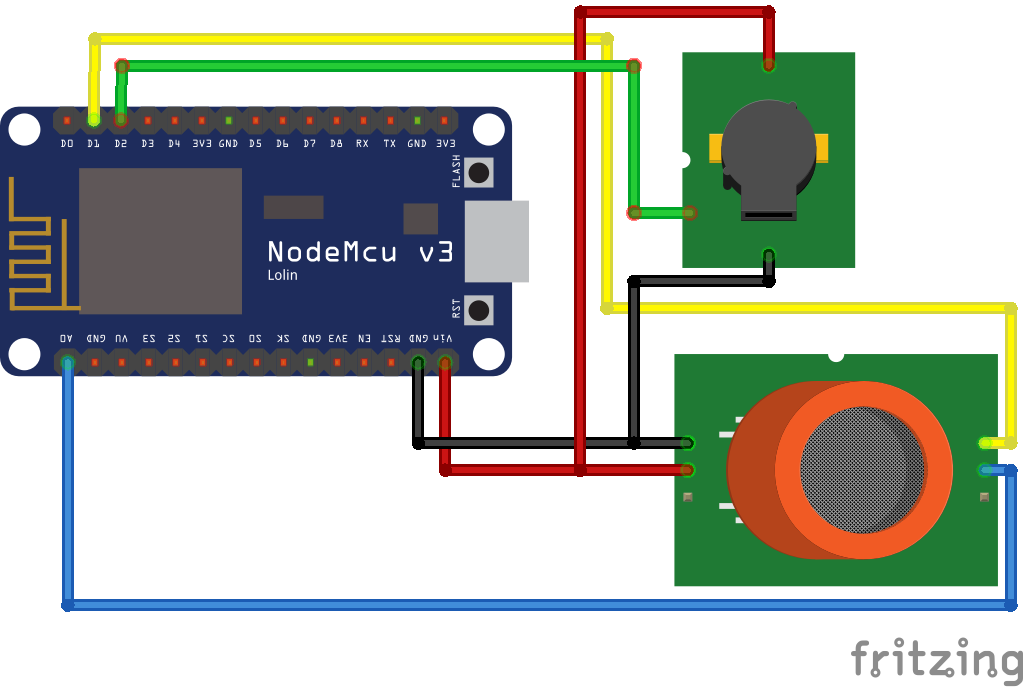
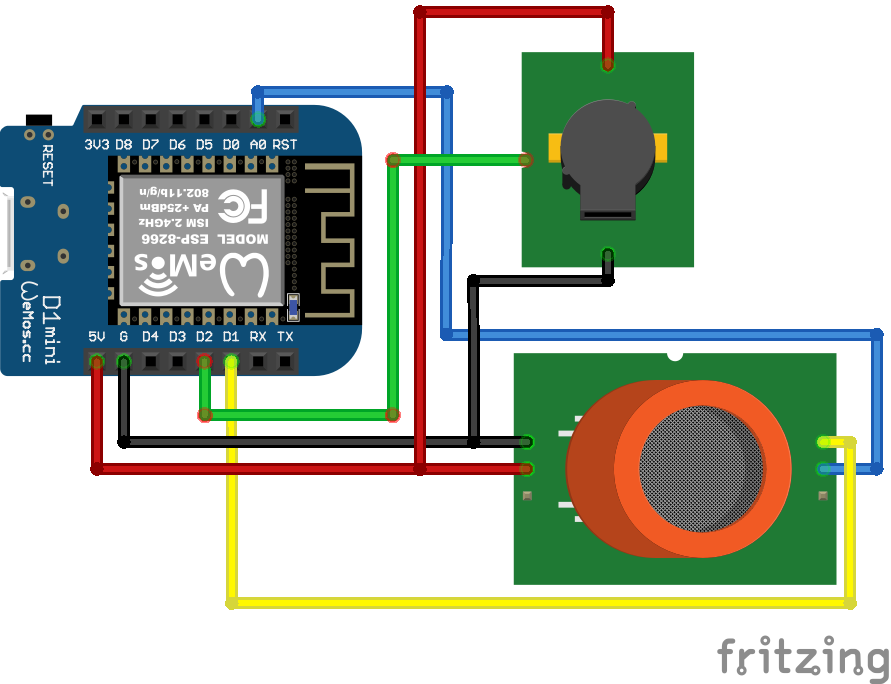
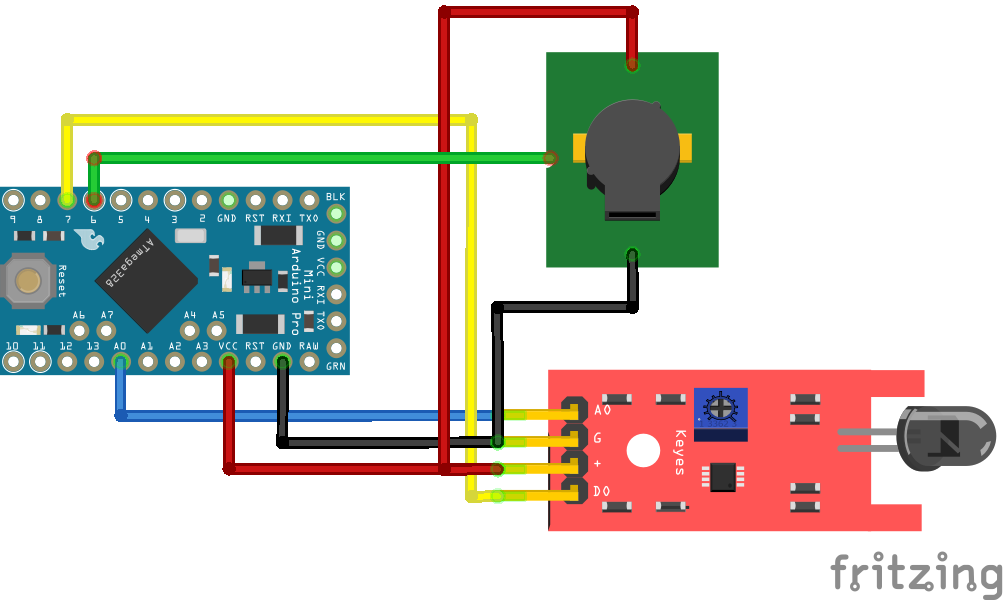
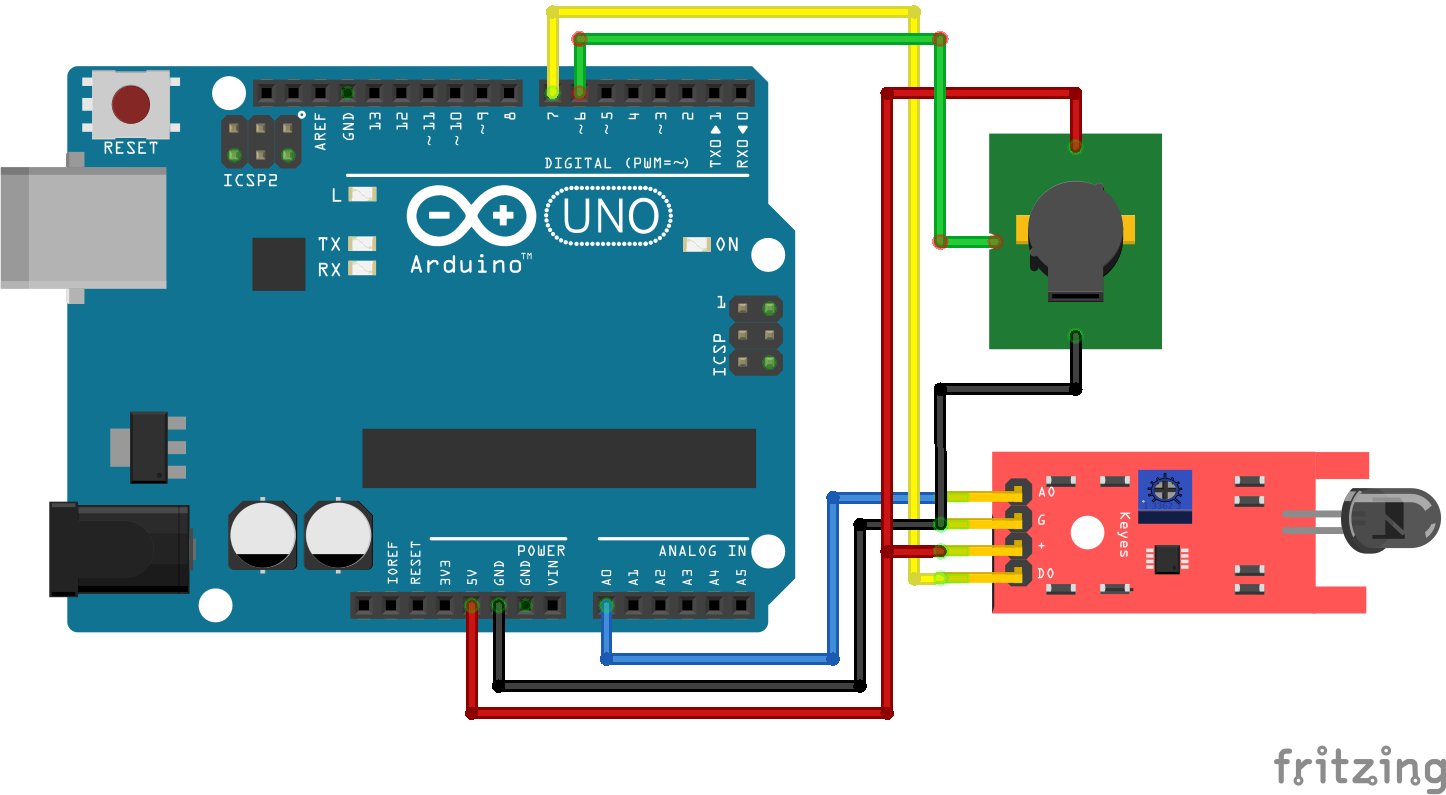
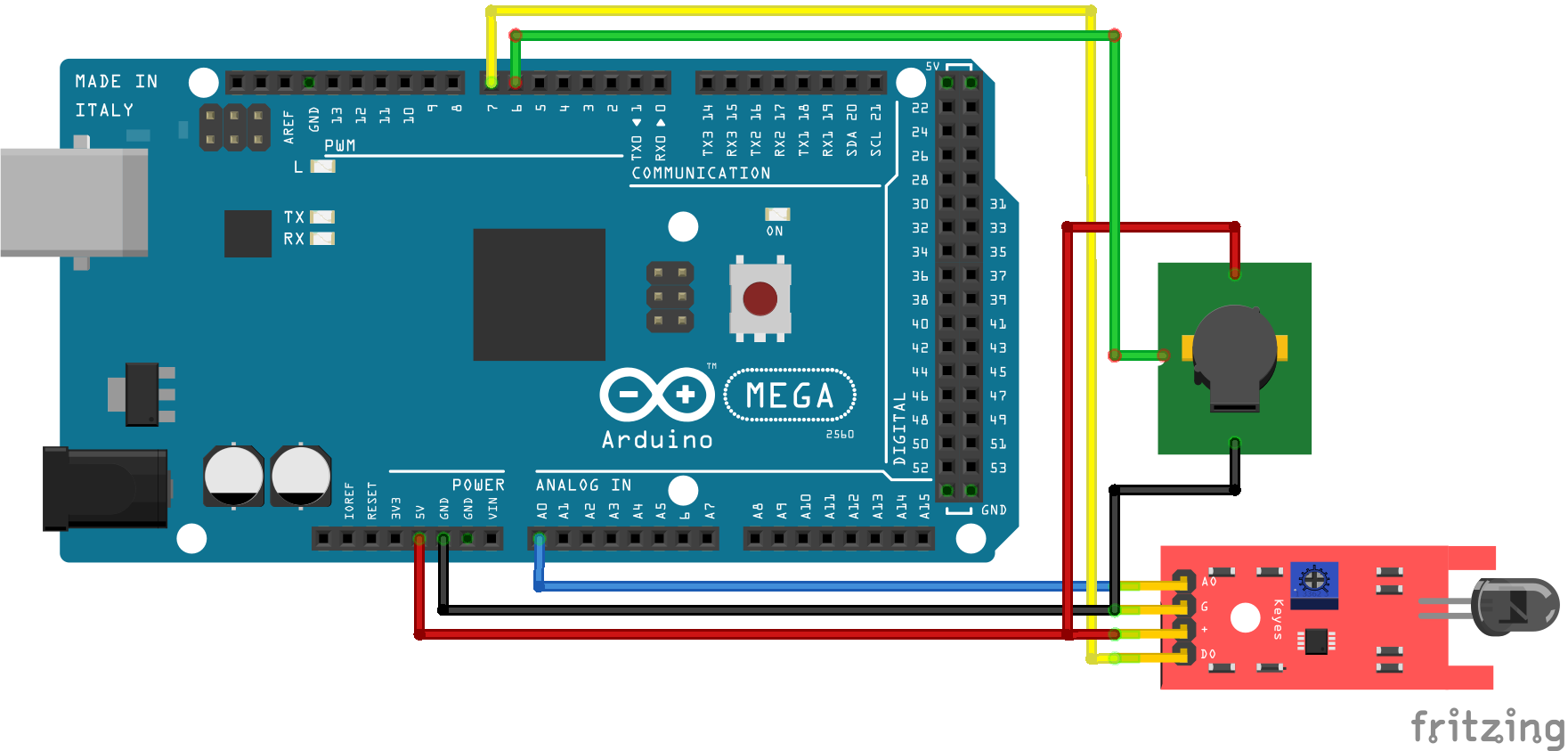
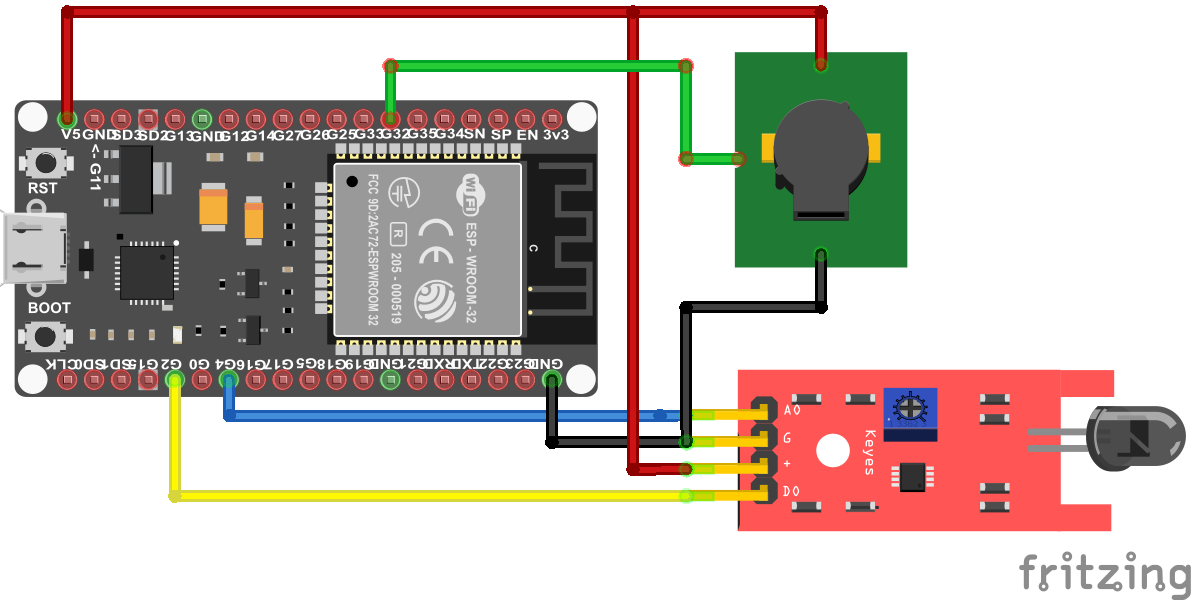
Now we want to build a gas alarm with the MQ2 gas sensor, an active buzzer and your favorite Arduino, ESP8266 or EPS32 microcontroller. The following pictures show how to connect the MQ2 gas sensor to different microcontroller boards. I also added an active buzzer to the project that makes a sound if the sensor detects gas in the air. If you are interested in more details about active or passive buzzers, visit the sound tutorial.

Wiring between MQ2 Gas Sensor and Microcontroller

Because the operating voltage of the MQ2 gas sensor is 5V, you have to use the Arduino Pro Mini in the 5V version and not the 3.3V version or any other microcontroller.

If your favorite board is missing, use the comment section below and I will add your board to this article.

MQ2 Gas Sensor Arduino Nano

MQ2 Gas Sensor Arduino Nano

MQ2 Gas Sensor Arduino Pro Mini

MQ2 Gas Sensor Arduino Pro Mini

MQ2 Gas Sensor Arduino Uno

MQ2 Gas Sensor Arduino Uno

MQ2 Gas Sensor Arduino Mega

MQ2 Gas Sensor Arduino Mega

MQ2 Gas Sensor ESP32 NodeMCU

MQ2 Gas Sensor ESP32 NodeMCU

MQ2 Gas Sensor ESP8266 NodeMCU

MQ2 Gas Sensor ESP8266 NodeMCU

MQ2 Gas Sensor ESP8266 WeMos D1 Mini

MQ2 Gas Sensor ESP8266 WeMos D1 Mini

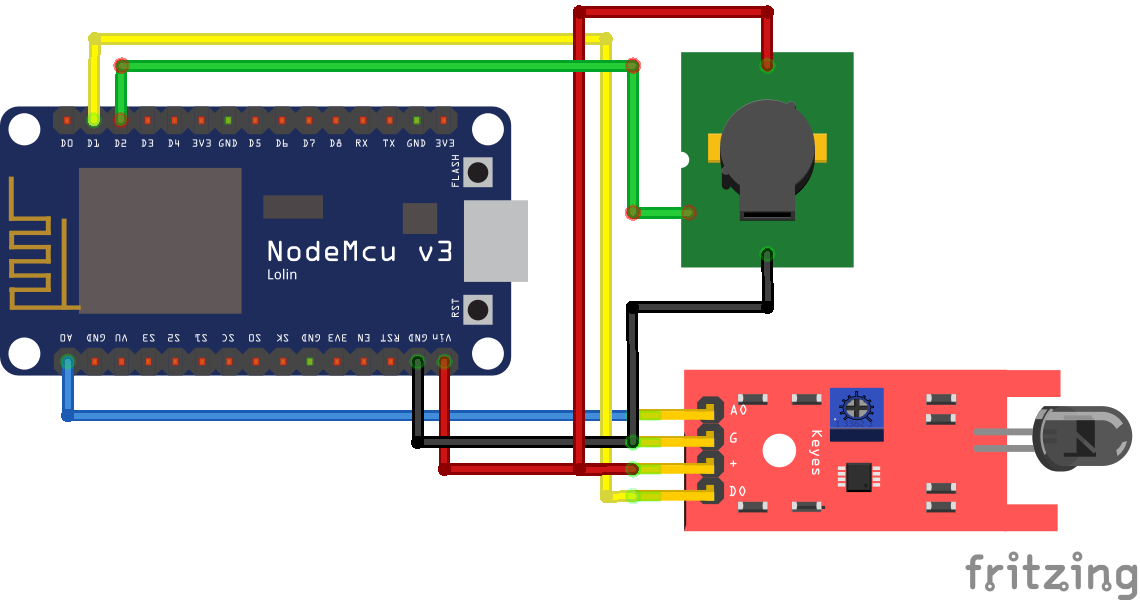
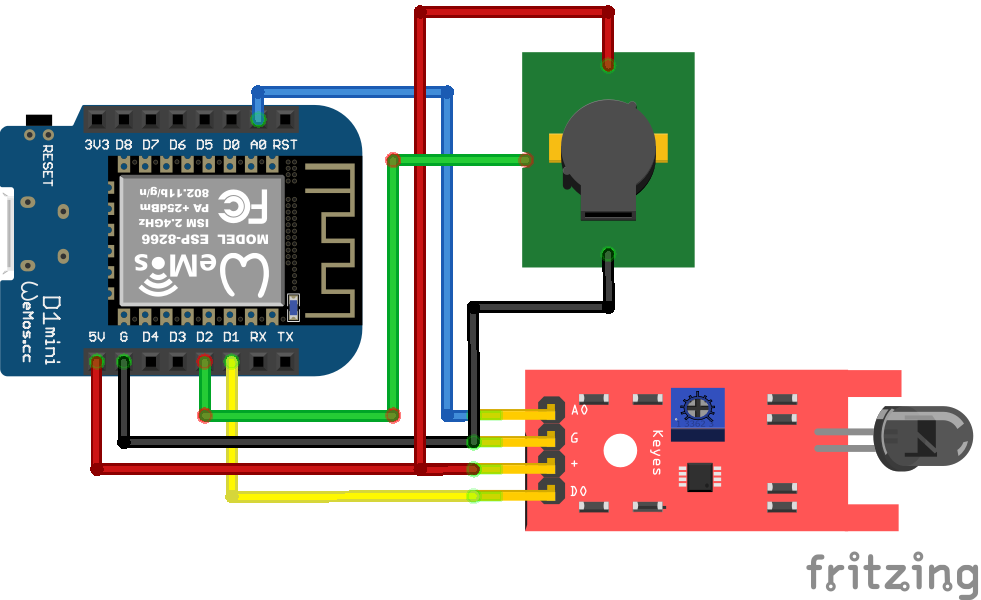
From the wiring between the fire sensor and the different Arduino, ESP8266 and ESP32 microcontroller, you see that I use different pins. Therefore we have to take care, that the right pins are used in the program code.

Arduino Code for the Gas Alarm

//int Buzzer = 6;        // used for Arduino
//int Gas_analog = A0;    // used for Arduino
//int Gas_digital = 7;   // used for Arduino

//int Buzzer = D2;        // used for ESP8266
//int Gas_analog = A0;    // used for ESP8266
//int Gas_digital = D1;   // used for ESP8266

int Buzzer = 32;        // used for ESP32
int Gas_analog = 4;    // used for ESP32
int Gas_digital = 2;   // used for ESP32

void setup() {
  Serial.begin(115200);
  pinMode(Buzzer, OUTPUT);      
  pinMode(Gas_digital, INPUT);
}

void loop() {
  int gassensorAnalog = analogRead(Gas_analog);
  int gassensorDigital = digitalRead(Gas_digital);

  Serial.print("Gas Sensor: ");
  Serial.print(gassensorAnalog);
  Serial.print("\t");
  Serial.print("Gas Class: ");
  Serial.print(gassensorDigital);
  Serial.print("\t");
  Serial.print("\t");
  
  if (gassensorAnalog > 1000) {
    Serial.println("Gas");
    digitalWrite (Buzzer, HIGH) ; //send tone
    delay(1000);
    digitalWrite (Buzzer, LOW) ;  //no tone
  }
  else {
    Serial.println("No Gas");
  }
  delay(100);
}

In the first part of the program code we define the pins that connect the MQ2 gas sensor, the active buzzer and the Arduino, ESP8266 or ESP32 microcontroller.

The following table shows what pins I choose for the connection.

Because I added the lines of code for all three microcontrollers, you have to comment and uncomment the first part of the code dependent on your microcontroller.

The ESP32 has a build-in analog to digital converter, so you can use multiple pins as analog input. The pins that you can use as analog pins are described in the ESP32 pinout tutorial.

In the setup function we set the baud rate to 115200 and define the pin modes:

  • The microcontroller sends the digital value to the buzzer → Output
  • The microcontroller gets the current digital status of the MQ2 gas sensor → Input

In the loop function we read the analog and digital value of the MQ2 gas sensor and save the values in different variables. Now we print the values to the serial output to see the values in the serial monitor of the Arduino IDE. For a better reading we separate each variable with a tabulator.

Now we have to define the threshold when we want to activate the buzzer or not. Therefore we compare the current analog sensor value with a constant, in my case 1000. If the analog sensor is greater than 1000, gas is detected and we set the buzzer active for one second. After this one second we deactivate the active buzzer again.

The following picture shows the output of the serial monitor with the program code in the next section.

MQ2 Gas Sensor Heating active Curve

You see clearly, when I activate the cigarette lighter, the analog value spikes above 1000. Also in the following video you see that when the gas sensor detects the gas, the buzzer is activated.

Bonus: Analog value while MQ2 heating

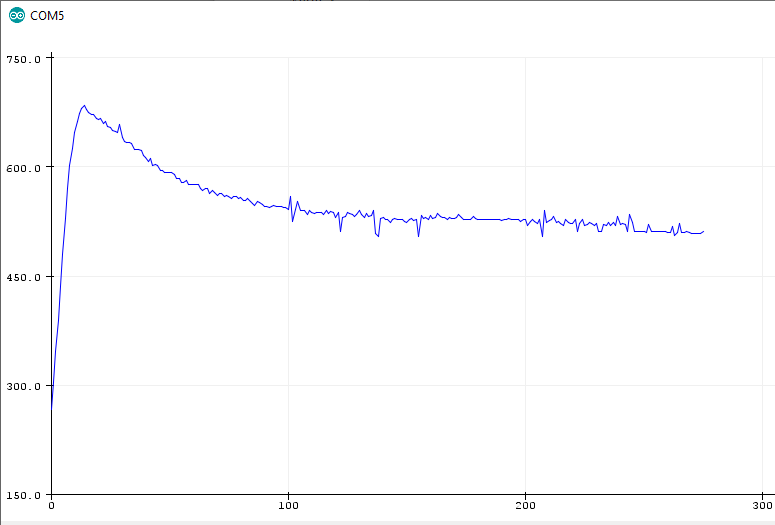
We can also make the preheating visible in the analog signal. The wiring stays the same and you only need the following short program code and open the serial plotter of the Arduino IDE.

//int Gas_analog = A0;    // used for Arduino
//int Gas_analog = A0;    // used for ESP8266
int Gas_analog = 4;    // used for ESP32

void setup() {
  Serial.begin(115200);
}

void loop() {
  int gassensorAnalog = analogRead(Gas_analog);
  Serial.println(gassensorAnalog);
  delay(100);
}
MQ2 Gas Sensor Preheating Curve

The x-axes shows the time in 1 seconds. During the preheating the analog sensor value spikes to around 700 in the first 10 seconds and then stabilizes around 500 after 200 seconds.

I hope you enjoyed reading the tutorial about the MQ2 gas sensor. You can also add a fire sensor to the gas alarm to detect an active fire. In the fire sensor tutorial you learn how to add the sensor to your project.

If you have any questions regarding this article, use the following comment section to ask your questions. I will answer them as soon as possible.

Fire Sensor

Fire Sensor Tutorial for Arduino, ESP8266 and ESP32

Fire Sensor Tutorial for Arduino, ESP8266 and ESP32

In this article you learn how to build your own fire alarm that detects a fire inside your home.

In the first part of the tutorial you learn the different methods to detect a fire.

We finish the tutorial with a project where we build a fire alarm based on the KY-026 board with the YG1006 flame sensor and an active buzzer.

Fire Sensor

Table of Contents

How to detect a fire?

A fire or flame sensor detects if there is a present fire or not. Generally the optical detection is the fastest way to detect a fire. Therefore we will concentrate on sensors with optical detection.

During a fire, photons with different wavelength are emitted. The following table shows the different wavebands, their wavelength and the corresponding flame detection methods.

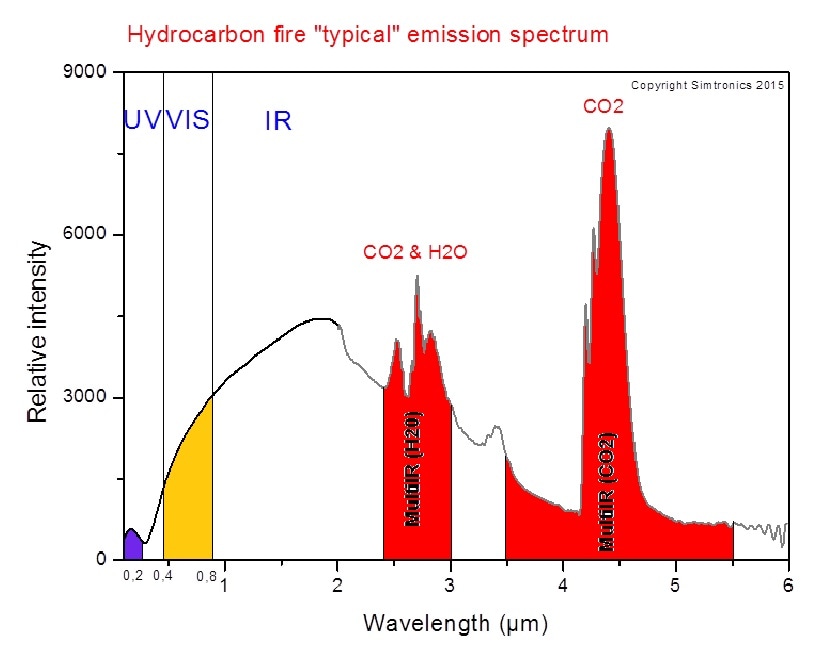
What flame detection method you use for a fire alarm depends on the environmental conditions, but the relative intensity of photons in the waveband is a good indication. The following picture shows the typical emission spectrum of a hydrocarbon fire along with the 3 wavebands.

Hydrocarbon fire emission spectrum

In the following three sub-chapters we discuss every waveband with the corresponding flame detection method and finally choose our flame sensor that we use for the fire alarm.

Ultraviolet Detector

The ultraviolet waveband has a wavelength shorter than 0.3μm and is not visible for the human eyes. To detect a fire, the ultraviolet detector recognizes the UV radiation emitted at the instant of a fire ignition. The sensor has a very fast reaction time with 3-4 milliseconds but due to the fast reaction time, you have to add a delay of a couple seconds to minimize false alarms. False alarms are caused by other UV sources like lighting and sunlight.

Near IR Array Detector

In the visible wavebands between 0.7μm – 1.1μm, it is possible to use flame recognition technology to confirm a fire. The recognition system analyzes near IR radiation with multiple channel or pixel arrays to create a picture or video of the flames. In combination with digital image processing and video analysis, the Near IR Array Detector is the most reliable technology to detect a fire.

IR Detector

The next higher wavelength with 1.1μm and greater are in the infrared waveband. There are specialized fire-fighting thermal imaging cameras (TIC) that detect a fire based on specific patterns giving off by hot gases. From the hydrocarbon fire emission spectrum, you see that the resonance frequency of CO2 is between 4.3μm – 4.4μm. This wavelength has a very high intensity due to the CO2 that is released during a fire, and is therefore very good to detect a fire.
But also the IR detector can have false alarms that are caused by hot surfaces, thermal radiation in the background, water on the detector lens or exposure to direct sunlight.

YG1006 Fire Sensor

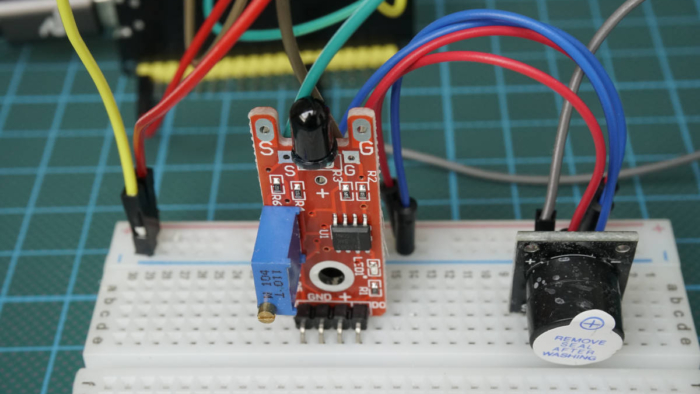
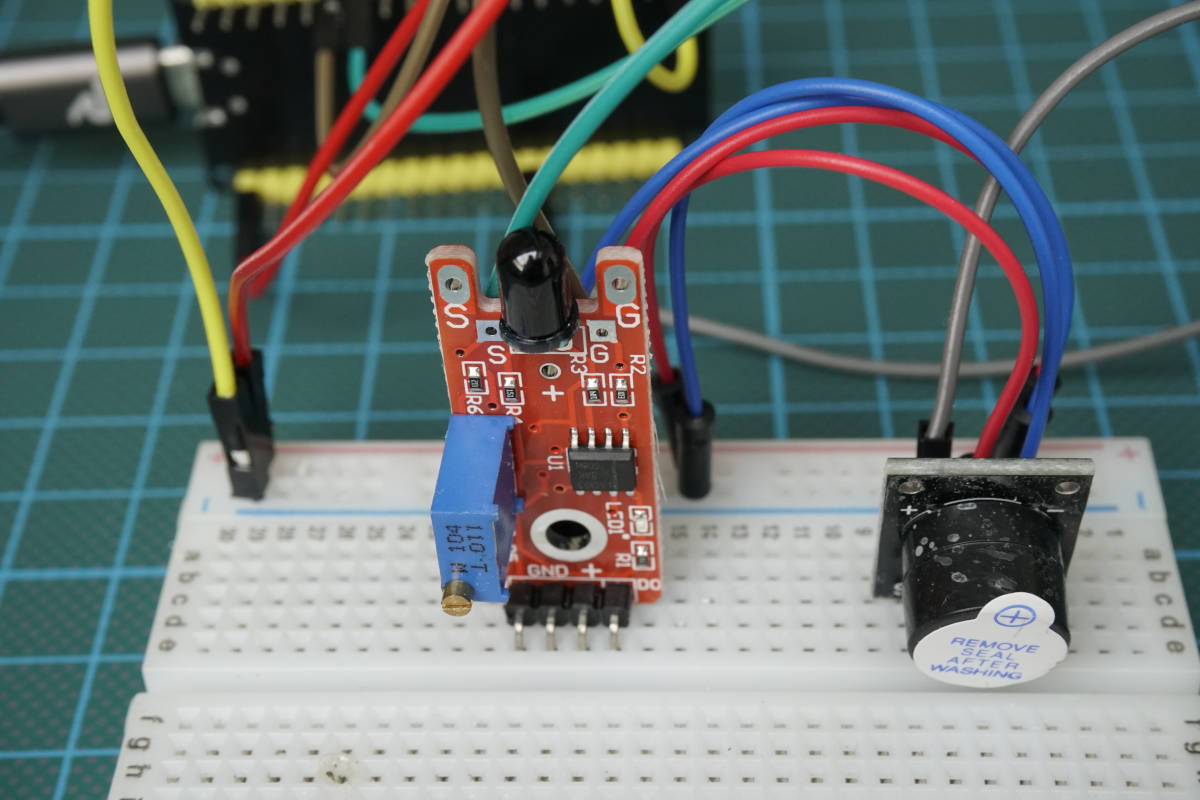
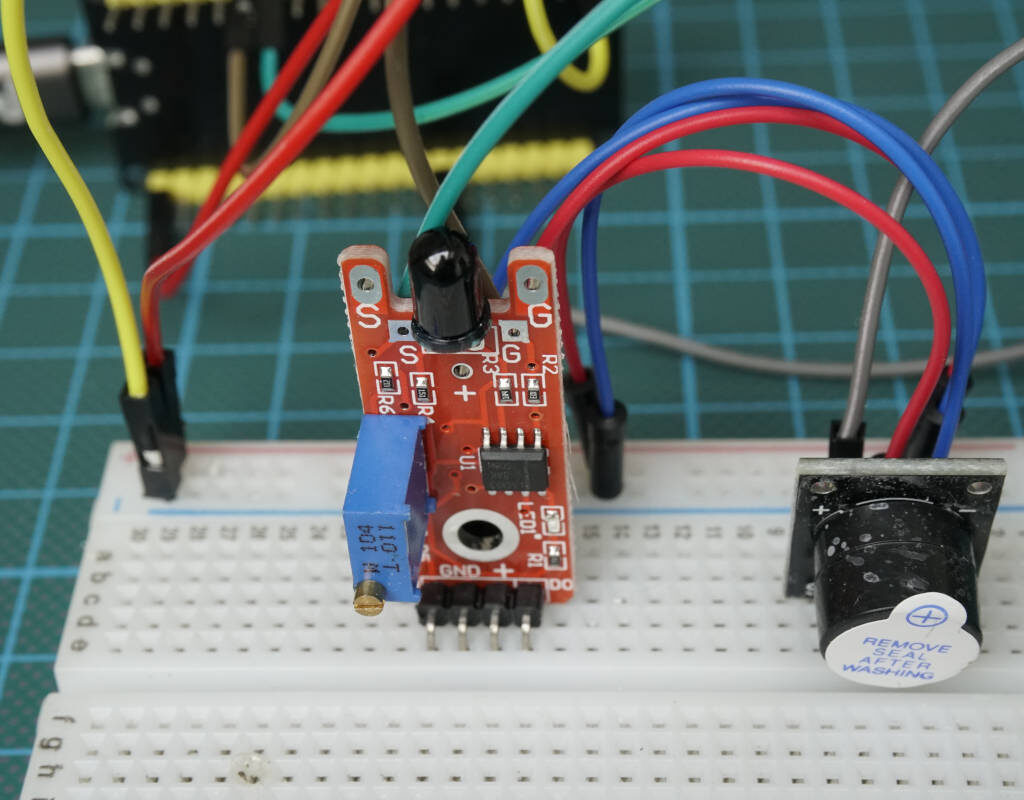
In our project to build a fire alarm we use the KY-026 flame sensor that is based on the YG1006 sensor, a high sensitive NPN silicon phototransistor. Due to its black epoxy, the sensor is sensitive to infrared radiation between 0.76μm and 1.1μm. When fire burns small amounts of infrared light is emitted. This light is received by the photodiode (IR receiver) on the sensor module.

Fire Sensor

The YG1006 flame sensor is build on a sensor board together with the LM393 comparator that is adjustable due to a potentiometer and transforms the analog signal of the YG1006 to a digital signal by comparing the analog signal to the predefined threshold of the potentiometer. If the digital pin is logic HIGH it indicates the presence of flame or fire. Logic LOW on output indicates absence of flame or fire.

The sensor board has an operation voltage between 3.3V and 5V and is therefore suitable for Arduino, ESP8266 and ESP32 microcontroller. The detection angle of the phototransistor is between 0 and 60 degree. Therefore a fire is detected in a large angle around the sensor.

The following table gives you an overview of all components and parts that I used for this tutorial. I get commissions for purchases made through links in this table.

Wiring between the Fire Sensor and Microcontroller

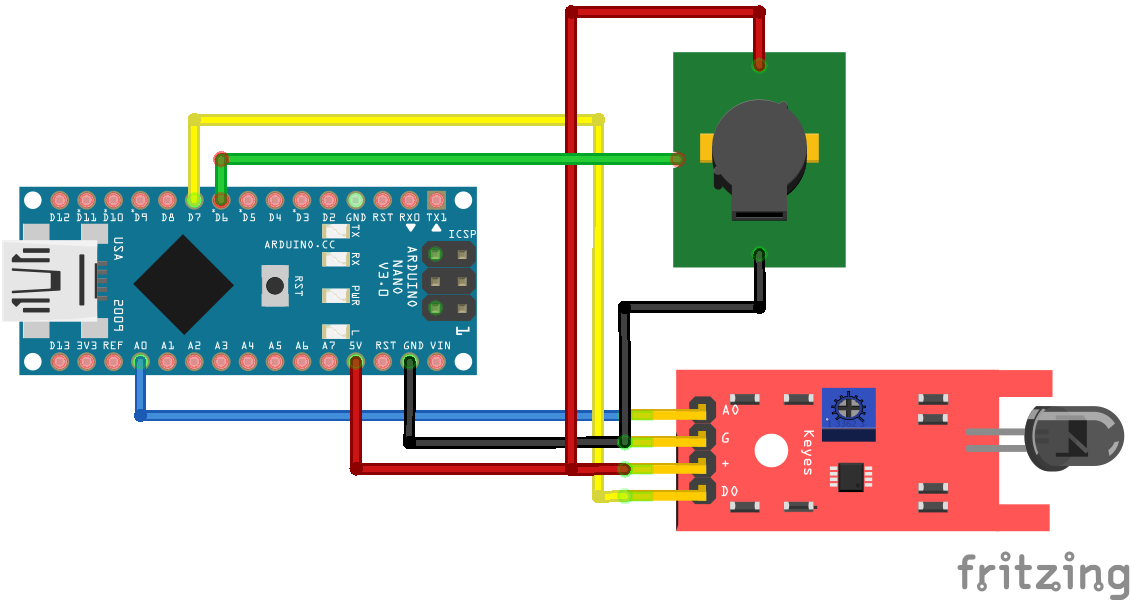
The following pictures show how to connect the flame sensor to different microcontroller boards. I also added an active buzzer to the project that makes a sound if there is an active fire. If you are interested in more details about active or passive buzzers, visit the sound tutorial.

If your favorite board is missing, use the comment section below and I will add your board to this article. Also you can click on each picture to enlarge it to see the connection in detail.

Fire Sensor Arduino Nano

Fire Sensor Arduino Nano

Fire Sensor Arduino Pro Mini

Fire Sensor Arduino Pro Mini

Fire Sensor Arduino Uno

Fire Sensor Arduino Uno

Fire Sensor Arduino Mega

Fire Sensor Arduino Mega

Fire Sensor ESP32 NodeMCU

Fire Sensor ESP32 NodeMCU

Fire Sensor ESP8266 NodeMCU

Fire Sensor ESP8266 NodeMCU

Fire Sensor ESP8266 WeMosD1 Mini

Fire Sensor ESP8266 WeMosD1 Mini

From the wiring between the fire sensor and the different Arduino, ESP8266 and ESP32 microcontroller, you see that I use different pins. Therefore we have to take care that the right pins are used in the program code, that you see in the following section.

Arduino Program Code for the Fire Sensor

int Buzzer = 6;        // used for Arduino
int Fire_analog = A0;    // used for Arduino
int Fire_digital = 7;   // used for Arduino

//int Buzzer = D2;        // used for ESP8266
//int Fire_analog = A0;    // used for ESP8266
//int Fire_digital = D1;   // used for ESP8266

//int Buzzer = 32;        // used for ESP32
//int Fire_analog = 4;    // used for ESP32
//int Fire_digital = 2;   // used for ESP32

void setup() {
  Serial.begin(115200);
  pinMode(Buzzer, OUTPUT);      
  pinMode(Fire_digital, INPUT);
}

void loop() {
  int firesensorAnalog = analogRead(Fire_analog);
  int firesensorDigital = digitalRead(Fire_digital);

  Serial.print("Fire Sensor: ");
  Serial.print(firesensorAnalog);
  Serial.print("\t");
  Serial.print("Fire Class: ");
  Serial.print(firesensorDigital);
  Serial.print("\t");
  Serial.print("\t");
  
  if (firesensorAnalog < 1000) {
    Serial.println("Fire");
    digitalWrite (Buzzer, HIGH) ; //send tone
    delay(1000);
    digitalWrite (Buzzer, LOW) ;  //no tone
  }
  else {
    Serial.println("No Fire");
  }
  delay(100);
}

In the first part of the program code, we have to define the connected pins. If you copy the script, it is commented in the way that it runs with Arduino boards. If you want to use ESP8266 or ESP32 boards, you have to comment the three Arduino lines and uncomment the lines for your microcontroller that you want to use.

The three pins that we define are the following

Because the ESP32 has build-in analog to digital converter, you can use multiple pins as analog input. The pins that you can use as analog pins are described in the ESP32 pinout tutorial.

In the setup function, we set the baud rate to 115200, that have to match to the baud rate at the serial monitor in the Arduino IDE. Also we define the digital pin that connects the buzzer as output because we want to activate and deactivate the buzzer in case of a fire. Also we set the digital connection of the fire sensors output as input of the Arduino, ESP8266 or ESP32 microcontroller, because we want to read the digital value.

In the loop function, we first read the analog and digital value of the fire sensor and print both values to the serial interface. To separate each value in the serial monitor, we use the tab function \t.

Now we have to define if there is a fire or not. This decision can be made based on two values:

  • The analog value of the fire sensor
  • The digital value of the fire sensor

My suggestion is always to choose the analog value because in most cases it is easier to change the threshold in software, compared to the adjustable LM393 comparator that outputs the digital value.

For this definition, I set the threshold to 1000 and lower for the analog value of the fire sensor. For the initial build you can also use the threshold of 1000 but maybe you have to play around with the potentiometer and different thresholds to get a stable operation point for your fire sensor.

For the fire sensor, lower values mean a higher infrared light emitted from a fire. If the analog value of the fire sensor is lower than 1000, we print in the serial monitor that there is a fire and set the buzzer high. When the active buzzer is activated we wait for 1 second and turn the buzzer off. If the analog value is higher or equal 1000, we print that there is no fire.

At the end of the program code we wait for 100 milliseconds and start the loop function all over.

The following video shows the fire sensor in action. The fire is detected and you hear the buzzer.

I hope you enjoyed reading my tutorial about the YG1006 fire sensor. You can also add a MQ-2 gas sensor to the fire alarm to detect smoke in case of a fire. In the MQ-2 gas sensor tutorial you learn how to add the gas sensor to your project.

If you have any questions regarding this article, use the following comment section to ask your questions. I will answer them as soon as possible.

SD Card Tutorial Thumbnail

SD Card Tutorial for Arduino, ESP8266 and ESP32

SD Card Tutorial for Arduino, ESP8266 and ESP32

In this tutorial you learn how to use the SD card module for your Arduino, ESP8266 and ESP32 microcontroller board.

We create a temperature logger where we store the time from a real-time clock module, the temperature and humidity to a micro SD card.

You can download all Arduino files at the end of the tutorial.

SD Card Tutorial Thumbnail

Table of Contents

In my projects I like to transfer data wireless via MQTT to a central database, that is normally on a Raspberry Pi. But what if there is no WiFi available like in the garden? In this case we have to save the data to the SD card, because the internal memory of the microcontroller is only some megabyte. Moreover the internal memory of the microcontroller is harder to access and can be lost during a power reset.

Different SD Card Modules and Shields

There are different SD card modules and also an SD card shield developed by AZDelivery, called Data Logger Module. The SD card shield fits with all pins on an Arduino Uno. The following picture shows a SD card module for micro SD cards and the Arduino Uno shield.

SD Card Module and Arduino Uno Shield

If we take a look at the SD card module, we see that there are two electrical components on the board.

  • Voltage regulator: the SD card module has a build in voltage regulator, because SD cards work with a 3.3V logic. If you want to connect an Arduino microcontroller with an operation voltage of 5V, you need this voltage regulator to reduce the voltage from 5V to 3.3V.
  • Logic-level shifter: The voltage regulator reduces only the supply voltage but for the SPI communication, we need the level shifter to translate the signals between 5V and 3.3V. The SD card module uses the 74LVC125A as logic-level shifter.

More components are not needed because the SD card itself has a build in SPI interface. Therefore the SD card module does not have to supply this interface.

It is important that the SD card that you use is formatted as FAT16 or FAT32. Depending on the SD card module there is a limit of 32GB for the SD card. You find any limitations on the datasheet of your SD card module.

Wiring between SD Card Module and Microcontroller

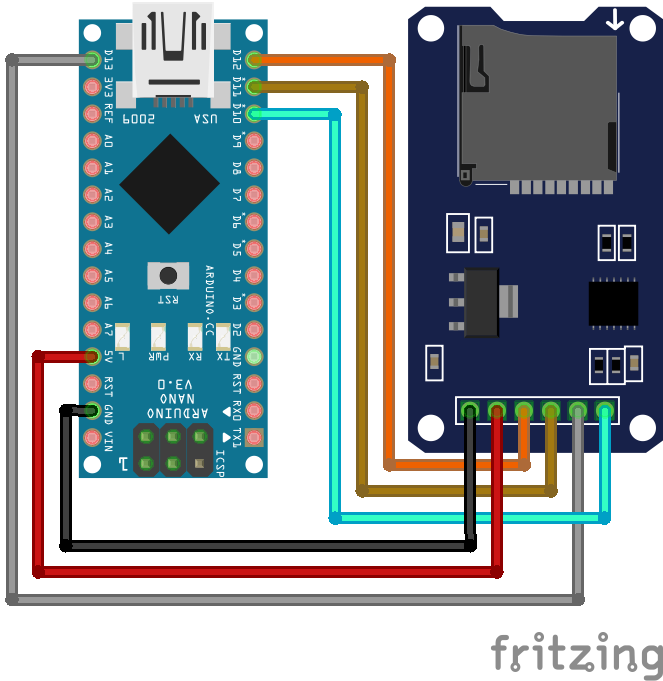
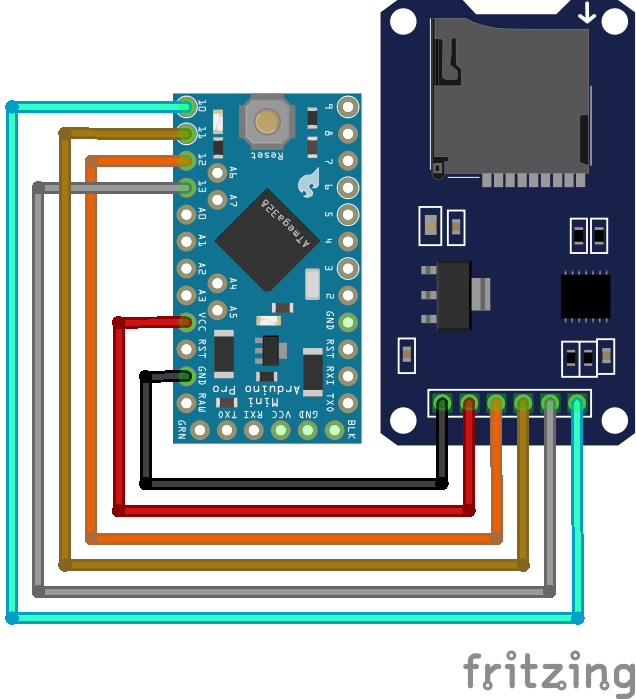
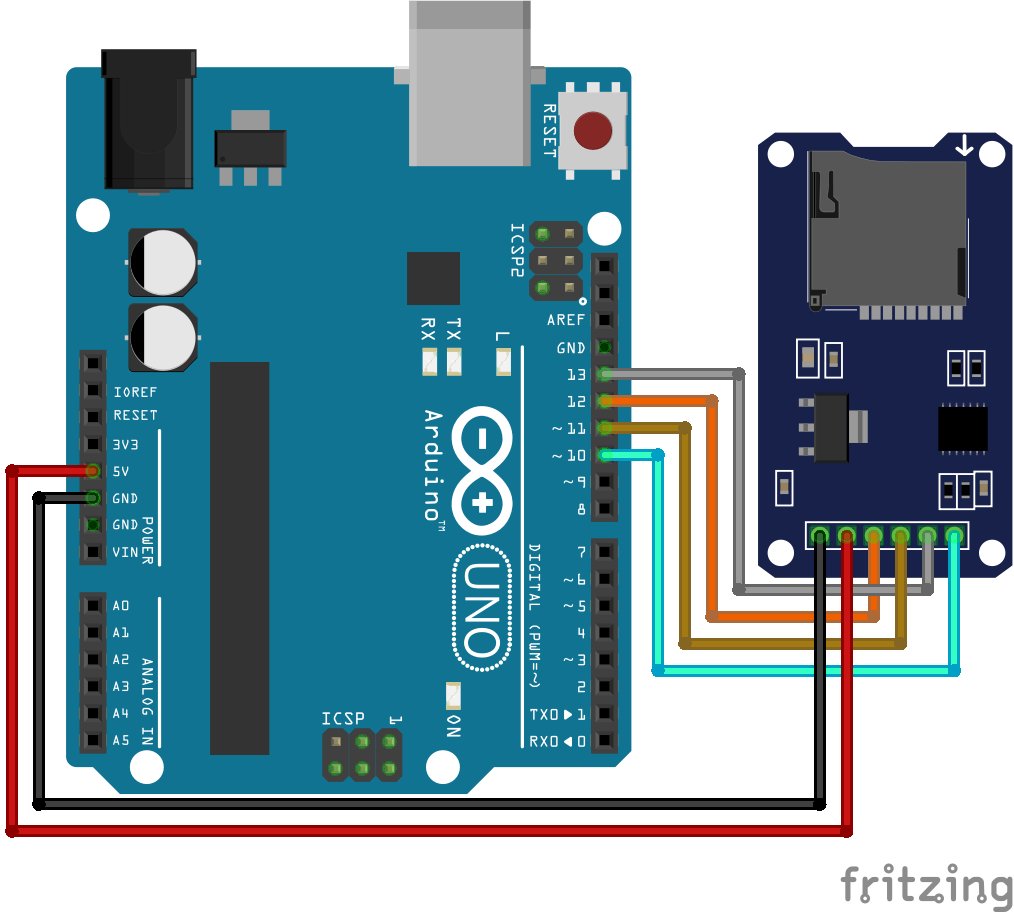
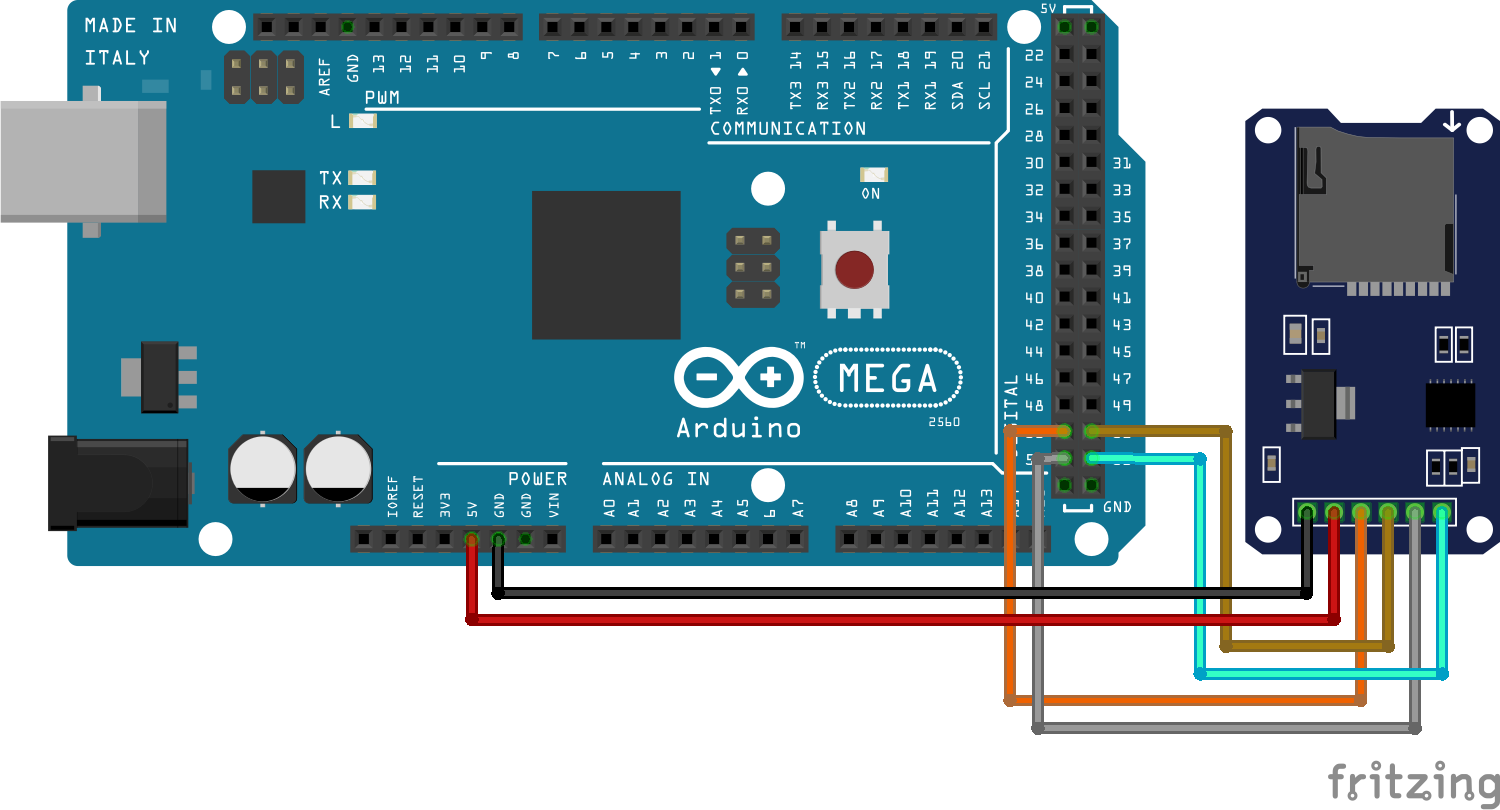
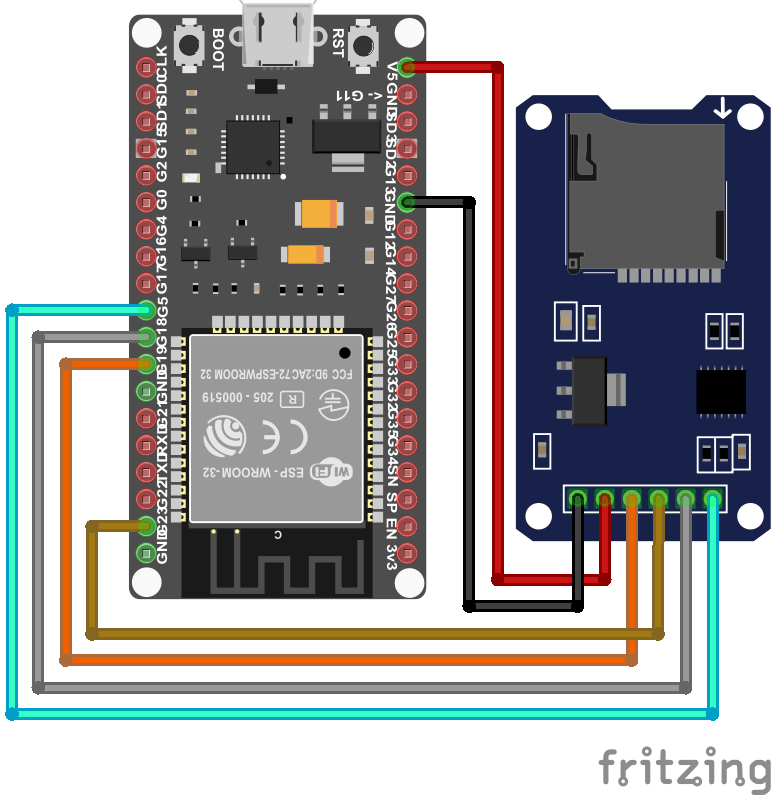
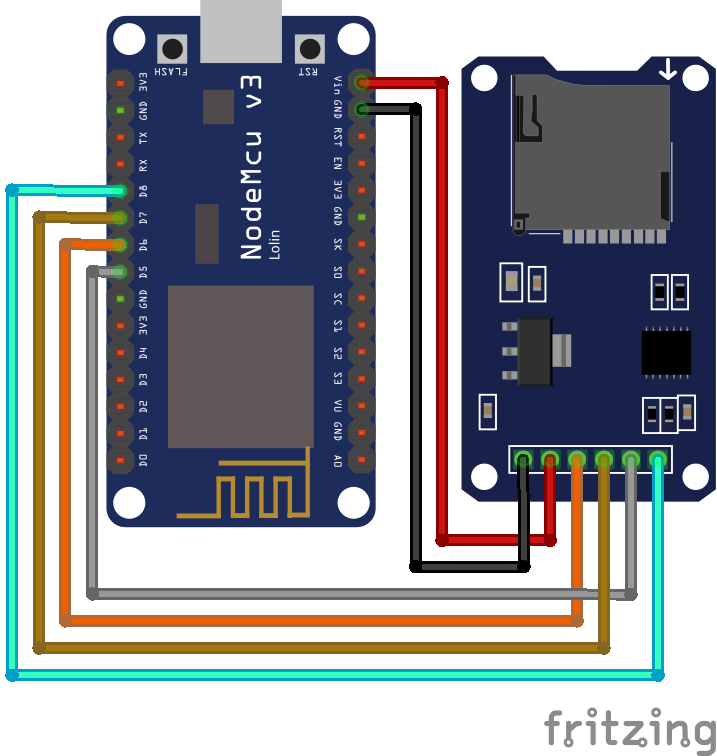
The SD card modules are connected via SPI to the Arduino, ESP8266 or ESP32 microcontroller. The SPI communication ensures that the data is transferred as fast as possible. The following pictures shows how to wire the module to the different Arduino, ESP8266 and ESP32 microcontroller boards.

In my case, the SD card Module has the following pins from the left to the right:

GND |VCC | MISO | MOSI | SCK | CS

SD Card Module Arduino Nano

SD Card Module Arduino Nano

SD Card Module Arduino Pro Mini

SD Card Module Arduino Pro Mini

SD Card Module Arduino Uno

SD Card Module Arduino Uno

SD Card Module Arduino Mega

SD Card Module Arduino Mega

SD Card Module ESP32 NodeMCU

SD Card Module ESP32 NodeMCU

SD Card Module ESP8266 NodeMCU

SD Card Module ESP8266 NodeMCU

SD Card Module ESP8266 WeMos D1 Mini

SD Card Module ESP8266 WeMos D1 Mini

Instead of the default Slave Select (SS) pin for each microcontroller, you can define another digital pin, but if the default pin is not used, the GPIO must be left empty as output for the SD library.

The following table gives you an overview of all components and parts that I used for this tutorial. I get commissions for purchases made through links in this table.

Arduino and ESP8266 Temperature Logger with RTC and SD Card

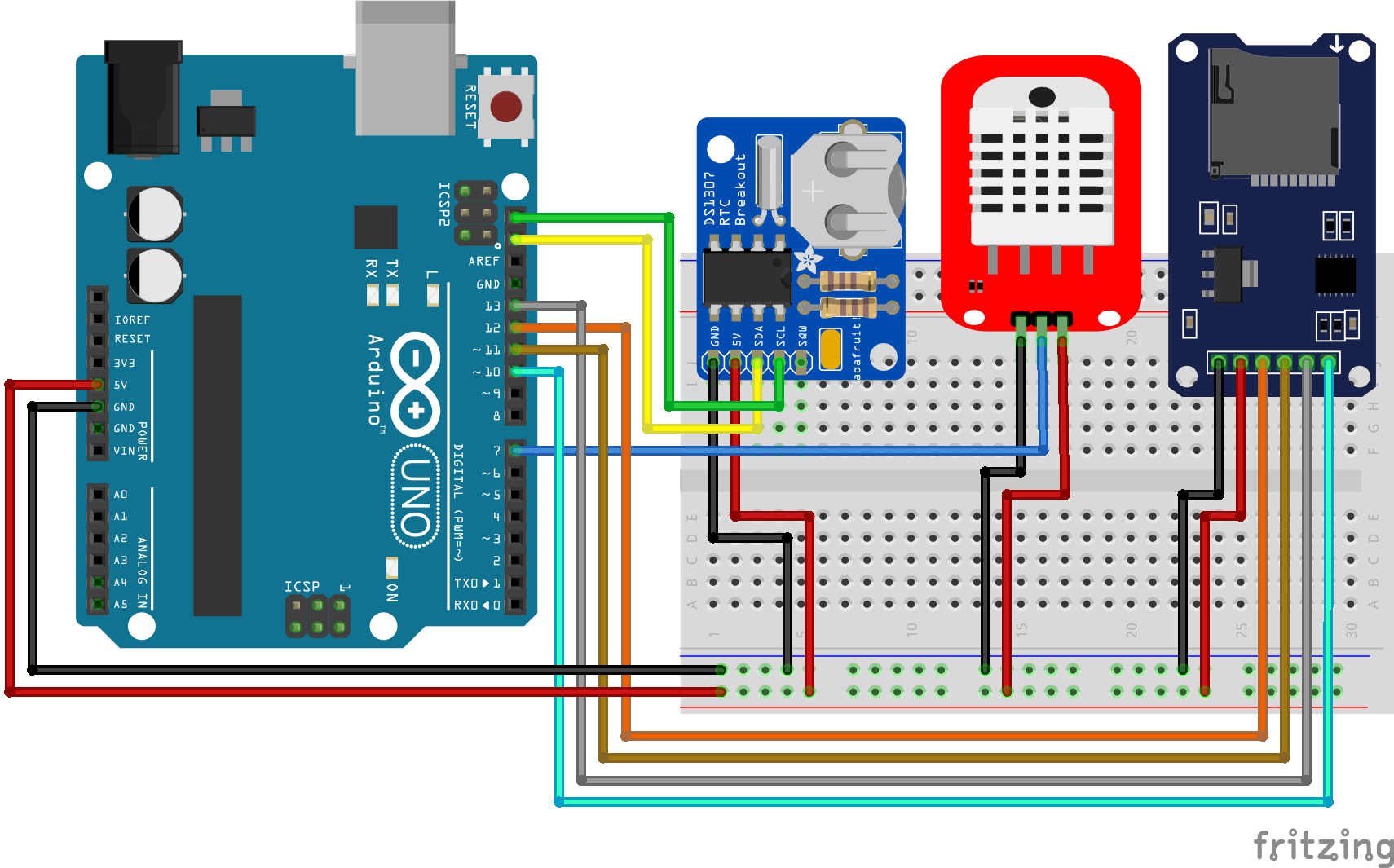
In the following example we want to build a temperature logger that reads the temperature and humidity from an DHT22 sensor and gets the current time from a real-time clock (RTC) module. The whole dataset is then written to a micro SD card.

The following picture shows the wiring for Arduino and ESP8266 microcontroller. You can klick on each image to enlarge it.

Temperaturelogger RTC Arduino Nano

Temperaturelogger RTC Arduino Nano

Temperaturelogger RTC Arduino Pro Mini

Temperaturelogger RTC Arduino Pro Mini

Temperaturelogger RTC Arduino Uno

Temperaturelogger RTC Arduino Uno

Temperaturelogger RTC Arduino Mega

Temperaturelogger RTC Arduino Mega

Temperaturelogger RTC ESP8266 NodeMCU

Temperaturelogger RTC ESP8266 NodeMCU

Temperaturelogger RTC ESP8266 WeMos D1 Mini

Temperaturelogger RTC ESP8266 WeMos D1 Mini

For this project we need quite some libraries. The only library, that is not installed by default, is the RTClib library that we need to get the time from the RTC. The library can be installed via the Arduino IDE and if you do not know how to install a library, you can visit my library installation guide.

The following lines show the program code for Arduino and ESP8266 based microcontroller.

#include "SPI.h"
#include "SD.h"
#include "DHT.h"
#include "RTClib.h"

#define DHTPIN 7    // used for Arduino
//#define DHTPIN D4   // used for ESP8266

#define DHTYPE DHT22

const int chipSelect = 10;  // used for Arduino
//const int chipSelect = D8;  // used for ESP8266

DHT dht(DHTPIN, DHTYPE);
RTC_DS1307 rtc;

void setup() {
  Serial.begin(9600);
  
  while (!Serial) {
  }

   if (!rtc.begin()) {
    Serial.println("Couldn't find RTC");
    while (1);
  }

  if (!rtc.isrunning()) {
    Serial.println("RTC lost power, lets set the time!");
    rtc.adjust(DateTime(F(__DATE__), F(__TIME__)));
  }

  if (!SD.begin(chipSelect)) {
    Serial.println("Initialization failed!");
    while (1);
  }

  dht.begin();
}

void loop() {
  
  String dataString = "";

  float h = dht.readHumidity();
  float t = dht.readTemperature();

  DateTime now = rtc.now();

  dataString += String(now.unixtime());
  dataString += ",";
  dataString += String(h);
  dataString += ",";
  dataString += String(t);
  
  File dataFile = SD.open("datalog.txt", FILE_WRITE);

  if (dataFile) {
    dataFile.println(dataString);
    dataFile.close();
    Serial.println(dataString);
  }
  
  else {
    Serial.println("error opening datalog.txt");
  }

  delay(2000);
}

At the beginning of the script we include the following libraries:

  • SPI: used for the communication to the SD card
  • SD: read and write to the SD card
  • DHT: used for the DHT temperature and humidity sensor
  • RTClib: interface for the RTC

For Arduino microcontroller we read the DHT22 sensor values from digital pin 7 and for ESP8266 microcontroller from pin D4 like you see in the fritzing sketches. You only have to comment out the line for the microcontroller that you do not use.

Because I use the DHT22 temperature and humidity sensor, I have to define the DHT type as DHT22. If you use the DHT11, you only have to change the type in this line to DHT11.

In the next two lines we define the chip select pin to identify the SD card module on the SPI communication line. In my case I use the default chip select pins. If you use another digital pin for the CS line, remember that you do not connected the pin to other components, because the SD card library will use the default pin. The Arduino uses pin 10 and the ESP8266 pin D8 for the default SPI chip select connection.

Before we enter the setup function we create an DHT object with the previous defined DHT pin and type. Also we create an object for the RTC.

In the setup function we set the baud rate to 9600 that have to match the baud rate of the serial monitor. Now we wait until the serial communication channel is established. With the following three if statements we initialize the real-time clock and the SD card module. The real-time clock is set to the date and time when the sketch is compiled. If something failed during the initialization, we get an error message in the serial monitor.

In the last line of the setup function we initialize the DHT object.

After the setup function the RTC, the DHT sensor and the SD card module are ready to operate. The loop function start with the creation of an empty string.

Now the humidity and temperature is read from the DHT sensor and also the current time in unix datetime format from the RTC. After we have all values that we want to save to the SD card we create one string that will be one line in the text file that we create on the SD card. Therefore we connect all measurements and separate them with a comma.

The next step is to write the complete string to the SD card. Therefore we open the text file with the open function of the SD library and set the path to the text file and use the argument FILE_WRITE to open the file with writing permission.

If the file is available we write the dataString to the opened text file and close the file. To see the string in the serial monitor of the Arduino IDE, we write the same string to the serial USB connection.

If we can not open the file, we write an error message and at the end of the script we wait for 2 seconds.

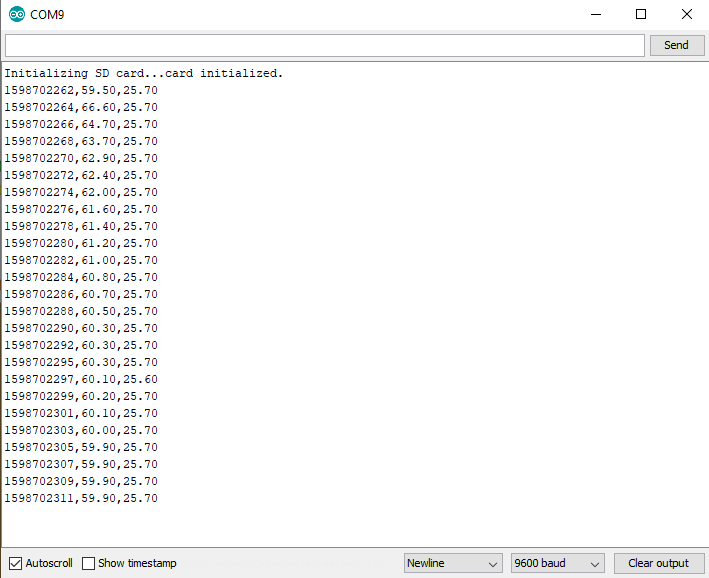
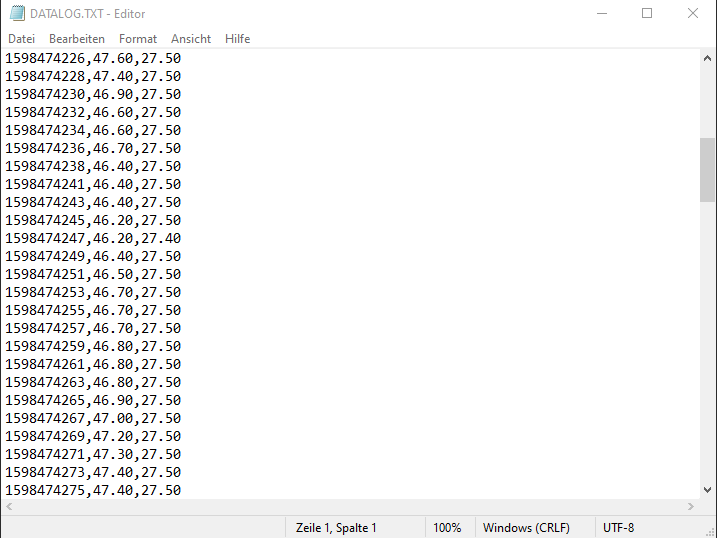
The following two pictures show the serial monitor and also the opened text file on the PC.

ESP32 Temperature Logger with RTC and SD Card

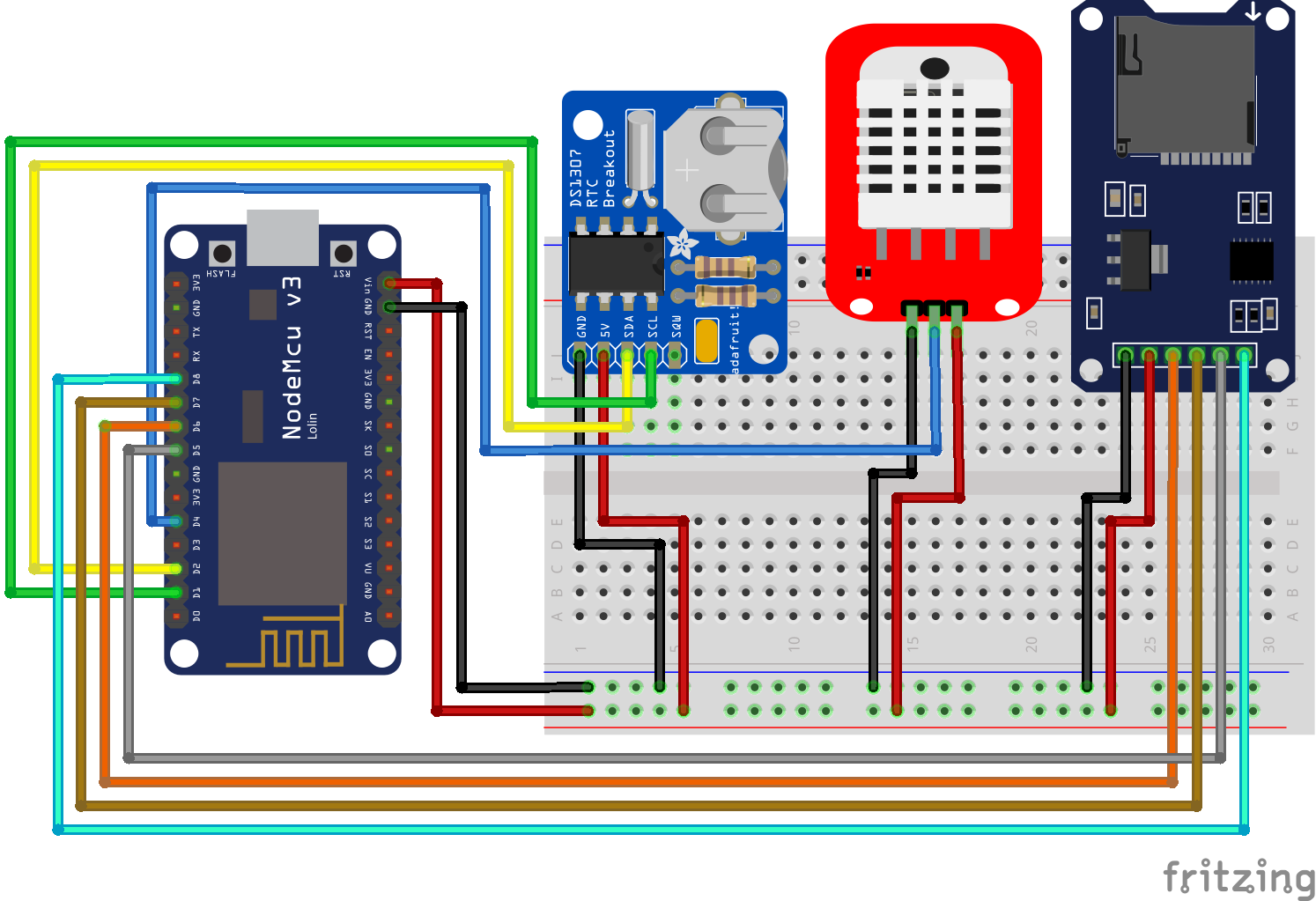
For the ESP32 we want to create the same temperature logger that reads the temperature and humidity from an DHT22 sensor and gets the current time from a real-time-clock (RTC) module, like for the Arduino and ESP8266. But because the program script is different, I create a separate section in this tutorial.

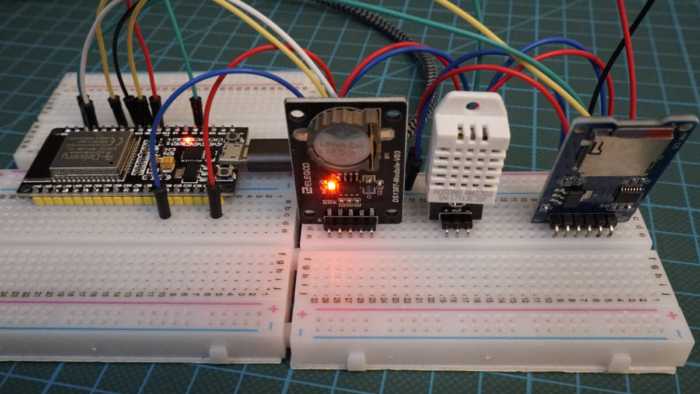
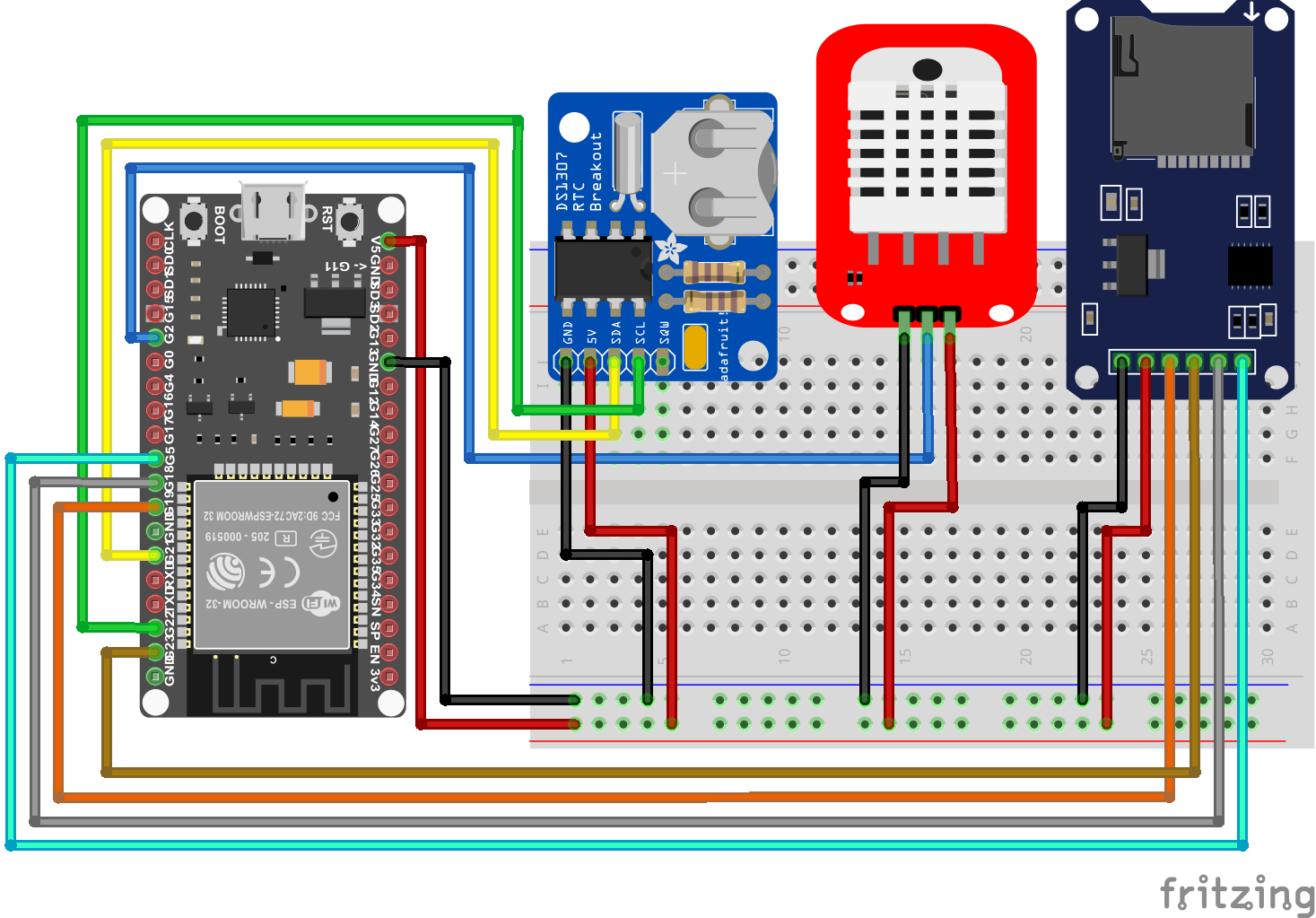
The following picture shows the wiring of the ESP32 NodeMCU, SD card module, RTC module and DHT22.

Temperaturelogger RTC ESP32 NodeMCU

For the program script we can use most of the parts in the previous example but we will use two functions to write on the SD card. The following lines show the Arduino script for the ESP32 temperature logger.

#include "FS.h"
#include "SD.h"
#include "SPI.h"
#include "RTClib.h"
#include "DHT.h"

#define DHTPIN 2
#define DHTTYPE DHT22

DHT dht(DHTPIN, DHTTYPE);
RTC_DS1307 rtc;

void writeFile(fs::FS &fs, const char * path, const char * message){
    Serial.printf("Writing file: %s\n", path);

    File file = fs.open(path, FILE_WRITE);
    if(!file){
        Serial.println("Failed to open file for writing");
        return;
    }
    if(file.print(message)){
        Serial.println("File written");
    } else {
        Serial.println("Write failed");
    }
    file.close();
}

void appendFile(fs::FS &fs, const char * path, const char * message){
    Serial.printf("Appending to file: %s\n", path);

    File file = fs.open(path, FILE_APPEND);
    if(!file){
        Serial.println("Failed to open file for appending");
        return;
    }
    if(file.print(message)){
        Serial.println("Message appended");
    } else {
        Serial.println("Append failed");
    }
    file.close();
}

void setup(){
  Serial.begin(9600);
  dht.begin();
  
  if(!SD.begin()){
      Serial.println("Card Mount Failed");
      return;
      }

  if (! rtc.begin()) {
    Serial.println("Couldn't find RTC");
    while (1);
    }

  if (!rtc.isrunning()) {
    Serial.println("RTC lost power, lets set the time!");
    rtc.adjust(DateTime(F(__DATE__), F(__TIME__)));
  }
  
  writeFile(SD, "/datalog_ESP32.txt", "Time, Humidity, Temperature \r\n");
}

void loop(){

  String dataString = "";

  float h = dht.readHumidity();
  float t = dht.readTemperature();

  DateTime now = rtc.now();

  dataString += String(now.unixtime());
  dataString += ",";
  dataString += String(h);
  dataString += ",";
  dataString += String(t);
  dataString += "\r\n";

  Serial.println(dataString);
  appendFile(SD, "/datalog_ESP32.txt", dataString.c_str());
    
  delay(2000);
}

Because most of the script is already described in the Arduino and ESP8266 example, I want to focus on the differences.

The first difference is that we not only need the SD card library but also need the FS (file system) library. Also the DHT22 sensor is connected to digital pin 2.

In the setup function we use the writeFile function that is only executed once and that has three arguments:

  1. The memory address of the file system from the SD card (global namespace)
  2. The path to the text file
  3. The string that should be the headline of the text file

Like in the previous example we first open the text file or if it does not exist, we create the file. Then we write the string that was defined by the function argument to the file but at the end we add “\r\n” for a carriage return and start in a new line for the next message payload. When the string was written successfully to the file, we close the text file.

In the loop function we use the appendFile function that is the same as the writeFile function but now the string in the argument is the timestamp from the RTC, the humidity and the temperature.

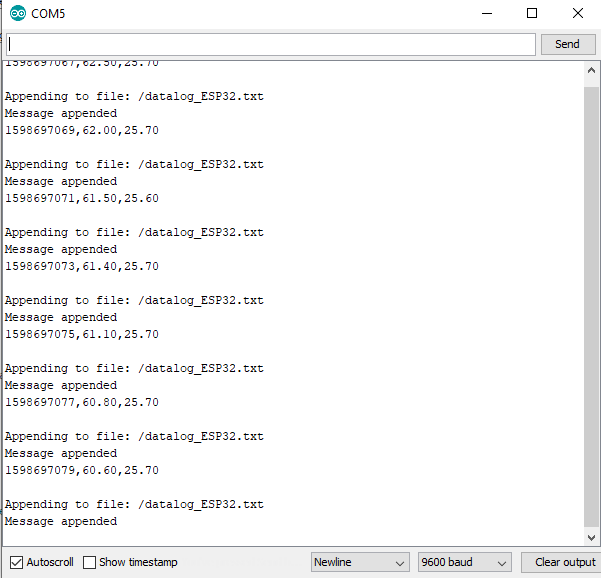
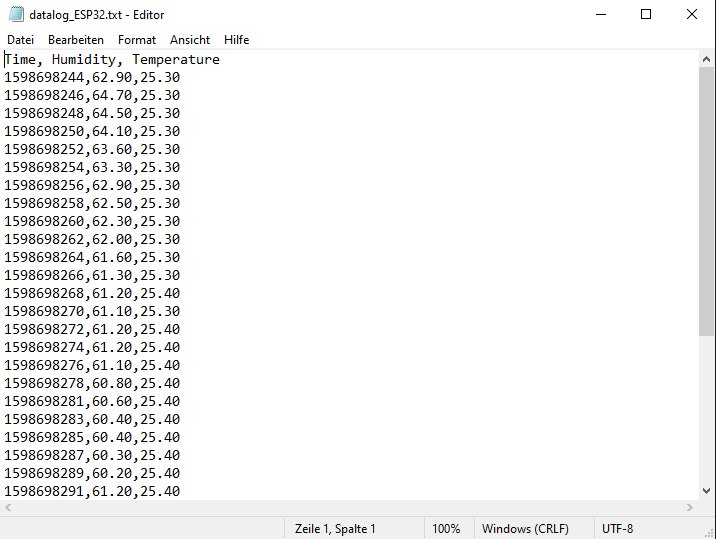
The following picture shows the output of the serial monitor and the text file on the PC.

Read data from SD Card

In our next example we want to read the data that we wrote on the SD card in the previous example. You can take the wiring from the third chapter of this tutorial.

Arduino Program Code for Arduino and ESP8266

#include "SPI.h"
#include "SD.h"

const int chipSelect = 10;

void setup() {
  Serial.begin(9600);
  while (!Serial) {
  }

  if (!SD.begin(chipSelect)) {
    Serial.println("Initialization failed!");
    while (1);
  }

  File dataFile = SD.open("datalog.txt");
  if (dataFile) {
    Serial.println("datalog.txt:");

    // read from the file until there's nothing else in it:
    while (dataFile.available()) {
      Serial.write(dataFile.read());
    }
    dataFile.close();
  } else {
    Serial.println("error opening datalog.txt");
  }
}

void loop() {
}

Arduino Program Code for ESP32

#include "FS.h"
#include "SD.h"
#include "SPI.h"

void readFile(fs::FS &fs, const char * path){
  Serial.printf("Reading file: %s\n", path);

  File file = fs.open(path);
  if(!file){
      Serial.println("Failed to open file for reading");
      return;
  }

  Serial.print("Read from file: ");
  while(file.available()){
      Serial.write(file.read());
  }
  file.close();
}


void setup(){
  Serial.begin(9600);
  if(!SD.begin()){
      Serial.println("Card Mount Failed");
      return;
  }
  
  readFile(SD, "/datalog_ESP32.txt");
}

void loop(){
}

You know most of the program code from the example with the temperature logger. The only difference is that we open the file in the setup function without the FILE_WRITE argument. Therefore the Arduino, ESP8266 or ESP32 has only the permission to read the file.

In the following while loop, the program loops over every row of the text file and writes the line on the serial output so that we see the complete text file in the serial monitor of the Arduino IDE. If the last line is printed to the serial, the file is closed.

For the ESP32 we use again a function from the examples that opens the text file and uses the same while function to loop over every line of the text file.

I hope you learned a lot in this tutorial. If you have any questions regarding the SD card module, please use the comment section below to ask your questions. If will answer them as soon as possible.

I2S ESP32 Tutorial

I2S Sound Tutorial for ESP32

I2S Sound Tutorial for ESP32

In this tutorial you learn the fundamentals of the I2S communication that is used to transfer digital sound signals and why you should use an ESP32 microcontroller for your I2S projects.

After your learn the functionality of I2S we create 3 projects where you can apply what you have learned.

I2S ESP32 Tutorial

The I2S communication protocol was developed by Philips Semiconductors in 1986. I2S stands for Inter-Integrated Circuit Sound and as an electrical serial bus interface I2S is the standard to connect different digital audio devices.

ESP32 and ESP8266 microcontroller support the I2S protocol where only some special Arduino microcontroller support the communication protocol.

Table of Contents

Why do we need the I2S protocol?

If we want to play a digital audio file with the help of a microcontroller board, we have to consider the whole digital audio chain. The following schematic sketch shows how an audio file is stored on an SD card and read from the microcontroller board. The board is then connected to the speaker via a digital pin and ground.

I2S Schematic

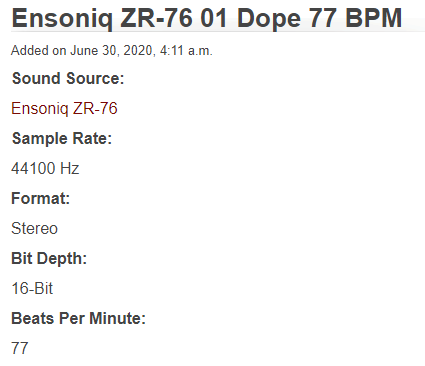
In my case I have a sample audio file from freewavesamples with a sample rate of 44.1 kHz, stereo format and a bit depth of 16 bits. On our input side, where we want to read the music file, we have no problem because the SPI connection is fast enough that the quality is not reduced during the transmission.

But on the output side we have to transfer the digital signal to an analog signal. This is done by a digital to analog converter (DAC). Depending on the used microcontroller there are different problems:

freewavesamples


  • Arduino and ESP8266: The Arduino boards as well as the ESP8266 in general do not have an internal DAC and therefore you would have to build an DAC with external components.
  • ESP32: The ESP32 has an internal DAC to create an analog output signal, however the DAC has only an 8-bit resolution. Because we have a 16 bit input signal, we would loose quite some quality.

But how can we convert the digital data from the WAVE file to the speaker? The solution to this is the I2S communication protocol, that supports between 4 to 32 data bits per sample. To make our life even easier, we use an MAX98357 I2S audio breakout board. But first we dive deeper into the I2S communication protocol.

I2S Communication Protocol

In this part of the I2S tutorial we want to take a closer look at the I2S communication protocol. Therefore we cover three important topics.

  1. I2S 3-Wire Connection
  2. I2S Network Components
  3. I2S Timing Diagram

The following table shows which boards have an I2S interface and which boards don’t.

From the table you see that only some special Arduino boards have the I2S interface but not the most used boards like the Arduino Uno. Also all ESP8266 and ESP32 boards support the I2S interface and therefore I recommend to use either an ESP8266 or ESP32 microcontroller based board for this tutorial. In my case I use an ESP32 microcontroller because the libraries that we use supports the ESP32 better than the ESP8266 in my experience.

I2S 3-Wire Connection

The I2S protocol uses three wires for the communication.

The Serial Clock (SCK) also called the bit clock line (BCLK) is used to get all components on the same cycle. The frequency of the serial clock is defined by: Frequency = Sample Rate * Bits per channel * Number of channels.

For my WAVE file that I use in this tutorial we already know the following variables:

  • Sample rate: 44.1 kHz
  • Bits per channel: 16
  • Number of channels: 2

Therefore the serial clock has the frequency of 44.1 kHz * 16 * 2 = 1.411 MHz.

The second line of the I2S communication protocol is the Word Select (WS) or Frame Select (FS) wire that differentiate between the left or the right channel.

  • If WS = 0 → Channel 1 (left channel) is used
  • If WS = 1 → Channel 2 (right channel) is used

The last wire is the Serial Data (SD) line where the payload is transmitted in 2 complements. It is important that the most significant bit is transferred fist (MSB first), because transmitter and receiver may have different word lengths. Therefore the transmitter nor the receiver have to know how many bits are transferred. But what happened if the word length between transmitter and receiver does not match?

  • If WS of receiver > WS transmitter → word is truncated (least significant data bits are set to 0)
  • If WS of receiver < WS transmitter → bits after the LSB are ignored

I2S Network Components

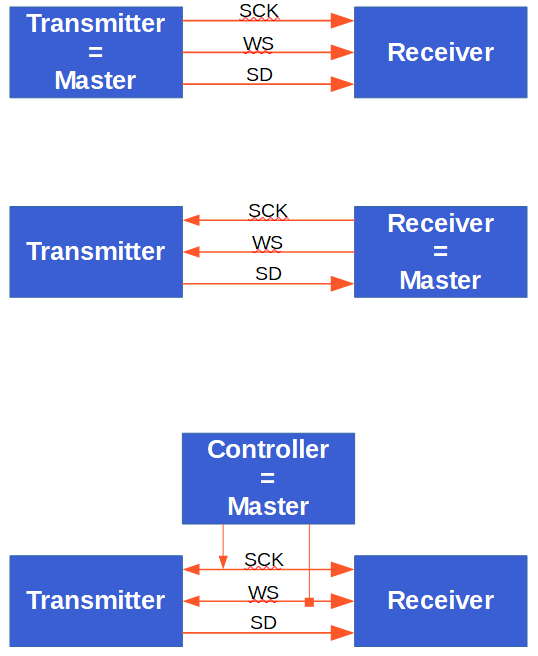
If there are multiple I2S components connected to each other, I call this an I2S network. The network components have different names and also different functions. The following picture shows three different networks, that I describe in the following section.

In the first picture we have a transmitter and also a receiver. The transmitter could be an ESP NodeMCU board and the receiver an I2S audio breakout board, that we describe in the next section. Also we do have the three wires to connect the I2S devices.

I2S Network Components

In this first case the transmitter is the master because the master controls the serial clock (SCK) and the word select (WS) lines. In the second picture we see the opposite because also the receiver of the I2S messages can be the master. Therefore the SCK and WS lines starts from the receiver and ends on the transmitter.

The third picture shows that also an external controller can be the master device that generates the SCK and WS. The controller is connected to the nodes in the network.

In all I2S networks there is only one master device. There could be multiple other components that receive or transmit sound data.

I2S Timing Diagram

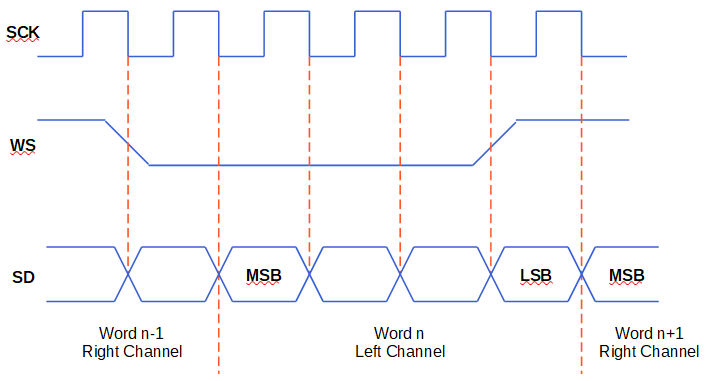
To better understand the behavior and also the functionality of the I2S communication protocol, we have a look at the following I2S timing diagram.

I2S Timing Diagram

In the timing diagram you see all three lines: SCK, WS and SD. First we have our serial clock that have the frequency of Sample Rate * Bits per channel * Number of channels, in our example 1.411 MHz. The second channel is the word select line that changes between 1 for the right sound channel and 0 for the left channel.

From the serial data line we see that data is send on every clock cycle on the falling edge (red dotted line) → HIGH to LOW. For the I2S communication it is also possible to send data on a LOW to HIGH change.

Also we see that the WS line changes one clock cycle before the most significant bit (MSB) is transmitted. That gives the receiver time to store the previous word and clear the input register for the next word. The MSB is sent when SCK changes after WS changes.

The MAX98357 I2S Audio Breakout Board

After we know that we can use the I2S communication protocol to get the sound data out of the microcontroller without any reduction in quality, the next problem is, that we have to decode the I2S signals into analog signals and also need an amplifier to use a speaker.

  • Decoder from I2S signal to analog signal, because speakers only work with analog signals.
  • Amplifier increases the power of the analog signal to increase the sound intensity.

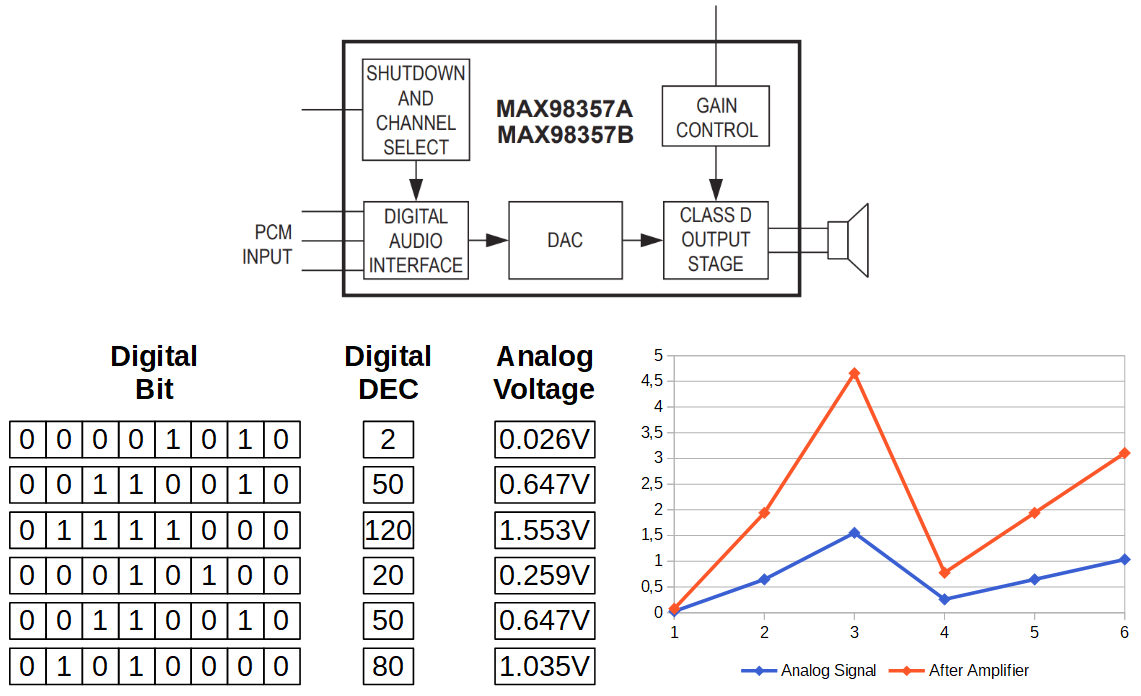
The MAX98357 is a digital pulse-code modulation (PCM) input amplifier that decodes the I2S signal in an analog signal with a digital to analog converter (DAC) and has also a build in amplifier. The following picture shows the simplified block diagram from the MAX98357 datasheet.

MAX98357 I2S audio breakout board

From the block diagram of the MAX98357 you see that first the I2S signal is transformed into an analog signal via the DAC and afterwords boosted by the amplifier with a predefined gain control.

You can buy the MAX98357 on a breakout board from Adafruit or SparkFun. The products are exactly the same. The following table shows the datasheet of the MAX98357.

The operation voltage of the MAX98357 is between 2.7V and 5.5V. Therefore you can power the microcontroller with an Arduino (5V) or ESP (3.3V) based board. The output power is 3.2W for a 4Ω speaker and 1.8W for a speaker with 8Ω.

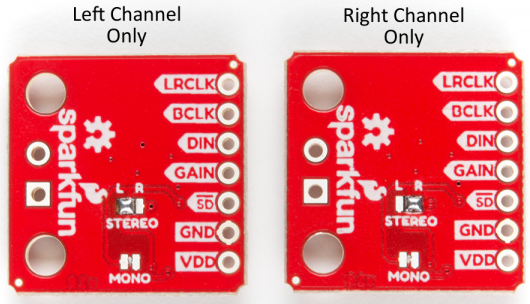
The default configuration of the board is “mono” operation, meaning the left and right signals are combined together to drive a single speaker. If you want to switch to stereo sound, you have to cut the mono jumper on the PCB and solder the stereo connection either for the left or the right channel.

I2S Audio Breakout Hookup Guide sparkfun

The sample rate of the MAX98357 is between 8kHz – 96kHz and therefore our example music with 44.1 kHz fits perfectly in the sample rate. The sample resolution is 16 bit or 32 bit and the quiescent current is very low with 2.4 mA.

Because the amplifier uses pulse-width modulation to control the output devices, it is a class D amplifier. The gain rate of the amplifier is between 3dB and 15dB with a default gain rate of 9dB. The following table shows how to change the gain rate. Key is that the gain pin has to be connected to other pins to change the gain rate.

The following table gives you an overview of all components and parts that I used for this tutorial. I get commissions for purchases made through links in this table.

Record and visualize data with an I2S microphone

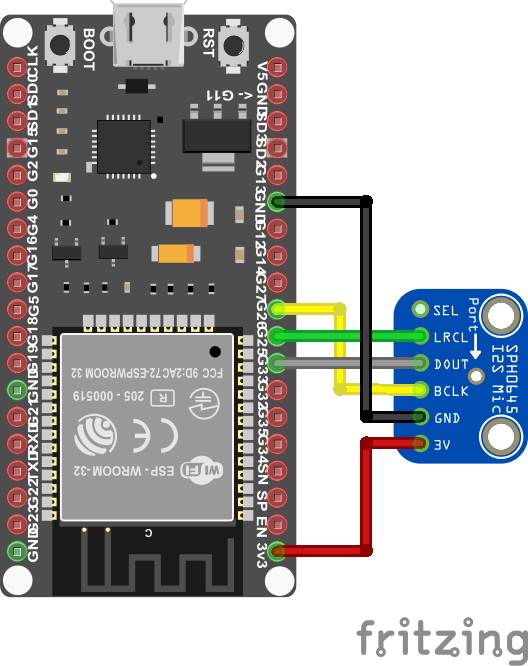
In the first example we start to record and visualize sound data from an I2S microphone microcontroller SPH0645 from adafruit. For this example we use the ESP32 NodeMCU microcontroller.

The following picture shows the wiring between the ESP32 NodeMCU and the SPH0645 breakout board.

It is important to connect the I2S microcontroller only to the 3.3V pin. The following Arduino code visualize the analog sound data in the Arduino Serial Plotter.

#include "driver/i2s.h"

const i2s_port_t I2S_PORT = I2S_NUM_0;

void setup() {
  Serial.begin(115200);
  esp_err_t err;

  // The I2S config as per the example
  const i2s_config_t i2s_config = {
      .mode = i2s_mode_t(I2S_MODE_MASTER | I2S_MODE_RX), // Receive, not transfer
      .sample_rate = 16000,                         // 16KHz
      .bits_per_sample = I2S_BITS_PER_SAMPLE_32BIT, // could only get it to work with 32bits
      .channel_format = I2S_CHANNEL_FMT_ONLY_RIGHT, // use right channel
      .communication_format = i2s_comm_format_t(I2S_COMM_FORMAT_I2S | I2S_COMM_FORMAT_I2S_MSB),
      .intr_alloc_flags = ESP_INTR_FLAG_LEVEL1,     // Interrupt level 1
      .dma_buf_count = 4,                           // number of buffers
      .dma_buf_len = 8                              // 8 samples per buffer (minimum)
  };

  // The pin config as per the setup
  const i2s_pin_config_t pin_config = {
      .bck_io_num = 26,   // Serial Clock (SCK)
      .ws_io_num = 25,    // Word Select (WS)
      .data_out_num = I2S_PIN_NO_CHANGE, // not used (only for speakers)
      .data_in_num = 33   // Serial Data (SD)
  };

  // Configuring the I2S driver and pins.
  // This function must be called before any I2S driver read/write operations.
  err = i2s_driver_install(I2S_PORT, &i2s_config, 0, NULL);
  if (err != ESP_OK) {
    Serial.printf("Failed installing driver: %d\n", err);
    while (true);
  }
  err = i2s_set_pin(I2S_PORT, &pin_config);
  if (err != ESP_OK) {
    Serial.printf("Failed setting pin: %d\n", err);
    while (true);
  }
  Serial.println("I2S driver installed.");
}

void loop() {

  // Read a single sample and log it for the Serial Plotter.
  int32_t sample = 0;
  int bytes_read = i2s_pop_sample(I2S_PORT, (char *)&sample, portMAX_DELAY); // no timeout
  if (bytes_read > 0) {
    Serial.println(sample);
  }
  
}

In the first line we include the I2S library for the ESP32 and define the used I2S Pin structure because only GPIO25 and GPIO26 are connected to an internal 8-bit DAC, that is also shown in the ESP32 pinout.

In the setup function we set the baud rate to 115200 that have to match the baud rate in the serial plotter of the Arduino IDE, where we display the analog sound data.

If we get any error during the execution of the code we can access the error with the variable err.

The next step in the Arduino code is to define the structure of the I2S communication. We set the following settings:

  • set the I2S Mode to RX to receive I2S data
  • use a default sample rate of 16 kHz
  • set the bits per sample to 32 and not 16
  • we use only the right channel of the microphone
  • we use 4 buffers, each with a length of 8

After we set the structure of the I2S communication, we define the pins that are used on the ESP32 NodeMCU for the communication. In my case I choose:

  • Serial Clock (SCK) = 26
  • Word Select (WS) = 25
  • Serial Data (SD) = 33

In the following section, the I2S driver and pins are configured. Because this part of the code dives deep into the internal functions of the ESP32, we skip the explanation of this section.

In the loop function, we read the analog output from the DAC and save the data in the bytes_read variable. If we receive data, we print the analog audio signal to the serial output to visualize the audio frequency in the serial plotter.

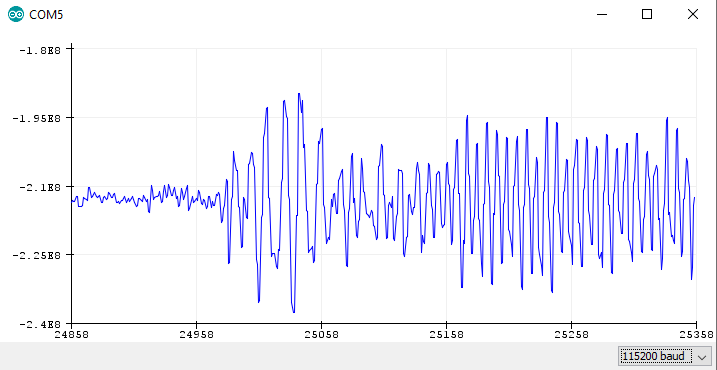
The following picture shows the analog output of the serial monitor if I play some music from my PC and the microphone is listening.

I2S Microphone Serial Plotter

Play Music from the internal ESP32 memory

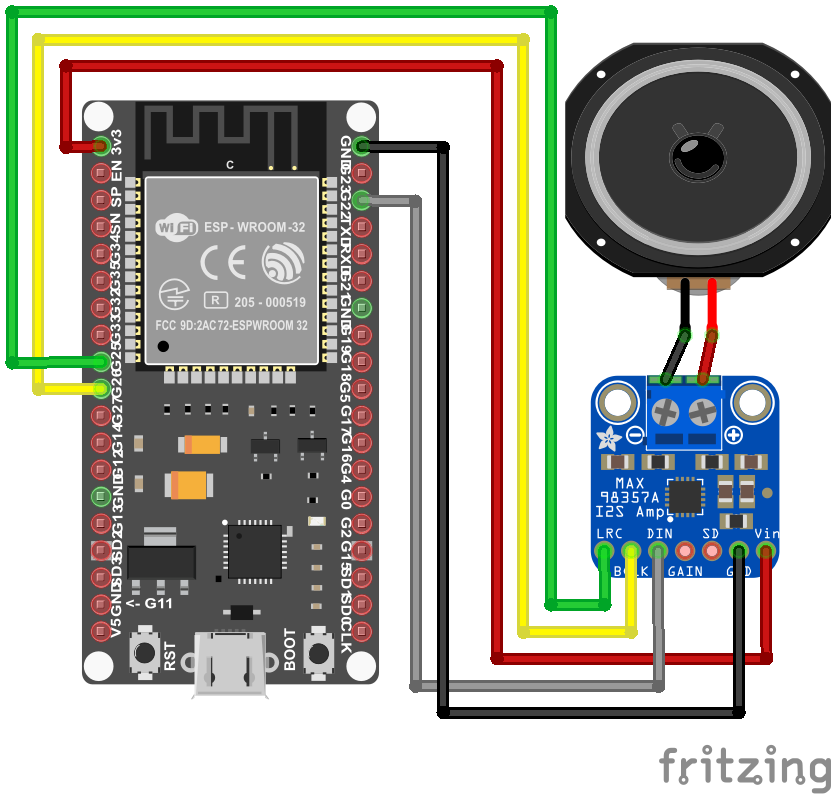
In the second example we want to play music with a speaker. The sound data is stored as array in the internal RAM of the ESP32. We use the MAX98357 I2S audio breakout board to decodes the digital signal to an analog signal. Therefore we use the I2S protocol to output the digital sound data without any quality losses.

The following picture shows the wiring between the ESP32 NodeMCU, the MAX98357 I2S audio breakout board and the speaker.

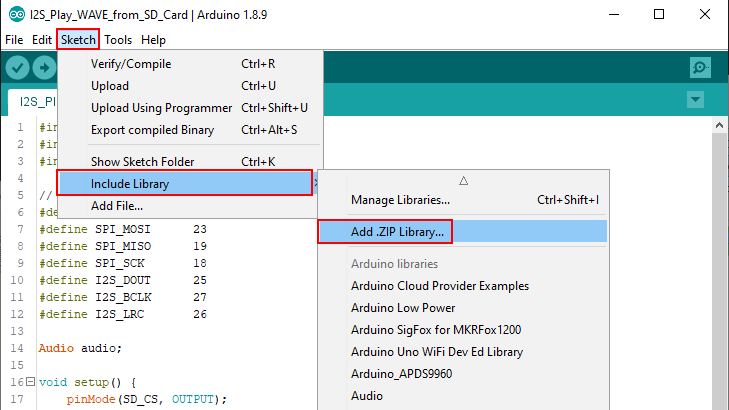
For the Arduino code we use the ESP8266Audio library from Earle F. Philhower. To include this library to your Arduino, follow the 4 steps:

  1. Download the github folder as zip file
  2. unzip the downloaded folder
  3. rename the unzipped folder to ESP8266Audio
  4. copy the folder to your Arduino IDE library path (in my case: C:\Users\chris\Documents\Arduino\libraries)

We use the following Arduino code from the library examples to play music from the internal memory.

#include "AudioGeneratorAAC.h"
#include "AudioOutputI2S.h"
#include "AudioFileSourcePROGMEM.h"
#include "sampleaac.h"

AudioFileSourcePROGMEM *in;
AudioGeneratorAAC *aac;
AudioOutputI2S *out;

void setup()
{
  Serial.begin(115200);

  in = new AudioFileSourcePROGMEM(sampleaac, sizeof(sampleaac));
  aac = new AudioGeneratorAAC();
  out = new AudioOutputI2S();
  out -> SetGain(0.125);
  out -> SetPinout(26,25,22);
  aac->begin(in, out);
}

void loop()
{
  if (aac->isRunning()) {
    aac->loop();
  } else {
    aac -> stop();
    Serial.printf("Sound Generator\n");
    delay(1000);
  }
}

In the first lines we add the following header files from the ESP8266Audio library:

  • AudioGeneratorAAC: Audio output generator using the Helix AAC decoder
  • AudioOutputI2S: Base class for I2S interface port
  • AudioFileSourcePROGMEM: Store a “file” as a PROGMEM array and use it as audio source data
  • sampleaac: Header file that stores the audio file as array

The digital sound data is stored in the sampleaac header file. To upload the Arduino code with the header file to the EPS32, it is important that the Arduino (.ino file) and the header (.h file) are in the same folder.

After we include the header files of the ESP8266Audio library, we give the first three of them a short variable, that contain functions.

In the setup function, we set the baud rate to 115200 and initialize the header files. For the AudioFileSourcePROGMEM, we define that the sample audio file is in the sampleaac file with the size of the containing array.

The AudioOutputI2S object has different functions. We use the SetGain function to reduce the volume of the speaker and we define the pinout with the SetPinout function. In my case I choose the default pinout that is the following:

  • Serial Clock (SCK) = 26
  • Word Select (WS) = 25
  • Serial Data (SD) = 22

But feel free to choose other digital pins of your EPS32 microcontroller.

The last step of the setup function is to connect the input sound data from the internal program memory to the I2S audio output with the AudioGeneratorAAC begin function.

In the loop function the audio generator continues running until the whole sound array is run through the generator. When the generator is done, it stops running and in the serial output we can see that the sound generator is done.

Play a WAVE file from an external SD card

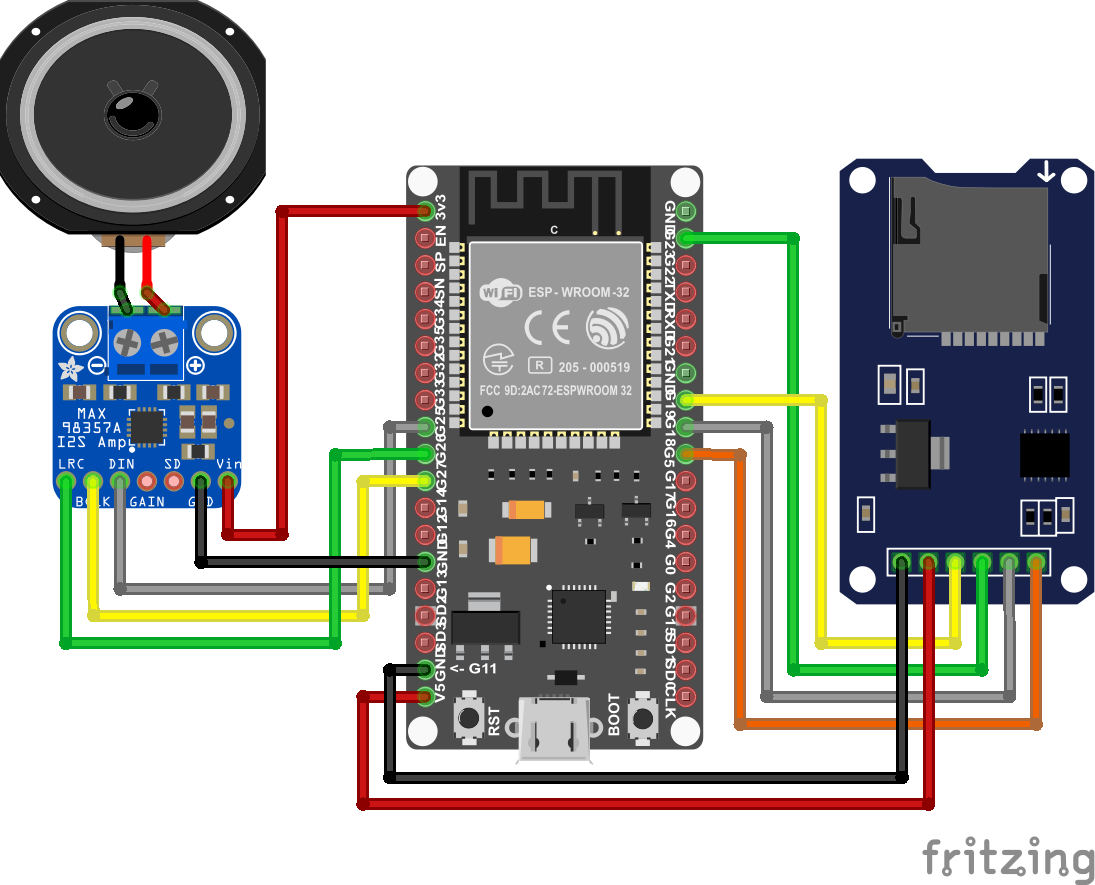
In our last project we want to play the WAVE file that I mentioned at the beginning of this tutorial via the ESP32 NodeMCU and the speaker. Because the ESP32 have to read the WAVE file and forward the digital audio signal to the MAX98357A, we have to use a SD card with the WAVE file on it. You can also use an MP3 file instead of the WAVE file.

The following picture shows the wiring of the ESP32 NodeMCU with the (Micro) SD card module, the MAX98357A and speaker. From the picture you see, that you have to change the DIN pin of the MAX98357A, compared to the second project.

Before we dive in to the Arduino code, we have to prepare the (Micro) SD card. The file system has to be FAT16 or FAT32. Depending on the SD card module there is a limit of 32GB for the SD card. I use a 32GB micro SD card formatted as FAT32 and copy the WAVE file with no folder on to the SD card.

For this project we use the ESP32-audioI2S Arduino library from schreibfaul1. You can download the library as zip file from his gibhub page. Because the library is included with the name audio, and there is already an Arduino library that has the same name, we include the library via the Arduino IDE:

  1. Open the Arduino IDE
  2. Navigate to (see the following picture): Sketch → Include Library → Add .ZIP Library
  3. Select the downloaded library
Include ESP32-audioI2S library

The Arduino script is based on the example script of schreibfaul1, but I reduced the script to the parts that are necessary to play the WAVE file and deleted all parts for the WiFi streaming.

#include "Audio.h"
#include "SD.h"
#include "FS.h"

// Digital I/O used
#define SD_CS          5
#define SPI_MOSI      23
#define SPI_MISO      19
#define SPI_SCK       18
#define I2S_DOUT      25
#define I2S_BCLK      27
#define I2S_LRC       26

Audio audio;

void setup() {
    pinMode(SD_CS, OUTPUT);
    digitalWrite(SD_CS, HIGH);
    SPI.begin(SPI_SCK, SPI_MISO, SPI_MOSI);
    Serial.begin(115200);
    SD.begin(SD_CS);
    audio.setPinout(I2S_BCLK, I2S_LRC, I2S_DOUT);
    audio.setVolume(10); // 0...21
    audio.connecttoFS(SD, "Ensoniq-ZR-76-01-Dope-77.wav");
}

void loop()
{
    audio.loop();
}

// optional
void audio_info(const char *info){
    Serial.print("info        "); Serial.println(info);
}
void audio_id3data(const char *info){  //id3 metadata
    Serial.print("id3data     ");Serial.println(info);
}
void audio_eof_mp3(const char *info){  //end of file
    Serial.print("eof_mp3     ");Serial.println(info);
}
void audio_showstation(const char *info){
    Serial.print("station     ");Serial.println(info);
}
void audio_showstreaminfo(const char *info){
    Serial.print("streaminfo  ");Serial.println(info);
}
void audio_showstreamtitle(const char *info){
    Serial.print("streamtitle ");Serial.println(info);
}
void audio_bitrate(const char *info){
    Serial.print("bitrate     ");Serial.println(info);
}
void audio_commercial(const char *info){  //duration in sec
    Serial.print("commercial  ");Serial.println(info);
}
void audio_icyurl(const char *info){  //homepage
    Serial.print("icyurl      ");Serial.println(info);
}
void audio_lasthost(const char *info){  //stream URL played
    Serial.print("lasthost    ");Serial.println(info);
}
void audio_eof_speech(const char *info){
    Serial.print("eof_speech  ");Serial.println(info);
}

In the first part of the Arduino script for the ESP32, we include all libraries and define the pins that are used to connected the ESP32 NodeMCU to the MAX98357A and the SD card module.

After the Audio object is initialized with the name “audio”, the setup function is called. In the setup function, the pins and the SPI connection for the SD card communication is defined. The baud rate is set to 115200 and the SD card object is also initialized.

For the audio object, the previous pins are set to the pinout and we reduce the sound volume to 10. You can adjust the sound volume between 0 and 21. The last part of the setup function is to connect the inputs and outputs of this example. Therefore we connect the audio object with the SD card object and define the path to the WAVE file. If you put the sound file into a folder, you have to copy the whole path to the sound file with forward slashes (“/”).

In the loop function we only have to loop over the preconfigured audio object to play the music.

The last part is interesting if you want to print some details of the sound file in the serial monitor. The following picture shows the serial output in my example. The first section are booting information of the ESP32 that are shown to the serial monitor if the baud rate is set to 115200.

Play sound file from SD Card Serial Monitor

In the first part of this article I calculated the frequency of the serial clock 44.1 kHz * 16 * 2 = 1.411 MHz. Now I want to prove if the serial clock I2S connection between the ESP32 and the MAX98357A is 1.411 MHz. Therefore I connected the CLK line to my USB oscilloscope and add the measurement for the frequency.

The following picture shows that my calculation was correct and the frequency is 1.411 MHz.

I2S CLK Oscilloscope Frequency

If you have any questions regarding the I2S communication in general or if you are struggling to create the example projects, please use the comment section below to ask questions. I will answer them as soon as possible.

Arduino Pro Mini Measurement

Guide to reduce the Arduino Power Consumption

Guide to reduce the Arduino Power Consumption

In this guide I show you 3 hardware and 1 software measure that reduce the energy consumption of the Arduino microcontroller up to 89%.

The following measures are done in this tutorial:

  • Use a Smaller Microcontroller (Hardware)
  • Reduce Clock Speed (Hardware)
  • Reduce Operation Voltage (Hardware)
  • Use the Arduino Low Power Mode (Software)
Arduino Pro Mini Measurement

Table of Contents

The following table summarizes the results of all methods to reduce the power consumption and also shows the used microcontrollers in this article.

From the table that summarizes the results of the power consumption measurements, the following key take-away can be derived:

  • The lowest current consumption after all possible methods for reduction has the Arduino Pro Mini with 1.58 mA. This is a reduction of 89% for the 5V version and 69% for the 3.3 Version of the Arduino Pro Mini.
  • The highest reference current consumption has the Arduino Uno with 98.43 mA. Even the Arduino Mega is a bigger PCB with more electrical components build on the board, the current consumption of the Mega is lower with 73.19 mA because the Arduino Mega runs not on 16 MHz but on 8MHz.
  • The lowest reference current consumption has the Arduino Pro in the 3.3V version with 5.13 mA. If you do not want to use any power saving modes and do not need a 5V supply, you should word with the Arduino Pro Mini 3.3V.
  • The best method to save energy is the to enable the Low Power Mode and reduce the clock speed so that the microcontroller can operate directly with 3.3V. With this method, the current consumption can be reduced by 83% on average compared to the reference measurement with 9V and no optimization.
  • After the enabling of the reduced clock speed and reduced operation voltage of 3.3V, the current consumption of the Arduino Pro Mini in the 5V version is the same as the 3.3V version of the microcontroller.

The following table gives you an overview of all components and parts that I used for this tutorial. I get commissions for purchases made through links in this table.

The following sections I show you how to implement the techniques to reduce the Arduino power consumption.
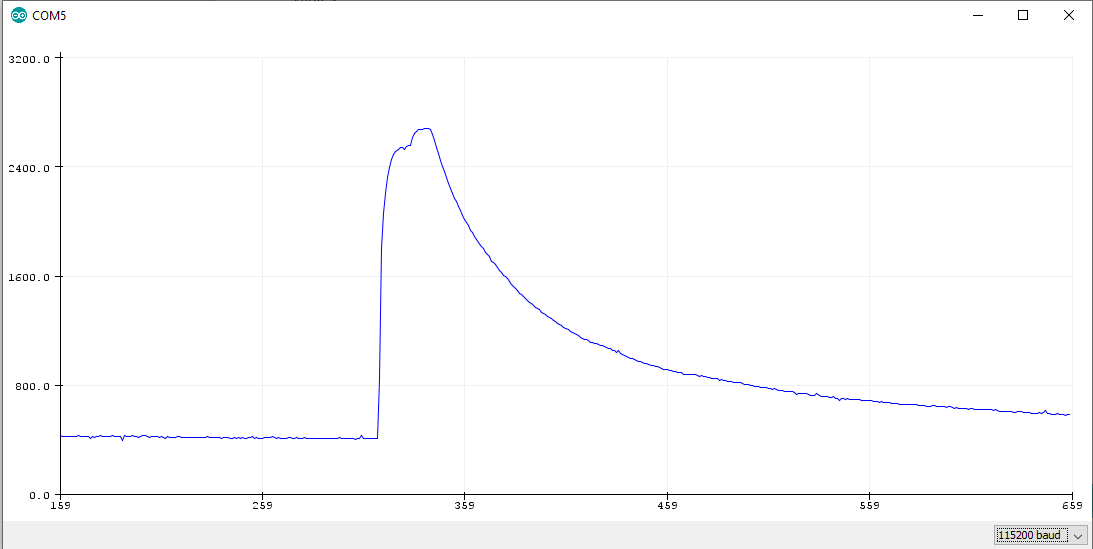
Use a Smaller Microcontroller

In this article we cover different microcontrollers from large ones like the Arduino Mega up to smaller ones like the Arduino Pro Mini. The first think you have to keep in mind when you plan your project that needs a lower power consumption: every electrical device on the PCB needs power to operate. Therefore the first step to reduce the Arduino power consumption is:

Use the smallest microcontroller that fits to your project to remove unnecessary hardware.

The following bar-chart shows the reference measurement for all Arduino boards, supplied with a 9V voltage. Each bar shows the power consumption for one Arduino board.

Arduino Power Modes Barchart Reference Measurement 9V

For example if you want to build a weather station that needs only 5 digital inputs and 1 analog input, you choose the Arduino Nano (22.05 mA) or the Arduino Pro Mini (14.62 mA) instead of an Arduino Uno (98.43 mA).

The measurements are done with a USB multi-meter in idle state of the microcontroller after flashing an empty Arduino script to the microcontroller. The following picture shows the setup of the measurements.

Arduino Power Consumption Measurement Setup

Reduce Clock Speed

To reduce the power consumption further you can reduce the clock speed. The clock speed defines how many operations the Arduino can execute per second. The following table shows the default clock rate of the Arduino microcontrollers, analyzed in this article.

The default clock speed for most Arduino microcontroller is 16 MHz crystal that equals 16 million instructions per second. But in most cases you do not need the full operation speed and therefore you can change the clock speed.

Reduce the clock speed from 16 MHz to 8 MHz

But there is also one downside if you reduce the clock speed. If you switch to a power saving mode for a certain time after the script is finished, the Arduino microcontroller takes a longer time to run the script and the time in the power saving mode is reduced. For example if the script runs 4 seconds on 16 MHz and you pause the script for 10 seconds in the power saving mode, the same script takes 8 seconds on 8 MHz and therefore the time in the power saving mode is reduced to 6 seconds. In exceptional circumstances the current consumption can rise when you reduce the clock speed.

The following picture shows how the execution and sleep blocks over time on 16 MHz and 8 MHz.

Arduino difference in clock speed

To reduce the clock speed you can use the system clock prescaler that reduces the clock speed by a dividing factor. The reduced clock frequency affects the CPU and all synchronous peripherals like I/O pins, analog to digital converter (ADC) and the flash.

Because there is a locking mechanism that prevents the change of the clock frequency, there is a special two step write procedure that must be followed to change the frequency by the CLKPS bits:

  1. Write the clock prescaler change enable (CLKPCE) bit to one and all other bits in CLKPR to zero.
  2. Within four cycles, write the desired value to CLKPS while writing a zero to CLKPCE.

You can find the detailed explanation in the datasheets of the microcontrollers (for example for the ATmega328P on page 32) In the table above I linked the datasheet for every ATmega microcontroller:

The following table shows how the Clock Prescale Register (CLKPS) is build so that we know which bits do we have to set to 0 or 1.

Now we have to know how to set the CLKPS bits in order to define the clock division factor. The following table shows the possible prescaler and their CLKPS3 bit combination.

The last step is to transfer write procedure that must be followed into the setup function of the Arduino Code.

void setup() {
  CLKPR = 0x80; // (1000 0000) enable change in clock frequency
  CLKPR = 0x01; // (0000 0001) use clock division factor 2 to reduce the frequency from 16 MHz to 8 MHz
}

void loop() {
  // put your main code here, to run repeatedly:

}

Reduce Clock Speed - Measurement

Reference Operation Voltage Arduino Nano

Reference Operation Voltage Arduino Nano

Reference Operation Voltage Arduino Pro Mini

Reference Operation Voltage Arduino Pro Mini

Reference Arduino Uno

Reference Operation Voltage Arduino Uno

Reference Operation Voltage Arduino Mega

Reference Operation Voltage Arduino Mega

Every microcontroller is supplied with 9V due to a laboratory power supply. The digital multi-meter is connected in series to measure the current consumption. All measurements are inserted into the table on top of the article and also shown in the following bar-chart.
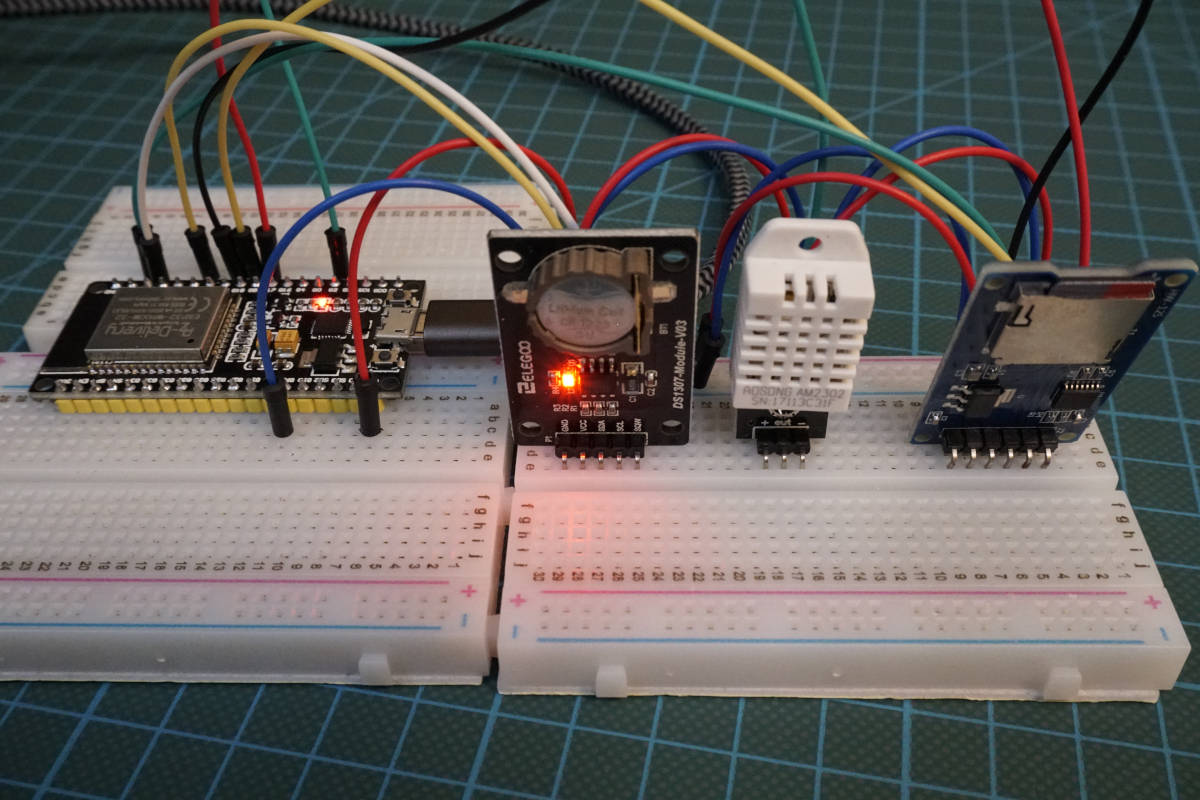
Arduino Power Modes Barchart Reduce Clock Speed 9V

The reduction in clock speed shows the following results:

  • The highest relative reduction in current consumption sees the Arduino Uno with a reduction of 56.56% (from 98.43mA to 42.76mA)
  • The lowest relative reduction has the Arduino Mega with 15.62% (from 73.19mA to 61.76mA).
  • On average the reduction of current consumption for these Arduino microcontrollers is 29% but strongly depends on every individual Arduino board.

Reduce Clock Speed and Operation Voltage

The last step of the hardware actions is to reduce the operation voltage. When the operation voltage is reduced, the power consumption is also reduced (P=V*I). But if you want to reduce the operation voltage you have also to reduce the clock speed, that we already did in the previous section.

The dependency between the operation voltage and the clock speed can be found in the datasheet of the Arduino microcontrollers. The following pictures shows this dependency for the ATmega328 and ATmega2560.

ATmega328

ATmega328p Speed Grades

ATmega2560

ATmega2560 Speed Grades

The following table gives you an overview about the considered Arduino boards, the build in microcontroller, the reduced minimum supply voltage with the belonging clock speed and also the normal minimum supply voltage with the standard clock speed.

Reduce Clock Speed and Operation Voltage - Measurement

For the measurement of the current consumption, I connect the Arduino boards on the 3.3V pin directly to the power supply and reduce the supply voltage from 9V to 3.3V. The following pictures show the different wiring for the 3.3V setup.

Reduce Operation Voltage Arduino Nano

Reduce Operation Voltage Arduino Nano

Reduce Operation Voltage Arduino Pro Mini

Reduce Operation Voltage Arduino Pro Mini

Reduce Operation Voltage Arduino Uno

Reduce Operation Voltage Arduino Uno

Reduce Operation Voltage Arduino Mega

Reduce Operation Voltage Arduino Mega

Because the inbuilt voltage regulator need a higher voltage to operate, you have to bypass the external voltage regulators and connect the power supply directly to the 3.3V pin. If you want to know how to bypass the voltage regulator or use an external voltage regulator with a lower minimal voltage, visit the Arduino battery power tutorial.

I use the same Arduino script like for the reduced clock speed. The following bar-chart shows the measurements of the power consumption for the reduced clock speed and operation voltage.

Arduino Power Modes Barchart Reduce Clock Speed 33V

With the reduction of the operation voltage we see that the current consumption is further reduced for the Arduino microcontroller boards.

  • The reduction of the operation voltage has the highest impact on the hardware site, because you can reduce the voltage on average by over 70% in combination with the reduction of the clock speed.
  • The Arduino Nano and Arduino Mega had only a small reduction by the reduced clock speed with around 16% decrease in current consumption but saw a high reduction after the supply voltage drops to 3.3V. Therefore the current consumption reduces by 84.54% for the Arduino Nano and by 77.13% for the Arduino Mega.
  • Because the only difference for the Arduino Pro Mini in the 5V and 3.3 version is the clock speed and the operation voltage, the current consumption is the same after the measures with 3.73mA.

Influence of the reduced operation voltage on battery powered systems

The reduction of the supply voltage has also another positive effect, if your power source for the Arduino microcontroller is a battery. The battery voltage is reduced until the minimal voltage of the microcontroller is reached. If you reduce the operation voltage of the microcontroller, the time until this threshold is reached is extended, see the following picture.

Discharging Curve

Use the Arduino Low Power Mode

After the three hardware techniques to reduce the Arduino power consumption, we use the Arduino Low Power Mode to reduce the power consumption even further. The Low Power Mode disables all of the following functions that use power to run:

Inactive

Timer 0,1,2
SPI and UART Communication
External Oscillator

Active

Two-wire interface
Watchdog
External Interrupt

You can also disable two other features of the ATmega microcontroller but the settings of the library that we use lets you decide if you want to enable or disable the functionality.

  • Analog to digital converter (ADC): The analog to digital converter are used at the digital I/O pins of the Arduino board. An analog input voltage between 0V and VCC is converted to a digital value by a 10-bit converter for example. Therefore the voltages are converted to a digital value between 0 and 1023.
  • Brown-out detector (BOD): The brown-out detector monitors the system voltage and makes sure that in case the system voltage drops under a threshold, the Arduino microcontroller is powered down until the system voltage increased above the threshold.

To enable the Low Power Mode we use the Low-Power library from rocketscream. You can not add the Low-Power library like a standard library in the Arduino IDE but the following 3 steps add the library manually to the Arduino IDE. 

  1. Download the library as ZIP folder from the official github page from rocketscream.
  2. Unzip the downloaded folder and add the folder to the library root folder
  3. Rename the folder so that there is no version name

Low Power Mode Arduino Code

The following lines show the Arduino code for the Low Power Mode. We want to measure the power consumption for the Low Power Mode with an operation voltage of 9V and 3.3V. Therefore we have to differentiate in the Arduino code, if we have to reduce the clock speed or not. For the 9V measurement comment out the two lines in the setup function.

#include "LowPower.h"

void setup()
{
  CLKPR = 0x80; // (1000 0000) enable change in clock frequency
  CLKPR = 0x01; // (0000 0001) use clock division factor 2 to reduce the frequency from 16 MHz to 8 MHz
}

void loop() 
{
  delay(4000);
  LowPower.powerDown(SLEEP_2S, ADC_OFF, BOD_OFF);
}

In the first line we include the low power library from rocketscream. You already know the setup function where we reduce the clock frequency. In the loop function I wait for 4 seconds until the Arduino board enters the low power mode for 2 seconds where we also disable the analog to digital converter and the brown-out detector to further reduce the current consumption.
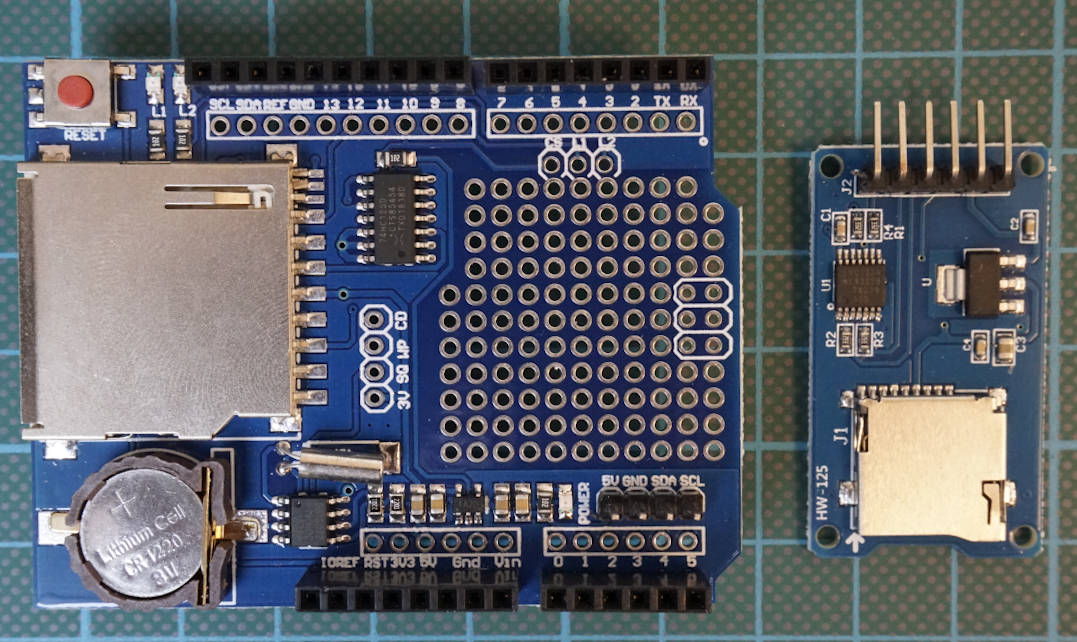
There is also the possibility to configure the low-power library that the microcontroller wakes up by an external trigger. But if you define a time for the sleep time, you can’t just arbitrarily choose how long to sleep for. The watchdog timer only has specific periods (defined by dividing the clock by a set amount) that it can sleep for:

enum period_t
{
    SLEEP_15MS,
    SLEEP_30MS,
    SLEEP_60MS,
    SLEEP_120MS,
    SLEEP_250MS,
    SLEEP_500MS,
    SLEEP_1S,
    SLEEP_2S,
    SLEEP_4S,
    SLEEP_8S,
    SLEEP_FOREVER
};

Low Power Mode - Measurements

Because we want to test the influence of the operation voltage on the Low Power Mode, we have to make two different measures per microcontroller.

Lower Power Mode with 9V

If we only want to test the low power library we connect the VIN pin to the power source and in the code we comment the lines that reduce the clock speed.

The following bar-chart shows the current consumption of the Arduino boards in the Low Power Mode with an operation voltage of 9V.

Arduino Power Modes Barchart Lower Power Mode 9V

Now it is the first time in this tutorial where we see that the current consumption increases due to the increased operation voltage of 9V compared to the 3.3V from the previous chapter.

The power consumption of the Arduino Nano increases from 3.41mA in the measurement with the reduced clock speed and operation voltage of 3.3V to 3.83mA. Also the Arduino Uno and Arduino Mega have a higher power consumption in the Low Power Mode with 9V compared to the reduced clock speed and operation voltage of 3.3V.

But for the Arduino Pro Mini, the power consumption is reduced to 3.2mA from 3.73mA.

But it does not only depends on the Arduino board if you should use the Low Power Mode with 9V voltage supply over the reduced clock speed with 3.3V operation voltage. If you have a sensor or any other electronic component connected to the Arduino board that needs a supply voltage of 5V, then you have to choose the Lower Power Mode with 9V supply voltage to provide a stable 5V supply voltage to the sensor.

Lower Power Mode with 3.3V

If we can reduce the supply voltage, we have to combine all measures that we did before. Therefor we connect the power supply to the 3.3V pin and reduce the clock frequency in the Arduino code.

The following bar-chart shows the current consumption of the Arduino boards in the Low Power Mode with an operation voltage of 3.3V.

Arduino Power Modes Barchart Lower Power Mode 33V

If we do not need any 5V supply voltage in the circuit, the combination of Lower Power Mode, reduced clock speed and therefore 3.3V supply voltage has the lowest power consumption of all measurements.

The power consumption of the Arduino Uno is reduced by 88.37% from 98.43mA to 11.45mA. Also the Arduino Mega has a very low power consumption of 11.85mA for the size of the board.

The lowest current consumption has the Arduino Pro Mini with 1.58mA. We could reduce the consumption for the Arduino Pro Mini 3.3V by 69.20% and for the Arduino Pro Mini 5V by 89.19%.

The following picture shows the current measurement for the Arduino Pro Mini directly from the multimeter.

Arduino Pro Mini Measurement

From the screenshot you see that the Arduino Pro Mini 3.3V enters periodically the power down mode and reduces the current from 5.25 mA to 1.58 mA.

If you have any questions regarding the reduction of current consumption for Arduino boards, please use the comment section below to ask questions. I will answer them as soon as possible.

Battery Thumbnail

What is the best Battery for the ESP32

What is the best battery for the EPS32?

In this article you learn what is the best battery for the ESP32 microcontroller.

First I describe the different voltage levels on the NodeMCU board to avoid magic smoke and a damage of the ESP32. The researched batteries are:

  • AA Alkaline batteries
  • LiFePO4 battery
  • LiPo and Li-ion Battery
  • AAA NiMH batteries
  • 9V Alkaline block battery

On top of all this content, you learn which batteries need a voltage regulator and how to use such a regulator.

Battery Thumbnail

IThe best battery power supply for the ESP32 is the LiFePO4 battery or the LiPo battery pack

  • LiFePO4 battery if your main goal is to reach a maximum battery lifetime because you do not need any extra voltage regulator between the ESP32 and the battery. Also LiFePO4 batteries are rechargeable and have a capacity up to 6,000mAh, similar to LiPo and Li-ion batteries that gives your project a long lifetime in combination with a power mode that reduces the power consumption to a minimum.
  • LiPo battery pack if you want to charge your battery while the circuit is running. The easiest solution because of the plug-and-play connection is to use an ESP32 microcontroller board that has a JST connector as well as an onboard LiPo charger like the Adafruit HUZZAH32, Sparkfun ESP32 Thing Plus or FireBeetle ESP32

Table of Contents

ESP32 Voltage Levels

Before we can analyze different batteries in combination with the ESP32 microcontroller, we have to understand, that there are different voltage levels on the ESP32 NodeMCU board. The following picture shows a simplified schema of the voltage levels and the important components.

ESP32 voltage overview

From the picture you see that the 5V USB connection and the VIN pin are connected to a 3.3V voltage regulator, that transforms the input voltage between 5V and 12V to a constant 3.3V output voltage for the ESP32 microprocessor. Also the 3.3V pin is connected to the output of the voltage regulator and therefore also connected to the ESP32.

If you want to know how to operate ESP32 in general, visit the ESP32 tutorial.

The following table shows the technical limits for the ESP32 and the voltage regulator.

The ESP32 has a nominal voltage of 3.3V but is able to operate between 2.3V and 3.6V. Voltages higher than 3.6V can damage the microcontroller.

The AMS1117 voltage regulator has an output voltage of 3.3V matching the nominal voltage of the ESP32. The maximum input voltage is 15V but for a continuous operation a maximum voltage of 12V is recommended. The maximum output current is 1A leaving a good reserve because the data sheet of the ESP32 advises an output current of 500mA for a voltage regulator.

After we know the parameters of the microcontroller, we review the most used battery types and if it is reasonable to use the battery in combination with the ESP32 NodeMCU microcontroller.

AA Alkaline Batteries

AA alkaline batteries have a nominal voltage of 1.5V and if you connect two of them in series you get a nominal voltage of 3V. You can connect two AA alkaline batteries directly to the 3.3V pin of the NodeMCU, but the current that is provided by the AA alkaline batteries is only 50 mA per battery. Connected in series you still get an overall current of 50 mA.

Unfortunately the ESP32 NodeMCU can draw up to 300 mA while booting. When the ESP32 starts up, it pulls so much current out of the AA alkaline batteries that the voltage drops entirely to zero, resetting/crashing the ESP32.

In summary, I can not power the ESP32 NodeMCU with 2 AA batteries.

LiFePO4 Battery

The lithium iron phosphate battery (LiFePO4 battery) has a nominal voltage of 3.2V and a maximum voltage of 3.65V. The main advantage of a LiFePO4 battery is the very flat discharging curve so that the voltage drops very slowly during the discharging process. Because the maximum voltage of the lithium iron phosphate battery is with 3.65V only slightly higher than the maximum operation voltage of the ESP32 with 3.6V, you can connect this type of battery directly with the 3.3V pin of the microcontroller.

In summary a LiFePO4 battery is very suitable for the ESP32 and especially when your main goal is to power your circuit for a maximum time. If this is the case, I recommend to power the ESP32 with a LiFePO4 on the 3.3V pin.

The downside is, that it is very complicated to charge the battery while in use. Currently I have no solution for this problem. The easiest solution would be to have two LiFePO4 batteries that you can quickly change and en external battery charger.

LiPo Battery and Li-ion Battery

The maximum voltage of LiPo and Li-ion batteries are around 4.2V and too high to connect directly to the 3.3V pin. Therefore you need a low-dropout or LDO regulator that reduces the battery voltage to 3.3V. The MCP1725T-3302E/MC LDO fits perfect to the ESP32 in combination with a LiPo or Li-ion battery. In the last chapter of this article you find a detailed explanation how to use the LDO regulator in combination with a battery and the ESP32. LiPo and Li-ion batteries in combination with a low-dropout voltage regulator are a good fit to power your ESP32. Especially if you want to charge the battery while your circuit is running, LiPo battery packs are my favorite choice because there are special EPS32 boards with a JST connector where you connect the LiPo battery directly to your ESP32 board. If you want to charge the battery, you only have to plug the micro USB cable into the EPS32. The USB connection not only powers the EPS32 but also charges the LiPo battery pack. The following boards have the JST connector as well as a LiPo charger onboard:

AAA NiMH Batteries

If you want to buy AAA batteries, make sure you buy NiMH batteries, because they are rechargeable and have the highest capacity and a nominal voltage of 1.2V…1.25V per battery. The combination with four AAA NiMH batteries result in an operation voltage of 4.8V…5V which is higher than the maximum operation voltage of the ESP32 with 3.6V.
Just like LiPo and Li-ion batteries you can use four AAA NiMH batteries in combination with a LDO regulator that reduces the input voltage to 3.3V. With the reduced voltage, you can connect the power supply to the 3.3V pin of the ESP32.

Compared to the LiPo and Li-ion batteries, NiMH batteries needs the same connection to the microcontroller but have a lower energy density and therefore I do not recommend to use the NiMH batteries.

9V Alkaline Block Battery

With a 9V block battery, you can use the VIN pin of the NodeMCU, that is internal connected with the 3.3V AMS1117 voltage regulator. Therefore you need no external components. But because the ESP32 only needs 3.3V, you are overpowered regarding the voltage. Because a 9V Alkaline block battery is nothing else than 6 AA Alkaline Batteries connected in series, you have the same step discharging curve resulting in a short lifespan of your battery powered system.

Therefore I do not recommend to use a 9V Alkaline block battery.

Low-dropout Voltage Regulator

The MCP1725T-3302E/MC fits perfect to the ESP32 in combination with batteries has have a maximum voltage higher than 3.6V. The following tables shows the fundamentals of the LDO datasheet and explains why these fundamentals match perfect to the ESP32.

If you have any questions about the different batteries and how to use them, please use the comment section below to ask your questions. I will answer then as soon as possible.

Battery Thumbnail

The best battery for ESP8266 microcontrollers

Best Battery for ESP8266 microcontrollers

In this article you learn what is the best battery for ESP8266 microcontrollers.

We analyze the following batteries for their technical characteristics and how well they fit with ESP8266:

  • AA Alkaline Batteries
  • LiFePO4 Battery
  • LiPo and Li-ion Battery
  • AAA NiMH Batteries
  • 9V Alkaline Block Battery
Battery Thumbnail

We have to differentiate between a EPS8266 NodeMCU and an ESP8266 WeMos D1 because the microprocessor is for both boards the ESP8266 but the electrical components of the microcontroller are different.

For the NodeMCU my recommendation is the LiFePO4 battery because you do not need any extra voltage regulator between the ESP8266 and the battery and they are rechargeable. Also LiFePO4 batteries have a high capacity up to 6,000mAh, that gives your project a long lifetime in combination with a power mode that reduces the power consumption to a minimum.

If you own a WeMos D1 Mini I recommend you to buy a LiPo battery with JST connector in combination with the battery shield. With this combination you do not need an extra voltage regulator and also you can charge the LiPo battery with the USB connector of the battery shield.

In the following article we deduce the recommendations and research the most used batteries for microcontrollers. In every chapter we take a look at the NodeMCU as well as the WeMos D1.

Table of Contents

ESP8266 Voltage Levels

Before we analyze the different kinds of batteries of the microcontroller, we have to deal with the voltage levels of the microprocessor. This is important because we to not want to damage the ESP8266 due to a voltage overload.

ESP8266 NodeMCU Voltage Levels

The following table show the different voltage levels of the ESP8266.

The microprocessor runs at 3.3V and has a minimum operating voltage of 2.58V and a maximum voltage of 3.6V.

Maybe you already know that a USB connection has a voltage of 5V. But how is it possible that the NodeMCU as well as the WeMos D1 can be powered via a 5V USB connection although the maximum voltage is 3.6V. This is possible by a voltage regulator. The following picture shows the overall voltage levels of the ESP8266 NodeMCU and WeMos D1.

ESP8266 NodeMCU voltage levels and maximum current

The NodeMCU has a build in AMS1117 3.3V voltage regulator that transforms the input voltage from the 5V USB connection as well as the voltage of the VIN pin to the stable 3.3V output voltage.

The following table shows the technical specifications of the AMS1117 voltage regulator.

From the table you see that the maximum input voltage is 15V. But this high input voltage would damage the regulator in continuous operation mode. Therefore a maximum voltage of 12V is recommended. Also the minimum voltage for the VIN pin is 7V to ensure a maximum output current of 1A.

ESP8266 WeMos D1 Mini Voltage Levels

ESP8266 WeMos voltage levels and maximum current

Compared to the NodeMCU, the WeMos D1 has another voltage regulator.

The ME6211 has a maximum input voltage of 6V on the 5V pin and also a lower maximum output current of 500mA. But the lower output current is no problem, because also when the ESP8266 uses the WiFi communication, the current consumption is lower than 500mA.

Now we know the parameters of the NodeMCU VIN pin as well as the 5V pin of the WeMos D1. For both microcontroller there is also the possibility to power the ESP8266 on the 3.3V pin.

In the next part of this article we review the most used battery types and if it is reasonable to use the battery either on the NodeMCU or in combination with the WeMos D1.

AA Alkaline Batteries

AA Alkaline batteries have a low energy density compared to all other possible batteries. Therefore a battery powered project would not last a long time. The combination of two AA alkaline batteries have a working voltage of 3V and from the last chapter we know that we can power the ESP8266 via the 3.3V pin with this battery combination. But at around 50% capacity the voltage of two AA alkaline batteries drop to around 2.4V and is therefore very near the minimum voltage of the ESP8266 with 2.3V. If the current consumption of the microcontroller is around 250mA, the lifetime of your project is only around 14 hours.
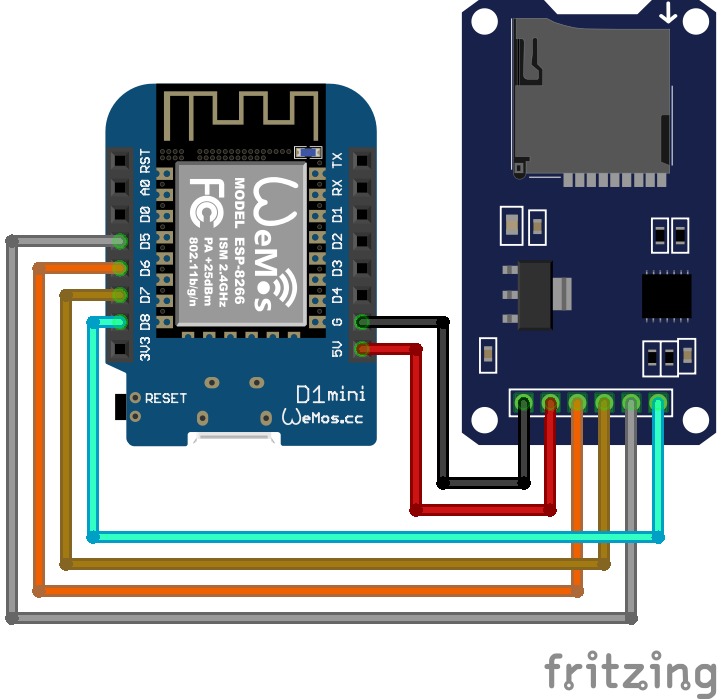
Summarizing all this reasons, I can not recommend to use AA alkaline batteries for your ESP8266 microcontroller.

LiFePO4 Battery

The lithium iron phosphate battery (LiFePO4 battery) has a nominal voltage of 3.2V and a maximum voltage of 3.65V. The main advantage of a LiFePO4 battery is the very flat discharging curve so that the voltage drops very slowly during the discharging process. Because the maximum voltage of the lithium iron phosphate battery is with 3.65V only slightly higher than the maximum operation voltage of the ESP8266 with 3.6V, you can connect this type of battery directly with the 3.3V pin of the microcontroller.

In summary a LiFePO4 battery is very suitable for the ESP8266 and I recommend to power the NodeMCU as well as the WeMos D1 with a LiFePO4 on the 3.3V pin.

LiPo and Li-ion Battery

The maximum voltage of LiPo and Li-ion batteries are around 4.2V and too high to connect directly to the 3.3V pin. Therefore you need a low-dropout or LDO regulator that reduces the battery voltage to 3.3V. The MCP1725T-3302E/MC LDO fits perfect to the ESP8266 in combination with a LiPo or Li-ion battery. In the last chapter of this article you find a detailed explanation how to use the LDO regulator in combination with a battery and the ESP8266.

If you have a WeMos D1 Mini, there is also a battery shield available that enables the WeMos D1 Mini to connect directly to a LiPo battery without the need of a voltage regulator. This battery shield has a JST (Japan Solderless Terminal) connector that is used with most LiPo batteries. Moreover the shield has a Micro USB port to charge the connected LiPo battery.

AAA NiMH Batteries

There is also the possibility to power the ESP8266 with four AAA batteries. Make sure you buy NiMH batteries because they are rechargeable and have the highest energy density. Four AAA NiMH batteries connected in series have an operating voltage of 4.8V…5V that is too high to power the ESP8266 directly.

For the NodeMCU the operating voltage is also to low for the VIN pin, that requires a minimum voltage of 7V but the voltage regulator of the WeMos D1 can handle the input voltage until the battery has only a voltage of 4V.

But like for the LiPo and Li-ion batteries there is also the possibilities to use the same LDO regulator that reduces the input voltage of maximum 6V to 3.3V and use the 3.3V pin of the microcontroller.

Compared to the LiPo and Li-ion batteries, NiMH batteries needs the same connection to the NodeMCU microcontroller and do not provide a JST connector for the WeMos D1 Mini battery shield. Additionally NiMH batteries have a lower energy density and therefore I do not recommend to use the NiMH batteries in combination with the ESP8266.

9V Alkaline Block Battery

With a 9V block battery, you can use the VIN pin of the ESP8266 NodeMCU, that is internal connected with the 3.3V AMS1117 voltage regulator and therefore you need no external components. But because a 9V alkaline block battery is nothing else than 6 AA alkaline Batteries connected in series, you have the same step discharging curve resulting in a short lifespan of your battery powered system. Therefore I do not recommend to use a 9V Alkaline block battery.

For the WeMos D1 you can not connect the 9V battery to the 5V pin because the maximum input voltage of the WeMos voltage regulator is 6V. Therefore you would need another voltage regulator to reduce the 9V input voltage to either 6V for the 5V pin or 3.3V for the 3.3V pin. In my opinion this combination make no sense because we have found better combinations in this article and the energy density of the 9V battery is also low compared to the LiPo Li-ion or LiFePO4 batteries.

Low-dropout Voltage Regulator

The MCP1725T-3302E/MC fits perfect to the ESP8266 in combination with batteries has have a maximum voltage higher than 3.6V. The following tables shows the fundamentals of the LDO datasheet and explains why these fundamentals match perfect to the ESP8266.

If you want to know how to reduce the power consumption of the ESP8266, visit the article where you learn to reduce the overall power consumption to a minimum to run you project on one battery charge for more than a year.

If you have any questions about the different batteries and how to use them, please use the comment section below to ask your questions. I will answer then as soon as possible.

INA219 battery discharging curve bus shunt load voltage

INA219 Tutorial for Arduino, ESP8266 and ESP32

INA219 Tutorial for Arduino, ESP8266 and ESP32

The INA219 is a current and voltage sensor that you use with any Arduino, ESP8266 or ESP32 microcontroller.

You can measure up to 26 volts and use the I2C communication to transfer data to the microcontroller.

In this tutorial I use the INA219 to measure the discharging curve of a battery that is connected to a fan.

INA219

Table of Contents

How does the INA219 sensor work?

Before we can use the INA219, we have to make sure that we understand how the sensor is working. To describe the functionality of the sensor, we go step by step over the simplified schematic of the INA219 which you see in the following picture.

INA219 function block

The INA219 sensor has a 2-pin screw-terminal, connected to the high side of the measuring in series, able to measure voltages up to 26V. The screw-term is connected to a 0.1 ohm 1% sense shunt resistor in parallel. The INA219 measures two different voltages at the high side:

  • V_shunt is the voltage drop across the shunt resistor.
  • V_bus is the voltage from the negative pole with respect to ground.

Both voltages are then forwarded to the Programmable Gain Amplifier (PGA) to increase the sensitivity of the measurement. The INA219 increases the full-scale range up to 2, 4 or 8 times (320mV). Also the bus voltage measurements has two ranges: 16V or 32V.

After the sensitivity of the voltage measurement is increased, the current and also the power is calculated. The following picture shows how the calculation is done based on the shunt and bus voltage.

INA219 calculations

The current flow on the high side of the measurement is calculated by multiplying the shunt voltage with the calibrated resistance of the shunt resistor. Because the shunt resistor is 0.1 ohm and the maximum shunt voltage at the scale of 8 is 320mV, the maximum current that can be measured is 320mV / 0.1 ohm = 3.2A.

Then the power is calculated with this current multiplied with the bus voltage. Based on the maximum current of 3.2A and a maximum bus voltage of 26V, the INA219 can measure up to 3.2A * 26V = 83W of power.

Therefore the INA219 is able to provide four different measurements:

  • Shunt voltage: voltage drop across the shunt resistor
  • Bus voltage: total voltage seen by the circuit under test. (supply voltage – shunt voltage).
  • Current: derived via Ohms Law from the measured shunt voltage
  • Power: current multiplied by the bus voltage

Each of the measurements and calculations are stored in a register that is connected to the I2C interface to forward the values to the Arduino or ESP microcontroller. If you want to know how I2C is able to transfer data between electrical devices, I recommend my I2C tutorial.

The Arduino, ESP8266 or ESP32 microcontroller powers the INA219 either with 3.3V or 5V.

Now we know the basic functionality of the INA219 voltage sensor but if you are interested in more details of the sensor, visit the product description of Texas Instruments.

Connecting the INA219 to Arduino, ESP8266 and ESP32 microcontroller

The wiring of the INA219 is shown in the following pictures for different Arduino, ESP8266 and ESP32 microcontroller. If you are missing a microcontroller, please write a comment in the section below this article and I will add more fritzing pictures of the wiring of the INA219.

In my case I powered the INA219 from the microcontroller with 5V but you can connect also the 3.3V instead. Also you have to connect the clock (SCL) and data (SDA) pins for the I2C communication to send the information about voltage, current and power from the INA219 to the microcontroller.

INA219 Arduino Nano

INA219 Arduino Nano

INA219 Arduino Pro Mini

INA219 Arduino Pro Mini

INA219 Arduino Uno

INA219 Arduino Uno

INA219 Arduino Mega

INA219 Arduino Mega

INA219 ESP32 NodeMCU

INA219 ESP32 NodeMCU

INA219 ESP8266 NodeMCU

INA219 ESP8266 NodeMCU

INA219 ESP8266 WeMos D1 Mini

INA219 ESP8266 WeMos D1 Mini

If you do not know which pins of your microcontroller are the I2C pins, you can visit the pinout articles where you find an overview of all pins of the corresponding microcontroller. I created pinout articles for the following microcontroller:

Find the INA219 I2C Address

In order to communicate with the INA219 via I2C, you have to know the I2C address of the electrical device, because each device gets its own unique address in a I2C network. The default I2C address of the INA219 is 0x40 and is important for the later Arduino script.

If you are not sure if your sensor has the I2C address 0x40, I created an I2C scanner that requires no additionally hardware and finds the address of all connected I2C devices.

But what do you do if you want to use two voltage and current sensors and read the values of both sensors with one Arduino or ESP microcontroller? By default both sensors have the I2C address 0x40 but the I2C address has to be unique. Therefore on the right side of the INA219 you see two different contact pairs next to two resistors. The following picture shows the contacts of the voltage and current sensor.

INA219 I2C address

Depending on the contact you bridge by soldering the contacts, the I2C address changes. Therefore you can use up to four different INA219 boards in one I2C network. The following table shows the four different boards, their I2C address and what contacts have to be bridged. The top contact is A1 and the bottom contact is A0.

Record the Discharging Curve of a Battery

The following table gives you an overview of all components and parts that I used for this tutorial. I get commissions for purchases made through links in this table.

In the following example I want to measure the discharging curve of a Lithium Ion battery. The battery is powering a fan. I want to know how the discharging curve of the battery look like. Therefore I measure the voltage, current and power from the battery.

The following picture shows the circuit with all components for the Arduino Uno. If you have any other microcontroller, you find the wiring in the previous chapter for other Arduino, ESP8266 and ESP32 microcontroller.

INA219 Discharging Curve

After we connected all parts lets dive into the program script that I explain step by step. For the Arduino script we use the Adafruit_INA219 library that you can install over the Arduino IDE. If you do not know how to install a library, you find a step by step tutorial in the Arduino library article.

#include "Wire.h"
#include "Adafruit_INA219.h"

Adafruit_INA219 ina219;

void setup() {
  // Open serial communications and wait for port to open:
  Serial.begin(9600);
  while (!Serial) {
    ; // wait for serial port to connect. Needed for native USB port only
  }

  if (! ina219.begin()) {
    Serial.println("Failed to find INA219 chip");
    while (1) { delay(10); }
  }

  Serial.print("BV"); Serial.print("\t"); // Bus Voltage
  Serial.print("SV"); Serial.print("\t"); // Shunt Voltage
  Serial.print("LV"); Serial.print("\t"); // Load Voltage
  Serial.print("C"); Serial.print("\t");  // Current
  Serial.println("P");  // Power
}

void loop() {
  float shuntvoltage = 0;
  float busvoltage = 0;
  float current_mA = 0;
  float loadvoltage = 0;
  float power_mW = 0;

  shuntvoltage = ina219.getShuntVoltage_mV();
  busvoltage = ina219.getBusVoltage_V();
  current_mA = ina219.getCurrent_mA();
  power_mW = ina219.getPower_mW();
  loadvoltage = busvoltage + (shuntvoltage / 1000);

  Serial.print(busvoltage); Serial.print("\t"); 
  Serial.print(shuntvoltage); Serial.print("\t");
  Serial.print(loadvoltage); Serial.print("\t");
  Serial.print(current_mA); Serial.print("\t");
  Serial.println(power_mW);

  delay(1000);
}

The first part of the script is to include the Wire and Adafruit INA219 library. The Wire library enables the microcontroller to use the I2C communication because the INA219 current and voltage sensor is connected to the microcontroller via I2C. The Adafruit INA219 library makes the handling of the sensor itself easier because we only need to use one function for each measurement.

After the two libraries are included, the Adafruit INA219 object is created with the name ina219.

In the setup function we open the serial communication with the baud rate of 9600 because I want to display the measurements to the serial monitor of the Arduino IDE. Also with the while loop we wait until the serial port is connected.

In the second part of the setup function the INA219 object is initialized with the begin function and if the object could not be initialized, we know that something with the chip is wrong. Therefore we print this error message to the serial output.

In the last part of the setup function a table is created with all measurements we want to print. The table is build with tabulator spaces that enables me to copy all measurements to Excel and create different charts that you see at the end of this tutorial.

The loop function starts with creating float variables for each measurement that are all set to zero.

  • Shunt voltage measured in millivolt
  • Bus voltage measured in volt
  • Load voltage calculated in volt
  • Current calculated in milliamps
  • Power calculated in milliamps

Now every variable is filled by the get function of the Adafruit INA219 library but the load voltage is calculated by adding the shunt voltage to the bus voltage. The deviation with 1000 is only done to match the units.

After we get all the sensor values we print them to the table and wait for 100,000´milliseconds that are 1.67 minutes.

The following picture shows the measurements from the serial output. Because it is difficult to see the changes of the battery power supply, I created two different charts with all the measurements from this example.

INA219 battery discharging curve bus shunt load voltage
INA219 battery discharging curve current power

From the charts you see that the bus and also the load voltage are nearly the same because of the small shunt resistor. The load voltage is the voltage of the battery and is around 3.7V when the battery is fully loaded. This is also the nominal voltage of the battery but I think that the battery was not completely full, because the voltage of the battery at 100% state of charge should be around 4.25V.

When the fan stops moving, the load and bus voltage was around 2.1V and after 4 hours of time.

Because of the small shunt resistor, the shunt voltage is very small around 6mV at the start of the experiment and less than 1mV when the experiment finishes.

During the start, the fan consumed around 200mW peak but over time the fan moves slower and the current and power consumption reduces to 9mA and 20mW.

So you see from this tutorial that measuring current and voltage with the INA219 in combination with an Arduino, ESP8266 or ESP32 it not complicated.

If you have any questions to this article, please use the comment section below to ask your questions. I will answer them as quick as possible.

ZigBee Mesh Network

ZigBee Communication Protocol Tutorial for Smart Home

ZigBee Communication Protocol Tutorial for Smart Home

ZigBee is a Smart Home Communication Protocol based not on WiFi but on radio frequency that allows to connect up to 65,000 smart devices in a mesh network.

Therefore large networks are possible compared to Z-Wave (232 devices) and WiFi (32 devices). In practice a ZigBee network can handle around 240 devices.

ZigBee

Table of Contents

The communication protocol was established in 2002 by the ZigBee Alliance to create a protocol for smart home applications with the benefit of low power consumption for battery powered devices like buttons and window sensors.

Today the ZigBee Alliance consolidates more than 500 companies from chip manufacturer to vendors of smart home devices. The Alliance maintains and publishes the ZigBee standard. The newest standard is ZigBee 3.0 that is backward compatible with all other ZigBee ZigBee profiles and unifies the previous cluttered profiles to only one for home automation.

The following table shows the technical key facts for the ZigBee 3.0 smart home communication protocol:

The communication protocol of ZigBee is based on the IEEE standard 802.15.4 wireless-data specification for low-rate wireless personal area networks (WPANs). Therefore ZigBee is an open wireless standard that builds on the physical layer and media access control of the IEEE standard. Compared to WiFi, one advantage of ZigBee is, that there is no need to control IP addresses.

The following picture shows the relationship between the IEEE 802.15.4 standard and the ZigBee standard in context of the Open Systems Interconnection model (OSI model).

ZigBee OSI model

The bottom two network layers, physical layer (PHY) and medium access control layer (MAC), are defined by the IEEE standard that was initially released in 2003. The ZigBee standard only contains the upper three layers:

  1. Network layer (NWK): The ZigBee communication protocol supports multiple network typologies such as star network, tree network and generic mesh network.
  2. Application layer: In the application layer there are ZigBee Device Objects (ZDOs) that are responsible for including and keeping track of device roles, managing requests to join a network, as well as device discovery and security. Also the application layer includes manufacturer-defined application objects that are not part of the communication standard.
  3. Security layer where data encryption and data authentication via Advanced Encryption Standard (AES) is implemented. All encryption keys are secured by 128 bit.

Because manufacturer can define own application objects, companies can implement their own products and there is no guarantee for interoperability. If you want to build a smart home based on smart devices with ZigBee communication, this could be a problem when multiple ZigBee devices from different brands my not be able to communicate.

ZigBee Network Devices

ZigBee Mesh Network

Independent of the typology there are also three different kinds of ZigBee devices: Coordinator, Router and End Device.

The coordinator is the root of the network and therefore the most capable device. There is only one coordinator in each network. The task of the coordinator are the following:

  • Select the channel for the communication of the whole network.
  • Assign a unique ID to this network.
  • Allocate unique addresses to each device of the ZigBee network.
  • Initiate and transfer messages in the network.

The coordinator is the smart home hub that you can buy like a Samsung SmartThings Hub, Philips Hue Smart Hub or Wink Smart Home Hub.

The router acts as intermediate node between the coordinator and the end devices. There can be more than one router in a network that has the permission to allow other routers and end devices to join the network. Because a router routes traffic between different nodes, it has to be always on and can not enter any power saving mode. Therefore a router should never by powered by a battery. If an end node is not directly accessible, the router can store the message until the end node returns from power saving mode. A router in a ZigBee network is no fancy box like your internet router but a normal smart device that has a reliable power supply like a smart light switch.

End devices contain just enough information to talk to the parent node and because end devices are not requested any time in the network, they may sleep (a standby) for the most time, which makes end devices a suitable choice for battery operated devices. If an end device is waken up it is responsible for requesting any pending messages from its parent. For example if a parent node requests the current temperature from a temperature sensor, the end device is waken up, requests the open message and sends the temperature to its parent node.

Network Topology

ZigBee Network Topology

The network topology defines how the ZigBee devices are connected to each other. There are three different network typologies supported in the standard: Network Topology, Mesh Topology and Tree Topology.

The star topology is the simplest and less expensive implementation where you have only one coordinator and multiple end devices but no router. Also each end device only communicates with the coordinator and not directly with any other end device. The main disadvantages of a star network is, that if the coordinator fails, then the whole network fails. Also the range of the network is limited to the range of the coordinator itself.

A mesh topology is the best ZigBee network topology because if a node fails, data can be re-routed using another path (called self-healing process or resilience). Therefore every node is connected with the neighboring node, except for the end devices. A message hops from one device to another in order to reach its destination. Routers act themselves as a repeater thus strengthening the network and are sender and receiver at the same time. In a mesh network the range of the network can be extended with other devices in the mash network.
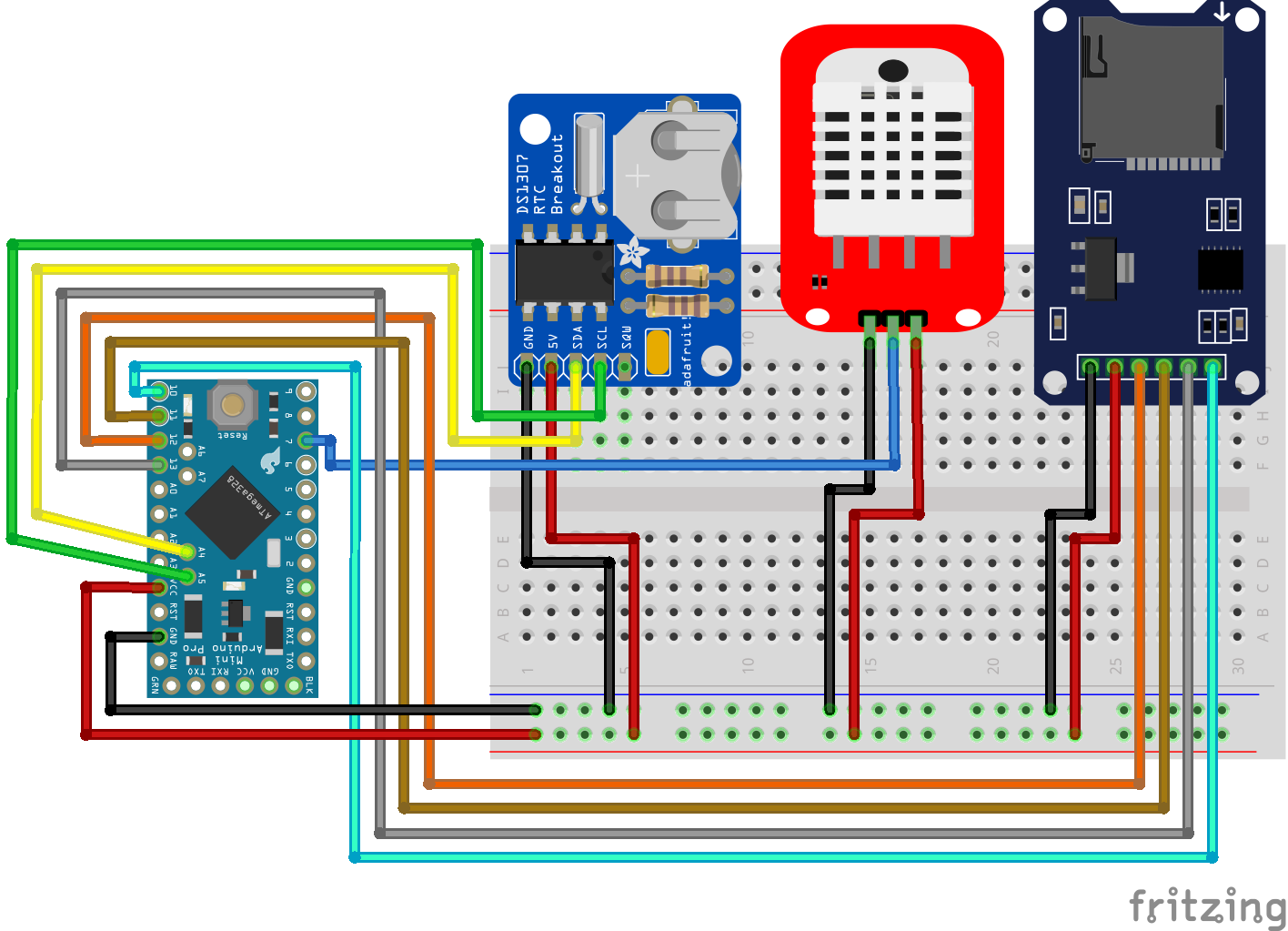
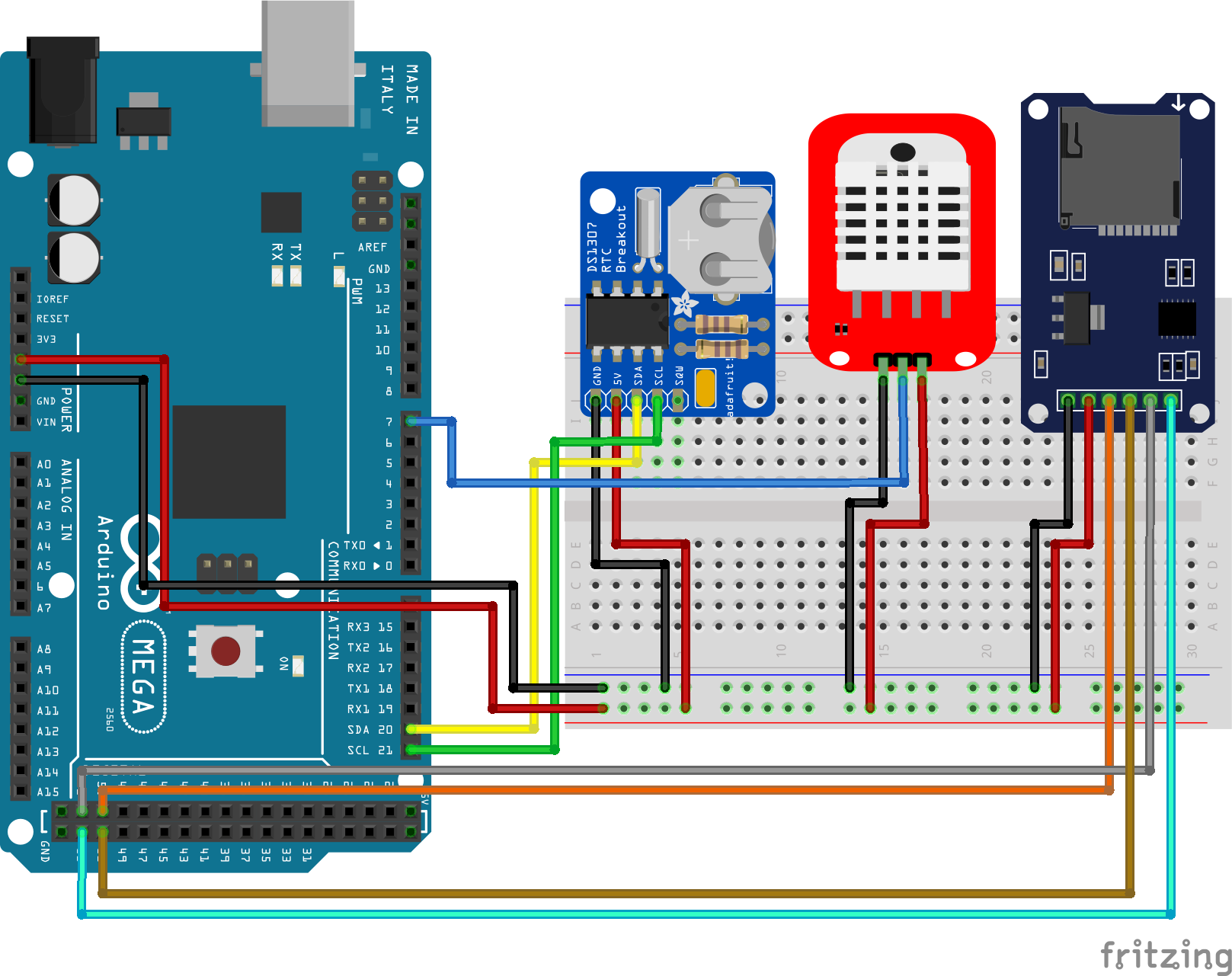
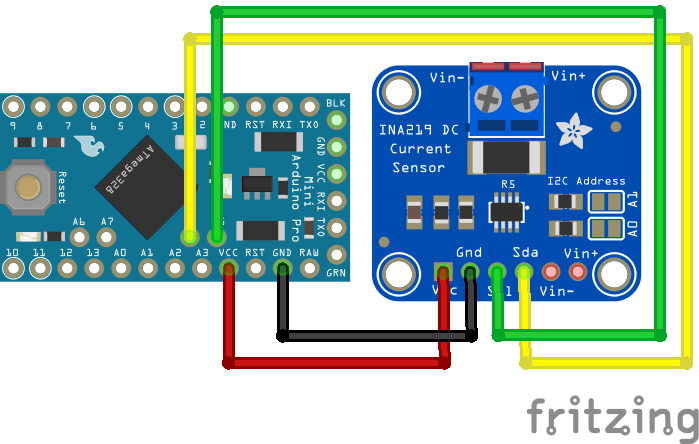
A tree topology is like a mesh network but the routers are not interconnected. Therefore every end device is connected to only one router.

ZigBee Radio Frequency

The ZigBee radio frequency is related to the WiFi frequency (2.4 GHz and 5 GHz). There are three frequency bands assigned to ZigBee but only one channel is used in a network

  • Europe: Channel 0: 868.3 MHz
  • US and Australia: Channel 1-10: 902 MHz – 928 MHz (2MHz each channel)
  • Across the World: Channel 11-26: 2.4 GHz – 2.4835 GHz (5MHz each channel)

It is not recommended to use the exact WiFi frequency because this can cause in interference and usually the ZigBee network will take the hit. The following picture shows the WiFi and also the different ZigBee channels.

ZigBee and WiFi frequency channels

From the picture you see that the three non-overlapping WiFi channels (1, 6, 11) use the same frequencies as the ZigBee channels 11…22. When you deploy a ZigBee and a WiFi network in you smart home, you have to plan the different channels to reduce the interference to a minimum. This said you choose only two of three WiFi channels that are next to each other (1 & 6 or 6 & 11) and the other free channel frequency can be used by the ZigBee network.

How Smart Devices access the Network Channel

There are two methods how smart devices can access the ZigBee network. The first method is the contention-free method, also called beacon-enabled network. The second way is the contention based method or non-beacon-enabled network.

Contention-free method (beacon-enabled network)

The following picture with one coordinator and 5 end devices shows how the contention-free method works.

Contention-free method

The coordinator dedicates a specific time slot to each device, called the guaranteed time slot (GTS). The time slots for every device is guaranteed and therefore can not overlap. The coordinator transmits a synchronization messages (called beacon) periodically to each device in the network. This objective of this beacon is to synchronize the clock of every device. From the second cycle of the example, you see that not all devices have to transmit data in each period. To reduce the power consumption, all devices sleep most of the time and only wakes up when the beacon is received and if the device transmits data to the ZigBee network.

Contention based method (non-beacon-enabled network)

In the contention based method, the devices do not need to be synchronized and therefore no beacon is transmitted to each device. But the network use the carries sense multiple access – collision avoidance mechanism. When an end device wants to transmit data, first the device switches into the receiver mode and detects if there is any signal in the channel. If there is no signal, the device switches into the transmit mode and transfers the data. But if there is already a signal in the channel, the device backs off of for a random period of time and restart the process to transfer data until the message is send.


If you have any questions regarding ZigBee, smart home communication protocols in general or other questions, leave a comment and I will answer your questions as soon as possible.
And if you are interested in other smart home communication protocols, check out the tutorial for Z-Wave and MQTT.