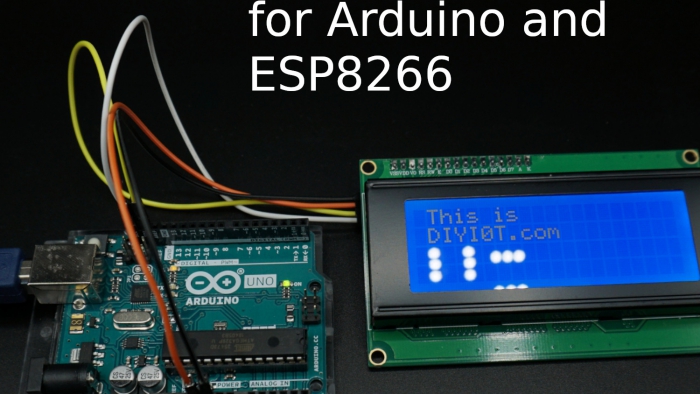
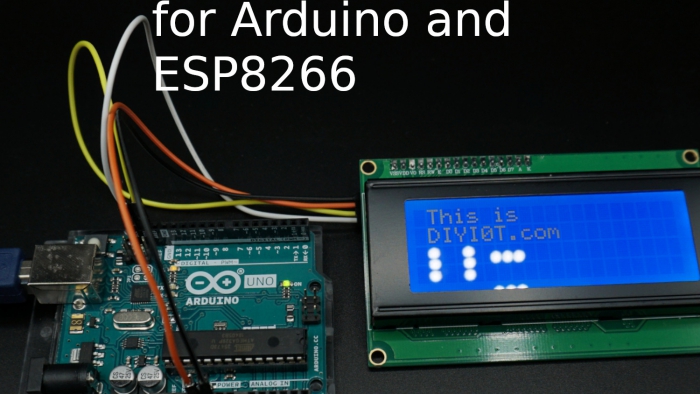
LCD display tutorial thumbnail

LCD Display Tutorial for Arduino, ESP8266 and ESP32

LCD Display Tutorial for Arduino, ESP8266 and ESP32

In this tutorial you learn how to connect your microcontroller with a LCD display and how to make your first sketch to display whatever you want on the LCD screen.

We use different kinds of displays:

  • LCD display without I2C connection
  • LCD display with I2C connection

As bonus I show you how you can create custom characters like a heart on the screen super fast and easy.
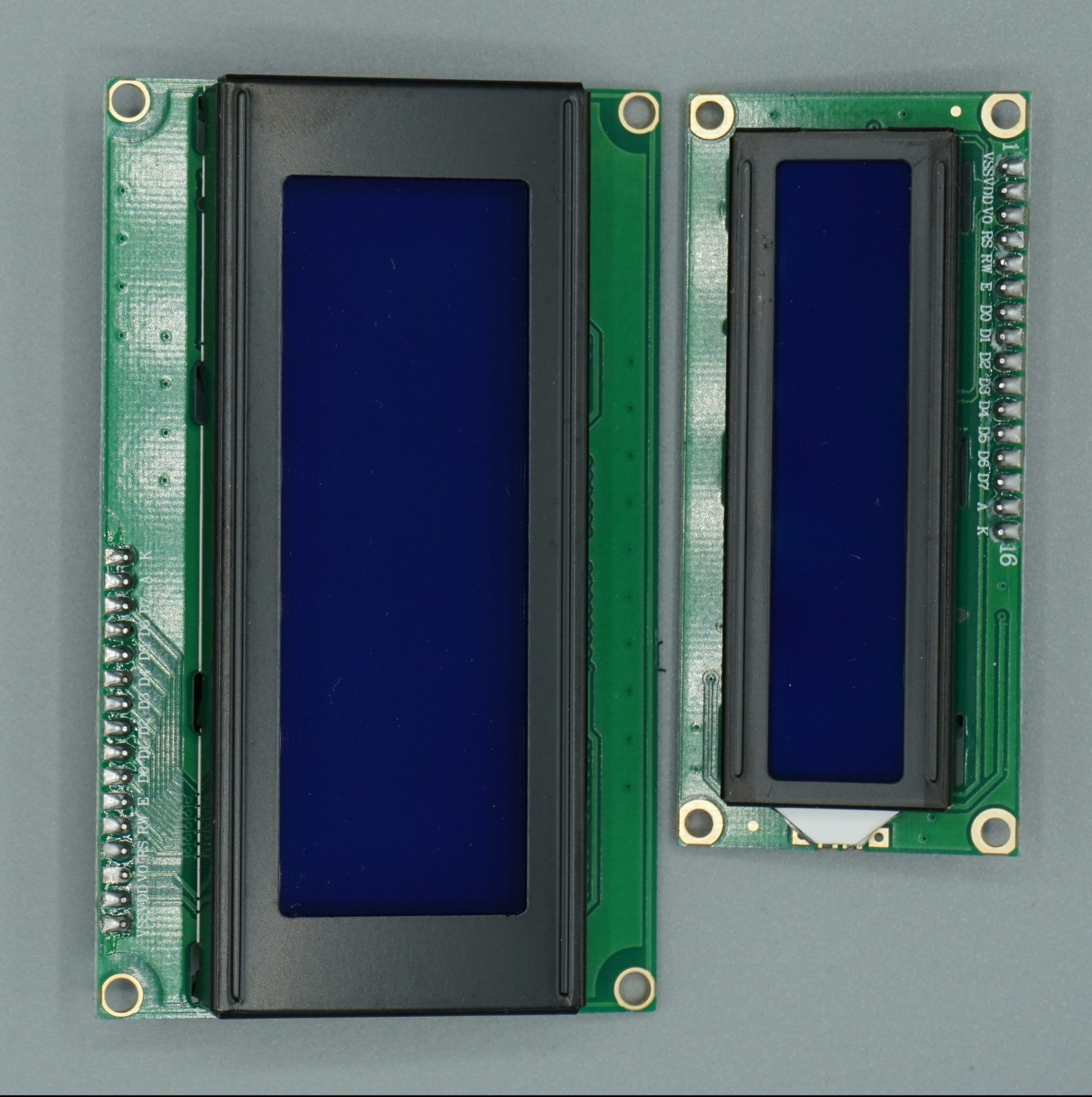
LCD display comparison

Table of Contents

Most of the time we use the serial plotter of the Arduino IDE to visualize our solutions or output of a sketch. This is great and a big time saver when you are doing prototyping. But there is a time when your system will go live. If you are for example only sending data from sensors to a database on a Raspberry Pi, than you are able to view the output remote from your PC by connecting to the database. But there are use cases like an indoor weather station, where you want to see the output like the current temperature directly and not when you are on you PC.

Than displays are the way to go. There are different kinds of displays like 7 Segment LED display, 4 Digit 7 Segment display, 8×8 Dot Matrix display, OLED display or the easiest and cheapest version the liquid crystal display (LCD).

Most LCD displays have either 2 rows with 16 characters per row or 4 rows with 20 characters per row. There are LCD screen with and without I2C module. I highly suggest the modules with I2C because the connection to the board is very easy and there are only 2 instead of 6 pins used. But we will cover the LCD screen with and without I2C module in this article.
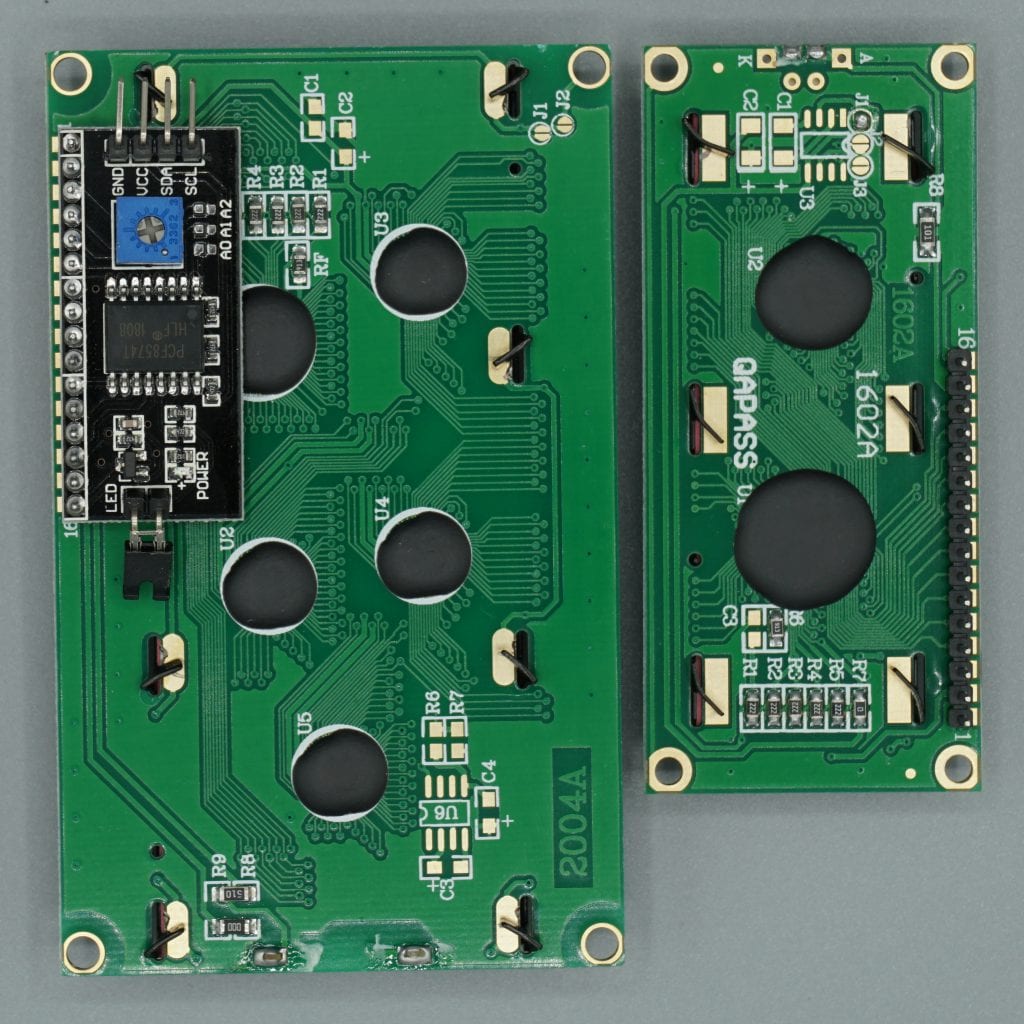
LCD display comparison

The following table gives you an overview of all components and parts that I used for this tutorial. I get commissions for purchases made through links in this table.

 Arduino UnoAmazonBanggoodAliExpress
ORESP8266 NodeMCUAmazonBanggoodAliExpress
ORESP32 NodeMCUAmazonBanggoodAliExpress
ANDLCD Display 20×4 with I2CAmazonBanggoodAliExpress
ANDLCD Display 16×2 with I2CAmazonBanggoodAliExpress
ORLCD Display 20×4 without I2CAmazonBanggoodAliExpress
ORLCD Display 16×2 without I2CAmazonBanggoodAliExpress

Features of the LCD display

The LCD display has an operating voltage between 4.7V and 5.3V with a current consumption of 1mA without backlight and 120mA with full backlight. There are version with a green and also with a blue backlight color. Each character of the display is build by a 5×8 pixel box and is therefore able to display custom generated characters. Because each character is build by (5×8=40) 40 pixels a 16×2 LCD display will have 16x2x40= 1280 pixels in total. The LCD module is able to operate in 8-bit and 4-bit mode. The difference between the 4-bit and 8-bit mode are the following:

  • In 8-bit mode only one pulse signal is required to display a character on LCD display instead of two pulse signals.
  • 4-bit mode make use of only just four data pins compared to all 8 data pins in the 8-bit mode.
  • Since two pulse (enable) signals are required to display a single character the 4-bit mode latency time is higher compared to the 8-bit mode.

LCD display without I2C connection

If we use the LCD display version without I2C connection we have to add the potentiometer manually to control the contrast of the screen. The following picture shows the pinout of the LCD screen.

Also I added a table how to connect the LCD display with the Arduino Uno and the NodeMCU with a description of the LCD pin. To make it as easy as possible for you to connect your microcontroller to the display, you find the corresponding fritzing connection picture for the Arduino Uno and the NodeMCU in this chapter.
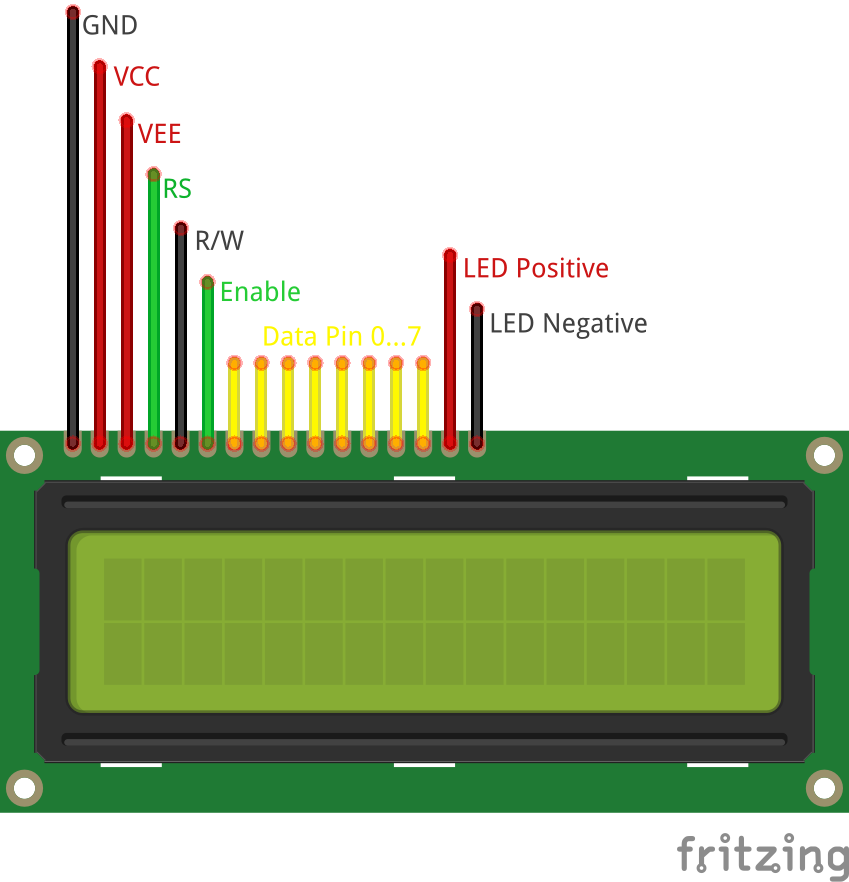
LCD connection
Pin NRLCD-016M002B pin labelArduino Uno connectionNodeMCU connectionDescription
1GNDGNDGNDGround pin to connected to the GND pin of the Arduino.
2VCC3V3 / 5V3V3 / VINVoltage supply of 5V (4.7V – 5.3V). Also for a test 3V does the job.
3VEEPotentiometerPotentiometerAdjusts the contrast of the display If this pin is grounded, you get the maximum contrast. We will connect the VEE pin to the potentiometer output to adjust the contrast by changing the resistance of the potentiometer.
4RSD12D2Select command register to low when we are sending commands to the LCD like set the cursor to a specific location, clear the display or turn off the display.
5R/WGNDGNDAnd select data register when RS is set to high to send data or characters to the LCD.
6EnableD11D3Differ between read or write data. Normally grounded to write data to LCD
7Data Pin 0 (d0)  Connected to microcontroller pin and toggled between 1 and 0 for data acknowledgement. So if we want to send data via the data pins 0 to 7, we have to make sure that the enable pin is high.
8Data Pin 1 (d1)  Data pins 0 to 7 forms an 8-bit data line. The Data Pins are connection to the Digital I/O pins of the microcontroller to send 8-bit data. These LCD’s can also operate on 4-bit mode in such case Data pin 4,5,6 and 7 will be left free.
9Data Pin 2 (d2)  
10Data Pin 3 (d3)  
11Data Pin 4 (d4)D5D6
12Data Pin 5 (d5)D4D7
13Data Pin 6 (d6)D3D8
14Data Pin 7 (d7)D2RX
15LED Positive3V3 / 5V3V3 / VINBacklight LED pin positive terminal
16LED NegativeGNDGNDBacklight LED pin negative terminal

LCD display connection to the Arduino Uno without I2C

The following picture shows the connections between the LCD display and the Arduino Uno.
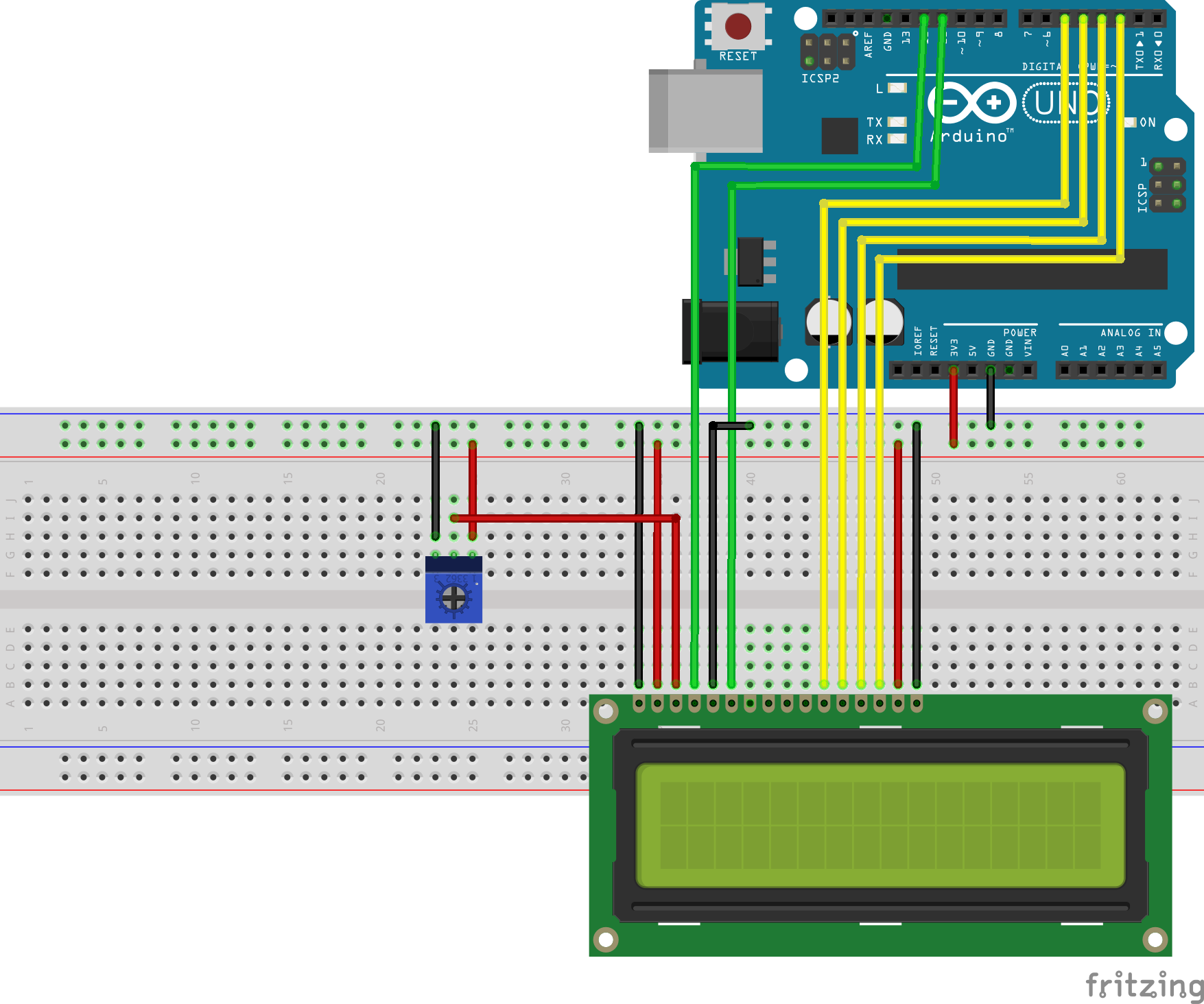
LCD Arduino without I2C

LCD display connection to the NodeMCU without I2C

The following picture shows the connections between the LCD display and the NodeMCU.
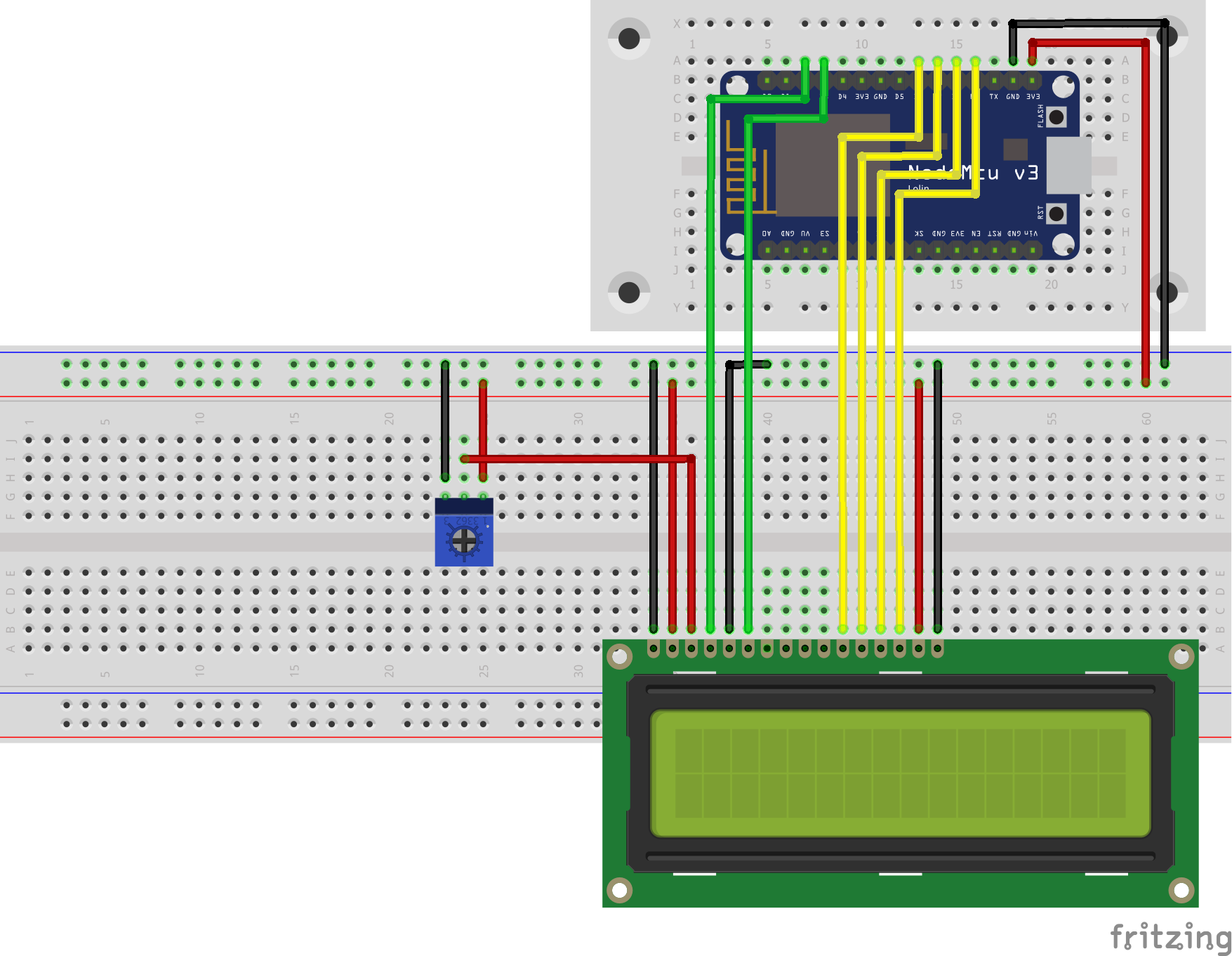
LCD NodeMCU without I2C

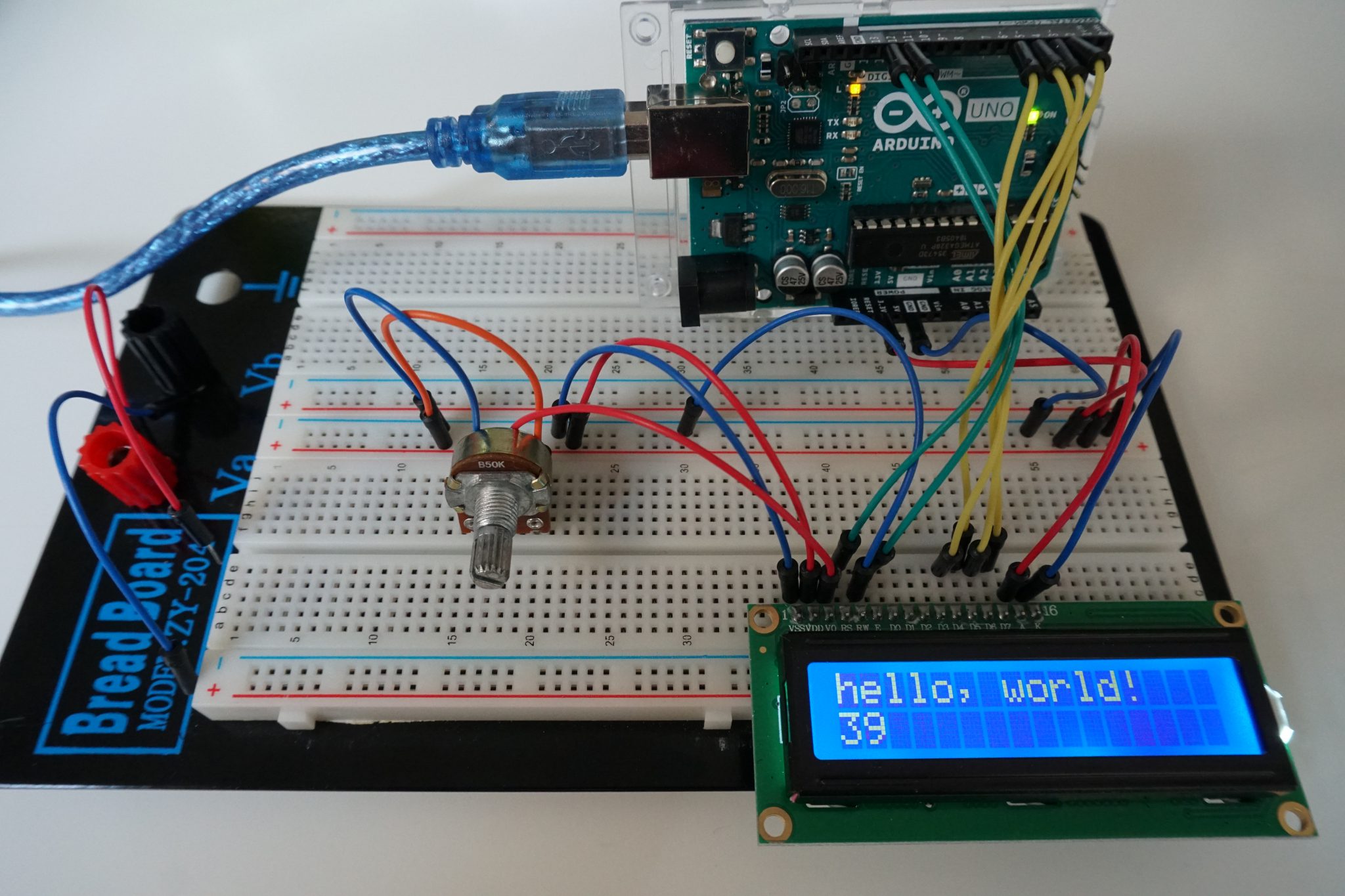
Of cause we want to try the connection between the microcontroller and the LCD display. Therefore you find an example sketch in the Arduino IDE. The following section shows the code for the sketch and a picture of the running example, more or less because it is hard to make a picture of the screen ;-). The example prints “hello, world!” in the first line of the display and counts every second in the second row. We use the connection we described before for this example.

// include the library code:
#include "LiquidCrystal_I2C.h"

// initialize the library by associating any needed LCD interface pin
// with the arduino pin number it is connected to
const int RS = D2, EN = D3, d4 = D5, d5 = D6, d6 = D7, d7 = D8;

// if you use the NodeMCU 12E the suggested pins are
// const int RS = 4, EN = 0, d4 = 12 , d5 = 13, d6 = 15, d7 = 3;

LiquidCrystal lcd(RS, EN, d4, d5, d6, d7);

void setup() {
// set up the LCD's number of columns and rows:
lcd.begin(16, 2);
// Print a message to the LCD.
lcd.print("hello, world!");
}

void loop() {
// set the cursor to column 0, line 1
// (note: line 1 is the second row, since counting begins with 0):
lcd.setCursor(0, 1);
// print the number of seconds since reset:
lcd.print(millis() / 1000);
}
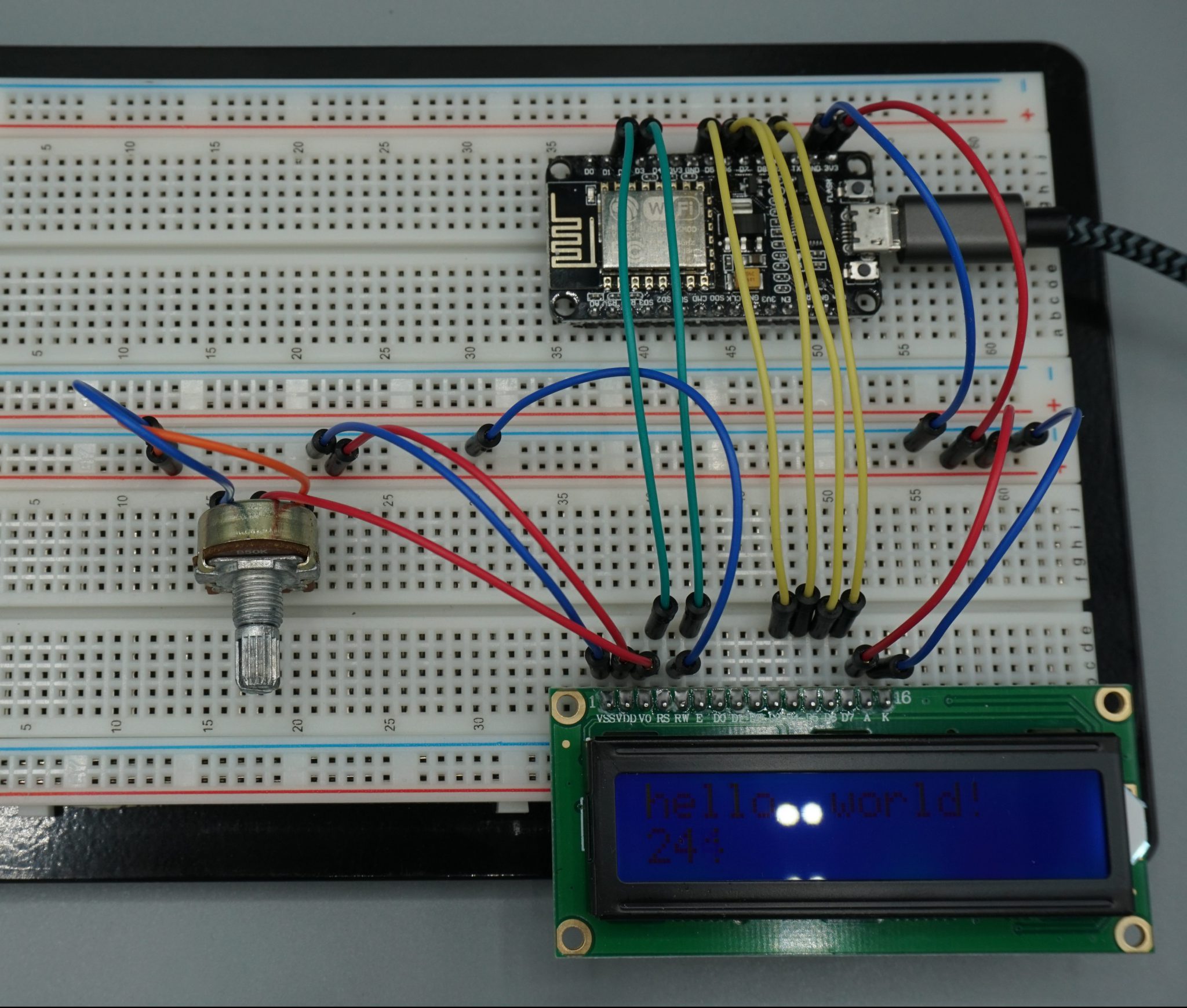
LCD example NodeMCU without I2C
LCD example Arduino Uno without I2C

Looks very complicated to print data onto the LCD screen. But don’t worry like in most cases if it starts to get complicated, there is a library to make the word for us. This is also the case for the LCD display without I2C connection.

Therefore the next step is to install the library “LiquidCrystal”. You find here an article how to install an external library via the Arduino IDE. After you installed the library successful you can include the library via: #include < LiquidCrystal.h>.

LCD display with I2C connection

Like I told you, I would suggest the LCD modules with I2C because you only need 2 instead of 6 pins for the connection between display and microcontroller board. In the case you use the I2C communication between LCD and microcontroller, you need to know the I2C HEX address of the LCD. In this article I give you a step by step instruction how to find out the I2C HEX address of a device. There is also an article about the I2C communication protocol in detail.

On the backside is a 10 kΩ potentiometer build in to control the screen contrast. You do not have to add the potentiometer manually like in the version without I2C connection.

The following picture shows how to connect an I2C LCD display with an Arduino Uno. We will use exact this connection for all of the examples in this article.

Arduino Uno

GND
5V
PIN18
PIN19

I2C LCD Display

GND
VCC
SDA
SCL
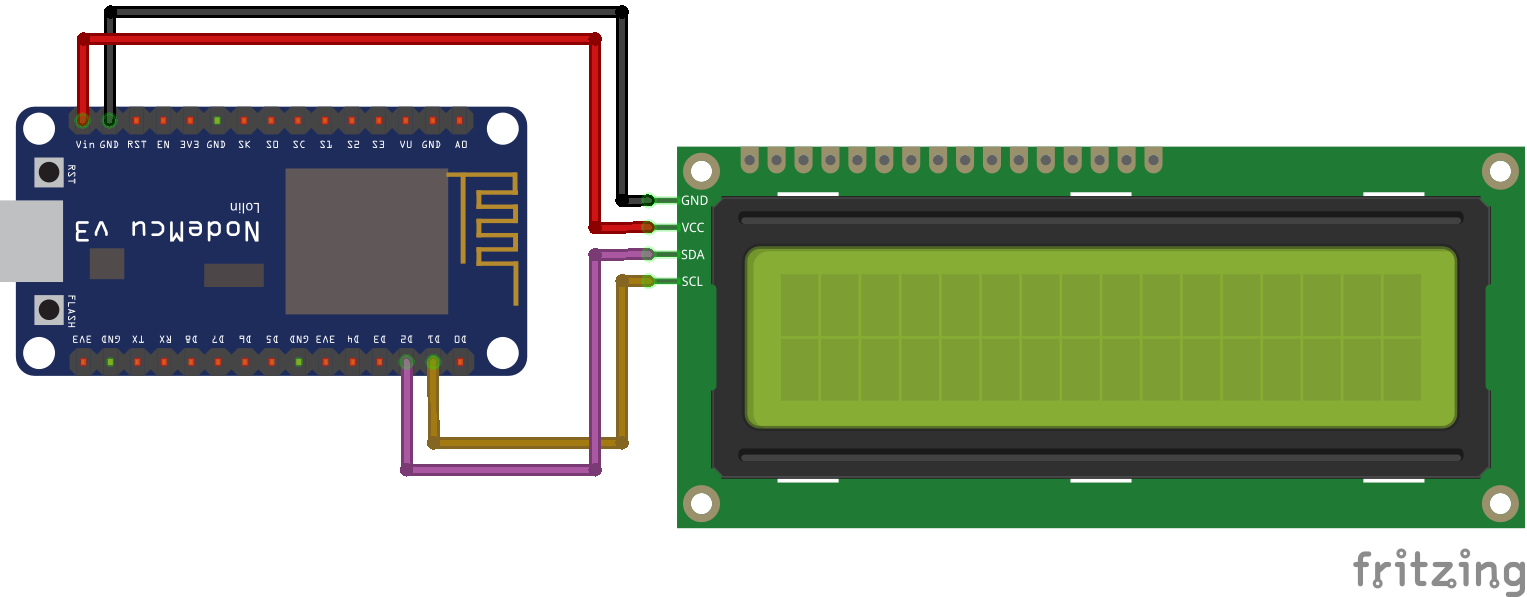
NodeMCU

GND
VIN
D2
D1

I2C LCD Display

GND
VCC
SDA
SLC

To use the I2C LCD display we have to install the required library “LiquidCrystal_I2C” by Frank de Brabander. You find here an article how to install an external library via the Arduino IDE. After you installed the library successful you can include the library via: #include < LiquidCrystal_I2C.h>.

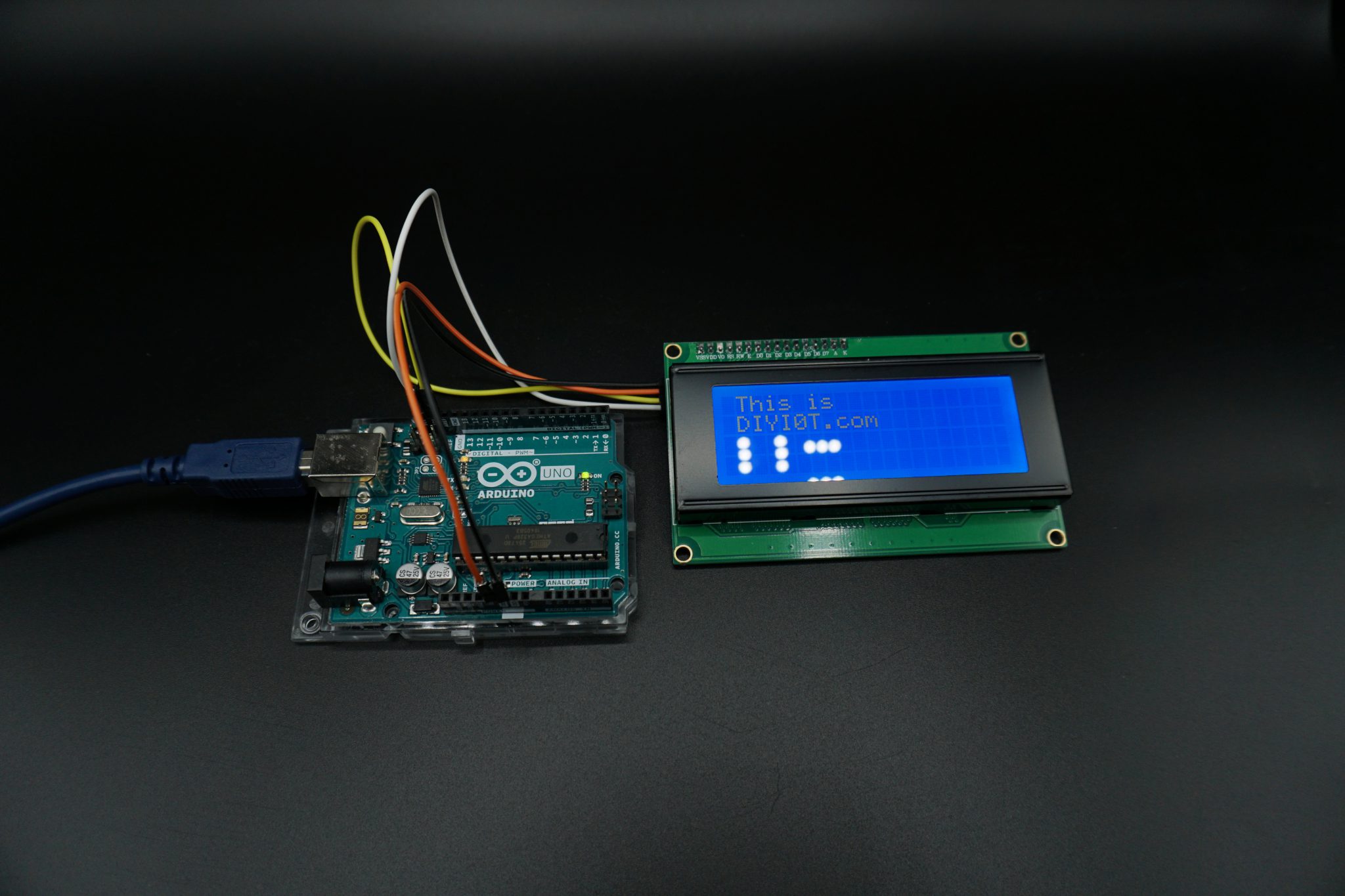
This short example shows you how to use the library to control the LCD display

#include "Wire.h"
#include "LiquidCrystal_I2C.h"

// create an LCD object (Hex address, # characters, # rows)
// my LCD display in on Hex address 27 and is a 20x4 version LiquidCrystal_I2C lcd(0x27, 20, 4); void setup() { lcd.init(); lcd.backlight(); lcd.setCursor(1, 0); lcd.print("This is"); lcd.setCursor(1, 1); lcd.print("DIYI0T.com"); } void loop(){}
LCD example

Functions of the LiquidCrystal and LiquidCrystal_I2C library

The LiquidCrystal library has 20 build in functions which are very handy when you want to work with the LCD display. In the following part of this article we go over all functions with a description as well as an example sketch and a short video that you can see what the function is doing.

LiquidCrystalLiquidCrystal_I2CFunction LiquidCrystal libraryDescription
xxLiquidCrystal()
LiquidCrystal_I2C()

This function creates a variable of the type LiquidCrystal. The parameters of the function define the connection between the LCD display and the Arduino. You can use any of the Arduino digital pins to control the display. The order of the parameters is the following: LiquidCrystal(RS, R/W, Enable, d0, d1, d2, d3, d4, d5, d6, d7)

If R/W is connected to GND you do not use the parameter in the function: LiquidCrystal(RS, Enable, d0, d1, d2, d3, d4, d5, d6, d7)
If you want to operate in the 4-bit mode the function changes: LiquidCrystal(RS, R/W, Enable, d4, d5, d6, d7)

If you are using an LCD display with the I2C connection you do not define the connected pins because you do not connected to single pins but you define the HEX address and the display size: LiquidCrystal_I2C lcd(0x27, 20, 4);

x lcd.begin()The lcd.begin(cols, rows) function has to be called to define the kind of LCD display with the number of columns and rows. The function has to be called in the void setup() part of your sketch. For the 16×2 display you write lcd.begin(16,2) and for the 20×4 lcd.begin(20,4).
The example below defines the display as 20×4 display and display a text.
 xlcd.init()Initialization of the I2C display.
xxlcd.clear()The clear function clears any data on the LCD screen and positions the cursor in the upper-left corner. You can place this function in the setup function of your sketch to make sure that nothing is displayed on the display when you start your program.
xxlcd.home()This function places the cursor at the upper left corner of the screen.
xxlcd.setCursor()If you want to write text to your LCD display, you have to define the starting position of the character you want to print onto the LCD with function lcd.setCursor(col, row). Although you have to define the row the character should be displayed.
xxlcd.write()Use the function write to display the values, for example a sensor value.
xxlcd.print()This function displays different data types: char, byte, int, long, or string. A string has to be in between quotation marks („“). Numbers can be printed without the quotation marks. Numbers can also be printed in different number systems lcd.print(data, BASE) with BIN for binary (base 2), DEC for decimal (base 10), OCT for octal (base 8), HEX for hexadecimal (base 16).
 xlcd.println()This function displays also different data types: char, byte, int, long, or string like the function lcd.print() but lcd.println() prints always a newline to output stream.
xxlcd.cursor() / lcd.noCursor()Displays or hide the LCD cursor as an underscore (line) at the position to which the next character will be written.
xxlcd.blink() / lcd.noBlink()The blink and noBlink function shows or hides a block style cursor that blinks on and off.
xxlcd.display() / lcd.noDisplay()This function turn on and off any text or cursor on the display but does not delete the information from the memory. Therefore it is possible to turn the display on and off with this function.
xxlcd.scrollDisplayLeft() / lcd.scrollDisplayRight()

This function scrolls the contents of the display (text and cursor) a one position to the left or to the right. After 40 spaces the function will loops back to the first character. With this function in the loop part of your sketch you can build a scrolling text function.

Scrolling text if you want to print more than 16 or 20 characters in one line, than the scrolling text function is very handy. First the substring with the maximum of characters per line is printed, moving the start column from the right to the left on the LCD screen. Than the first character is dropped and the next character is printed to the substring. This process repeats until the full string is displayed onto the screen.

xxlcd.autoscroll() / lcd.noAutoscroll()The autoscroll function turn on or off the functionality that each character is shifted by one position. The function can be used like the scrollDisplayLeft / scrollDisplayRight function.
xxlcd. leftToRight() / lcd.rightToLeft()The leftToRight and rightToLeft functions changes the direction for text written to the LCD. The default mode is from left to right which you do not have to define at the start of the sketch.
xxlcd.createChar()There is the possibility to create custom characters with the createChar function. How to create the custom characters is described in the following chapter of this article as well as an example.
 xlcd.backlight()The backlight function is useful if you do not want to turn off the whole display (see lcd.display()) and therefore only switch on and off the backlight. But before you can use this function you have to define the backlight pin with the function setBacklightPin(pin, polarity).
The following example shows a sketch to turn on and off the backlight.
lcd.setBacklightPin(7, NEGATIVE);
lcd.setBacklight(1);
 xlcd.moveCursorLeft() / lcd.moveCursorRight()This function let you move the curser to the left and to the right. To use this function useful you have to combine it with lcd.setCursor() because otherwise there is not cursor to move left or right. For our example we also use the function lcd.cursor() to make the cursor visible.
 xlcd.on() / lcd.off()This function switches the LCD display on and off. It will switch on/off the LCD controller and the backlight. This method has the same effect of calling display/noDisplay and backlight/noBacklight.

Blink, Cursor and scroll Display example

To show you some basic examples of the LiquidCrystal and LiquidCrystal_I2C library, you can copy the following example that shows three different functions of the library:

  1. Show or hide a blinking character field to show the user of your application that for example an input is needed or that an application is loading.
  2. Show or hide a cursor (“_”) that is useful when you create a menu as navigation bar from the left to the right or from the top to the bottom, depending on a horizontal of vertical menu bar. If you are interested how to create a basic menu with the ESP or Arduino microcontroller in combination with the display, you find here a tutorial.
  3. Shift all characters to the right for a scrolling display.

The following code shows you the Arduino program to use all three LCD display functions of the library divided into three separate functions. Also the video after the program shows the functions in action.

#include "Wire.h"
#include "LiquidCrystal_I2C.h"

// set the LCD address to 0x27 for a 16 chars and 2 line display
LiquidCrystal_I2C lcd(0x27, 20, 4); 

void setup()
{
  lcd.init();
  lcd.backlight();
  lcd.clear();
}

void loop(){
  show_blink();
  show_cursor();
  scroll_display();
  }

void show_blink(){
  lcd.clear();
  lcd.setCursor(0,2);
  lcd.print("Blink is on");
  lcd.setCursor(0,0);
  lcd.blink();
  delay(5000);
  lcd.setCursor(0,2);
  lcd.print("Blink is off");
  lcd.setCursor(0,0);
  lcd.noBlink();
  delay(5000);
}

void show_cursor(){
  lcd.clear();
  lcd.setCursor(0,2);
  lcd.print("Cursor is on");
  lcd.setCursor(0,0);
  lcd.cursor();
  delay(5000);
  lcd.setCursor(0,2);
  lcd.print("Cursor is off");
  lcd.setCursor(0,0);
  lcd.noCursor();
  delay(5000);
}

void scroll_display(){
  lcd.clear();
  lcd.setCursor(0,2);
  lcd.print("Scroll display");
  lcd.scrollDisplayRight();
  delay(1000);
  lcd.scrollDisplayRight();
  delay(1000);
  lcd.scrollDisplayRight();
  delay(1000);
  lcd.scrollDisplayRight();
  delay(3000);
}

How to display custom generated characters?

The creation of custom characters is very easy if you use the previous mentioned libraries. The LiquidCrystal and also the LiquidCrystal_I2C library have the function “lcd.createChar()” to create a custom character out of the 5×8 pixels of one character. To design your own characters, you need to make a binary matrix of your custom character from an LCD character generator or map it yourself. This code creates a wiggling man:
#include "Wire.h"
#include "LiquidCrystal_I2C.h"

// Set the LCD address to 0x27 in PCF8574 by NXP and Set to 0x3F in PCF8574A by Ti
LiquidCrystal_I2C lcd(0x27, 20, 4); 

byte customChar1[] = {
  B01110,
  B01110,
  B00100,
  B11111,
  B00100,
  B01110,
  B01010,
  B01010
};

byte customChar2[] = {
  B01110,
  B01110,
  B10101,
  B01110,
  B00100,
  B00100,
  B01010,
  B10001
};

void setup() {
  lcd.init();
  lcd.backlight();
}

void loop() {
  lcd.createChar(0, customChar1);
  lcd.home();
  lcd.write(0);
  delay(1000);
  lcd.createChar(0, customChar2);
  lcd.home();
  lcd.write(0);
  delay(1000);
  }

Use the following tool to create custom generated characters easy and fast: http://omerk.github.io/lcdchargen/

Important command codes for LCD display

In the section of the LCD display pinout without I2C we saw that if we set the RS pin to how, that we are able to send commands to the LCD. These commands are send by the data pins and represented by the following table as HEX code.
Sr.No.Hex CodeCommand to LCD instruction Register
11Clear display screen
22Return home
34Decrement cursor (shift cursor to left)
46Increment cursor (shift cursor to right)
55Shift display right
67Shift display left
78Display off, cursor off
80ADisplay off, cursor on
90CDisplay on, cursor off
100EDisplay on, cursor blinking
110FDisplay on, cursor blinking
1210Shift cursor position to left
1314Shift cursor position to right
1418Shift the entire display to the left
151CShift the entire display to the right
1680Force cursor to beginning ( 1st line)
17C0Force cursor to beginning ( 2nd line)
18382 lines and 5×7 matrix

Conclusion

I hope you learned a lot in this article. Feel free to test the example sketches with your microcontroller. Do you have any questions regarding this article? Use the comment section below and I will answer your question.

MQTT thumbnail

MQTT Tutorial for Arduino, ESP8266 and ESP32

MQTT Tutorial for Arduino, ESP8266 and ESP32

In this article you learn what MQTT is and how this message protocol works.

This tutorial covers the following parts:

  • Sequence of MQTT
  • Message Protocol
  • Message Formats
  • Security of the MQTT Protocol.
MQTT Sequence

Table of Contents

MQTT stand for Message Queuing Telemetry Transport and was invented by Andy Stanford-Clark of IBM and Arlen Nipper of Cirrus Link in 1999. Over the last years the “internet of thinks (IoT) became very popular. The core component of the IoT is the communication and interaction of different physical devices directly or over the internet. Therefore a machine to machine (M2M) communication protocol is needed. That is what MQTT is. MQTT is a light messaging transport protocol based on publish/subscribe messaging and works on top of TCP/IP.

Therefore the protocol is suitable for microcontrollers like the Arduino, ESP8266, ESP32 or Raspberry Pi. I personal use MQTT for sending data from my weather stations, build with an NodeMCU, to my Raspberry Pi which is the central control unit for my smart home. If you are interested in the practical example of the MQTT connection, read the microcontroller to Raspberry Pi WiFi MQTT communication article.

There are also industry applications based on MQTT. For example the Facebook messenger is based on MQTT.

The payload which can be send via the MQTT protocol is plain text. Therefore the corresponding unity has to be added by the subscriber. The minimal message length is 2 bytes and the maximal message length is 265 megabytes.

MQTT- How it works

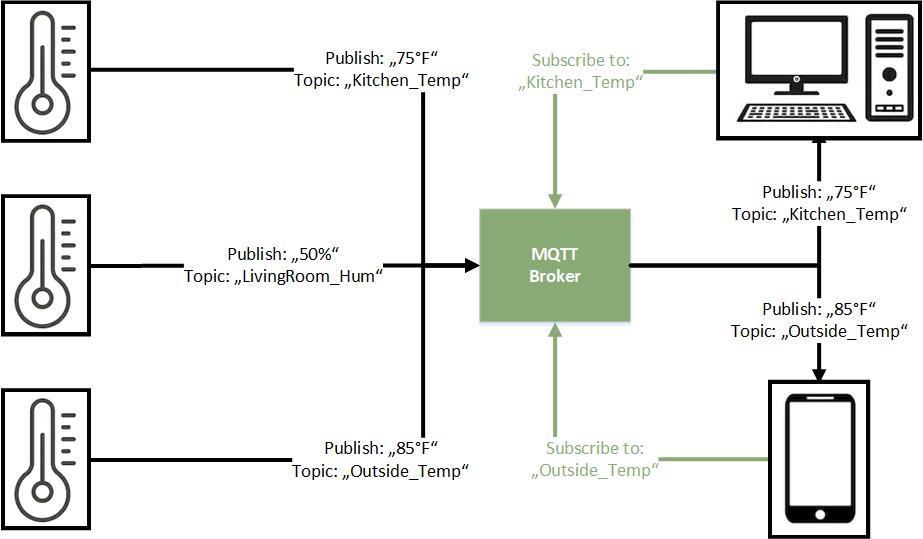
As mentioned MQTT base on a publish and subscribe pattern. Therefore a message broker, often called server, is needed to manage the connection between the publisher and the subscriber. There is no limitation that only one broker can interact in the network. Publisher and subscriber are also called clients.

Information are organized in a hierarchy of topics. This means that every information has a

In total there are 3 different parts which interact differently in an MQTT interaction:

  1. Publisher
    The publisher sends information to the broker. In a smart home use case a weather station would be a publisher because it sends temperature information. One advantage of the MQTT protocol is that a publisher does not need any information about the subscribers in quantity and connection.

  2. Subscriber
    Subscriber get information from the broker. A laptop with a dashboard that shows graphics of the temperature from the weather station would be a subscriber. Like the publisher, the subscriber does not need any information about the publishers connection.

  3. Broker
    The message broker can also be publisher or subscriber at the same time. I use a Raspberry Pi as server, which is at the same time subscriber to all publisher to show me a dashboard of the current smart home status.
    The broker will always save the last message from every topic even if there is no subscriber for the topic. Therefore if there is a new client subscribing for a topic, the subscriber will get the last message instead of waiting for the next time a publisher sends data to the broker.
    There are different form of broker. We distinguish between self hosted broker like Mosquitto or HiveMQ and cloud based broker like IBM or Microsoft (Azure).

Sequence of MQTT

MQTT Sequence
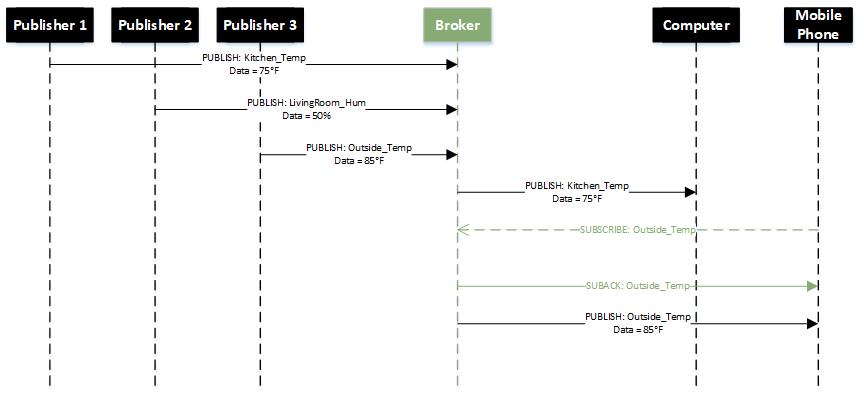
  1. Publisher and subscriber connect to broker
  2. When Publisher get new data to distribute, the publisher sends a message including the topic and the data to the broker.
  3. The broker distributes the incoming data to all clients which are subscribed to the topic.

MQTT Message Protocol

WordPress Tables Plugin

The MQTT protocol works by exchanging a series of MQTT Control Packets. An MQTT Control Packet consists of up to three parts, always in the following order:

  • Fixed header, present in all MQTT Control Packets
  • Variable header, present in some MQTT Control Packets
  • Payload, present in some MQTT Control Packets

Fixed header

WordPress Tables Plugin
The fixed header has a length of 1 byte and is split in two parts. Bit 7 to 4 contain the MQTT Control Packet type and bit 3 to 0 flags specific to each MQTT Control Packet type. The following table shows the 14 different MQTT Control Packet types and their corresponding flags.
  • C = Client
  • S = Server
  • DUP = Duplicate message flag. Indicates to the receiver that this message may have already been received.
    • =1: Client or server re-delivers a PUBLISH, PUBREL, SUBSCRIBE or UNSUBSCRIBE message.
  • QoS = PUBLISH Quality of Service
    • = 0: At-most-once delivery (Fire and Forget): There is no guarantee that the messages are delivered. MQTT is depended to the delivery guarantees of the underlying network (TCP/IP)
    • =1: At-least-once delivery: Messages are guaranteed to arrive, but there may be duplicates.
    • =2: Exactly-once delivery: This is the highest level that also incurs most overhead in terms of control messages and the need for locally storing the messages.
  • RETAIN = 1: Instructs the server to retain the last received PUBLISH message and deliver it as the first message to new subscriptions.
WordPress Tables Plugin

The following message sequence chart shows the CONNECT and SUBSCRIBE setup

Remaining Length

The Remaining Length is the number of bytes remaining within the current packet, including data in the variable header and the payload. The Remaining Length does not include the bytes used to encode the Remaining Length. The Remaining Length is encoded using a variable length encoding scheme which uses a single byte for values up to 127. Larger values are handled as follows.

The least significant seven bits of each byte encode the data, and the most significant bit is used to indicate that there are following bytes in the representation. Thus each byte encodes 128 values and a “continuation bit”. The maximum number of bytes in the Remaining Length field is four.

The equation to calculate the remaining length is the following: a*128^0+b*128^1+c*128^2+d*128^3

Example Remaining Lengh = 364

= 2*128^1 -> b=2, CB1=0
+ 108*128^0 -> a=108, CB0=1

Example Remaining Lengh = 25897

= 1*128^2 -> c=1, CB2=0
+ 74*128^1 -> b=74, CB1=1
+ 41*128^0 -> a=41, CB0=1

WordPress Tables Plugin

In total there are 4 bytes reserved for the Remaining Length. The following table shows the size of Remaining Length field.

WordPress Tables Plugin

Variable Header

Some types of MQTT Control Packets contain a variable header component. It resides between the fixed header and the payload. The content of the variable header varies depending on the Packet type. The Packet Identifier field of variable header is common in several packet types.

Packet Identifier Bytes

WordPress Tables Plugin

The following table shows, which packet types uses a Packet Identifier.

WordPress Tables Plugin

SUBSCRIBE, UNSUBSCRIBE, and PUBLISH (in cases where QoS > 0) Control Packets MUST contain a non-zero 16-bit Packet Identifier. Each time a Client sends a new packet of one of these types it MUST assign it a currently unused Packet Identifier.

If a Client re-sends a particular Control Packet, then it MUST use the same Packet Identifier in subsequent re-sends of that packet.

The Packet Identifier becomes available for reuse after the Client has processed the corresponding acknowledgment packet. The following table shows the corresponding acknowledgment packet for the packet types.

WordPress Tables Plugin

A PUBLISH Packet MUST NOT contain a Packet Identifier if its QoS value is set to 0.
A PUBACK, PUBREC or PUBREL Packet MUST contain the same Packet Identifier as the PUBLISH Packet that was originally sent. Similarly SUBACK and UNSUBACK MUST contain the Packet Identifier that was used in the corresponding SUBSCRIBE and UNSUBSCRIBE Packet.

Payload

Some MQTT Control Packets contain a payload as the final part of the packet. In the case of the PUBLISH packet this is the Application Message. The following table show the Control Packets that contain a Payload.

WordPress Tables Plugin

MQTT Message Formats

CONNECT

The CONNECT message contains many session-related information as optional header fields.

WordPress Tables Plugin
  • Protocol Name: UTF-8 encoded protocol name string. Example “Light_Protocol”.
  • Protocol Version: Value 3 for MQTT V3.
  • Username Flag: If set to 1 indicates that payload contains an username.
  • Password Flag: If set to 1 indicates that payload contains a password. If username flag is set, password flag and password must be set as well.
  • Will Retain: If set to 1 indicates to server that it should retain a Will message for the client which is published in case the client disconnects unexpectedly.
  • Will QoS: Specifies the QoS level for a Will message.
  • Will Flag: Indicates that the message contains a Will message in the payload along with Will retain and Will QoS flags.
  • Clean Session: If set to 1 the server discards any previous information about the (re)-connecting client (clean new session). If set to 0 the server keeps the subscriptions of a disconnecting client including storing QoS level 1 and 2 messages for this client. When the client reconnects, the server publishes the stored messages to the client.
  • Keep Alive Timer: Used by the server to detect broken connections to the client.
  • Client Identifier: The client identifier (between 1 and 23 characters) uniquely identifies the client to the server. The client identifier must be unique across all clients connecting to a server.
  • Will Topic: Will topic to which a will message is published if the will flag is set.
  • Will Message: Will message to be published if will flag is set.
  • Username and Password: Username and password if the corresponding flags are set.

CONNACK

WordPress Tables Plugin
  • Reserved: Reserved field for future use.
  • Connect Return Code:
    • 0: Connection Accepted
    • 1: Connection Refused, reason = unacceptable protocol version
    • 2: Connection Refused, reason = identifier rejected
    • 3: Connection Refused, reason = server unavailable
    • 4: Connection Refused, reason = bad user name or password
    • 5: Connection Refused, reason = not authorized
    • 6-255: Reserved for future use

PUBLISH

WordPress Tables Plugin
  • Topic Name with Topic Name String Length: Name of topic to which the message is published. The first 2 bytes of the topic name field indicate the topic name string length.
  • Message ID: A message ID represent if QoS is 1 (At least once delivery, acknowledgment delivery) or 2 (Exactly-once delivery).
  • Publish Message: Message as an array ob bytes. The structure of the published message is application-specific.

SUBSCRIBE

WordPress Tables Plugin
  • Message ID: The message ID field is used for acknowledgment of the SUBSCRIBE message since these have a QoS level of 1.
  • Topic Name with Topic Name String Length: Name of topic to which the client subscribes. The first 2 bytes of the topic name field indicate the topic name string length. Topic name strings can contain wildcard characters. Multiple topic names along with their requested QoS level may appear in a SUBSCRIBE message.
  • QoS Level: QoS level at which the clients wants to receive messages from the given topics.

If you are interested in the full message format description, you find the whole specification here.

MQTT security (example of Mosquitto as broker)

Like in every other connection between different devices the level security you need is depended on your use case. From my side I would recommend a basic level of security because the effort you have to do is nearly zero. Our objective is to protect the data, which is transferred between publisher, broker and subscriber.

The MQTT protocol defines that the security mechanisms are initiated by broker and applied by the clients. In total there are 3 ways to verify the identity of a client by the broker.

Identify a client via the client ID

The qualification of the identification via client ID is, that every MQTT client has to provide a client id. When a client subscribes to a topic or different topics, the client ID is linked to the topic and to the TCP connection. Due to persistent connection, the broker remembers the client ID and the corresponding subscribed topic.

Username and password

The security by username and password is the most used one in a MQTT connection because it is easy to implement. The broker requests a valid username and password from client before a connection is permitted. The client transmit the username and password as plain text. If the username and the password are valid, the connection between client and server is established. However if the username and password are invalid, the connection is chocked off by the server.

The downside is that the transmission of the username and password is not secured without an additional transport encryption like SSL for example. An additional benefit for this security mechanisms is, that the username can also be used as authentication of accessing topics.

There is also the possibility of accessing the server as anonymous client. Therefore there are multiple options if an access is restricted by the broker depending on the anonymous access option and the username and password file. The following tables shows all combination and if the access is restricted or not.

WordPress Tables Plugin

Certificates

There is also the possibility of security by certificates. This is the most secured method of client authentication but also the most difficult because of certificate management.

There are two main cryptographic protocols which you can use to secure your MQTT connection:

  • Transport Layer Security (TLS)
  • Secure Sockets Layer (SSL)

Both provide a secure communication channel between a client and a server. Therefore a handshake mechanism is used to negotiate various parameters to create a secure connection. After the handshake is complete, an encrypted communication between client and server is established and no attacker can eavesdrop any part of the communication. There is a drawback to using MQTT over TLS: Security comes at a cost in terms of CPU usage and communication overhead.

I2C thumbnail

I2C Tutorial for Arduino, ESP8266 and ESP32

I2C Tutorial for Arduino, ESP8266 and ESP32

In this tutorial we dive deeper into the I2C communication protocol.

You learn which practical examples:

  • which pins you need for Arduino and ESP8266 microcontroller to connect devices through I2C.
  • the advantages and disadvantages of this communication protocol
  • how to use a I2C multiplexer
LCD example

Table of Contents

The I2C communication is one out of three possible communication protocols, the Arduino / ESP8266 is able to communicate with other devices like OLED displays, barometric pressure sensors and so on. The two other communication protocols are SPI and UART.

I2C stands for Inter-Integrated Circuit was invented 1982 by Philips Semiconductor, now NXP Semiconductors.
I2C has multiple features which are also compared in the following table:

  • Synchronous: The output of bits is synchronized to the sampling of bits by a clock signal shared between the master and the slave.
  • Multi-master: You can have multiple masters controlling single, or multiple slaves.
  • Multi-slave: You can connect multiple salves to a single master like SPI.
  • Packet switched: The transferred data is grouped in packages / messages, made of a header and a payload.
  • Single-ended: The data is transferred by a single wire.
  • Serial connection: Data is transferred bit by bit along a single wire
WordPress Tables Plugin

I2C reference design with timing diagram

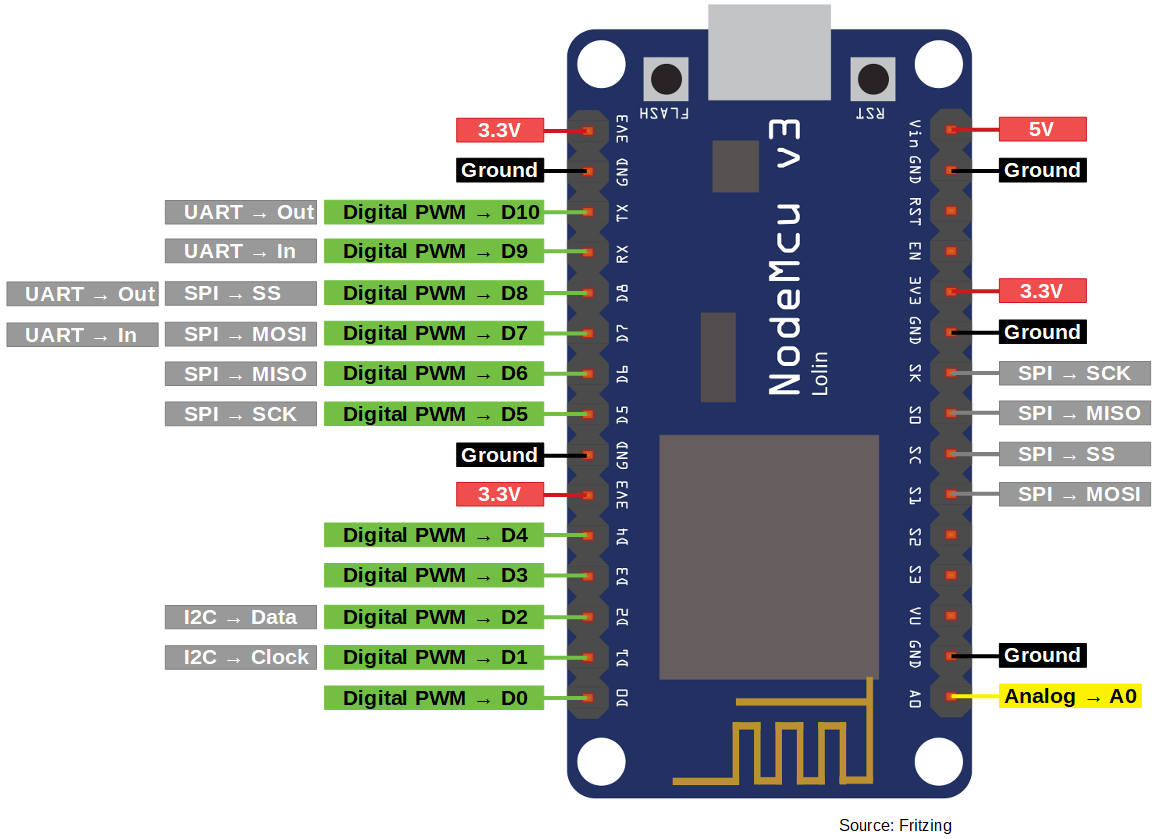
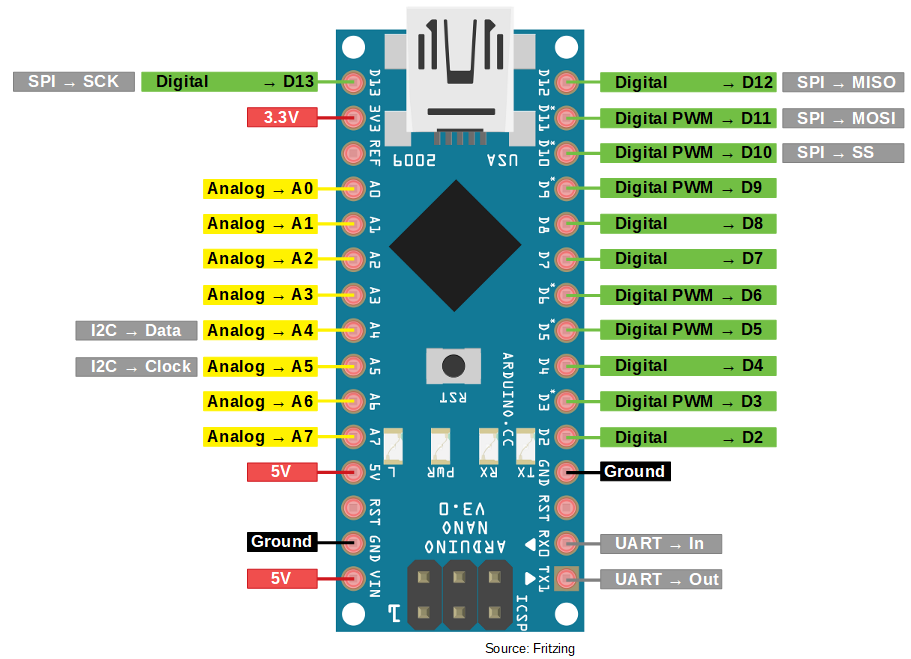
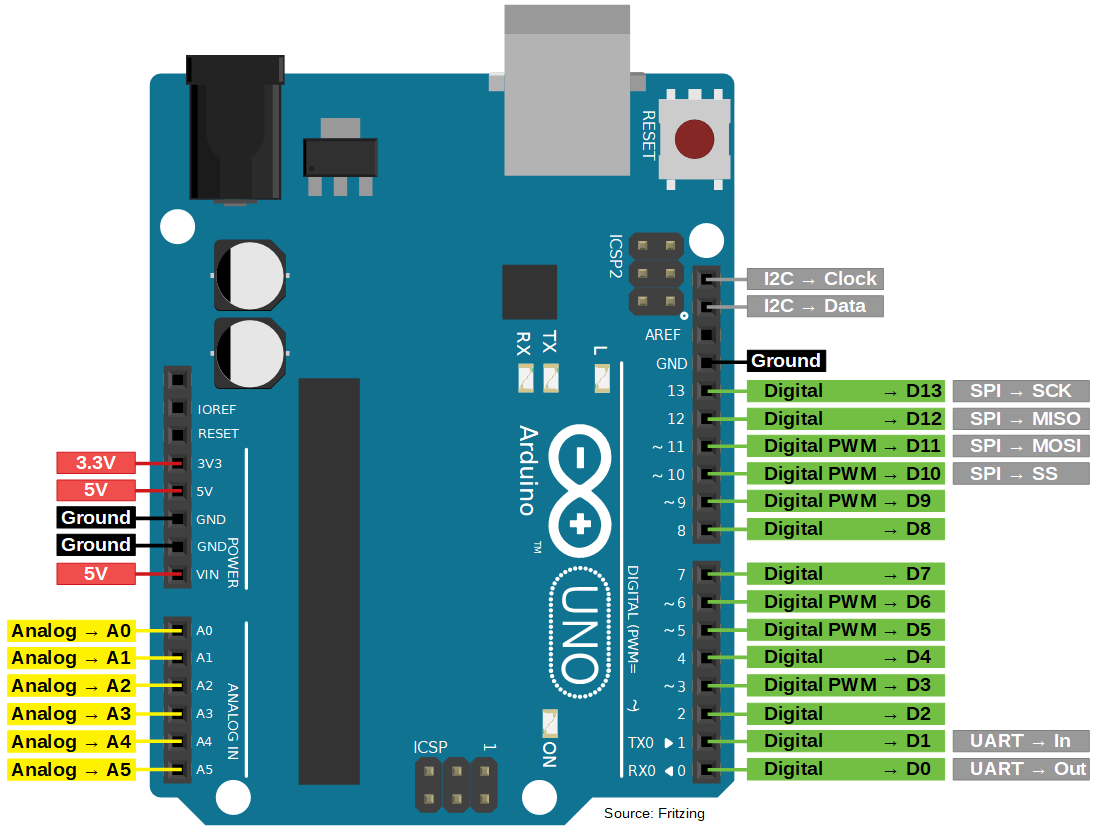
On your Arduino / ESP8266 you will find two GPIOs (SDA and SCL) for the I2C communication. If you are not sure were to find the corresponding pins, see the following pictures or for the complete pinout you can vitis the following articles:

ESP8266 (NodeMCU)

SDA: D2 (I2C -> Data)
SCL: D1 (I2C -> Clock)

Arduino Nano

SDA: A4
SCL: A5

Arduino Uno

SDA: PIN18
SCL: PIN19
(no label on the PCB front, only visible from the side)

Arduino Mega

SDA: PIN20
SCL: PIN21
(no label on the PCB front, only visible from the side)

The two pins which you need for the I2C communication are the following:

  • SDA (Serial Data): Connection between master and slave to send and receive data.
  • SCL (Serial Clock): Shares the clock signal between the master and the slave, where the master always controls the clock signal.
I2C overview

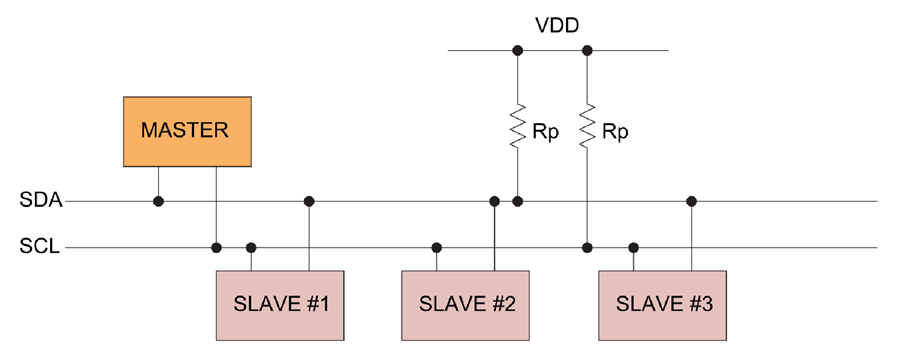
The Serial Data line and the Serial Clock line are pulled up with resistors. Therefore when there is no transmission of data on the bus, the SDA and SCL are in the HIGH state. Why a resistor is needed, see subsection “Physical layer”. Typical voltages are +5V and +3.3V and devices can communicate at 100 kHz or 400 kHz.
All I2C devices are connected to the bus either with open collector or open drain pins to pull the line LOW. The communication between master and slave occurs by toggling the lines by pulling LOW and releasing HIGH. Also bits are clocked on falling clock edges.

There may be four potential modes of operation for a given bus device, although most devices only use a single role and its two modes:

  • master transmit – master node is sending data to a slave,
  • master receive – master node is receiving data from a slave,
  • slave transmit – slave node is sending data to the master,
  • slave receive – slave node is receiving data from the master.

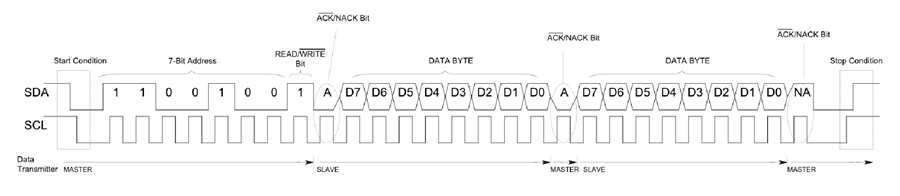
I2C Message Protocol

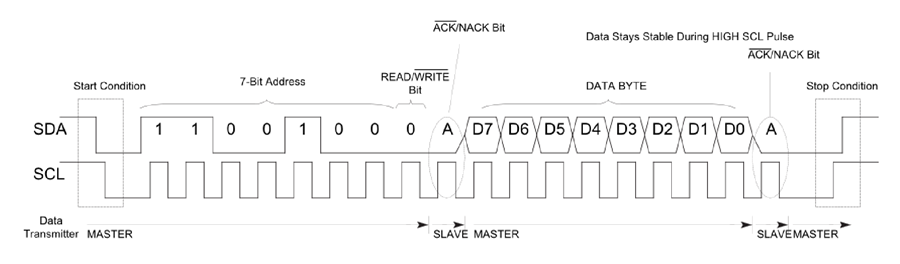
The I2C message protocol is divided bit by bit into fixed sections. In the following part of the article, we will take a closer look at the six different sections of the protocol.

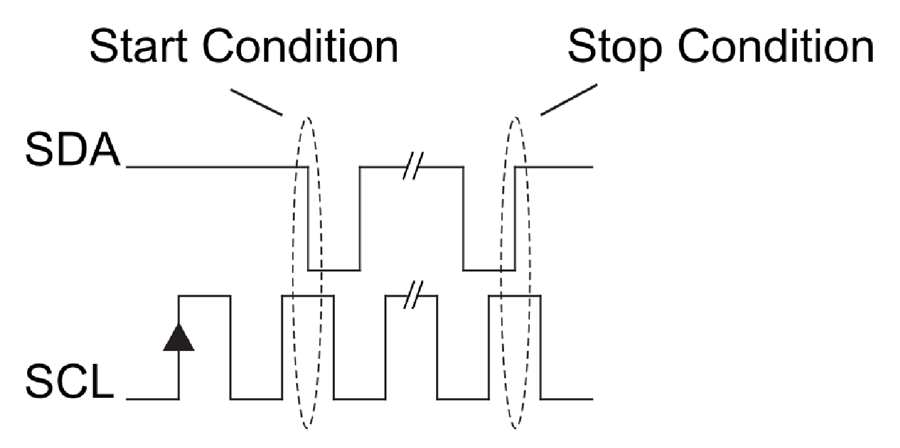
I2C start stop condition
  1. Start condition: SDA: HIGH → LOW while SCL is HIGH
  2. Stop condition: SDA: LOW → HIGH while SCL is HIGH

The start and the stop condition are the only two times in the whole I2C communication, where the SDA line changes when the SCL line is HIGH. In all other conditions the SDA line only changes state when the SCL line is LOW.

  1. Address Frame: The address frame is a 7 or 10 bit sequence to identify each slave for the master. The identifier is unique over all slaves. Each slave compares the address sent from the master to its own address. If the address matches, it sends a ACK bit → 0 back to the master. If the address doesn’t match, the slave does nothing and the SDA line remains high.
  2. Read/Write Bit
    • Write: Master is sending data to the slave: 0
    • Read: Master is requesting data from the slave: 1
  3. ACK/NACK Bit. If an address frame or data frame was successfully received, an ACK bit → 0 is returned to the sender from the receiving device.
  4. Data Frame: After the master detects the ACK bit from the slave, the first data frame is ready to be sent. The data frame is always 8 bits long and is followed by an ACK/NACK bit to verify that the frame has been received successfully. The master will continue generating clock pulses at a regular interval.

Because after every Data Frame a ACK /NACK bit is transferred, the I2C communicate protocol has a data overhead.

I2C Write Communication

I2C write

I2C Read Communication

I2C read

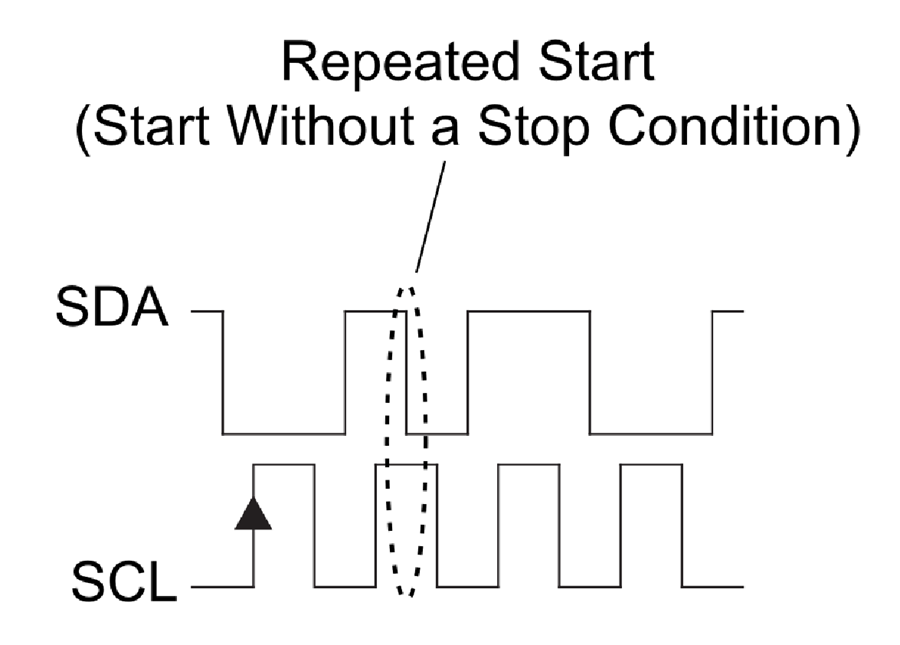
Repeated Start Conditions

I2C repeated start

It is possible for the master to exchange several messages in one go, without allowing an other master device take control over the bus. Therefore a repeated start condition is defines as the following:

  1. SCL 0 → 0
  2. SDA 0 → 1
  3. SCL 0 → 1
  4. SDA 1 → 0

Note that there was not Stop condition.

Clock stretching

In some cases the masters data rate will be exceed the slaves ability to provide the requested data. Therefore the slave can hold down the SCL line after the master releases the SCL line. The master will wait for the click line to be released by the slave before proceeding to the next frame.

Physical Layer

Unlike UART or SPI connections, the I2C bus drivers are “open drain”, meaning that they can pull the corresponding signal line low, but cannot drive it high. Therefore, there can be no communication where one device is trying to drive the line high while another tries to pull it low. This architecture avoids errors in the communication.

But how is it possible to pull the signal line high? Each signal line has a pull-up resistor to restore the signal to high when no device is asserting the line to low.
A rule of thumb picking a resistor is 4.7 kΩ. The more devices are connected to the I2C communication the smaller has to be the resistor.

I2C allows for some flexibility in connecting devices with different I/O voltages. For an Arduino board with a voltage level of 5V as master, a slave of 3.3V will be work without problems. But if the voltage of the slave will be lower than 3.3V for example 2.5V there is the possibility to buy a I2C level shifter board.

I2C Speed Modes

  • Low speed mode: 10 kbit/s
  • Standard mode: 100 kbit/s
  • Fast mode: 400 kbit/s
  • Fast mode plus: 1 Mbit/s
  • High speed mode: 3.4 Mbit/s
  • Ultra fast mode: 5 Mbit/s

Advantages and Disadvantages of I2C communication

Advantages

  • Only uses two wires
  • Supports multiple masters and multiple slaves
  • Well known and widely used protocol

Disadvantages

  • Slower data transfer rate than SPI
  • The size of the data frame is limited to 8 bits

I2C Examples

The following table gives you an overview of all components and parts that I used for this tutorial. I get commissions for purchases made through links in this table.

Arduino Uno Amazon Banggood AliExpress
OR ESP8266 NodeMCU Amazon Banggood AliExpress
OR ESP32 NodeMCU Amazon Banggood AliExpress
AND LCD Display 20×4 Amazon Banggood AliExpress
OR LCD Display 16×2 Amazon Banggood AliExpress

In the next section, we leave the theory behind us and attend to practical examples. Before we can control an I2C device, we first have to find out its HEX address. Therefore, our first example will be an I2C HEX address scanner. After we found out the HEX address of the I2C LCD display, we will control the display accordingly to send messages from the Arduino or NodeMCU via I2C to the LCD display.

The following pictures show the connection between Arduino Uno on the left side and NodeMCU on the right side with the I2C LCD display.

Arduino Uno

GND
5V
PIN18
PIN19

I2C LCD Display

GND
VCC
SDA
SLC

NodeMCU

GND
VIN
D2
D1

I2C LCD Display

GND
VCC
SDA
SLC

How to find the HEX Address?

#include "Wire.h"

The “Wire.h” library allows the microcontroller to communicate with I2C devices. Therefore this library is essential every time you want to use the I2C communication.

void setup(){
  Serial.begin(115200); 
  while(!Serial){} // Waiting for serial connection
 
  Serial.println();
  Serial.println("Start I2C scanner ...");
  Serial.print("\r\n");
  byte count = 0;

This sketch uses only the setup function, because we want only one time to scan all connected devices. First we define the baud rate to 115200 and we will memorize to set the baud rate of the serial monitor to the same value. Than we wait until the serial connection is established that we are able to scan devices. After we define some cool printings on the serial monitor, we define a variable count to zero. The variable will be increased when we find an I2C device and is therefore the sum of connected I2C devices.

  Wire.begin();
  for (byte i = 8; i < 120; i++)
  {
    Wire.beginTransmission(i);
    if (Wire.endTransmission() == 0)
      {
      Serial.print("Found I2C Device: ");
      Serial.print(" (0x");
      Serial.print(i, HEX);
      Serial.println(")");
      count++;
      delay(1);
      }
  }

With Wire.begin() the microcontroller joins the I2C bus as master or slave. If no address is provided in the function like Wire.begin(address), the device joins as master like we want. To scan all possible I2C HEX addresses we use a for loop. To begin the transmission to the possible I2C slave we use the Wire.beginTransmission(address) function. If there is a valid I2C slave we get a 0 by ending the transmission to the slave through Wire.endTransmission(). We print the HEX address of the connected device on the serial monitor. Also if we found an I2C device we increase the counter by 1 and use a little delay before trying to connect to the next device.

  Serial.print("\r\n");
  Serial.println("Finish I2C scanner");
  Serial.print("Found ");
  Serial.print(count, HEX);
  Serial.println(" Device(s).");
}

void loop() {}
At the end of the script we print the total number of found I2C devices. We do not use the loop function.

Feel free to copy the whole script in your Arduino IDE

#include "Wire.h"

void setup(){
  Serial.begin(115200); 
  while(!Serial){} // Waiting for serial connection
 
  Serial.println();
  Serial.println("Start I2C scanner ...");
  Serial.print("\r\n");
  byte count = 0;
  
  Wire.begin();
  for (byte i = 8; i < 120; i++)
  {
    Wire.beginTransmission(i);
    if (Wire.endTransmission() == 0)
      {
      Serial.print("Found I2C Device: ");
      Serial.print(" (0x");
      Serial.print(i, HEX);
      Serial.println(")");
      count++;
      delay(1);
      }
  }
  Serial.print("\r\n");
  Serial.println("Finish I2C scanner");
  Serial.print("Found ");
  Serial.print(count, HEX);
  Serial.println(" Device(s).");
}

void loop() {}

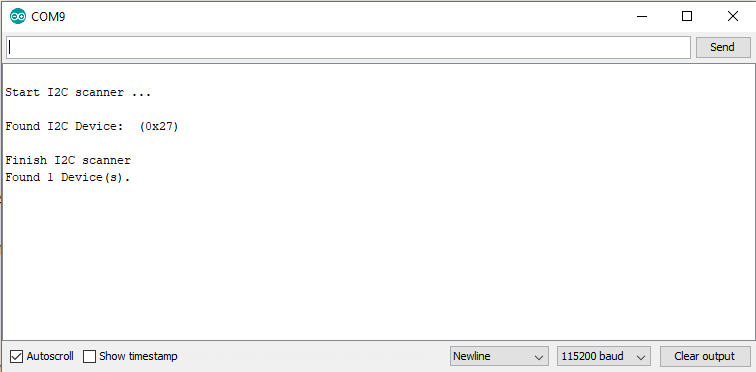
If we look at the serial monitor, the result is the following

I2C Scanner Serial Output
We found the connected I2C LCD display with the HEX address 0x27. We will need this address for our next example.

Control an LCD Display

With the I2C HEX scanner we found out that the HEX address of the LCD display is 0x27. Now we can program the script to communicate with the LCD display. For this sketch we need the LiquidCrystal_I2C library. There is also a separate article about the LCD display with deeper technical informations.

First we have to include the Wire library we know from the I2C HEX scanner code and the new library LiquidCrystal_I2C which takes the huge work to provide us a easy to use interface for the LCD display.
We have to define the HEX address of our display and what display we are using like 16×2 or 20×4. I use the 20×4 display in this example.

In the setup function we use lcd.init() to initialize the connection between the microcontroller and the display. After the initialization we have to turn the backlight on with lcd.backlight().

After the display is setup we can set the cursor to the position (column=1, row=0) and write our first part of the text. Then we set the cursor in the next row and write the rest of the string.

#include "Wire.h"
#include "LiquidCrystal_I2C.h"

// set the LCD address to 0x27 for a 16 chars and 2 line display
LiquidCrystal_I2C lcd(0x27, 20, 4); 

void setup()
{
  lcd.init();

  lcd.backlight();
  lcd.setCursor(1, 0);
  lcd.print("This is");
  lcd.setCursor(1, 1);
  lcd.print("DIYI0T.com");
}

void loop(){}
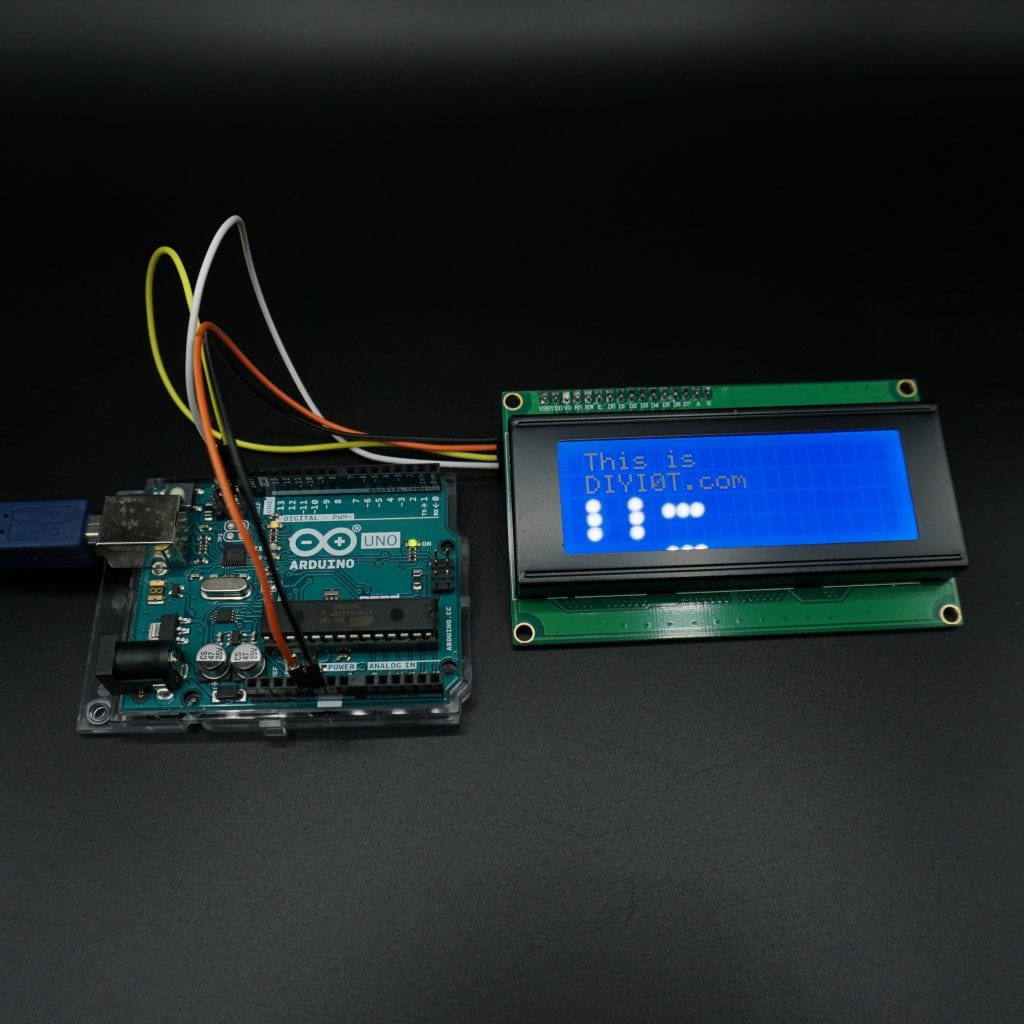
LCD example

I2C Multiplexer

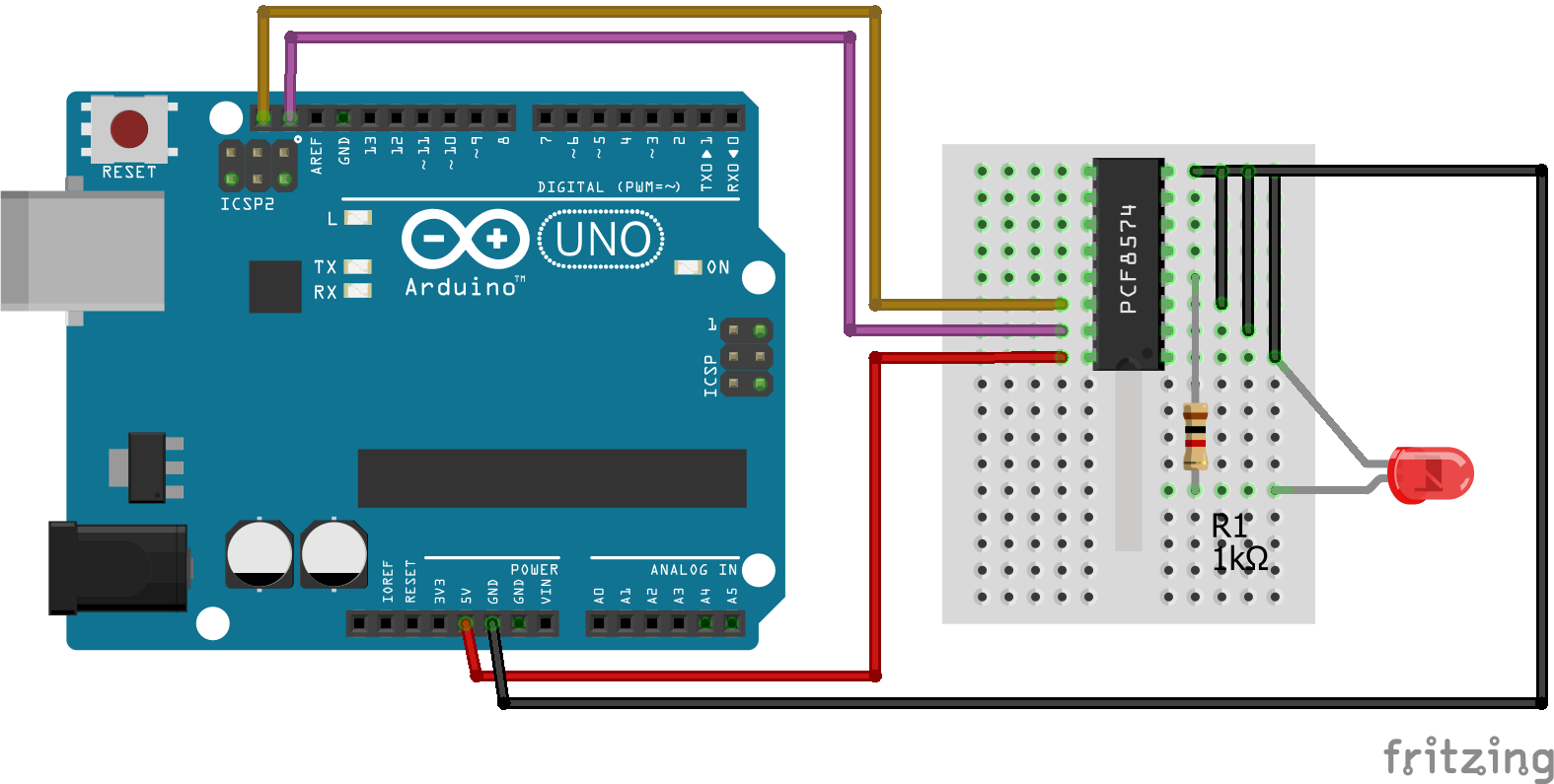
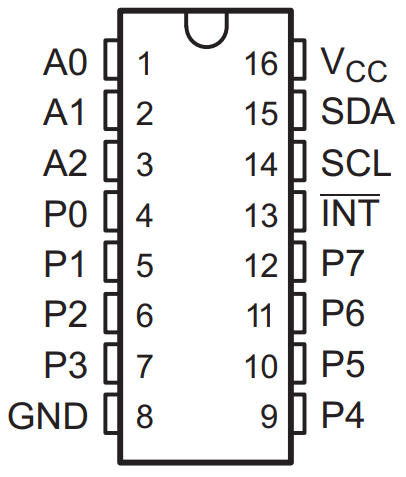
If you want to connect a lot of sensors to your Arduino and your normal I2C connection comes to a limit? Maybe the sensors have the same I2C address. The solution to your problem is the PCF8574 1-to-8 I2C expander. The PCF8574 Breakout enables communication with multiple I2C devices that have the same address making it simple to interface with them. PCF8574 is an eight-channel I2C expander which allows eight separate I2C devices to be controlled by a single host I2C bus.

The PCF8574 is a 8-bit input/output (I/O) expander for the two-line bidirectional bus (I2C) and designed for operation voltages between 2.5V and 6V. The standby current consumption is very low with 10μA.

The PCF8574 is connected to the Arduino as follows:

VCC -> 5V
GND -> GND
SDA -> PIN18
SCL -> PIN19

P0…P7 are the P-port input/output with push-pull design structure. Here you connect your I2C devices to the PCF8574. We connected the LED on P0.

A0…A2 are address inputs for the PCF8574 itself. We do not need them and therefore connect them with GND.

Click here, if you want to look at the complete datasheet of the PCF8574.

PCF8574

The program code for the scanner and the control of the device is the same as above.

If you like to know how you can reduce the number of input pins for a keypad from 8 to only 2 I2C pins, with the help of the I2C multiplexer, then visit the keypad tutorial for Arduino, ESP32 and ESP8266.

Microcontroller Comparison

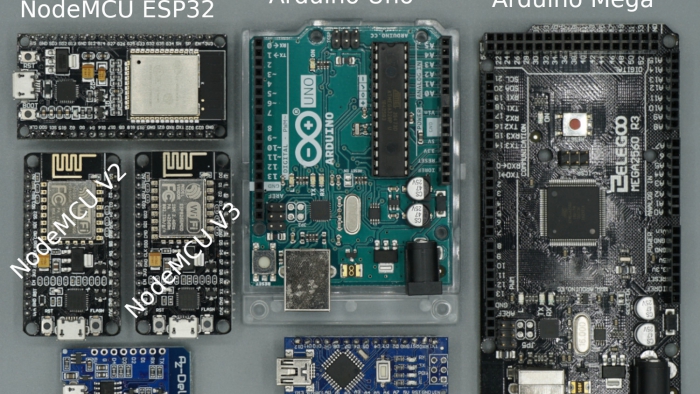
Arduino vs ESP8266 vs ESP32 Microcontroller Comparison

Arduino vs ESP8266 vs ESP32 Comparison

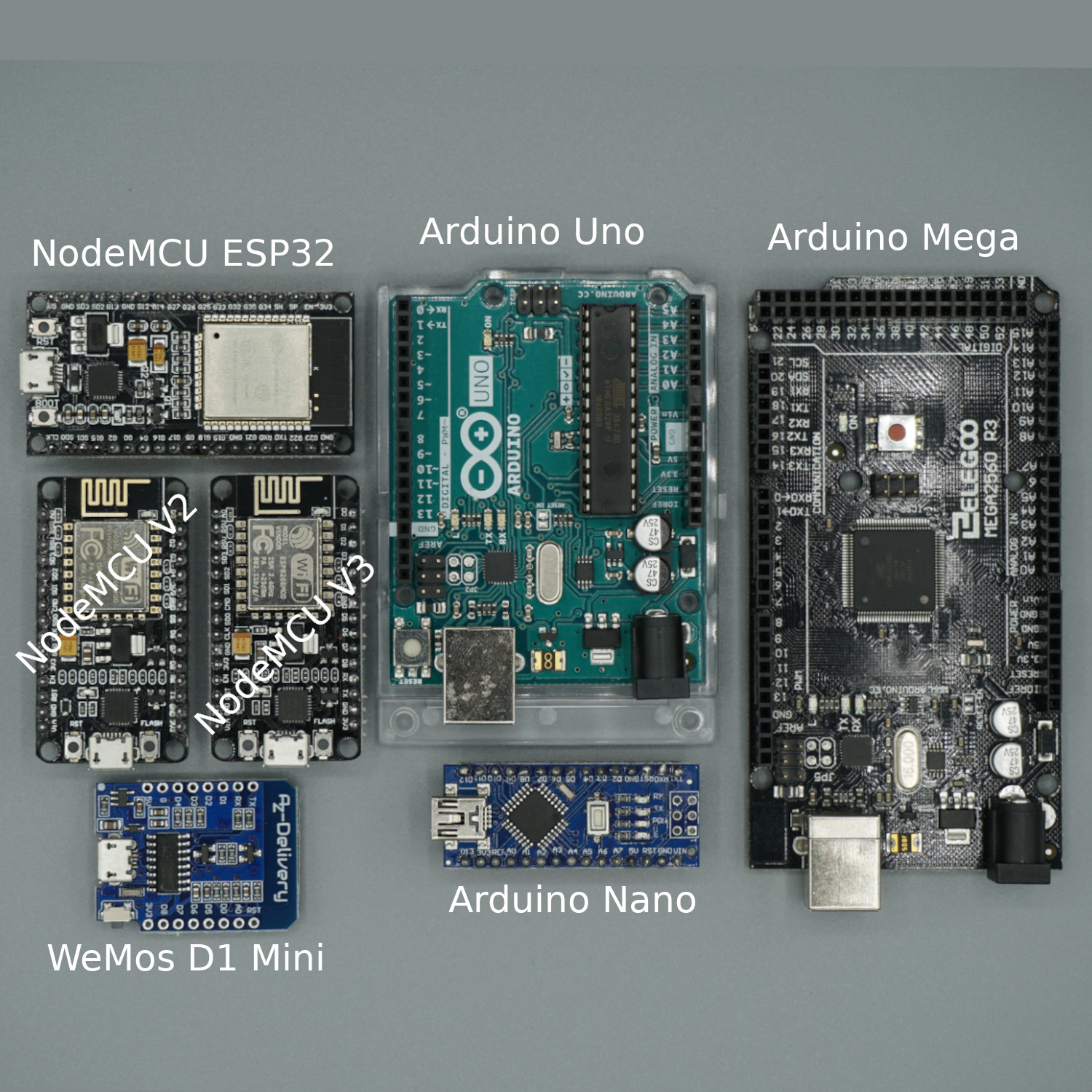
In this microcontroller comparison I compare in total 8 different boards and I give you my suggestion, which board to use based on different use cases.

I will give you an overview of different Arduino boards which are the most popular boards on the market as well as ESP32 and ESP8266 boards which are also very often used.

Let’s start and dive deeper into the datasheets in this microcontroller comparison.

Microcontroller Comparison

Table of Contents

Operating voltage

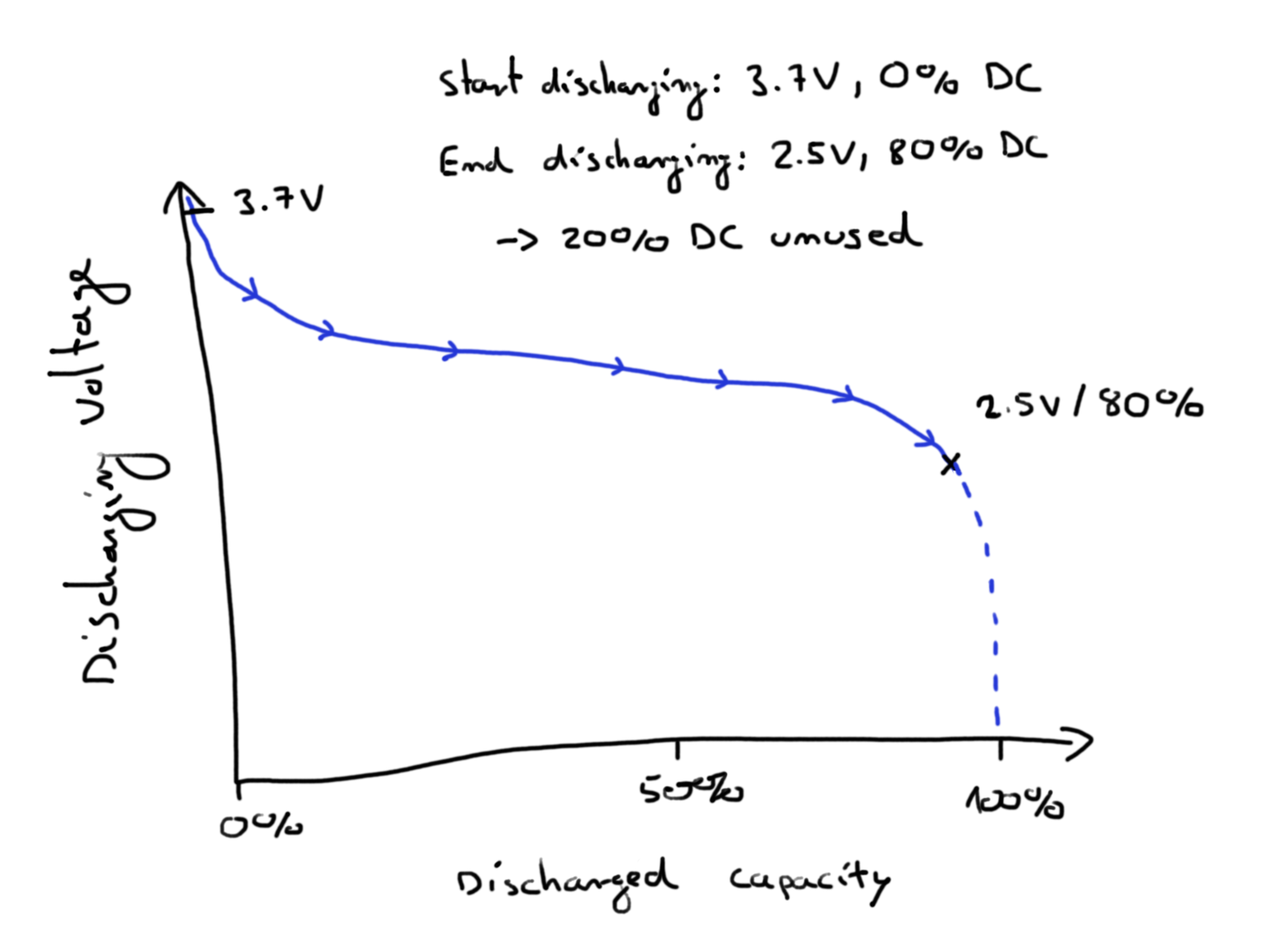
The operating voltage of the ESP microprocessors is 3.3 V compared to the Arduino operating voltage of 5V. If the boards are used while connected to the socket, there will be no difference in the power consumption because the current will be reduced to gather the same amount of power. In case of a battery powered use case the difference will be much greater because if the battery discharging curve falls below the operating voltage, the microprocessor will shut down.

Therefore the boards based on the ESP will have a longer operation time because these boards could operate under 4 V, while at 4 V the Arduino boards have been shut down.

Discharging Curve

Power supply

The power supply from the ESP8266 boards are between 2.5 V to 12 V based on the different boards. Arduino boards have a higher power supply between 7 V and 12 V. In practice the difference will not have a big impact.

Current consumption

The current consumption is important for battery based projects to increase the lifetime of the project. In general the NodeMCUs based on the ESP8266 microprocessor have a very low current consumption between 15 µA and 400 mA which can be further reduced with the deep sleep mode activated to 0.5 µA. The current consumption is therefore a factor 70,000 higher in deep sleep mode for the Arduino Uno with 35 mA. In general I always prefer ESP based boards when a battery is the power supply.

If you want to learn how to reduce the power consumption of the boards, there are exclusive articles about this topic

Digital I/O, PWM and Analog Pins

  • Digital I/O Pins: The difference between all boards regarding the digital I/O pins is nearly zero. The only difference is, that the big boards, like the NodeMCU ESP32 (36) and of cause the biggest board, the Arduino MEGA R3 (54) has a lot of digital I/O pins.
  • PWM Pins: The ESP based boards have a better ratio between digital I/O pins and PWM pins, because the PWM is used by a digital pin. In my opinion, all boards have a sufficient amount of PWM pins.
  • Analog Pins: This is the main drawback in my opinion for the NodeMCUs. Because they have ether only 1 or 2 analog input pins. Of cause you can by an IC as multiplexer but I think it is easier to use of you have the right amount of analog pins directly on the board itself. The Arduino boards have a good amount of analog input pins between 5 and 15.

SPI/I2C/I2S/UART

  • SPI (Serial Peripheral Interface) communication protocol to send data between microcontroller. It is a synchronous data bus, meaning it uses a clock to regulate the data transfer. If you want to know more about SPI, click here.
  • I2C communication protocol most used to send and receive data from other devices like OLED displays, barometric pressure sensors and so on. If you want to know more about I2C, click here.
  • I2S (Inter-IC Sound), is an electrical serial bus interface standard used for connecting digital audio devices together. If you want to know more about I2S, click here.
  • UART (Universal Asynchronous Receiver/Transmitter) is not a communication protocol like SPI and I2C, but a physical circuit in a microcontroller. The main purpose is to transmit and receive serial data. If you want to know more about UART, click here.

How many of there pins you need is very strong depending from you use case. Generally does the ESP based boards and the Arduino boards at least one pin for these data transfer connections. But the ESP boards have mostly a second pin for the communication.

DC Current per Pin

The current the board provides does not matter. Arduino, ESP boards or Raspberry Pi or any other microcontroller comparison board are designed to control devices and not to provide these devices with power. There are a lot of devices like LEDs, displays and so on which can be powered by the board. But there are a lot of other devices like motors, which need much more power than a microcontroller can provide. Therefore you can always power the devices from an external power supply.

Flash Memory and SRAM

  • Flash memory (program space), is where the Arduino sketch is stored.
  • SRAM (static random access memory) is where the sketch creates and manipulates variables when it runs.
  • EEPROM is memory space that programmers can use to store long-term information.

Flash memory and EEPROM memory are non-volatile (the information persists after the power is turned off). SRAM is volatile and will be lost when the power is cycled.

Clock Speed

The Arduino boards are all running with 16 MHz which means that the microprocessor can execute up to 16 million instructions per second. This may sound like a lot but when you consider that a simple setting digital pin to high can take over 50 clock cycles. ESP based boards are much faster with a clock speed of 52 MHz up to 160 MHz for the ESP32. This is 10 times faster. So if you plan a big project with many operations you should go with the ESP based boards.

WIFI

Generally bad news for Arduino board user and good news for ESP boards. The Arduino Uno exists in two version. One without WiFi and one WiFi included on the board. But no worries, because there are plenty of possibilities to use WiFi despite there is no WiFi chip onboard. Either you can use a Arduino WiFi shield or you can connect the Arduino board with a ESP-01, with as WiFi included.

Size

In this microcontroller comparison we look at different sizes of boards with one big impact factor on the size: the total number of pins. The more pins the board has, the larger the board will be. Generally are the ESP based boards like the NodeMCU smaller than the Arduino boards and will fit onto a breadboard. Depending on you project the size will matter or not.

Price

The battle of price will will the ESP based boards because they are very cheap around $7. The original Arduino boards will start around $22 but you will find boards with the same configuration around $12. If you want to save some money, go with the NodeMCU boards or boards which are modeled after the original Arduino boards.

The following table gives you an overview of all components and parts that I used for this tutorial. I get commissions for purchases made through links in this table.

Arduino Nano Amazon Banggood AliExpress
Arduino Uno Amazon Banggood AliExpress
Arduino Mega R3 Amazon Banggood AliExpress
ESP8266 NodeMCU Amazon Banggood AliExpress
ESP8266 WeMos D1 Mini Amazon Banggood AliExpress
ESP32 NodeMCU Amazon Banggood AliExpress

Conclusion of the microcontroller comparison

 ESP8266 NodeMCU V2NodeMCU V3ESP32 NodeMCUESP8266 WeMos D1 MiniArduino NANO 3Arduino UNO R3Arduino UNO WIFI R2Arduino MEGA R3
MicrocontrollerESP8266ESP8266ESP32ESP8266ATmega328pATmega328pATmega4809ATmega2560
Operating Voltage3.3V3.3V3.3V3.3V5V5V5V5V
Power supply7V – 12V7V – 12V7V – 12V4V – 6V7V – 12V7V – 12V7V – 12V7V – 12V
Current consumption15 µA – 400 mA15 µA – 400 mA20 mA – 240 mA 19 mA – 180 mA45 mA – 80 mA50 mA – 150 mA50 mA – 200 mA
Current consumption Deep Sleep0.5 µA0.5 µA5 µA 23 µA (with special settings)35 mA35 mA500 µA
Digital I/O Pins11 or 1316361114141454
Digital I/O Pins with PWM11 or 1316361166515
Analog Input Pins1115186616
SPI/I2C/I2S/UART2/1/2/22/1/2/24/2/2/21/1/1/11/1/1/11/1/1/11/1/1/11/1/1/4
DC Current per I/O Pin12 mA12 mA20 mA 40 mA40 mA40 mA20 mA
DC Current for 3.3V Pin  40 mA 50 mA150 mA150 mA150 mA
Flash Memory4 MB4 MB4 MB4 MB32 KB32 KB48 KB256 KB
SRAMn.A64 KB520 KB 2 KB2 KB6 KB8 KB
EEPROM512 bytes512 bytes 1024 bytes1024 bytes256 bytes4096 bytes
Clock Speed52 MHz80 MHz80 MHz / 160 MHz80 MHz / 160 MHz16 MHz16 MHz16 MHz16 MHz
Length48 mm58 mm52 mm3445 mm69 mm69 mm102 mm
Width26 mm31 mm31 mm2618 mm53 mm53 mm53 mm
WIFIyesyesyesyesnonoyesno
Bluetoothnonoyesnonononono
Touch sensornono10nonononono
CANnonoyesnonononono
Ethernet MAC Interfacenonoyesnonononono
Temperature Sensornonoyesnonononono
Hall effect sensornonoyesnonononono
Power jacknononononoyesyesyes
USB connectionyesyesyesyesyesyesyesyes
Price$6$6.50$11$6$22$22$44.90$38.50

What is the best microcontroller in this microcontroller comparison? In my opinion there are only few use cases where you should not go with an ESP based board. The ESP based boards are fast, have a low power consumption, a high memory and WiFi build in. Also the price is very low. The only use case I can think the Arduino boards are better is when it come to analog inputs. If you want to read a lot of analog input values and you do not want to use a multiplexer, than you should go with an Arduino board.

ESP32 thumbnail

ESP32 tutorial: What do you have to know about the ESP32 microcontroller?

ESP32 Tutorial: What do you have to know about the ESP32 microcontroller?

There is a follow-up model of the ESP8266, a very powerful microcontroller with a low purchasing price:

The ESP32 also produced by Espressif Systems. 

In this tutorial you learn :

  • Technical specifications of the ESP32
  • Pinout of the ESP32
  • Power supply of the ESP32, also including powering with a battery
  • Power modes and power consumption of the ESP32
  • Configure the ESP32 board in the Arduino IDE

Table of Contents

What is the ESP32?

The ESP32 is a powerful 32 bit microcontroller with integrated Wi-Fi, full TCP/IP stack for internet connection and Bluetooth 4.2. Due to the low cost combined with great power and the opportunity to connect the ESP32 to many other electronic devices, the microcontroller is well suited for IoT projects.

Technical specifications of the ESP32

  • TTensilica Xtensa 32-bit LX6 microprocessor with 2 cores
  • Power supply: 2.3V – 3.6V
  • Current consumption: 20µA – 240mA. In DeepSleep-Mode only 5µA
  • Operating temperature range: -40°C – 125°C
  • External flash memory: up to 16 MB is supported
  • Interfaces
    • UART/SDIO/SPI/I2C/I2S/IR Remote Control
    • 36 programmable I/O pins max 20mA
    • 2 analog input 0V to 1V with 12 bit resolution
    • all inputs tolerate maximum 3.6V
  • Network
    • WiFi
      • WiFi 802.11 b/g/n 2.4 GHz with WPA/WPA2 PSK
      • ipv4 and ipv6 from Arduino Core 2.5.0
      • UDP and TCP with 5 simultaneous connections as maximum
      • Bandwidth: 150 to 300 kByte/s
      • Latency: < 10ms
    • Bluetooth: v4.2 BR/EDR and Bluetooth Low Energy (BLE)

If you want a full comparison of the technical specifications of the ESP32 against the ESP8266 boards and different Arduino boards, you will find this comparison in this article.

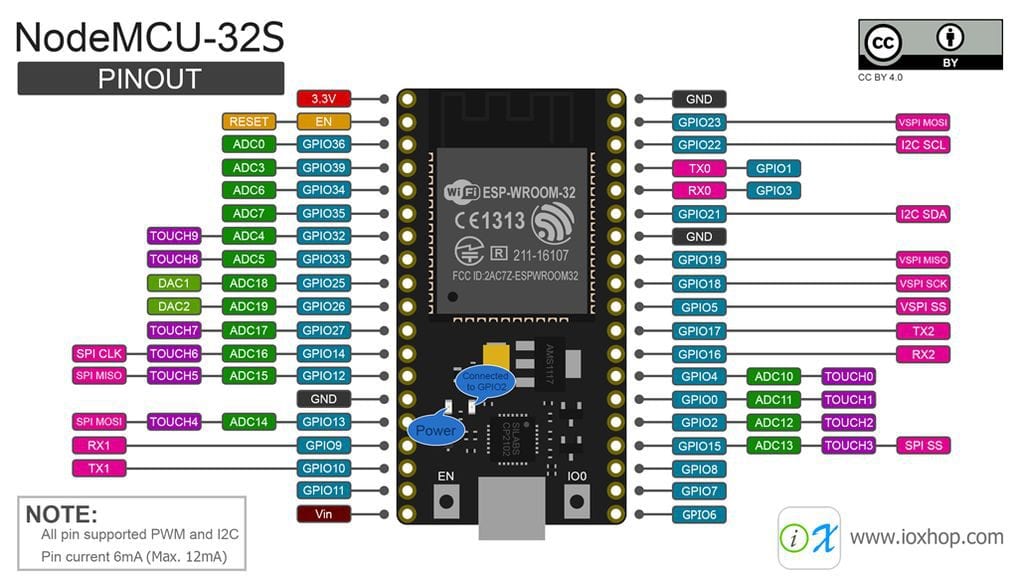
Pinout of the ESP32 NodeMCU

ESP32 pinout
WordPress Tables Plugin

Power supply of the ESP32 NodeMCU

When we want to know what possibilities we have to supply power to the ESP32, we have to understand what are the different voltage levels on the PCB, starting from the supply pins and ending at the microprocessor itself.

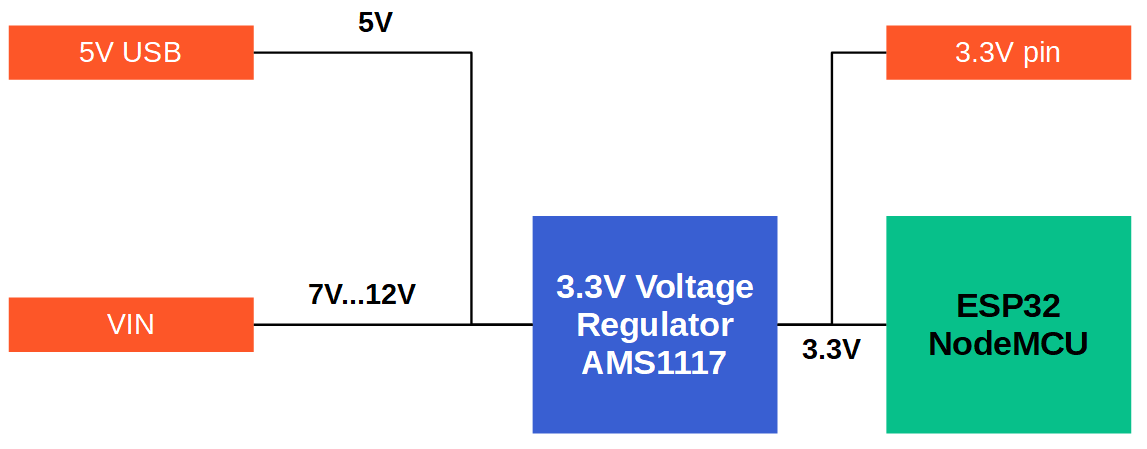
The following picture shows a schematic picture of the voltage levels on the ESP32 NodeMCU. The additional tables show the voltage related specifications of the microprocessor and the voltage regulator.

ESP32 voltage overview

Microcontroller

Minimum Voltage

Typical Voltage

Maximum Voltage

ESP32

2.3V

3.3V

3.6V

Voltage Regulator

Output Voltage

Maximum Input Voltage

Maximum Output Current

AMS1117

3.3V

15V

1A

The first and also the easiest possibility for a power supply is the 5V USB cable. But because the ESP32 runs on 3.3V, there is a built-in voltage regulator to transform the 5V of the USB connection to the desired 3.3V. The 3.3V pin of the NodeMCU PCB is also powered from this connection.

The second possibility is to use the VIN pin of the NodeMCU as input for the power supply. The AMS1117 voltage regulator has a maximum input voltage of 15V but in this case the regulator produces a lot of heat because the regulator has no heat sink or cooling fan for heat dissipation. Therefore a voltage between 7V and 12V is recommended when the ESP32 is powered by the VIN pin.

There are also multiple options to power the ESP32 with different kinds off batteries. This is particular interesting when you want to build a project that independent of a normal power supply like an outdoor weather station.

If the maximum voltage of the battery is higher than the maximum voltage of the ESP32 (3.6V), you have to use a voltage regulator to reduce the voltage to 3.3V. The output of the voltage regulator is then connected to the 3.3V pin of the ESP32 board.

My recommendation for a battery power supply is the LiFePO4 battery, because you do not need any extra voltage regulator between the ESP32 and the battery and they are rechargeable. Also LiFePO4 batteries have a capacity up to 6,000mAh, similar to LiPo and Li-ion batteries that gives your project a long lifetime in combination with a power mode that reduces the power consumption to a minimum.

Power modes and power consumption of the ESP32

When Wi-Fi is enabled, the chip switches between Active and Modem-sleep modes. Therefore, power consumption changes accordingly.

WordPress Tables Plugin

RTC = Real Time Clock
ULP co-processor = Ultra-Low-Power Co-processor

Active mode
The chip radio is powered on. The chip can receive, transmit, or listen.

Modem-sleep mode
The CPU is operational and the clock is configurable. The Wi-Fi/Bluetooth base-band and radio are disabled. In Modem-sleep mode, the CPU frequency changes automatically. The frequency depends on the CPU load and the peripherals used.

Light-sleep mode
The CPU is paused. The RTC memory and RTC peripherals, as well as the ULP co-processor are running. Any wake-up events (MAC, host, RTC timer, or external interrupts) will wake up the chip.

Deep-sleep mode
Only the RTC memory and RTC peripherals are powered on. Wi-Fi and Bluetooth connection data are stored in the RTC memory. The ULP co-processor is functional.

Hibernation mode
The internal 8 MHz oscillator and ULP co-processor are disabled. The RTC recovery memory is powered down. Only one RTC timer on the slow clock and certain RTC GPIOs are active. The RTC timer or the RTC GPIOs can wake up the chip from the Hibernation mode.

Select the ESP32 board in the Arduino IDE

  1. Make sure you have the latest version of the Arduino IDE installed. You can download the last version of the official website.
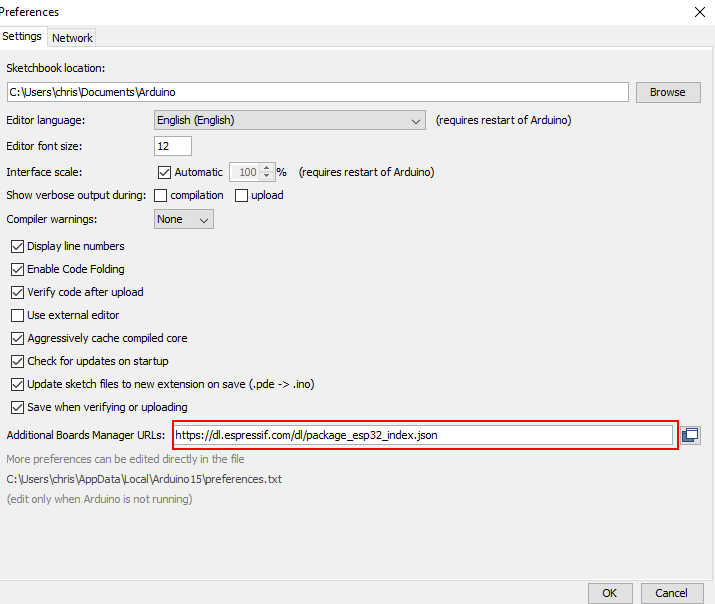
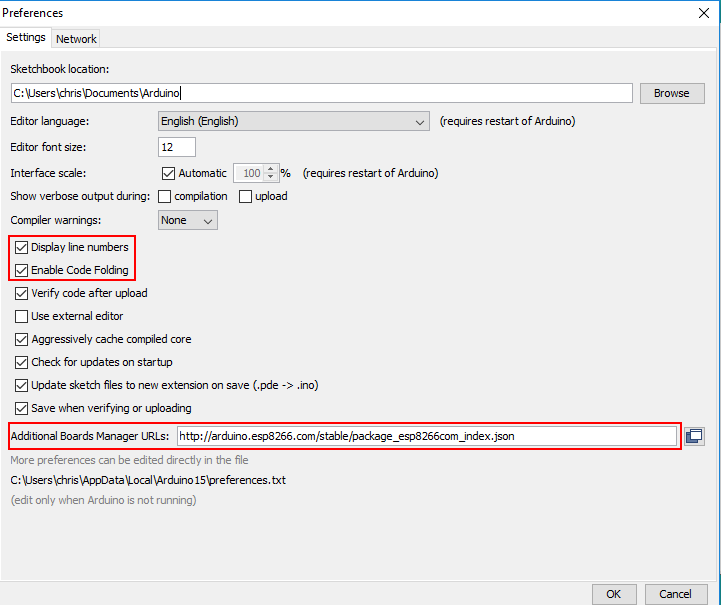
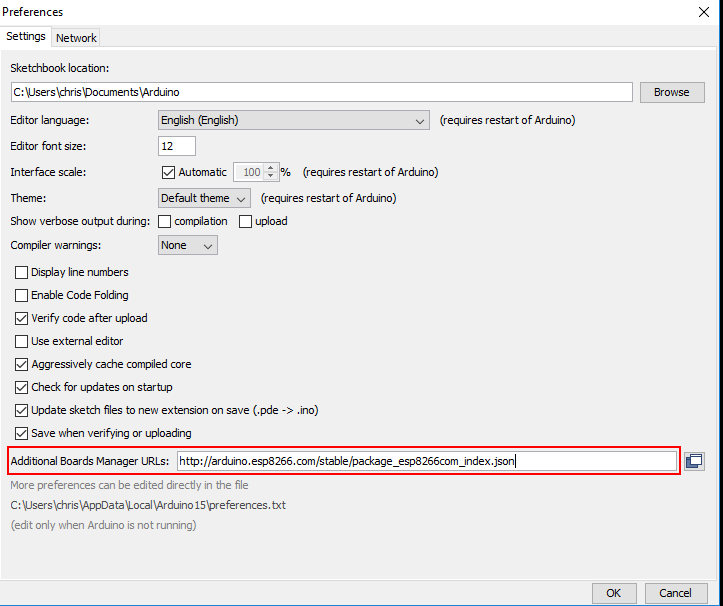
  2. The Arduino IDE supports a whole range of different Arduino boards after installation. Since we do not want to program an Arduino board but the NodeMCU board we have to introduce the NodeMCU board to the IDE. This is quite easy. Just klick on File → Preferences. Insert the following URL for the Additional Board Manager URLs.

https://dl.espressif.com/dl/package_esp32_index.json

Arduino IDE Preferences
ESP32 Board Manager URL

If you already have the ESP8266 boards URL, you can separate the URLs with a comma as follows:
https://dl.espressif.com/dl/package_esp32_index.json, http://arduino.esp8266.com/stable/package_esp8266com_index.json

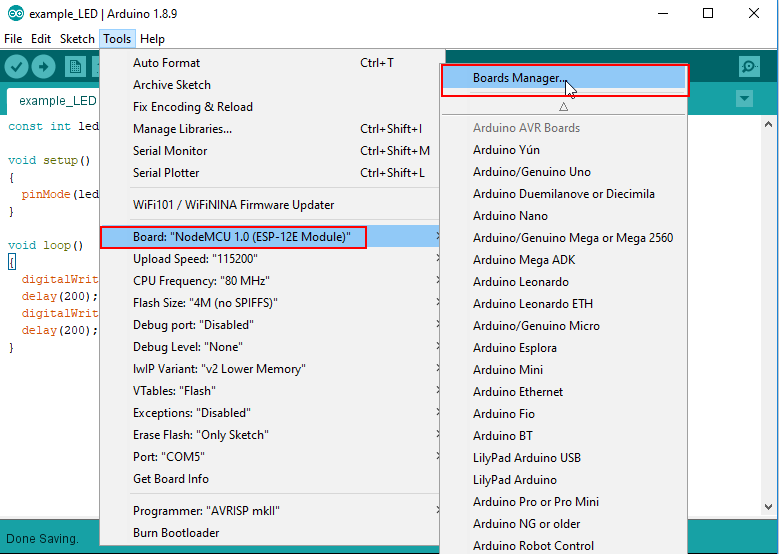
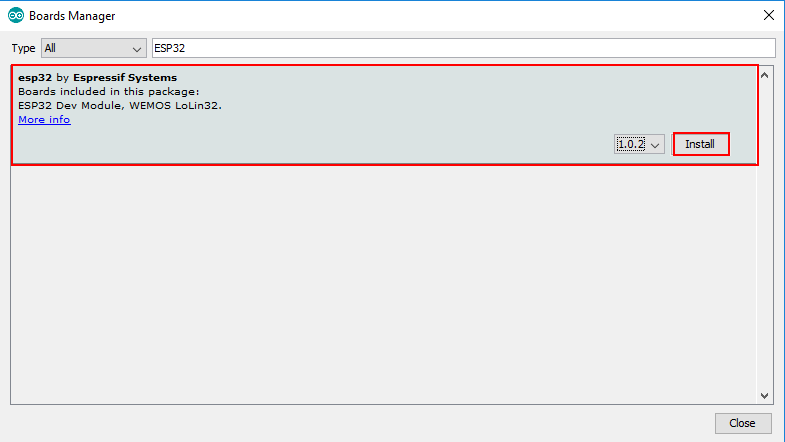
  1. Now we have to install the ESP32 drivers. Open the boards manager and go to Tools > Board > Boards Manager. Search for ESP32 and press install button for the “ESP32 by Espressif Systems“
Arduino IDE Board Manager
Arduino IDE Board Manager ESP32

Conclusion

In my opinion the ESP32 is a powerful microcontroller compared with an intuitive handling if you are familiar with the ESP8266. The only downside in my opinion is the width of the board because like the NodeMCU V3 it does not fit on the standard breadboard. Do you tried the ESP32 and what do you think about it? Leave a comment below.

ESP8266 Overall Measurement

How to reduce the ESP8266 power consumption?

How to reduce the ESP8266 power consumption?

With the different power saving modes, you can reduce the power consumption of your ESP8266 by 64%.

If you plan to use a battery as power supply for your next project, read the following article that explains the different power modes, modem-sleep, light-sleep and deep-sleep for the ESP8266.

You learn how to use each power mode and how much power you can save.

ESP8266 power modes

Table of Contents

Why are the ESP8266 power consumption important?

The ESP8266 power consumption is between 15µA and 400mA depending on different use cases.
In idle state with powered WiFi the NodeMCU V2 has a current consumption around 70mA. With an operating voltage of 3.3V a NodeMCU V2 needs the following power in idle state:

W = U * I = 3.3V * 70mA = 231mW

Therefore the energy consumption per year for a NodeMCU is: E = W * 365 * 24 = 2.024 kWh
I live in Germany, where the costs per kWh are around USD 0.34. If I want to build a weather station with one NodeMCU I have electricity costs of more than USD 0.7 per year, which is nearly nothing. So why is the power consumption relevant, when the costs are below USD 1 per year?

If you want to build an outdoor weather station and operate the whole system with a battery, than you have to worry about the power consumption. If you buy a Lithium battery with 1000mAh (Operation voltage: 3.7V), how long will it take until you have to change the battery pack?

T = 1000mAh / 70mA = 14.3h

So you have to change the battery every day. That does not make sense. Moreover it is only the theory that you can use the whole energy of the battery. There are three major influences that will reduce the theoretical lifetime of your system.

  1. The ESP8266 need a minimum supply voltage of 2.5V
    During the discharge the supply voltage of the battery will drop from 3.7V to 0V. If the supply voltage drop below 2.5V, the ESP8266 will shut down and not turn on again. You have to recharge the battery. Therefore if the technical specifications your battery are 1000mAh you will never use the full 1000mAh.
    The following picture shows the discharging curve of a battery. Depending on the battery at first we see a step voltage drop followed by a nearly steady trend of the voltage. If around 70% to 80% of the capacity is used, the voltage drops significant and will fall under the operation voltage of the ESP8266.
Discharging Curve
  1. The system will not always stay in idle mode. You will have to run a task once in a while, maybe where the board has to send data to a server. Therefore there will be short time intervals, where the power consumption will be high.
  2. Every battery has a calendric aging based on the cell chemicals and the temperatures around the battery which reduces the usable capacity of the battery over time.

Options to extend the time between charging the battery

You have two options to extend the time to charge the battery pack.

  1. Buy a battery with a higher capacity.
  2. Reduce the power consumption of the ESP8266 microcontroller.

1) Let us assume you buy a battery with 6000 mAh instead of 1000 mAh. I bought such a battery for my own outdoor weather station. You will extend the lifetime of the system by a factor of 6. So you will have to change the battery every 89 hours which results in 3.6 days. I think we both agree that the problem of the external power supply is not solved. We have to reduce the power consumption of the ESP8266.

2) Lets dive deeper into the ESP8266 power consumption. The ESP8266 has several sleeping modes and power solutions related to these modes. In total there are three different sleep modes. The source of the following table is the manual of the producer of the ESP8266 Espressif.

RTC: Real-Time Clock
DTIM: Delivery Traffic Indication Message


Modem-sleep

Light-sleep

Deep-sleep

Wi-Fi

OFF

OFF

OFF

System clock

ON

OFF

OFF

RTC

ON

ON

ON

CPU

ON

Pending

OFF

Substrate current

15 mA

0.4 mA

20 µA

Average current DTIM = 1

16.2 mA

1.8 mA


Average current DTIM = 2

15.4 mA

0.9 mA


Average current DTIM = 3

15.2 mA

0.55 mA


Remember that these are values directly from the datasheet and we do not know under which conditions these low values are measured. Therefore I created my own experiment to compare the different power saving modes. The NodeMCU was powered with a constant voltage of 9V and the WeMos D1 Mini on 6.5V. The absolute values are aggregated and therefore have no real unit. Based on these aggregated values, the reduction of power consumption in percent is calculated.

If you do not want to go in detail, the following table shows the overall results for the ESP8266 NodeMCU and WeMos D1 Mini.


ESP8266 NodeMCU

ESP8266 WeMos D1 Mini

Reference

39.58

37.81

Modem-sleep

35.61 (-10.02%)

27.10 (-28.32%)

Deep-sleep

22.03 (-44.34%)

13.69 (-63.80%)

The following article explains in detail the different power saving modes as well as how the experiment was implemented and executed.

Experiment to measure the influence of Power Modes

The following table gives you an overview of all components and parts that I used for this tutorial. I get commissions for purchases made through links in this table.

 ESP8266 NodeMCUAmazonBanggoodAliExpress
ANDESP8266 WeMos D1 MiniAmazonBanggoodAliExpress

In this tutorial I want also measure the current consumption that can be saved using different power modes. Therefore I created two experiments:

  1. Measure the detailed current consumption of one iteration in the an example program to get an indication what are the steps in the program code that causes high current draw.
  2. Measure the average current consumption of multiple iterations of the example to reduce the influence of outliers in the measurement.

For this experiment I want not only know the influence of the different power modes, but also the difference in the power consumption between the ESP8266 NodeMCU and the ESP8266 WeMos D1 Mini. Therefore I did every measurement for both microcontrollers.

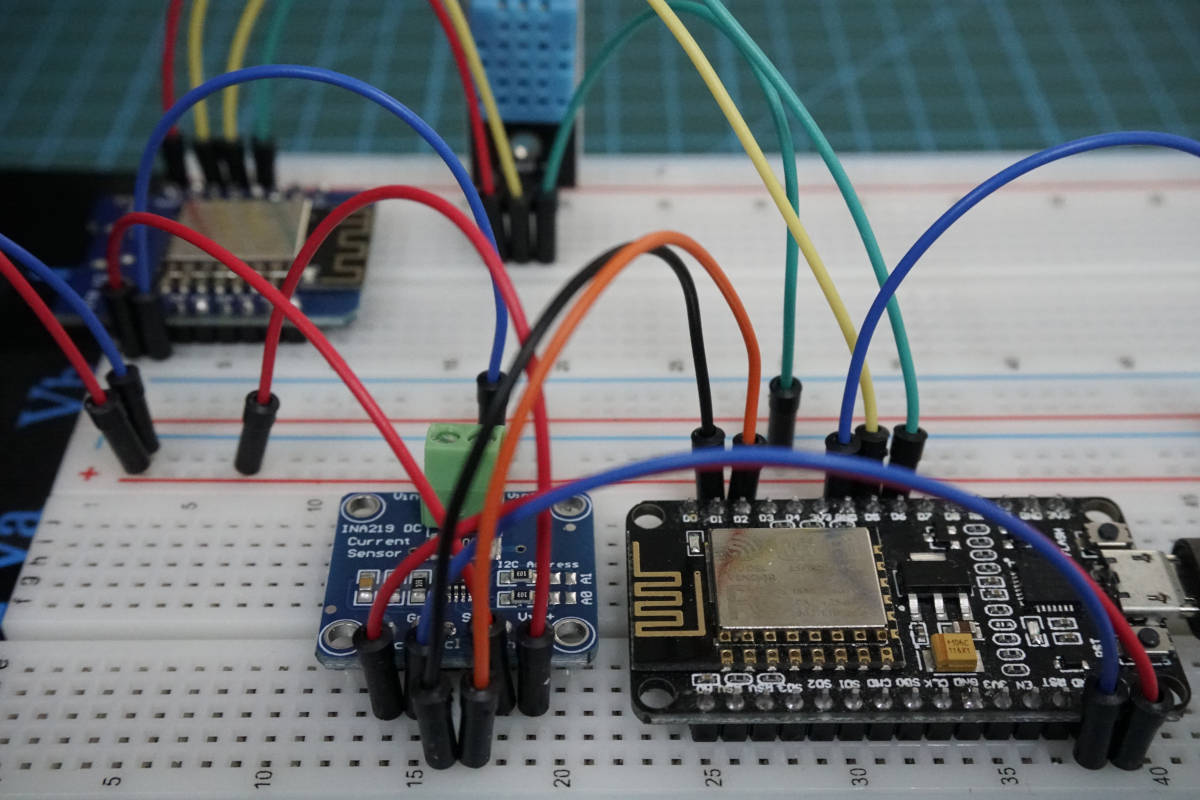
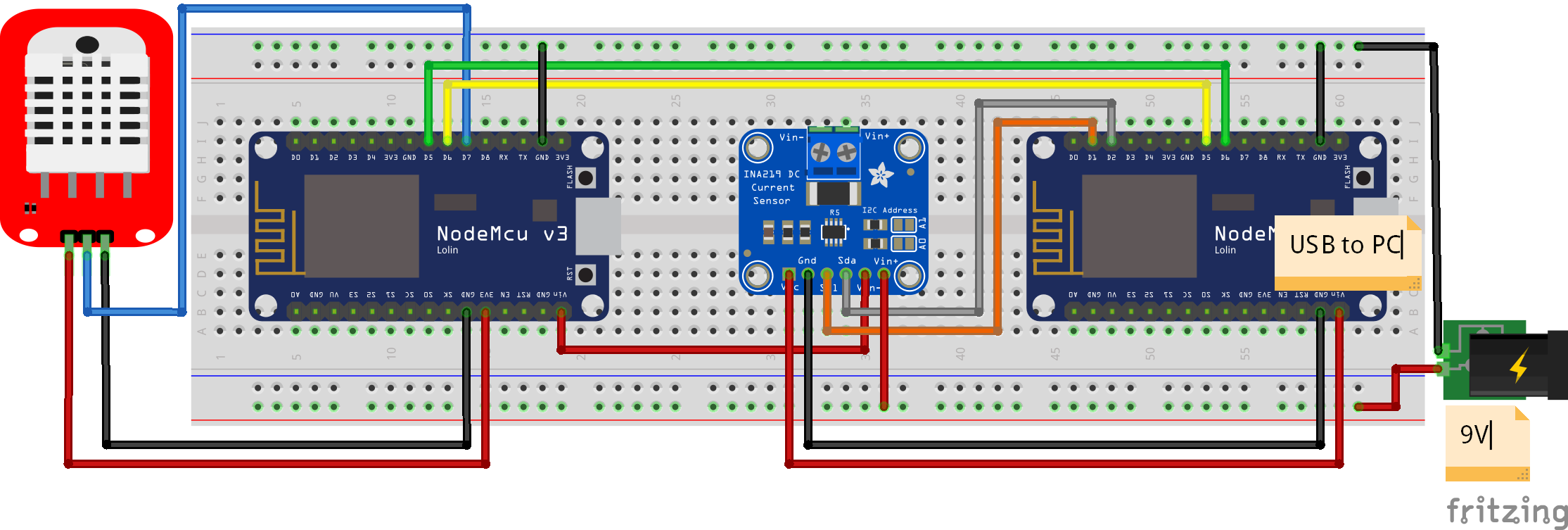
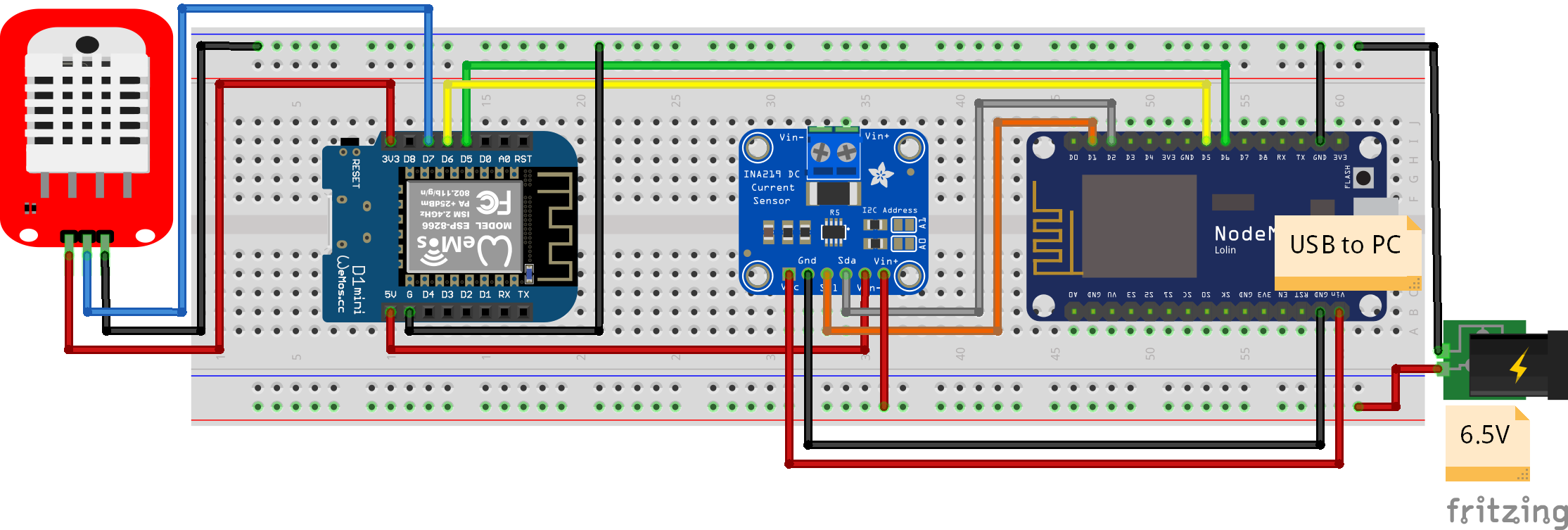
The following picture shows the wiring for the NodeMCU and the WeMos D1 Mini.

If you use the deep sleep mode, you have to connect D0 with RST on the ESP8266 NodeMCU and also on the ESP8266 WeMos D1 Mini.

On the left part of the fritzing picture you see the wiring between the tested microcontroller and the DHT22 temperature and humidity sensor module. The microcontroller is connected via UART communication with a NodeMCU that is connected via USB to the PC to record the measurements and to get a stable power, independent of the tested circuit.

To measure the current consumption, I use the INA219 current and voltage sensor, that I describe in detail in the INA219 tutorial. The ESP8266 NodeMCU on the right side of the picture is connected to the INA219 via I2C. The INA219 is connected in series to the tested microcontroller and an external power supply that is adjusted to 9V for the ESP8266 NodeMCU and to 6.5V for the ESP8266 WeMos D1 Mini.

ESP8266 Power Modes Arduino Scripts

You can download all scripts at the end of this tutorial with the download button. The following table shows all the scripts, that are in the download folder and also how to combine the two scripts you need for each experiment.


Measuring the current consumption of the ESP8266 NodeMCU or WeMos D1 Mini over multiple cycles

Measuring the current consumption of the ESP8266 NodeMCU or WeMos D1 Mini over one cycle in detail

ESP8266 NodeMCU to measure the current consumption

Measure_Current_Average

Measure_Current_Detail

OR

Reference experiment

Consumer_Reference

Consumer_Reference_Details

OR

Influence of modem-sleep

Consumer_Modem_Sleep

Consumer_Modem_Sleep_Detail

OR

Influence of deep-sleep

Consumer_Deep_Sleep

Consumer_Deep_Sleep_Detail

The first script you need is the measurement script for the NodeMCU. This script is either the Measure_Current_Average program if you want to measure the average current consumption over multiple cycles of the experiment or Measure_Current_Detail to only measure on cycle of the experiment but therefore in detail.

This measurement script is then combined with only one of the three following script for either the NodeMCU or the WeMos D1 Mini.

  1. Reference experiment with no use the power modes.
  2. Influence of modem-sleep to use the modem-sleep power mode.
  3. Influence of deep-sleep to measure the current consumption in the deep-sleep mode.

For the program example I use a script that measures the temperature and humidity of a DHT22 sensor every 10 seconds and send the measurement via MQTT to a Raspberry Pi. If you are interested in the example script, I wrote a whole tutorial for this MQTT example. Of cause you can use any other script to compare the influence of the power modes on the current consumption.

Reference Measurement for the ESP8266

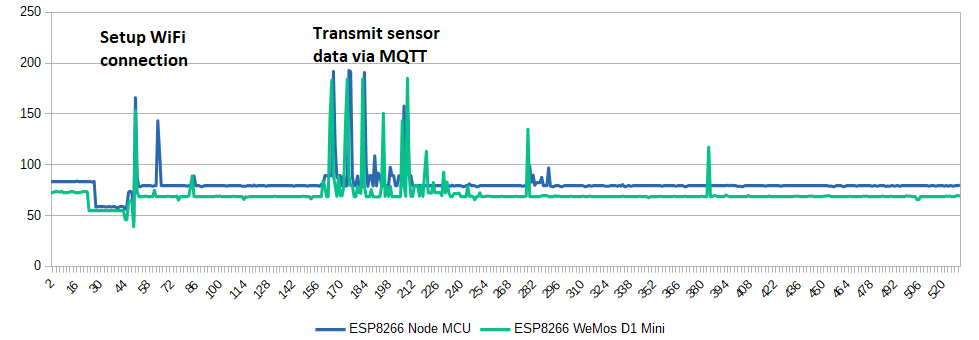
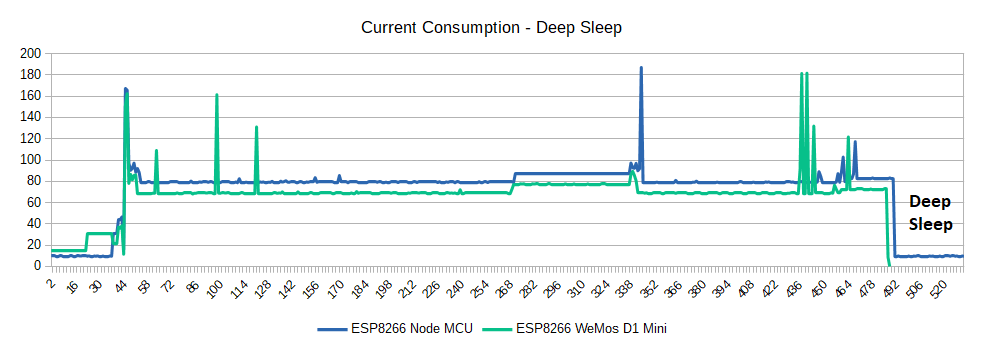
The first measurement is without any use of a power mode and therefore the reference of the following measurements. The following picture shows one cycle of the reference measurement. The y-axis of all pictures do not have a unit because it is scaled multiple times and therefore a unit does not make any sense. But to compare the influence of the different power modes, no unit is needed.

ESP8266 current consumption Reference Detail

You see that overall the WeMos D1 Mini has a lower current draw over one cycle because in idle state there is a gap between the NodeMCU and the WeMos. There are also two different times in one cycle of the program where the current consumption peaks. The first time is when the microcontroller sets up the WiFi connection to the Raspberry Pi. After the connection is established, the microcontroller reads the sensor values, where no high current is needed. When the temperature and humidity is sent via MQTT to the Raspberry Pi however the power consumption rises for a second time.

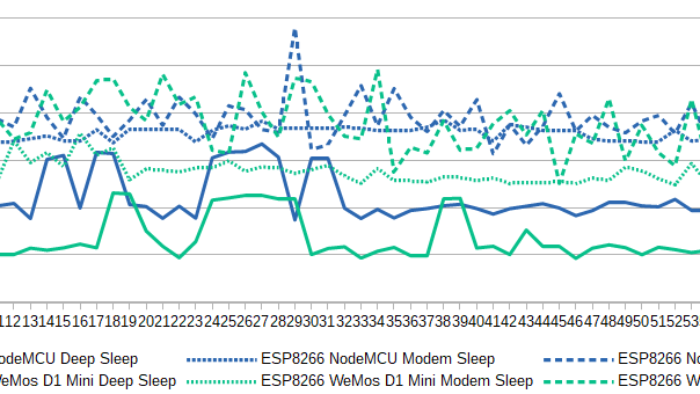
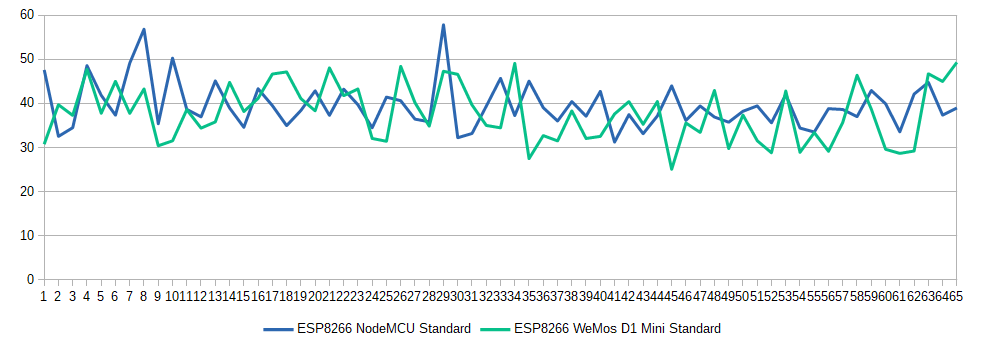
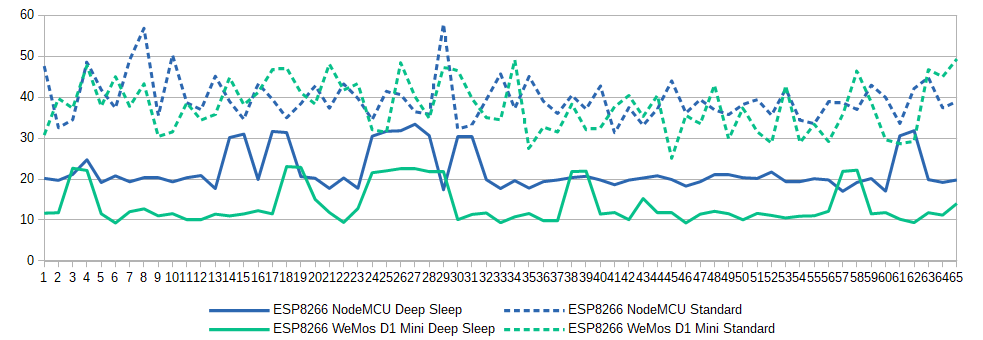
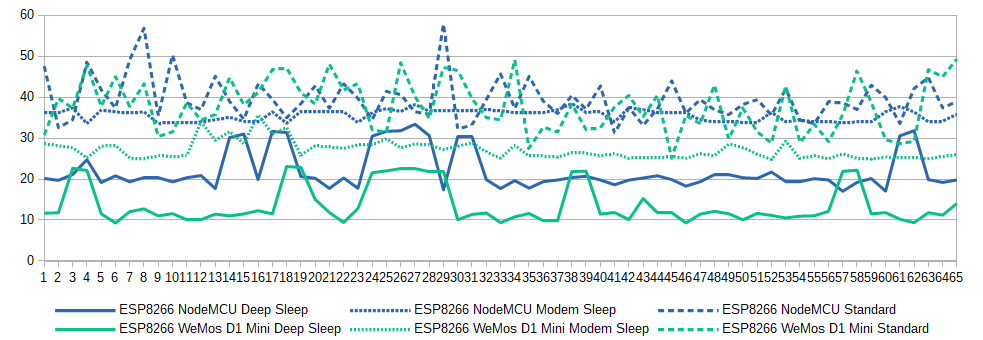
After the detailed view of one cycle, the following picture shows the behavior of the current over 65 cycles. Each measurement is the sum of the current of one cycle.

ESP8266 current consumption Reference Average

The current demand for both microcontrollers is between 30 and 50 with some outliers. From the picture we see, that in most cases the current consumption of the NodeMCU is higher compared to the WeMos D1 Mini. But it is also possible that the WeMos has a higher power consumption. Therefore I calculated the average current per cycle for both microcontrollers with the following result:

  • Average current consumption of NodeMCU: 39.58
  • Average current consumption of WeMos D1 Mini: 37.81

After we set our baseline, we go into the different power saving modes of the ESP8266. For the modem-sleep and deep-sleep, I calculated the detailed and average power consumption to compare the different results.

Modem-sleep

The modem-sleep mode is automatically accessed by the ESP8266. Also the wake up trigger is automatically set. Therefore you do not have to configure an interface.

If you want to set the NodeMCU to Modem-sleep you have to set up the WiFi connection via STA mode (station mode). STA mode is used to get the ESP8266 connected to a WiFi network established by an access point like a router.

#include "ESP8266WiFi.h"
#include "WiFiClient.h"

void setup() {
  Serial.begin(115200);
  
}

void loop() {
  WiFi.mode( WIFI_OFF );
  WiFi.forceSleepBegin();
  Serial.println("WiFi is down");
  delay(20000);

  WiFi.forceSleepWake();
  delay(1);
  // Bring up the WiFi connection
  WiFi.mode(WIFI_STA);
  WiFi.begin("XXX", "XXX");

  // Wait until the connection has been confirmed before continuing
  while (WiFi.status() != WL_CONNECTED) {
    delay(500);
    Serial.print(".");
  }

  // Debugging - Output the IP Address of the ESP8266
  Serial.println("WiFi connected");
  Serial.print("IP address: ");
  Serial.println(WiFi.localIP());
  delay(2000);
}

In Modem-sleep mode, the ESP8266 stays connected to the current Wi-Fi through the DTIM beacon mechanism.

The DTIM beacon mechanism

DTIM beacon mechanism

Beacons are broadcast transmissions sent by the master of the network. A beacon transmission is periodic and is normally set in multiples of Transmission Units (TU). Beacon transmission terminology is DTIM (Delivery Traffic Indication Map) interval. This interval is a multiple of the basic beacon transmission interval.

For example: If the basic beacon transmission interval is 100ms and the DTIM interval is 2, then every second beacon is a DTIM beacon. Each beacon has a down counter (Beacon DTIM cnt) in each beacon transmission. While the counter is counting to zero the ESp8266 is in Modem-sleep mode. If the counter has a value of 0, it is the DTIM beacon and the ESP8266 wakes up the WiFi to receive data.

The DTIM interval could also be greater than 2. The greater the DTIM interval is, the longer the ESO8266 stays in the Modem-sleep mode and saves energy.

Modem-sleep Current Measurement

After we know how the modem-sleep power function works, we want to know how the power saving mode influences the current consumption in the experiment. The following picture shows the details of one cycle in the MQTT experiment.

ESP8266 current consumption Modem Sleep Detail

Compared to the reference measurement we see that there are also current spikes up to nearly 200, because the modem sleep function can not have an influence to the power consumption that is needed to connect the microcontroller to the WiFi network or to transfer the sensor data via MQTT to the Raspberry Pi.

But what we see is, that when the data is sent, the WiFi of the microcontroller is shut down and therefore the current consumption is reduced from 75 in the reference measurement to 25.

That the overall power consumption is reduced is also clearly visible in the next picture, that shows the measurement of multiple cycles for the modem-sleep function compared to the reference measurement.

ESP8266 current consumption Modem Sleep Average

If we compare the current consumption of the ESP8266 NodeMCU to the WeMos D1 Mini, we see that the WeMos consumes less energy in modem-sleep mode with on average 27.10 to 35.61 for the NodeMCU. Therefore if we want to maximize the lifetime of a battery powered experiment, we see a positive influence using the modem sleep mode.

Light-sleep

The light-sleep mode is quite similar to the Modem-sleep mode. The only two differences are:

  1. ESP8266 powers of the system clock
  2. The internal CPU is suspending
    Therefore the board will not respond to signals and interrupts from other hardware interfaces. The ESP8266 need to wake up from an external GPIO. The wake up process needs less than 3ms. The interface to wake up the ESP8266 by GPIO is: void gpio_pin_wakeup_enable(uint32 i, GPIO_INT_TYPE intr_state);
    • uint32 i: The IO serial number of the wake-up function.
    • GPIO_INT_TYPE intr_state: The trigger mode of wake-up: GPIO_PIN_INTR_LOLEVEL or GPIO_PIN_INTR_HILEVEL

These two differences results in a big drop in consumption from 15mA to 0.4mA.

GPIO16 cannot be used as wake up line because GPIO16 is reserved as wake up line for the Deep-sleep mode.

The following example will connect and deconnect the NodeMCU to the local WiFi and set the sleeping mode to light sleep.

void setup() {
  Serial.begin(115200);
}

void loop() {
  // Disable light sleep
  wifi_set_sleep_type(NONE_SLEEP_T);
  delay(2000);

  // Enable light sleep
  wifi_set_sleep_type(LIGHT_SLEEP_T);
  delay(2000);
}

Deep-sleep

f you want to use an external power supply and save the most energy possible, go with the deep-sleep mode! The ESP8266 power consumption reduces in theory to 20µA * 3.3V = 66µW. Your external battery with 1000mAh will last a lot longer.

T = 1000mAh / 20µA = 50,000h = 2083 days = 5.7 years (note that this lifetime cannot be used due to the three major influences that will reduce the theoretical lifetime of your system)

Unlike the other two modes, the system cannot go into Deep-sleep automatically. Users can call the interface function system_deep_sleep to immediately enable Deep-sleep. In this mode, the chip will turn off Wi-Fi connectivity and data connection; only the RTC module is still working, responsible for periodic wake-ups.

To enable the deep-sleep mode you only have to use the following line of code: ESP.deepSleep(uint32 time_in_us); where you define a time, when the ESP8266 will wake up from the deep-sleep mode. The maximum time in deep-sleep is 4,294,967,295 µs, which is about ~71 minutes.

After the defined time, the ESP8266 will be wake up by a reset pulse from the D0 pin (GPIO16), which is defined as the wake-up line. Therefore you have to physically connect D0 with RST.

The following two pictures show how to connect the D0 pin with RST to wake up the ESP8266 NodeMCU and WeMos D1 Mini microcontroller after the deep sleep phase..

Deep-sleep Current Measurement

Because in theory the deep-sleep mode of the ESP8266 is the mode, where the microcontroller has the lowest power consumption, we want to know how low is the consumption compared to the reference example.

The following picture shows again one cycle of the experiment in detail. Like in the modem-sleep mode, the power consumption, when the microcontroller sets up the WiFi connection and sends the measurements, is not reduced but when the ESP8266 goes into the deep-sleep mode, the current consumption drops to even lower values compared to the modem-sleep more.

ESP8266 current consumption Deep Sleep Detail

When we compare multiple runs of the experiment we see the same result.

ESP8266 current consumption Deep Sleep Average

How much reduces deep sleep the current consumption?
The deep-sleep mode reduces the current consumption of the ESP8266 by 44% for the NodeMCU and by 64% for the WeMos D1 Mini compared to the use of no power mode. Therefore if you have a project that depends on the lifetime of a battery, the usage of the deep-sleep mode is essential.

Important is, that in the experiment the microcontroller goes into the sleep mode only for 10 seconds and then continues the loop function with the next cycle. In a real word project, for example an outdoor weather station, the sleep time would be several minutes and not seconds. Therefore the influence of the deep-sleep mode would be even larger, resulting in a far lower current draw.

The second important fact from the picture above is that again the WeMos consumes almost half the power in the deep sleep mode compared to the NodeMCU. In my opinion it is clear that the WeMos consumes less power because the whole microcontroller is smaller with fewer parts that need energy.

Conclusion

In this article you learned how you can extend the lifetime of your battery powered project with the deep-sleep mode. If you plan do make a project that is battery powered, I would recommend a WeMos D1 Mini in combination with the deep sleep power saving mode. The following picture shows the current consumption of multiple cycles for all tested power modes and the reference measurement.

ESP8266 Overall Measurement

With the following button you can download the Arduino scripts that I use for the different experiments. When you click on the button, you download all files in a zip folder.

I hope you enjoyed the reading and will use the deep sleep mode in your current or next project. Do you ever used an external power supply for one of your project? What is your next project and will you use the deep sleep mode? Let me know and write in the comments.

Also if you have any questions regarding the power saving modes, use the comment section below to ask your question. I will answer them as soon as possible.
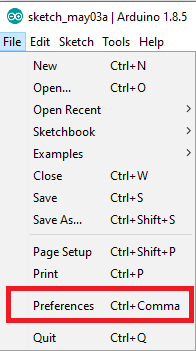
ArduinoDesktopIDE

Arduino Desktop IDE Guide

Arduino Desktop IDE Guide

In this article you learn step by step how you install the Arduino Desktop IDE on your computer.

Moreover I show you how to set up the Arduino IDE with different libraries and different boards that you do not have to worry about the setup for your next project.

Arduino Logo

Table of Contents

The Arduino IDE is a program for creating your Arduino projects. The main features of the Arduino IDE are the following:

  • Create your sketch / script
  • Download and include external libraries for your devices like sensors
  • Flash your microcontroller board and handle errors
  • Analyze the running script via the serial plotter and serial monitor

The Arduino IDE is free to use and can be downloaded from the official Arduino website. But not only official Arduino boards can use the Arduino IDE. All boards which are compatible to Arduino can use the IDE in the same way.

Installing the Arduino Desktop IDE on your PC

Follow the steps below to install the Arduino Desktop IDE

  1. Go to the official website
  2. Download the ZIP file (in my case the operating system is Windows)
  3. Unzip the ZIP file into a local directory of your choice
  4. Navigate into the directory and open the arduino.exe to start the Arduino IDE

Great you have successfully installed the Arduino IDE. Maybe installed is a bit misunderstanding because there is no installation process required.
Next we will look at the IDE itself.

Installing Arduino IDE Part 1
Installing Arduino IDE Part 2

Overview of the Arduino IDE

Arduino Desktop IDE
  • Arduino IDE version: shows your current version of the Arduino Desktop IDE. Try to hold the version up to date.
  • Menu bar: The menu bar is the main place controlling the IDE. We will view the menu bar in detail further down.
  • Operation buttons:
    • Verify: Check is written code has right syntax
    • Upload: Uploads the script to the microcontroller. Code verification is done before uploading the script.
    • New: Opens a new script.
    • Open: Open a window to select a script from working directory and open the selected script.
    • Save: Saves the actual script in the selected folder in working directory.
  • Open serial monitor: Opens the serial monitor to see the output from a script. Use “Serial.print(“This is the serial output”);” to print one line as output.
  • Script bar: In the script bar you find all your current selected scripts. Therefore it is easy to switch between different scripts and you do not have to open a extra Arduino IDE for every script.
  • Arduino script editor: In the script editor you will program your script. The programming language is a mix between C and C++. The editor highlights code in different colors which make the code faster to read. There have to be two functions in every script:
    1. void setup(): The setup function will run only one time the board is connected with a power supply. Usually you will define GPIOS as output / input, define settings for external displays or settings for the WiFi connection.
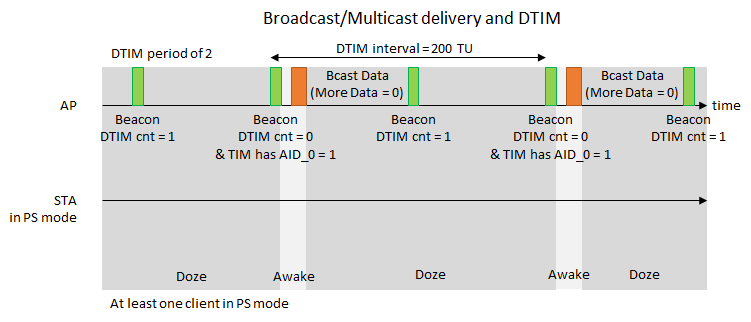
    2. void loop(): The loop function run as an open ended loop for the microcontroller. If the end of the loop function is reached, the script will continue with the first line of the loop function.
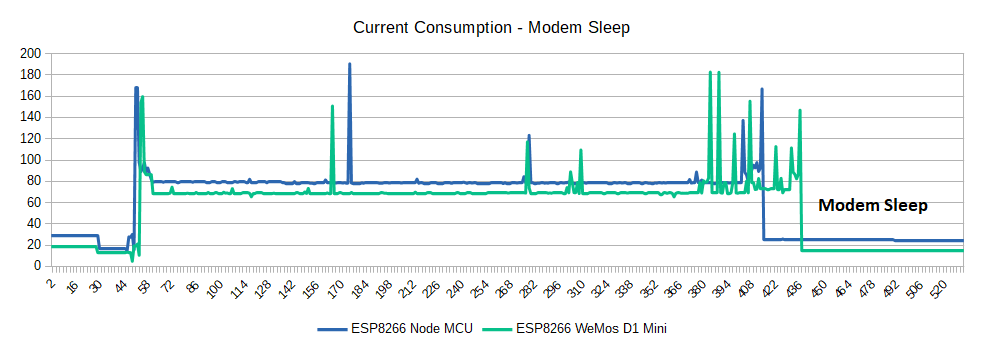
  • Output console: In the output console you find errors if the syntax check failed or you see the progress uploading a script to the microcontroller board.
  • Selected board and settings: In the bottom right side you see the selected board from the settings and the selected COM port, where the board is connected to the PC to upload a script.

File

Arduino Desktop IDE File
  • New: Opens a new script.
  • Open: Open a window to select a script from working directory and open the selected script.
  • Open Recent: Open a recent script directly without opening an extra window.
  • Sketchbook: Own written programs to extend the functionality of the Arduino IDE.
  • Examples: Open an example script. There are many examples and I recommend to test some of these examples to get a quick overview of different use cases and possible solutions.
  • Close: Closes the current script.
  • Save: Save the current script
  • Save As…: Save the current script but opens a window to save the script under a new name.
  • Page Setup: Opens settings for the print layout.
  • Print: Print the current script.
  • Preferences: Opens a window with preferences. Here you can change the working directory or include other non-original Arduino boards like the NodeMCU boards based on ESP8266. I would suggest to select the “Display line numbers” for easier project documentation and “Enable Code Folding” to fold function and maintain code overview.
  • Quit: Quit the Arduino Dekstop IDE
Arduino Desktop IDE Preferences

Edit
All commands refer to the Arduino IDE script editor

Arduino Desktop IDE Edit
  • Undo: Reverse the last editing action.
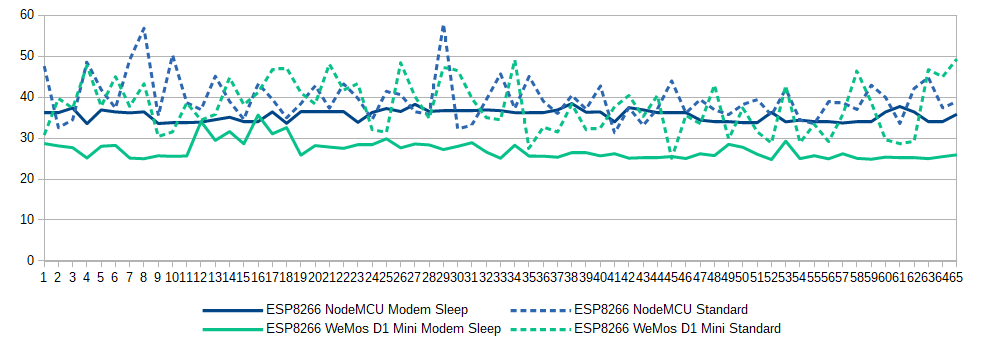
  • Redo: To reverse your last Undo.
  • Cut: Cut a selected part of the script editor.
  • Copy: Copy a selected part of the script editor.
  • Copy from Forum: Copy the selected part and set [code] attributes at the before and after the selected code.
  • Copy as HTML: Copy the selected part as HTML code.
  • Paste: Past a recopied text to the script.
  • Select All: Select all content from script.
  • Go to line…: Jumps in selected line.
  • Comment/Uncomment: Set or remove // at the beginning of every selected line to comment or uncomment the whole line. Commented code will be ignored by the compiler.
  • Increase Indent: Increase the indent for syntax correctness and better code overview.
  • Decrease Indent: Decrease the indent for syntax correctness and better code overview.
  • Increase Font Size: Increase Font Size
  • Decrease Font Size: Decrease Font Size
  • Find…: Opens a window to search for keywords.
  • Find Next: Find the next possible keyword.
  • Find Previous: Find the previous possible keyword.

Sketch

Arduino Desktop IDE Sketch
  • Verify/Compile: Check is written code has right syntax and if there are any compiler errors.
  • Upload: Uploads the script to the microcontroller. Code verification is done before uploading the script.
  • Upload Using Programmer: Burn sketches to the Arduino board without using the bootloader. This allows you to use the full program space (flash) of the chip on the Arduino board. But you need an external programmer. (Only for advanced users!)
  • Export compiled Binary: Create a .bin file from the script.
  • Show Sketch Folder: Open the sketch folder where the compiled binary file is located.
  • Include Library: Include different libraries to extent the Arduino functionality. For most and for all standard or most used component you will find the corresponding library in the manual of the component.
  • Add File: You can add your own library within a folder that contain a C or C++ file with your code and a header file with your function and variable declarations.

Tools
Under the tools tab there are some information which depend on your selected board. In the example I choose the NodeMCU 1.0 board, which has slightly more options than a standard Arduino board.

Arduino Desktop IDE Tools
  • Auto Format: Format the code properly with perfect indent and line breaks.
  • Archive Sketch: Archives a copy of the current sketch in .zip format. The archive is placed in the same directory as the sketch.
  • Fix Encoding & Reload: Fixes possible discrepancies between the editor char map encoding and other operating systems char maps.
  • Serial Monitor: Opens the serial monitor to see the output from a script. Use “Serial.print(“This is the serial output”);” to print one line as output.
  • Serial Plotter: Opens the serial plotter that takes incoming serial numerical data and displays them in a plot over the time as x-axis.
  • WiFi101 Firmware Updater: Updating the firmware over WiFi.
  • Board: Select the used board from a list.
  • Flash Size: Select how much flash size is used for Serial Peripheral Interface Flash File System (SPIFFS).
  • Debug port: If you want to debug the microcontroller you can select the referring port.
  • Debug Level: If you want to debug the microcontroller you can select the debug level.
  • IwIP Variant: Settings for the lightweight IP used as open-source TCP/IP stack.
  • Vtable: Setting of virtual table for virtual classes. A little hidden piece of RAM that has pointers to virtual functions.
  • CPU Frequency: Setting of the CPU frequency. With 160 MHz the microcontroller runs faster but needs more power. For current-saving projects use the lowest setting.
  • Exceptions: Is enabled output exceptions to find out in which line of the application an issue has taken place.
  • Upload Speed: Defines the speed, the script is uploaded to the board.
  • Erase Flash: Setting if only the flash should be erased where the sketch is saved every time a new sketch is uploaded or if also the WiFi settings or the whole flash should be erased. (Only for advanced users!)
  • Port: Select the port number where the board is connected to the PC via USB cable.
  • Get Board Info: Display information about the selected board.
  • Programmer: For selecting a hardware programmer when programming a board or chip and not using the onboard USB-serial connection. This is only needed when burning the bootloader. (Only for advanced users!)
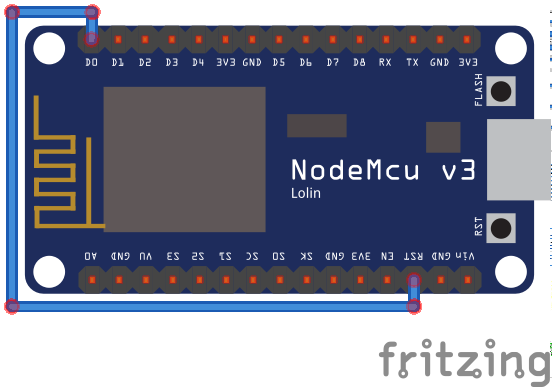
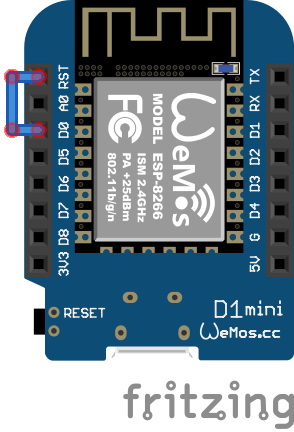
  • Burn Bootloader: The items allow you to burn a bootloader onto the microcontroller on an Arduino board. This is required if you change the microcontroller on the board, because a new Atmega microcontroller comes normally without bootloader. (Only for advanced users!)

Include an ESP8266 boards to the Arduino Desktop IDE

Maybe you want to use an ESP8266 board rather than an Arduino board. Than you have to make a little change to introduce the NodeMCU board to the IDE.
Just klick on File → Preferences. Insert the following URL for the Additional Board Manager URLs

http://arduino.esp8266.com/stable/package_esp8266com_index.json

The second step is to install the necessary packages for the ESP8266 module:
Click in the Arduino IDE on Tools and make sure your settings are the following. To select the Node MCU Board the Ardiuno IDE has to download the board information from the Board Manager: Click onTools → Board → Board Manager.

Arduino IDE Board Manager

Now search for NodeMCU and you will find the esp8266 by ESP8266 Community. Install the latest version of the board. After the installation you are able to select the right board for the settings.

Board Manager NodeMCU

That’s all. You successfully configured a ESP8266 boards to the Arduino Desktop IDE.

Conclusion

This article covered the Arduino Desktop IDE which you will need to use if you want to work with different boards like Arduino or ESP based boards. I hope you enjoyed the article and feel free to ask open questions in the comment section below.
I also wrote a tutorial for the Arduino Web Editor, which you find here.

ArduinoWebEditor

Arduino Web Editor Guide

Arduino Web Editor Guide

The following article covers the whole Arduino Web Editor.

Your learn the advantages and disadvantages of the Arduino Web Editor before we see how to sign up for the Editor.

After we get an overview of the whole Web Editor I show you how to flash a sketch from the Arduino Web Editor to your Arduino board and how you can import sketches and projects from your local computer to the Web platform.

Arduino Logo

Table of Contents

What is the Arduino Web Editor?

The Arduino Web Editor is the whole Arduino Desktop IDE online in a web browser. With the help of the Arduino Web Editor you are able to create and document your Arduino projects, create sketches, flash sketches onto your Arduino board and share your work with your friends.

Advantages / Disadvantages using the Arduino Web Editor in comparison to the Arduino IDE

Advantages

  • Save your sketches in the Arduino cloud to access them anytime and everywhere. Also your sketches are protected against data loss.
  • You do not have to update your IDE because the Arduino Web Editor will always run the most up-to-date version of the IDE.
  • You can easy share your projects with your friends or colleges.

Disadvantages

  • You only can work with Arduino boards in the Arduino Web Editor. Most of the time I use boards based on the ESP8266 like the NodeMCU and I can not flash a sketch to this board. Therefore I do not use the Arduino Web Editor.
  • A plotter like in the Arduino Desktop IDE is not available in the Arduino Web Editor

Sign Up and Log In to the Arduino Web Editor

OK now we want use the Arduino Web Editor. The following chapter will be a tutorial how to sign up for the Arduino Web Editor and how to use the IDE.
First visit the homepage of the Arduino Web Editor.

If you already have an account you can log in on the left side. If you want to sign up with your google account, use the button below. Also you can create a new account clicking on the right avatar. I use the option to sign in with google. You have to choose a username and confirm the policies.

Arduino Web Editor Login

After the Arduino Web Editor is loaded you can choose if you want to take a tour to view the main features.

Arduino Web Editor Startup

If you click “No, thanks” you will see the overview of the Arduino Web Editor.

Overview of the Arduino Web Editor

The IDE is divided into 3 main columns. We go into the first column in detail because the first column is the main control area for the Web IDE. The second column is directly dependent on the selection of the first column and acts like a side panel. The third column is the code area where you write your script, verify the script if everything is coded right and finally upload the sketch to your Arduino board.

Arduino Web Editor IDE Overview

Sketchbook
The Sketchbook is your default view if you start the Arduino Web Editor. On the second column you have different options to do:

  • Create a new sketch
  • Create a new folder to organize your sketches and projects
  • Import sketches
  • Select a sketch to work on it in the third column
  • Search for a sketchbook

Examples
In this section you can select example sketches to quickly test a board or to see if you can adapt some code parts to your own sketch. Most of the examples are the same as the Arduino Desktop IDE.

Libraries
Of course you can import different libraries to provide extra functionalities. The process is the same as in the Arduino Desktop IDE. For most and for all standard or most used component you will find the corresponding library in the manual of the component.

Arduino Web Editor Libraries

Serial Monitor
If no board is connected, the Serial Monitor will be greyed out and unavailable. A plotter like in the Arduino Desktop IDE is not available in the Arduino Web Editor

Help
In the help section you find the current info about the Arduino Desktop IDE like the version and the supported operation systems and browsers. Also you find the supported boards:

• Arduino/Genuino 101
• Arduino/Genuino Mega or Mega 2560
• Arduino/Genuino Micro
• Arduino/Genuino MKR1000
• Arduino/Genuino Uno
• Arduino/Genuino Zero (Native USB Port)
• Arduino/Genuino Zero (Programming Port)
• Adafruit Circuit Playground
• Adafruit Circuit Playground Express
• Analog ADI (Native USB Port)
• Analog ADI (via Atmel-ICE)
• Arduino Due (Native USB Port)
• Arduino Due (Programming Port)
• Arduino Duemilanove
• Arduino Esplora
• Arduino Ethernet
• Arduino Industrial 101
• Arduino Leonardo
• Arduino Leonardo ETH
• Arduino M0
• Arduino M0 Pro (Native USB Port)
• Arduino M0 Pro (Programming Port)
• Arduino Mega ADK
• Arduino Mini

• Arduino MKR FOX 1200
• Arduino MKR GSM 1400
• Arduino MKR NB 1500
• Arduino MKR Vidor 4000
• Arduino MKR WAN 1300
• Arduino MKR WiFi 1010
• Arduino MKRZERO
• Arduino Nano
• Arduino Primo
• Arduino Primo Core
• Arduino Pro or Pro Mini
• Arduino Robot Control
• Arduino Robot Motor
• Arduino Tian
• Arduino Tian (MIPS Console port)
• Arduino Uno WiFi
• Arduino Uno WiFi Rev2
• Arduino Yún
• Arduino Yún Mini
• ARM Linux Generic SBC
• EMoRo 2560
• Industruino D21G
• Intel x86 Boards

• Intel x86_64 Boards / IoT Gateways
• LilyPad Arduino
• LilyPad Arduino USB
• Linino One
• littleBits w6 Arduino Module (Leonardo)
• SmartEverything Dragonfly (Native USB Port)
• SmartEverything Dragonfly (via Atmel-ICE)
• SmartEverything Fox (Native USB Port)
• SmartEverything Fox (via Atmel-ICE)
• SmartEverything Fox3 (Native USB Port)
• SmartEverything Fox3 (via Atmel-ICE)
• SmartEverything Lion (Native USB Port)
• SmartEverything Lion (via Atmel-ICE)
• SmartTutto (Native USB Port)
• SmartTutto (via Atmel-ICE)
• UP² Board
• Windows 10 IoT Core

In the second tab of the help section you find different tutorials to get started with the IDE. In the third tab you find a glossary for all names that you might be unfamiliar with.

Preferences
In the preferences you see how much space you are currently using. Because the sketches and projects are saved in the Arduino cloud the space is limited to 100 sketches and 100 MB. In my opinion are 100 sketches a good amount.
Also you are able to edit the front size of the editor and the editor theme if you prefer a dark theme over a light theme. Looks a bit nerdy the dark theme right ;)?
There are although several check boxes in the preferences:

  1. Save when verifying and uploading. Should be enabled that you make sure what code is on your Arduino board.
  2. Enable Autosave. This option should although be enabled because I really lost time because I programmed till the last minute and then I quickly shut everything down without remembering to save my sketches.
  3. Always show output panel. In my case I use the output panel a lot and therefore I always let this option checked. If you do not use the output panel, you can disable this option.

Last there are two advanced option which I did not touch and therefore these two options are unchecked.

Arduino Web Editor Preferences

Upload a sketch to your Arduino board

If you want to upload your sketch to one of your Arduino boards you first have to install a plugin so that your firewall is not blocking the traffic. You can download the plugin for Mac, Windows or Linux from this URL.

Arduino Web Editor Plugin Installation 1

The file you have downloaded should be like ArduinoCreateAgent-1.1-windows-installer-chrome.exe. Double click on the exe file to install the plugin. I suggest to use the chrome browser together with the plugin because this combination runs very stable. After you successfully installed the plugin, your operation system is asking you if you want to install the corresponding drivers: VBoxManage setextradata “Ubuntu” VBoxInternal2/EfiGraphicsResolution X

Click Yes to install the drivers. Now you have a new symbol in your taskbar. If you look back into your browser, the Arduino Create platform is searching for the installed plugin.

Arduino Web Editor Plugin Installation 2
Arduino Web Editor Plugin Installation 3

After 1-2 minutes the platform found the plugin. Click Next to return to the Arduino Web Editor. In the Arduino Web Editor select an example sketch to test the connection between the IDE and your local Arduino board.

Arduino Web Editor Plugin Installation 4
After you select for example the blink sketch you have to select your corresponding board and the connected port (1).
Arduino Web Editor Plugin Installation 5
Arduino Web Editor Plugin Installation 6

After you selected board and port you can upload your script (2).


Import your sketch from the Arduino IDE
Now if you want to change coding from Arduino Desktop IDE to the Arduino Web Editor, there is a very useful import function. You only have to select Sketchbook from the first column and then Import on the second column.

Arduino Web Editor Import Sketch

You can import 3 different types

  1. Single sketches in .ino, .pde and .zip format.
  2. Libraries in .zip format.
  3. Zipped folders containing sketches and libraries. Make sure your libraries are in a folder called ‘libraries’. Be sure not to mix sketches and libraries in the same folder.

Conclusion

As said in the first section of this article I like to use different bards. Most of the time I use NodeMCU boards and these boards are not compatible with the Arduino Web Editor. Therefore I am using the local Arduino IDE for all of my projects. Do you prefer the Arduino Web Editor over the Arduino Desktop IDE? If so, why and do you like to share your over the Web Editor? Feel free to answer in the comments below.
I also wrote a tutorial for the Arduino Desktop IDE, which you find here.

ESP8266 Models

ESP8266 Pinout Overview [ESP-01, NodeMCU, WeMos D1 Mini]

ESP8266 Pinout Overview [ESP-01, NodeMCU, WeMos D1 Mini]

The following article give you an overview of the ESP8266 pinout of different boards I use.

We compare the specifications of the different microcontroller and take a look at the pinout in detail.

Also you find an overview of different possibilities of power supply.

ESP8266 Models

Table of Contents

If you want detailed technical specifications about the ESP8266 I wrote this article where I compared the technical specifications from different Arduino, ESP8266 and ESP32 microcontroller.

The following table gives you an overview of all components and parts that I used for this tutorial. I get commissions for purchases made through links in this table.

 ESP-01AmazonBanggoodAliExpress
ANDESP8266 NodeMCUAmazonBanggoodAliExpress
ANDESP8266 WeMos D1 MiniAmazonBanggoodAliExpress

ESP-01

The ESP-01 is a very small module based on the ESP8266 microcontroller. The ESP-01 measures 25 mm by 14 mm and has 8 GPIOs. Like all modules based on the ESP8266 it has WiFi included. There are a 1MB flash and a 512 kB flash version available.

ESP-01 pinout

ESP8266 Pinout of ESP-01

WordPress Tables Plugin

ESP-01 Power Supply

The ESP-01 can not connected to a USB power source. The only possibility is to connect the ESP-01 with a 3,3 V power source via the VCC pin.

ESP8266E-12 (NodeMCU)

The NodeMCU board got his name from an open source IoT platform. The platform includes firmware which runs on the ESP8266 WiFi SoC from Espressif Systems, and hardware which is based on the ESP-12 module. The NodeMCU incorporates 4MB flash memory. If you want to buy this board you will find it under the name NodeMCU or ESP8266E-12.
You will find different versions of the board.

NodeMCU pinout
  • Version 1 is quite old and I would not recommend to use it for future projects.
  • The V2 fixes the short comings of the initial board, it’s more narrow and fits nicely into bread boards. Also the chip was upgraded from a ESP-12 to a ESP-12E.
  • The Version 3 is invented by producer LoLin with slightly minor improvements. They claim that their USB port is more robust. LoLin decided to use one of the two reserve pins for USB power out and the other for an additional ground. But the major downside of the V3 board is its size. The dimension of the V2 are 48x26x13 mm compared to the V3 with 58x31x13 mm. Therefore the V3 board will not fit on a breadboard.

My recommendation is to use the Version 2 because I like to test my prototypes on a breadboard and do not see the advantages using the Version 3.

ESP8266 Pinout of NodeMCU

The NodeMCU has in total 4 different power pins:

  • 3 pins provide 3.3V and 400mA
  • 1 pin marked as VIN provides 5V and can power the whole NodeMCU between 7V-12V with up to 1A

and in total 5 ground pins to close the electric circuit.

The ESP8266 has a lot of communication pins:

Some of the communication pins can also be used as digital input/output pins.

The NodeMCU has in total 10 digital I/O pins which are all PWM ready.

Unfortunately the NodeMCU has only 1 analog pin which has a voltage range of 0V-3.2V and is connected to a voltage divider composed of two resistances 220kΩ and 100kΩ.

NodeMCU Power Supply

ESP8266 NodeMCU voltage levels and maximum current

You have 3 possibilities for a power supply of the NodeMCU:

  1. Operate the NodeMCU on the 3.3V input with 2.5V to 3.6V
  2. Operate the NodeMCU on the VIN input pin with a voltage between 7V and 12V
  3. Use a USB cable with 5V. A diode prevents current from the 5V input to the USB connection flows.

The built-in voltage regulator has a maximum power reserve of 300mA for external expansions at 5V input voltage.

WeMos D1 Mini

The WeMos D1 Mini with integrated ESP8266 has an operating voltage of 3.3V and 4MB flash memory. Its size 34.2mmx25.6mm is between the NodeMCU and ESP-01 module by Ai-Thinker.
There are different versions of the WeMos D1 Mini board

WeMos D1 Mini pinout
WordPress Tables Plugin

ESP8266 Pinout of WeMos D1 Mini

Because the WeMos D1 Mini is also based also on the ESP8266, the possible pinout would be the same as the NodeMCU. But the WeMos D1 Mini is more like a litte version of the NodeMCU with fewer pins but still enough for basic projects.

The WeMos D1 Mini has a 3.3V and 5V output to power different external components. Both pins can provide up to 500mA and the 5V pin is also able to power the whole board with a supply voltage between 4V-6V. The circuit is closed over one ground pin.

Instead of 10 digital I/O pins, the WeMos has only 8 digital I/O pins, which are also all able to produce a PWM signal.

The WeMos has also all communication pins:

Because the ESP8266 has only 1 analog pin, the WeMos D1 Mini has also this 1 analog pin.

WeMos D1 Mini Power Supply

ESP8266 WeMos voltage levels and maximum current

You have 3 possibilities for a power supply of the NodeMCU:

  1. Operate the WeMos D1 Mini on the 3.3 V input with 2.5V to 3.6V
  2. Operate the WeMos D1 Mini on the 5V input with 4V to 6V
  3. Use a USB cable with 5V. A diode prevents current from the 5V input to the USB connection flows.

What boards do you like to use for your project. Do you like to stick to one board independent of the project or do you plan your project carefully and decide what board to use regarding the best fit for the project? Tell me what is your favorite ESP8266 board.

ESP8266_thumbnail

ESP8266 tutorial: What do you have to know about the ESP8266 microcontroller?

ESP8266 Tutorial: What do you have to know about the ESP8266 microcontroller?

The following ESP8266 tutorial give you a kick-start in the fundamental knowledge of the ESP8266 microcontroller.

First I show you that the ESP8266 is in my opinion the best microcontroller on the market regarding price-performance ratio. After we compare the pros and cons of the ESP8266, this tutorial will close with a first project as a step by step introduction.

Table of Contents

What is the ESP8266?

The ESP8266 is a powerful 32 bit microcontroller with integrated Wi-Fi and full TCP/IP stack for internet connection. The chip is produced by Espressif Systems in Shanghai, China and is famous for its low price compared to original Arduino boards. You can buy a full ESP9266 board for under $5 which makes it popular for low cost DIY projects. There are different modules using the ESP8266. These modules have a different number of GPIOs to connect the microcontroller with other devices like sensors or actors.

Technical specifications of the ESP8266

  • Tensilica’s L106 Diamond series 32-bit processor and on-chip SRAM
  • Power supply: 2.5V – 3.6V
  • Current consumption: 15µA – 400mA (average: 80 mA). In DeepSleep-Mode only 0.5µA
  • Operating temperature range: -40°C – 125°C
  • External flash memory: up to 16 MB is supported (512 kB to 4 MB typically included)
  • Interfaces
    • UART/SDIO/SPI/I2C/I2S/IR Remote Control
    • 11 or 13 programmable I/O pins with max current of 12 mA
    • 1 analog input 0V to 1V with 10 bit resolution
    • all inputs tolerate maximum 3.6V
  • Network
    • WiFi 802.11 b/g/n 2.4 GHz with WPA/WPA2 PSK
    • ipv4 and ipv6 from Arduino Core 2.5.0
    • UDP and TCP with 5 simultaneous connections as maximum
    • Bandwidth: 150 kByte/s to 300 kByte/s
    • Latency: < 10ms

Modules using the ESP8266

There are different modules using the ESP8266. The modules are not really different in programming. If you can program one module, you can basically program all. The main differences are the number and type of ports provided (GPIOs) as well as the available memory. For example, the small ESP-01 module has 512 KB of flash memory and the popular ESP-12E already has 4 MB of flash memory. In this article you find a comparison between all ESP8266 modules because this details are not part of the ESP8266 tutorial.

ESP8266 comparison to Arduino and Raspberry Pi

Advantages

  • No special operating system is needed so that the program does not depend on operating system.
  • Software is flashed to microcontroller. Therefore the board start executing the script when powered.
  • Compared to Arduino boards the ESP8266 are very fast and costs are very cheap.
    You find the full comparison between ESP8266 boards and Arduino boards in this article.

Disadvantages

  • A special operating system would be more flexible and also use cases like a security camera could be realized faster. See motioneye for Raspberry Pi.

Your first project of the ESP8266

In the following chapter, we will only consider the NodeMCU board which is basically a ESP-12 microcontroller with a voltage regulator and USB-UART interface to flash program code via the Arduino IDE and micro USB cable. Also the NodeMCU fits on breadboards which makes it easier and faster to build a prototype without soldering.

The following table gives you an overview of all components and parts that I used for this tutorial. I get commissions for purchases made through links in this article.

Now lets go into the practical part of this ESP8266 tutorial. We will make our first project. Follow the following 5 steps:

1) First you have to buy your ESP8266 board

To start the practical part of this ESP8266 tutorial you have to own an ESP8266 board. You can find a link to Amazon and Banggood in the box above. The NodeMCU is quite cheap and if you want to make more projects in the future you can directly buy a bundle of 4 boards to save some money. Also if you don’t have any of the needed components you can buy a Starter Kit. Trust me, you will need almost every part of such a kit in the future.

2) Second install and configure the Arduino IDE

We want to use the Arduino IDE as development platform to write and upload programs to compatible boards. You can download the Arduino IDE from the official website.
I suggest to use the latest version of the Arduino IDE. You can download and extract the zip file. There is no need for an installation, just open the Arduino IDE by clicking on arduino.exe. The Arduino IDE supports a whole range of different Arduino boards. Since we do not want to use an Arduino board but the NodeMCU board, we have to introduce the NodeMCU board to the IDE. This is quite easy. Just click on File → Preferences. Insert the following URL for the Additional Board Manager URLs.

http://arduino.esp8266.com/stable/package_esp8266com_index.json

Arduino IDE NodeMCU

3) Program the first script

Our first script will be a flashing LED and easy to program with only a few lines of code. The programming language is based on C. It is also possible for the ESP8266 to use LUA as programming language, but I prefer scripting in C. Every Arduino script is basically divided up into 3 parts:

  1. In the first part, variables and constants are defined. In this first part we define the GPIO pin connecting to the anode of the LED.
  2. The second part is the setup function. This function will run only one time if the ESP8266 is connected with a power supply. In our ESP8266 tutorial script we will define the selected GPIO pin as output.
  3. The last part of the script is the loop function, which will run as an open ended loop for the microcontroller. In the last part of the script we turn on the LED with the function digitalWrite(ledPin, HIGH) and wait a defined period of time. After this we, turn off the LED with the same function only that we change the command from HIGH to LOW and wait again for a while.

The following part is the finished script. Feel free to copy the script to your Arduino IDE.

const int ledPin = D8;

void setup() 
{
  pinMode(ledPin, OUTPUT);
}
 
void loop() 
{
  digitalWrite(ledPin,HIGH);
  delay(200);
  digitalWrite(ledPin,LOW);
  delay(200);
}

4) Connect all parts on a breadboard

Connecting all parts is easy because we only have one LED component. We define, that the LED will be powered from GPIO Pin D8 because we have to select a digital output for the LED. If you want to change the GPIO Pin, feel free but you have to use one of the digital outputs D1 to D8. If you change the GPIO Pin, make sure to change the script. Now connect all the parts:

  1. Put the NodeMCU on the breadboard and make sure there is one line of space to connect the LED.
  2. Connect the positive pole of the LED (long leg) with D8 of the ESP8266. In the breadboard, the vertical rows of the upper and lower side are interconnected internally.
  3. Connect the negative pole of the LED (short leg) with ground (GND) of the ESP8266.

Note: Typically the forward voltage of an LED is between 1.8 and 3.3 volts and the operating voltage of the ESP8266 is 3.3V. Therefor we do not need to use a resistor in series to the LED. If you are using a Arduino board, the operating voltage is 5V and you will need a 220 Ohm resistor.

esp8266 LED blinker example

5) Upload and run the script to the ESP8266 board

Now it is time to upload the script to the ESP8266. But first we have to make sure that all settings for the upload fit to the ESP8266.
You check the settings by connecting your NodeMCU via Micro USB to your PC or Laptop.

Click in the Arduino IDE on Tools and make sure your settings are the following. To select the Node MCU Board the Ardiuno IDE has to download the board information from the Board Manager: Click on Tools → Board → Board Manager.

Arduino IDE Board Manager
Now search for NodeMCU and you will find the esp8266 by ESP8266 Community. Install the latest version of the board. After the installation you are able to select the right board for the settings.
Board Manager NodeMCU

After the Arduino knows the ESP8266 boards make sure your settings for the board are the same as the following table

WordPress Tables Plugin
Arduino IDE NodeMCU Board Settings
Now we can finally upload the script to the ESP8266. Click in the arrow at the top of the Arduino IDE. At the bottom of the IDE you will see the upload process. If the upload process is finished successful you will have a flashing LED.
Arduino IDE run LED example

I hope you enjoyed this ESP8266 tutorial. You learned the fundamental knowledge of the ESP8266 microcontroller with the technical specifications. Also you know that there are different boards using the ESP8266 and created you first project with my favorite boards, the NodeMCU.

Now it is your part to make some changes to the script. Practices is the best method to get you familiar with the whole topic of microcontrollers. For example you can change the pause time up and down or use an other digital output as power source for the LED.
If you have questions, feel free to leave a comment.

Conclusion

In this article you learned the basics about the ESP8266 microcontroller. You know the technical specifications and the differences between ESP8266 boards, Arduino boards and the Raspberry Pi. Also I hope that you enjoyed creating your first project.
What do you think about the ESP8266? Do you like this microcontroller or do your prefer the Arduino or the Raspberry Pi? Also I would like to know what are projects you will implement.